How to Know If Your Phone Has a Virus: Quick Checks
Learn how to spot malware on your phone, diagnose issues, and safely remove infections. Your Phone Advisor guides you through practical steps to protect data and restore performance.


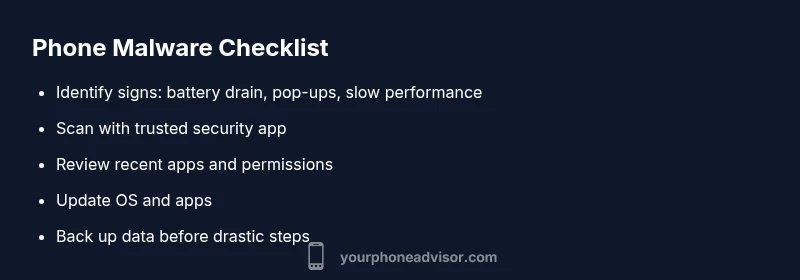
If your phone behaves oddly, you likely have a malware infection. Signs include sudden battery drain, slow performance, unfamiliar apps, data spikes, strange pop-ups, and overheating. To verify, run a trusted security scan, review app permissions, and check for system updates. Your Phone Advisor recommends starting with a full scan and safe mode.
What is a phone virus and how it spreads
A phone virus is a form of malware designed to covertly access data, disrupt performance, or display unwanted ads. It often travels through risky apps, deceptive links, or insecure Wi-Fi networks. According to Your Phone Advisor, infections can enter devices via app stores that haven’t fully vetted software, or through phishing messages that prompt you to install seemingly legitimate updates. The key is recognizing that mobile malware behaves differently from desktop malware because mobile ecosystems are tightly controlled, which limits how programs run but not how users interact with them. By understanding common vectors—unscrupulous apps, malicious links, and insecure networks—you can dramatically reduce risk. Your Phone Advisor’s team emphasizes that prevention starts with careful app installation, prompt OS updates, and skeptically evaluating prompts for permissions.
- Vectors to watch: untrusted app stores, bundled apps, suspicious links, and public Wi-Fi prompts.
- Why mobile malware matters: it can quietly harvest data or degrade performance, even if you don’t notice it at first.
- Real-world nuance:
Common signs your phone might be infected
Signs of infection vary, but there are several telltale symptoms many users report. If you notice rapid battery drain without higher usage, sudden slowdowns, or your device running hot, malware could be a factor. Unfamiliar or recently installed apps that you don’t remember adding should be treated with suspicion. A flood of push notifications, splashy ads that appear in apps, or web pages that open automatically can indicate adware. Data usage spikes can signal background data transfers by malicious software. Slower app launches, random freezes, or apps crashing unexpectedly are also red flags. YourPhone Advisor analysis shows that infections often manifest through a combination of these signs rather than a single symptom. Always cross-check with a malware scan and review app permissions for anything unusual. Preventive steps now can save you time later and reduce risk of data loss. If you’re using Android, check for background activity in Settings > Battery; on
Quick checks you can perform today
If you’re worried about a virus, you don’t have to wait. Start with quick, non-destructive checks that can point you toward a solution. First, run a trusted malware or antivirus scan from a reputable provider. Review recently installed apps and uninstall anything unfamiliar or suspicious. Revoke permissions that seem excessive for apps you trust, such as access to contacts or location, especially for apps you don’t recognize. Check data usage in Settings to identify apps consuming abnormal bandwidth. If you’re on Android, boot into Safe Mode to temporarily disable third-party apps and test behavior; on
Why Android and
When to seek professional help and how to back up data
If malware persists after you’ve removed suspicious apps, performed a factory reset, and updated the OS, it’s time to seek professional help. A security expert can perform a deeper investigation, check for rootkits or advanced threats, and ensure there is no data exfiltration. Backups are essential before taking drastic steps, so ensure you have a recent copy of contacts, photos, messages, and crucial files. Your Phone Advisor recommends verifying that backups are recent and that backup software used is reputable and encrypted. If you’re unable to boot safely or the device won’t connect to a trusted computer for a secure backup, avoid connecting to untrusted networks while you troubleshoot. Finally, reintroduce apps gradually and monitor behavior to catch recurring issues early, minimizing future risk.
Prevention: best practices to reduce recurrence
Prevention is the best cure for phone malware. Start with safe downloading habits: only install apps from official stores, review app permissions, and avoid apps with vague purposes or excessive access requests. Keep your device’s operating system and all apps updated regularly to close security gaps. Use a reputable security app for ongoing protection and periodic scans. Be wary of phishing messages and suspicious links, especially in text messages and emails. Use strong, unique passwords and enable two-factor authentication for critical accounts. Secure your home network by changing default router credentials and using a strong Wi-Fi password. Finally, maintain fresh backups so you can recover quickly if an infection occurs. The Your Phone Advisor team recommends a quarterly security check to stay ahead of threats and minimize data risk.
The Your Phone Advisor team recommends maintaining a proactive security routine and following these steps to protect your data. Your Phone Advisor's verdict is that consistent updates, prudent app selection, and regular backups are the strongest defenses against mobile malware.
Steps
Estimated time: 20-40 minutes
- 1
Back up your data
Create a recent, encrypted backup of essential data (photos, contacts, messages, documents). This protects information before you take further action. Verify that the backup completed successfully.
Tip: Pro tip: use multiple backup methods (cloud and local) for redundancy. - 2
Enter Safe Mode / test a clean user environment
On Android, boot into Safe Mode to disable third-party apps temporarily and observe behavior. On iOS, restart the device to clear transient processes and test performance without non-system apps running.
Tip: Safe Mode helps confirm if the issue is caused by an installed app rather than the system itself. - 3
Identify and remove suspicious apps
Review recently installed or updated apps. Uninstall anything you don’t recognize or trust, and clear app data for questionable ones. Recheck permissions after removal.
Tip: Don’t rely on appearance alone; research unfamiliar apps before re-installing anything. - 4
Run a malware scan and update everything
Run a reputable antivirus or anti-malware scan. Update the OS and all apps to the latest versions, then re-scan to confirm no threats remain.
Tip: Choose scanners from credible developers and avoid toolbars or addons that ask for excessive permissions. - 5
Reset network settings and re-evaluate permissions
If the issue persists, reset network settings and review all app permissions. Limit sensitive permissions to essential apps only.
Tip: Password-protect device encryption and review connected devices in account settings. - 6
Factory reset as a last resort
If infections persist after cleanup, perform a factory reset and restore only essential data from a clean backup. Restore apps gradually and monitor behavior.
Tip: This step is drastic but effective when the malware resists removal.
Diagnosis: Phone shows signs of malware: sudden battery drain, lag, pop-ups, unfamiliar apps.
Possible Causes
- highMalware or adware installed via suspicious app or malicious link
- mediumSystem software glitch after update or misbehaving stock apps
- lowMalicious network activity (adware via insecure Wi-Fi) or data leakage
Fixes
- easyRun a trusted mobile security scanner and review app permissions
- easyUninstall recently installed or suspicious apps and clear cache
- easyUpdate OS and apps; revoke unknown permissions and reset network settings
- hardBackup data and perform a factory reset if issues persist
Got Questions?
Can a phone virus steal my data?
Yes, some malware is designed to harvest personal information, login credentials, and contacts. If you notice unusual data activity or new accounts appearing, investigate with a security app and review permissions. Always back up data before attempting cleanup.
Yes. Some malware can steal data, so monitor unusual data use and permissions, then scan with a reputable security app.
What should I do first if I suspect an infection?
Start with a reputable malware scan, review recently installed apps, and revoke suspicious permissions. Ensure the operating system is updated, and back up your data before making major changes.
First, scan with a trusted tool, review apps, and update your device before making big changes.
Can iPhones get infected easily?
iPhones are less prone to malware due to tighter controls, but phishing and account-related threats remain. Keep iOS updated, enable two-factor authentication, and monitor for unusual account activity.
iPhones are less prone but not immune; update iOS and watch for phishing or account issues.
Is Safe Mode available on iOS like Android?
iOS doesn’t have a traditional Safe Mode, but you can troubleshoot by restarting, disabling apps, and updating software. For deeper issues, consider a device reset with a clean backup.
iOS lacks Safe Mode, but you can troubleshoot by restarting, updating, and reviewing apps.
When should I seek professional help?
If malware persists after cleanup, or if you suspect data breaches or root-level compromises, consult a professional. They can run deeper scans and ensure no backdoors remain.
If cleaning fails or you suspect data breach, get professional help.
Should I factory reset right away?
Only after backing up critical data and exhausting other options. A factory reset can remove deeply embedded malware but erases apps and data.
Factory reset is a last resort after backing up data.
What to Remember
- Identify signs early to limit data loss
- Back up data before major actions
- Use trusted security tools and keep OS updated
- Factory reset is a last resort, not a first step