How to Clean a Phone from Virus: Quick, Safe Steps
Learn safe, practical steps to remove phone viruses, prevent reinfection, and restore performance with trusted practices from Your Phone Advisor.


Learn how to safely remove a phone virus and prevent reinfection in minutes. This guide covers practical steps, from basic cleaning to secure practices, keeping your data safe. According to Your Phone Advisor, start with a malware scan, update software, and use safe cleaning methods that won't damage your device.
What a virus on phones means
On smartphones, the term virus often refers to malware: apps that spy on you, adware that drains battery, or trojan-like software that evades detection. Malware can enter via malicious apps, phishing links, compromised Wi‑Fi, or sideloaded software. Even legitimate features can be misused if permissions are granted without scrutiny. The Your Phone Advisor team emphasizes that consumer devices are vulnerable if you bypass app stores or ignore software updates. In practice, most infections come from installing apps from untrusted sources, clicking links in unsolicited messages, or connecting to insecure networks. Regular updates, trusted apps, and cautious downloads significantly reduce risk. Understanding the threat model helps you design a cleaner, safer cleanup plan rather than chasing symptoms. This section clarifies common types and how they behave so you can tailor your remediation steps to your device and OS.
Tools & Materials
- Smartphone(Fully charged before starting any scanning or reset)
- Trusted antivirus/anti-malware app(Choose from reputable publishers on the official app store; run a full scan when device is idle)
- Reliable backup option(Back up important data before major changes (cloud or local))
- Secure Wi‑Fi connection(Use a trusted network; avoid public networks during scanning and updates)
- Microfiber cloth(For gentle exterior cleaning; do not clean ports with liquids)
Steps
Estimated time: 60-120 minutes
- 1
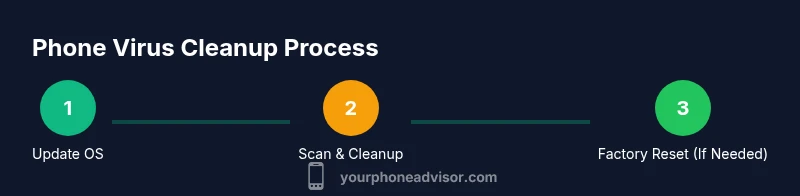
Update the operating system
Open Settings, check for available updates, and install them. Updates close known security gaps that malware often exploits. If automatic updates are available, enable them to keep protection current.
Tip: Set auto-update for both OS and apps to reduce future infection risk. - 2
Audit installed apps and permissions
Review all installed apps, especially recently added ones. Uninstall any suspicious software and revoke unnecessary permissions (location, SMS, microphone). This reduces covert data access that malware may rely on.
Tip: Look for apps with unusually broad permissions or those you don’t remember installing. - 3
Run a reputable antivirus/anti-malware scan
Launch the trusted security app and run a full device scan. If threats are detected, follow the prompts to quarantine or remove them. Do not ignore flagged items, even if they seem minor.
Tip: Schedule a recurring scan (weekly) during a time you’re least interrupted. - 4
Clear browser data and revoke unsafe extensions
Clear cache, cookies, and saved passwords from browsers. Remove any unfamiliar extensions or plugins, and reset default search engines to a trusted option.
Tip: Avoid installing browser extensions from unknown sources. - 5
Safe cleaning of the device exterior
Wipe the device surface with a dry microfiber cloth. If you must wipe, use a lightly damp cloth with a 70% isopropyl solution only on the exterior, never ports or speakers.
Tip: Never spray liquids directly onto the phone; moisture can damage internal components. - 6
Backup and prepare for a factory reset (if needed)
If infections persist, back up data and prepare for a factory reset. This step should be a last resort for stubborn malware, after other remediation attempts fail.
Tip: Back up essential data before resetting; verify backups restore correctly. - 7
Factory reset (last resort) and restore safely
Perform a factory reset from the device’s recovery menu or settings. Restore apps only from official stores, and reconfigure security (strong passwords, MFA).
Tip: Post-reset, install apps sparingly and only from trusted sources. - 8
Reinstall apps securely and monitor activity
Reinstall essential apps from official stores. Enable two-factor authentication on accounts and monitor for unusual activity over the next weeks.
Tip: Install apps one by one and test device behavior after each installation. - 9
Strengthen network and password hygiene
Change primary passwords, enable MFA where possible, and review connected devices. Avoid reusing passwords and keep a password manager handy.
Tip: Use unique passwords for critical accounts and rotate them periodically. - 10
Ongoing safe-use practices
Educate yourself about phishing, avoid downloading from unknown sources, and keep software updated. Regular maintenance reduces the chance of reinfection.
Tip: Set a monthly security check reminder to stay proactive. - 11
Monitor performance after cleanup
Check battery life, app behavior, and data usage for a few weeks. Sudden spikes can indicate hidden issues requiring further action.
Tip: If problems reappear, consider professional help or a deeper audit. - 12
Document changes and lessons learned
Record what worked, what didn’t, and what you changed in settings. This helps you respond faster if you see malware again.
Tip: Keep a simple security journal to track best practices.
Got Questions?
Can a phone virus be delivered through text messages or links?
Yes. Phishing links and malicious attachments can spread malware. Avoid clicking unknown links and verify sender identity.
Text messages can carry malware through links; don’t click unless you’re sure it’s safe.
Is a factory reset always needed to clean a phone?
Not always. Most infections are removable with updates, app cleanups, and antivirus scans. A reset is a last resort if symptoms persist.
A factory reset is usually a last resort if cleaning steps don’t remove the malware.
Do iPhone users need antivirus apps?
iPhones are relatively secure, but maintaining updates and safe browsing is crucial. Antivirus apps are less essential but can help with extra protection.
iPhone users don’t typically need antivirus apps, but staying updated with safe habits helps a lot.
How often should I scan my phone for malware?
Run a quick check monthly or after installing new apps or visiting unfamiliar networks. Schedule periodic scans if available.
Scan your phone monthly, or after any suspicious activity or new app installation.
What if the malware persists after a reset?
If malware remains after a reset, there may be a deeper compromise or counterfeit ROM. Seek professional help and verify device integrity.
If it still hides after resetting, get professional help to ensure your device is clean.
Should I disinfect the phone hardware?
Clean the exterior with a dry microfiber cloth. Do not apply liquids to ports or internal components.
Only exterior cleaning is safe; avoid liquids near ports and speakers.
What to Remember
- Back up before major changes
- Update OS and apps to close security gaps
- Use trusted antivirus and avoid unknown sources
- Reset only when necessary and restore safely
- Maintain ongoing safe-use practices to prevent reinfection