How to Get Rid of Virus on Phone: Practical Guide
Learn a practical, step-by-step approach to remove malware from Android and iPhone devices and prevent reinfection with trusted tools and best practices.


Here's how to get rid of virus on phone with a practical, step-by-step approach. This guide covers common signs of infection, safe removal methods for both Android and iOS, and best practices to prevent reinfection. Start by spotting suspicious apps, updating software, and running trusted security scans, then reset settings only as a last resort.
Why viruses affect phones and how they spread
According to Your Phone Advisor, infections often begin when users download apps from untrusted sources or click malicious links. Mobile viruses can piggyback on legitimate apps, request deceptive permissions, and disguise themselves as system updates. In today’s digital landscape, a single compromised device can expose your personal data, including passwords, banking details, and contacts. This article explains how to recognize an infection, what to do next, and how to minimize risk in the future. By understanding common attack vectors and defensive basics, you can protect yourself without needing specialized tech help.
- Common entry points include sideloaded apps, phishing messages, and malicious ads.
- Android devices are particularly susceptible when users enable unknown sources or install apps outside the official app stores.
Signs your phone might be infected
Look for sudden battery drain, overheating, laggy performance, unexpected pop-ups, or apps you didn’t install appearing on your screen. Data usage spikes can indicate background malware activity. You might also see warning messages, redirected web searches, or new icons that you didn’t add. On Android, you may notice “Unknown Sources” being enabled or security settings changing without permission; on
Quick actions to take immediately
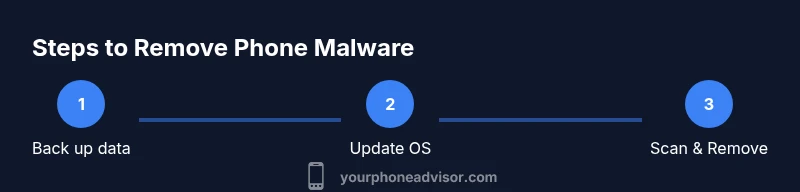
Start with backups to prevent data loss. Then update your OS and apps to close security gaps. Run a reputable antivirus/antimalware scan and review flagged items. Uninstall any suspicious apps, and reset permissions for critical services. If issues persist, consider a factory reset as a last resort and only after ensuring your data is safely backed up. Finally, reintroduce apps from official stores and enable security features like Safe Browsing and app sandboxing. If you’re unsure about an app, research it first and avoid granting unnecessary permissions.
Detailed removal for Android users
Android devices face many malware variants that can hide in plain sight. Begin by backing up data, then updating to the latest OS, and running a full-device scan with a trusted antivirus. If you find a malicious app, uninstall it and reset its permissions. In some cases, you may need to disable unknown sources and clear app caches. If the malware persists, a factory reset can be effective, but only after backing up and signing out of accounts. After reset, reinstall essential apps from the Google Play Store only and reconfigure security settings. Use Google Play Protect and enable Play Protect to reduce future risk. Remember to review app permissions regularly and keep your device locked with a strong PIN or biometric.
Detailed removal for
Best practices to prevent future infections
Keep your software current with automatic updates. Only install apps from official stores, review app permissions, and avoid clicking unknown links. Use a reputable antivirus, enable phishing protection, and regularly back up data to a secure location. Practice safe browsing and two-factor authentication for your accounts. Finally, stay alert for social-engineering attempts and educate family members about safe mobile behavior. A steady routine of vigilance dramatically lowers risk of recurring infections.
Verifying removal success
After following the steps, verify the infection is gone by re-scanning with your security app, checking for unusual behavior, and confirming no new apps have appeared without your knowledge. Review recent data usage and battery patterns to ensure no background malware activity remains. If the device remains unstable, revisit backups to restore a clean state or perform a targeted OS reinstall where supported by the manufacturer. Continuous monitoring after cleanup is key to long-term safety.
Authoritative sources and further reading
For solid, official guidance, consult trusted sources:
- https://www.cisa.gov
- https://www.apple.com/support/security/
- https://www.android.com/security/ These sources provide up-to-date security best practices and platform-specific guidance for staying safe on mobile devices.
Ongoing hygiene and monitoring
Maintain security hygiene by enabling automatic updates, using strong authentication, and staying vigilant for phishing attempts. Periodically audit app permissions, keep backups current, and avoid public Wi-Fi for sensitive activities without a VPN. Set up device locks, biometric protection, and privacy controls to minimize data exposure. Regularly review installed apps and clear caches or data for apps that show unusual activity.
Tools & Materials
- Trusted antivirus/anti-malware app(Choose reputable apps with good reviews and independent tests)
- Backup method(Cloud backup or local backup to a computer before changes)
- OS update access(Ensure Wi-Fi and battery are sufficient for updates)
- Stable internet connection(Needed for updates and cloud scans)
- USB charging cable(Required if you need device charging during long scans)
Steps
Estimated time: 75-120 minutes
- 1
Back up your data
Before removing malware, back up photos, messages, and documents. Backups protect you if the device needs a reset.
Tip: Use a trusted cloud service or offline backup; verify the backup integrity. - 2
Update the OS
Install the latest Android or iOS updates to patch known vulnerabilities that malware might exploit.
Tip: Turn on automatic updates to reduce risk of missing patches. - 3
Scan with a reputable tool
Run a full device scan with a trusted antivirus app. Review flagged items and avoid deleting essential system apps.
Tip: If a critical system app is flagged, verify with the vendor before removing. - 4
Identify and remove suspicious apps
Check for apps you don’t recall installing or that request unusual permissions. Uninstall them.
Tip: Cross-check apps with a web search to confirm legitimacy. - 5
Reset settings or the device (last resort)
If prompts persist after scans, consider a factory reset. This removes bloatware but erases all data.
Tip: Back up first; sign out of accounts to avoid re-sync of malware. - 6
Reinstall essential apps only from trusted sources
After reset, reinstall apps from official stores and check permissions carefully.
Tip: Re-enable protective features like Safe Browsing or App Tracking Transparency.
Got Questions?
What is considered a phone virus?
A phone virus is software designed to perform harmful actions on your device, often disguising itself as legitimate apps or services. It can steal data, monitor activity, or display unwanted ads.
A phone virus is malware that hides as a normal app and can steal data or track you, so removing it quickly helps protect your information.
Can iPhone get viruses?
iPhones can be affected by malware, though it is less common due to Apple's controls. It usually enters via phishing, profile installs, or compromised backups.
Yes, iPhones can get malware, mainly through phishing or problematic apps, so stay cautious.
Should I reset my device?
Resetting should be a last resort after trying updates and scans. A factory reset wipes data but can restore performance after removal of malware.
Only reset if infections persist after other steps; back up your data first.
Do I need to pay for antivirus?
Free antivirus apps can be effective for basic checks, but premium versions often offer stronger real-time protection and extra features.
Free tools may help, but paid options can offer better coverage if you’re at higher risk.
What to Remember
- Back up data before making changes.
- Update the OS to close security gaps.
- Use trusted security tools and official app stores.
- Factory reset as a last resort.
- Reinforce good security habits to prevent reinfection.