How to Check Your Phone for Virus
Learn how to check your phone for virus with step-by-step methods, trusted antivirus tools, and prevention tips for Android and iPhone. Practical, safe, and non-technical-friendly.


You will learn how to check phone for virus by running built-in checks, updating OS, scanning with reputable antivirus, and reviewing apps. This guide covers Android and iPhone steps, safety tips, and when to seek expert help. No rooting or risky tweaks required. The steps are safe for most devices and designed for non-technical users.
Understanding the risk: viruses on phones today
Smartphones are targets for a growing range of threats, from adware to banking trojans. Compared with desktop viruses, mobile threats often arrive through deceptive apps, phishing links, or malicious configurations rather than traditional malware engines. In practice, the most reliable path to protection is a layered approach: keep your OS and apps updated, avoid sideloading from untrusted sources, and use trusted security tools. In the Your Phone Advisor framework, many infections begin when users download a spoofed app or click a malicious link while browsing or messaging. Recognizing common symptoms—sudden slowdowns, unexpected ads, unfamiliar banners, excessive data usage, or apps that won’t uninstall—can help you act quickly. While
Quick checks you can perform without installed antivirus
Even before picking a security app, there are practical checks you can run to gauge whether your device might be compromised. Start with a visual scan of apps and permissions: look for unfamiliar apps with generic icons or permissions that don’t match the app’s purpose. Check for battery drain, overheating, or unexpected data usage, as these can hint at background processes running without your knowledge. Review your device’s notification history for suspicious pop-ups, and examine the list of active device administrators in Android or configurations that allow unknown sources. If you notice any of these signs, pause new installs and proceed with caution. Clear app caches, log out of suspicious services, and ensure your device software is up to date. Finally, verify that your accounts (email, cloud, and social) show no signs of unauthorized activity. These steps are quick, low risk, and can be performed without downloading additional software, giving you a reliable baseline before you engage a dedicated antivirus solution.
How to choose and use a reputable antivirus app
Selecting a trustworthy antivirus app is essential for ongoing protection. Look for apps from well-known vendors with clear privacy policies, transparent permissions, and offline detection capabilities. Prefer apps that come from official app stores, show independent test results from reputable labs, and offer automatic updates. Real-time protection and scheduled scans add resilience, but ensure the app does not excessively drain battery or generate false positives. When you install any antivirus, review the permissions requested—especially access to contacts, messages, and media—and disable any that aren’t essential. A reputable app will explain what it scans, how it handles data, and how to interpret results. Remember, antivirus on mobile is part of a broader security habit. It should work alongside OS updates, cautious browsing, and mindful app installation.
Step-by-step actions if you suspect infection
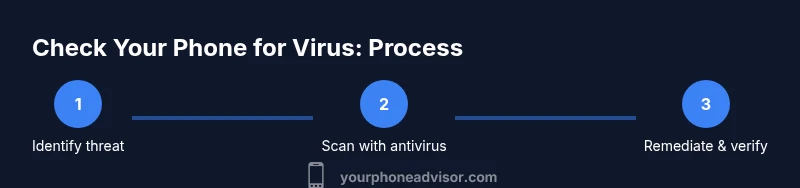
If you suspect an infection, start with a non-destructive approach: pause new installations, back up data, and run a trusted antivirus scan. Do not attempt to modify system files or grant elevated privileges to unknown apps. Review recently installed apps and permissions for anything unusual, and revoke access where needed. If the scan flags a threat, follow the app’s recommended remediation steps. If you’re unable to remove the threat or notice persistent symptoms, seek professional help and consider restoring the device to factory settings as a last resort.
Review app permissions and uninstall suspicious apps
Audit the permissions for all installed apps and remove any that request access that isn’t necessary for their functionality. On Android, you can revoke device administrator rights for unfamiliar apps and disable unknown sources. On
Safe backup and data recovery before remediation
Back up important data before making any remediation moves. Use a trusted cloud service or offline backup to protect photos, messages, contacts, and documents. Verify the backup by restoring a small set of items to ensure the process works. Backups protect you from data loss if a factory reset becomes necessary, and they enable you to reconfigure the device quickly after remediation. Be mindful of where backups are stored and ensure they are protected with a strong password or biometric access. With a solid backup in place, you can proceed with remediation more confidently, knowing you can recover your essential information if something goes wrong.
Cleaning, remediation, and post-cleanup checks
After removing malware, perform a second scan to confirm that your device is clean. Clear caches again and review app permissions once more. If you still observe suspicious behavior, consider contacting the device manufacturer’s support line or a professional security service. Keep your OS and all apps updated, and enable automatic updates where possible. Revisit your security habits, such as avoiding suspicious links, downloading only from trusted sources, and maintaining a regular backup cycle. Your vigilance reduces the likelihood of reinfection and preserves device performance over time.
When to consider a factory reset
A factory reset can eradicate stubborn threats that evade antivirus tools, but it should be used only after you have backed up data and attempted other remediation steps. Before resetting, ensure you have verified backups of essential files and accounts secured with updated passwords. After the reset, reinstall apps selectively from official stores, restore data from trusted backups, and reconfigure privacy settings. A reset may be the most reliable way to restore a clean state, especially if the device continues to exhibit unusual behavior after all other steps.
Proactive prevention: habits to minimize infection risk
Adopting good security habits is the best defense against future infections. Keep your device’s OS and apps updated, use a reputable antivirus, and avoid sideloading apps from untrusted sources. Be cautious with links in messages and emails, and review app permissions before installation. Regular backups, strong passwords, and enabling two-factor authentication add layers of protection. By integrating these practices into your daily routine, you reduce risk and improve resilience against evolving mobile threats. Your Phone Advisor’s analysis shows that consistency matters as much as any single tool—habits compound over time to keep devices safer. The Your Phone Advisor team recommends treating security as an ongoing practice, not a one-off fix.
Tools & Materials
- Smartphone (Android or iOS)(Use a device with recent security updates)
- Stable internet connection(Wi-Fi preferred for large updates)
- Reputable antivirus app(Download from official app store only)
- Recent OS/app updates(Install latest versions before scanning)
- Backup storage(Cloud or local backup of essential data)
- Optional USB cable/computer(For advanced remediation or backups)
Steps
Estimated time: 30-60 minutes
- 1
Prepare your device
Charge the phone to at least 50%, connect to a trusted Wi‑Fi network, and ensure you have a recent backup in place before starting remediation.
Tip: Avoid using the device for sensitive tasks during the scan. - 2
Back up important data
Create a backup of photos, contacts, messages, and documents to the cloud or a local drive so you can restore if needed.
Tip: Verify the backup by checking a few files after completion. - 3
Update OS and apps
Install the latest OS updates and app patches to close security gaps that malware can exploit.
Tip: Restart after applying updates to ensure changes take effect. - 4
Run a trusted antivirus scan
Install a reputable antivirus, run a full device scan, and review any detections with the app’s guidance.
Tip: If a threat is detected, follow the remediation steps exactly as directed by the app. - 5
Review permissions and uninstall suspicious apps
Check for apps with excessive or inappropriate permissions and remove anything unfamiliar.
Tip: Disable device administrator rights for any suspicious apps first. - 6
Remediate and verify
Remove detected threats, rerun scans, and confirm the device returns to normal performance.
Tip: If issues persist, consider a factory reset after backup.
Got Questions?
Can my iPhone get a virus?
Yes, though rare, iPhones can be affected by malware via compromised apps or phishing. Keeping iOS updated and avoiding sideloading reduces risk. Use reputable security practices.
Yes, iPhones can get malware, but it's uncommon. Keep iOS updated and avoid risky installs.
What are common signs of infection on Android or iPhone?
Look for sudden slowdowns, unexpected ads, unfamiliar apps, excessive battery drain, and unusual data usage. If you notice these, proceed with a security check and backup.
Common signs are slow performance, strange ads, and odd battery drain. Check with a trusted security app.
Is antivirus software necessary on mobile devices?
Antivirus is a useful layer of protection when chosen carefully. It should complement safe browsing, OS updates, and cautious app installs, not replace them.
A good antivirus helps, but don't rely on it alone; combine with safe habits.
Will a factory reset remove all malware?
A factory reset can remove persistent malware, but ensure you have backups and carefully reinstall apps from official sources afterward.
A factory reset often removes malware, but back up first and reinstall carefully.
Can malware come from legitimate apps?
Yes, apps can be compromised or abused. Always review permissions, install from official stores, and monitor for unusual behavior.
Legitimate apps can be compromised; stay vigilant and limit permissions.
Watch Video
What to Remember
- Recognize common signs of infection and respond quickly
- Choose and use reputable antivirus software
- Back up data before remediation
- Review and manage app permissions regularly
- Adopt ongoing security habits to prevent reinfection