How to Check Your Phone for Malware: A Practical Guide
Learn practical, step-by-step methods to check your phone for malware using built-in tools, safe cleanup, and ongoing hygiene to protect data and privacy.


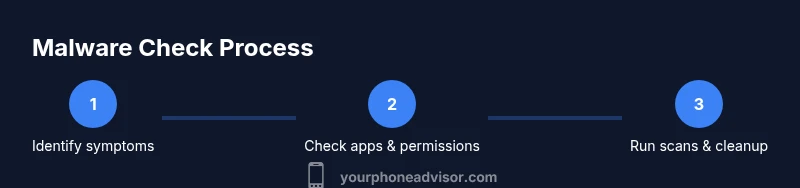
Goal: Learn how to check your phone for malware using built-in protections, quick scans, and safe cleanup steps. You’ll start by observing symptoms, then update software, inspect apps and permissions, run scans, and consider a factory reset if needed. Prioritize backups and avoid risky installs to minimize harm.
Understanding the Mobile Malware Landscape
Malware on mobile devices is a real concern due to the variety of apps, networks, and data flows on smartphones. It often targets data, ad revenue, or device performance, and can slip past scanners when apps look legitimate or when updates create new vulnerabilities. The Your Phone Advisor analysis shows that many infections begin when users install apps from untrusted sources or click on deceptive links. Even reputable stores can host compromised software if developers rush releases or permissions are mishandled. Understanding the landscape helps you recognize risk signals and respond calmly with a structured plan. When you learn how to check phone for malware, you’re not chasing every rumor—you’re following a repeatable process that reduces risk and protects your privacy. This foundation makes the subsequent checks more effective and less stressful, so you can verify device health confidently.
Signs Your Phone Might Be Infected
Infection symptoms vary, but common signals include rapid battery drain, unexplained data usage, overheating, slower performance, and apps you don’t recognize appearing on the home screen. You may also see unexpected ads, pop-ups, or changes to your settings. Some malware operates in the background by leveraging device permissions or creating new profiles and VPN-like configurations. If you notice any of these signs, it’s reasonable to investigate further. This is part of the proactive approach to how to check phone for malware. Remaining calm and verifying symptoms with a checklist helps prevent panic and guides your next steps.
Preparation: Get Ready Before You Dive In
Before you run checks, prepare your device for safe cleaning. Back up important data to a trusted cloud or local storage; ensure you have a reliable internet connection; confirm that you can access Settings and security options; and make sure your battery is charged. Update the OS and installed apps to the latest versions to close known security gaps. Having a backup and a plan for reinstallation reduces risk if you need to reset. If you’re unsure how to check phone for malware, this preflight makes the following steps safer and easier to repeat in the future.
Step 1: Inspect Installed Apps and Permissions
Start by reviewing all installed apps and their requested permissions. Look for apps you don’t remember installing, or permission sets that don’t align with the app’s function (for example, a simple calculator asking for SMS access). On most devices, you can see this under Settings > Apps; revoke suspicious permissions and consider uninstalling unfamiliar apps. This is a core part of how to check phone for malware, because many infections rely on broad access to data and services. Keep a note of anything unusual to revisit after updates.
Step 2: Leverage Built-In Security Tools
Both Android and iOS provide built-in safeguards that can help detect and deter malware. For Android, enable Google Play Protect and ensure it scans apps before installation. iOS relies on a strict app vetting process, but you should still review profiles, device management settings, and any configuration profiles that could redirect traffic. Use these protections as your first line of defense when learning how to check phone for malware. If these tools flag something, take the flagged item seriously and proceed to the next checks.
Step 3: Monitor Data Usage and Battery Behavior
Unusual data usage or sudden battery drain can indicate malicious activity running in the background. Check the data usage statistics per app and look for consistently high consumption. Also review battery usage in Settings to identify apps that run longer than expected. If you notice a mismatch, it’s worth investigating further rather than ignoring it when learning how to check phone for malware. Record suspicious apps and behavior to guide remediation.
Step 4: Clean Up Suspicious Apps and Clear Traces
If you find suspicious apps, uninstall them from Settings. Clear application caches where possible to remove hidden data remnants. After removal, monitor the device for a short period to see if symptoms persist. It’s important to avoid reinstalling any questionable software during the same session. This reduces the chance of reinfection and aligns with best practices on how to check phone for malware.
Step 5: Run a Malware Scan and Consider a Security Review
If symptoms continue, run a malware scan using built-in tools or a trusted security app. Focus on scanning for adware, spyware, and trojan-like behaviors rather than blanket “cleaning” apps, which can themselves be risky. Do not rely on a single scan; repeat checks after updates or removals. This is a critical step in learning how to check phone for malware because a second pass often reveals what hidden processes still run in the background.
Step 6: If Problems Persist, Back Up and Consider a Factory Reset
A factory reset is a strong option if malware persists after multiple checks. Before factory resetting, back up only essential data and ensure you can restore it safely. After the reset, reinstall only trusted apps from official stores, and reapply OS updates promptly. This approach should be a last resort for how to check phone for malware, since it erases personal data and requires careful restoration.
Step 7: Harden Your Defenses for the Long Term
Post-cleanup, update passwords, enable two-factor authentication, and review account recovery options. Avoid sideloading apps, limit app permissions, and keep device encryption on. Regular updates, backups, and prudent app sourcing make it harder for malware to gain footholds in the future. This long-term hygiene is a practical extension of how to check phone for malware and protects you from recurring threats.
Tools & Materials
- Phone(Ensure it’s charged and accessible; you’ll perform multiple checks in Settings and apps.)
- Stable internet connection(Needed for OS/app updates and cloud backups.)
- Latest OS version(Keep security patches current.)
- Backup option (cloud or local)(Back up important data before cleaning or resetting.)
- List of installed apps(Useful for comparing with your memory and identifying unknowns.)
- Charger and cable(Keep device powered during longer checks or resets.)
Steps
Estimated time: 60-120 minutes
- 1
Observe symptoms
Note any unusual behavior such as battery drain, overheating, pop-ups, or unfamiliar apps. This is the first action in how to check phone for malware because early signals guide targeted checks.
Tip: Document dates and observed behaviors to spot patterns. - 2
Update OS and apps
Install the latest OS and app updates to close security gaps. Updates often include malware fixes and stronger protections, a crucial step in how to check phone for malware.
Tip: Enable automatic updates where possible. - 3
Review permissions
Go through each app’s permissions and revoke anything excessive or unnecessary. Suspicious permissions are red flags in how to check phone for malware.
Tip: If in doubt, uninstall the app. - 4
Use built-in security tools
Enable and run Play Protect (Android) or rely on iOS protections to run checks. These tools are your first line of defense in how to check phone for malware.
Tip: Keep security scans enabled during app installation. - 5
Monitor data and battery
Check app-by-app data usage and battery consumption to spot hidden processes. Anomalies can indicate malicious activity.
Tip: Flag apps with unusual spikes for deeper review. - 6
Clean up suspicious apps
Uninstall any apps identified as suspicious and clear caches where possible. This reduces lingering malware traces and is a key step in how to check phone for malware.
Tip: Reboot after uninstalling for a clean state. - 7
Run a malware scan
Perform a scan with trusted security software or built-in tools. Don’t rely on a single scan; rerun after updates or removals.
Tip: Avoid third-party scanners with dubious reputations. - 8
Factory reset if needed
If problems persist, back up essential data and reset to factory settings, then reinstall only trusted apps. This is a last-resort action in how to check phone for malware.
Tip: After reset, review app sources and avoid risky installs. - 9
Strengthen ongoing hygiene
Maintain strong passwords, enable 2FA, and limit app sources. Regular maintenance helps prevent future infections.
Tip: Set a monthly reminder to review security settings.
Got Questions?
Can mobile malware affect iPhones as easily as Android devices?
Malware on iPhone is less common due to Apple's app review process, but phishing, jailbreaking, or configuration profiles can still cause infections. Always verify app sources and review device profiles when diagnosing issues.
Malware on iPhone is rarer but possible through phishing and jailbreaking. Verify apps and profiles to stay safe.
Will malware slow down my phone or drain the battery?
Yes. Malware often runs in the background, consuming CPU, data, and battery. If you notice sudden slowdowns, check running processes and review recent installs as part of your malware checks.
Malware can slow your phone and drain battery; review apps and background activity.
Do I need antivirus apps to protect my phone?
Built-in protections are the baseline. A reputable security app can help, especially on Android, but avoid low-quality or deceptive tools. Always pair app use with safe practices and regular updates.
Built-in protections are key; a trusted security app can help, but choose carefully.
When should I perform a factory reset?
Consider a factory reset if multiple cleanups fail to remove symptoms or if the device is heavily compromised. Back up first, reinstall only trusted apps, and monitor afterward.
Reset as a last resort after backups and trusted app reinstallation.
What are safe best practices to prevent future infections?
Keep OS and apps updated, download only from official stores, review app permissions, enable auto-lock and encryption, and practice regular backups. These habits reduce the chance of infection.
Update software, download only from official stores, and back up regularly.
If I can't uninstall a suspicious app, what should I do?
Disable the app and revoke its permissions if uninstalable. Contact support if it’s a system app, and consider a factory reset if it continues to behave suspiciously.
Disable the app and consider a reset if issues persist.
Watch Video
What to Remember
- Back up before any cleaning or reset.
- Use built-in protections first, then add trusted scans.
- Uninstall suspicious apps and revoke odd permissions.
- Factory reset only as a last resort.