Why Your Phone Shows a Green Line and How to Fix It
Learn why a phone displays a green line and how to troubleshoot quickly. Safe tests, practical checks, and when to seek professional repair from Your Phone Advisor.


A green line across a phone screen is usually a hardware fault in the display panel or its driver circuitry, especially on OLED panels. Start with a reboot and check for OS updates. If the line remains in safe mode or after a factory reset, the fault is likely hardware, and you should arrange professional repair or panel replacement.
What causes a green line on a phone display
If you’re wondering why phone have green line, the answer is typically a hardware fault rather than a pure software glitch. In modern smartphones, green lines often point to issues with the display panel itself—common in OLED screens where a failed subpixel row or column can produce a persistent line. Another frequent culprit is the flex or data cable that connects the display to the motherboard; if that connector is loose, damaged, or stressed by a drop, a line can appear across the screen. Water exposure or internal moisture can corrode connectors and driver chips, creating similar symptoms. Finally, driver IC faults or a failing motherboard can manifest as a green line that won’t go away with software tweaks. Distinguishing hardware from software causes is essential because software fixes (updates, resets, or app conflicts) tend to address only software-rendered anomalies and will not repair a true panel fault.
Software vs hardware: can updates fix it?
Software issues can sometimes mimic a display problem. A buggy graphics driver or a bad OS update can cause distorted colors or lines on the screen. To test this, boot into safe mode (which disables third-party apps) and observe whether the line persists. If the line disappears in safe mode, a rogue app or service might be contributing to the issue. Likewise, check for and install any available system updates, as manufacturers frequently release patches for graphics-related bugs. If the line appears in safe mode or after a factory reset, software is unlikely to be the root cause and hardware fault becomes the leading candidate.
Hardware faults to consider
Persistent green lines typically indicate one of several hardware issues. A damaged OLED/LCD panel or a failing display driver IC is a common cause, especially after impacts or bending of the device. A loose or damaged display ribbon cable can also produce a line that traverses the screen. In some cases, heat damage or aging components on the motherboard can affect the frame buffer and driving signals, resulting in line artifacts. Finally, if the device has water exposure, corrosion can impact the display circuitry and produce linear faults. While these are the most common suspects, a professional technician can perform controlled diagnostics to pinpoint the exact component at fault.
Diagnostic flow: symptom → diagnosis → solutions
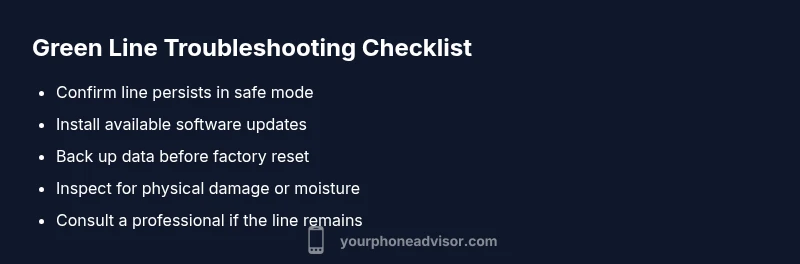
Start with the symptom: a continuous green line across the screen. If it’s visible during boot and on recovery or in hardware test modes, it’s likely a display or driver hardware issue. If the line only appears within certain apps or after a specific event, software or third-party graphics might be involved. The typical progression is: confirm with a reboot, test in safe mode, check for updates, perform a factory reset (after backing up), and if the line persists, consult a repair technician for a panel or connector replacement.
Quick fixes you can try safely (non-destructive)
- Reboot the device to clear temporary graphics glitches.
- Check for and install OS updates.
- Boot into safe mode to rule out apps causing the issue.
- If available, run the device’s built-in hardware diagnostics.
- Back up data before attempting a factory reset, and consider professional service for hardware faults.
When to seek professional repair
If the green line persists after safe mode and factory reset, or if the line appears immediately after a drop, impact, or exposure to moisture, you should seek professional repair. A qualified technician can inspect the display assembly, re-seat connectors, or replace the panel or driver IC as needed. Warranty coverage often varies by device and damage type, so check your warranty terms before paying out of pocket.
Prevention tips to keep display health in check
- Use a protective case and screen protector to absorb shocks.
- Avoid exposing your phone to extreme heat or moisture.
- Handle the device gently when placing it in pockets or bags.
- Schedule regular software updates to minimize driver-related issues.
- If you notice a single persistent line, don’t ignore it—early professional evaluation can prevent further damage.
Steps
Estimated time: 30-60 minutes for initial checks; 1-2 hours for diagnostic steps; hardware repair may take longer
- 1
Reboot the phone
Power off completely, wait a few seconds, then power back on. Observe if the green line reappears during boot or only after the OS loads.
Tip: A full power cycle clears temporary graphics buffers that can create transient lines. - 2
Boot into safe mode and test
Enter the device’s safe mode to disable third-party apps. Use the phone normally for a few minutes to see if the line persists.
Tip: If the line vanishes in safe mode, a rogue app may be the culprit. - 3
Check for updates and perform diagnostics
Install any available OS updates and run built-in hardware diagnostics if your phone offers them. Document any error codes or abnormal readings.
Tip: Keep a log of steps you’ve tried to share with a technician. - 4
Factory reset (last resort for software issues)
Back up all data, then reset to factory settings. Afterwards, test before restoring data to determine whether software caused the issue.
Tip: Only perform if you’re comfortable restoring apps and data afterwards. - 5
Consult a professional for hardware faults
If the line persists after all software steps, arrange service for panel/driver replacement or motherboard checks.
Tip: Verify warranty status and obtain an official repair quote.
Diagnosis: Persistent green line across the display
Possible Causes
- highHardware display panel fault (OLED/LCD damage)
- mediumLoose or damaged display connection (flex cable)
- lowSoftware glitch affecting GPU/drivers
Fixes
- easyReboot the device and check for OS updates; test in safe mode
- mediumInspect or reseat display connectors only if comfortable; otherwise seek professional service
- hardFactory reset after data backup to rule out software issues
Got Questions?
Why is there a green line on my phone screen?
A green line is usually a hardware fault in the display panel or its driver circuitry, especially on OLED screens. It can also be caused by a loose display connector or moisture damage. Software glitches are less likely but worth ruling out first.
A green line usually means hardware fault in the display or its driver. Check for software issues first, but if it stays, you’ll likely need repair.
Can software updates fix a green line?
Sometimes software updates fix graphics issues, but persistent green lines after updates and safe mode testing usually indicate a hardware problem requiring inspection.
Sometimes updates help, but if the line remains after testing, it’s likely hardware-related.
Should I try a factory reset to fix it?
Factory reset can rule out software conflicts, but back up first. If the line persists after reset, hardware fault is the likely cause and needs professional repair.
Factory reset can help rule out software issues, but if the line stays, it’s likely hardware.
When should I replace the display rather than repair?
If panel replacement or motherboard repair is costlier than a replacement device or if the phone is old, replacement may be more economical. A technician can give a precise quote after diagnosis.
If repairs are expensive or the phone is older, replacement could be more economical.
Is this covered by warranty?
Warranty coverage depends on the device and damage type. Screen damage from drops is often not covered; moisture or manufacturing defects may be. Check your warranty terms and consult an authorized service center.
Warranty varies; check terms and contact authorized service for a proper assessment.
Watch Video
What to Remember
- Test software first: reboot, safe mode, and updates
- Identify hardware vs software root cause
- Back up data before resets or repairs
- Seek professional repair for hardware faults
- Prevent future issues with protection and careful handling