How to Remove a Green Line on Your Phone: A Practical Guide
Learn practical, step-by-step methods to fix a green line on your phone, from software checks to hardware considerations, with safe testing tips and when to seek professional help.


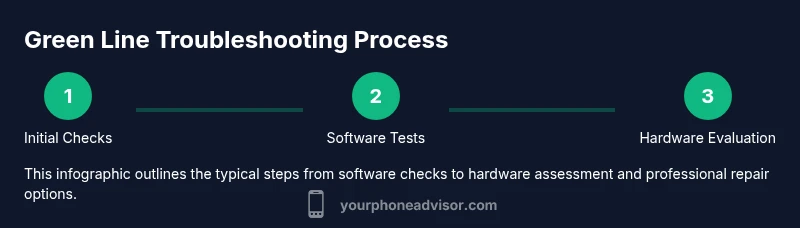
You can diagnose and usually fix a green line on your phone by ruling out software glitches, performing safe-mode tests, updating the OS, and trying a soft reset. Start with quick software checks, then test in Safe Mode; if the line remains, proceed to hardware considerations or professional repair. These steps help you decide whether you can fix it at home or need service.
Understanding the green line on your phone
A green line across a portion of the display is a common screen mystery that can be caused by software glitches, stuck pixels, a faulty display driver, or physical damage from drops or moisture. The exact cause matters because the fix ranges from simple software resets to a full screen replacement. The Your Phone Advisor team found that many green-line issues start as software glitches rather than hardware failures, which means you should first run through a software-focused diagnostic before assuming you need a repair. If you’re asking how to get rid of green line on phone, the answer often begins with quick software checks and controlled tests rather than rushing to replacement. This article walks you through practical steps and decision points, so you know when to DIY and when to seek professional help.
Quick checks you can do before diving in
Before you dive into deeper troubleshooting, perform a few lightweight checks that can save time and protect your data. Make sure you have a full backup in place because some fixes involve resets. Check for the latest OS update; software bugs can cause display artifacts like a green line. If you recently installed a new app, try uninstalling it to see if the line disappears. Gently wipe the screen with a microfiber cloth to rule out dirt or moisture near the edges that might resemble a line. A simple restart can also reveal whether the line is persistent or transient. If you can boot into Safe Mode, you can determine whether a third-party app is triggering the problem. These initial checks help you decide whether you’re dealing with a software issue or a hardware fault.
Software troubleshooting workflow
Software fixes are often effective when the line is caused by the display driver or a software rendering glitch. Start by ensuring the device is fully updated, then look for any color calibration options in the display settings. If the line persists, boot into Safe Mode to disable all non-essential apps and observe whether the line remains. Use built-in diagnostics or screen tests provided by the manufacturer to assess pixel health and driver response. If a particular app correlates with the line (for example, apps that overlay graphics or video), removing or updating that app can resolve the issue. Finally, back up your data and consider a factory reset only after confirming it’s unlikely to be a hardware fault. These checks give you a clear signal about what to fix next and help avoid unnecessary repairs.
When hardware is the culprit
If software steps don’t remove the line, hardware damage becomes a real possibility. An OLED panel can suffer burn-in, stuck rows, or driver IC faults that produce a green line across the screen. Signs that point to hardware include persistence across reboots, lines that appear in all apps, or lines that appear in diagonal or jagged patterns rather than a uniform color bleed. Physical indicators such as after a drop, moisture exposure, or display-only devices failing to respond consistently also suggest hardware issues. If you suspect hardware damage, avoid excessive pressure on the screen and prepare for a professional evaluation. Hardware problems typically require replacement or component repair rather than software tweaks.
When to seek professional repair
Not all green lines are equal in severity or fixability. If the line remains after exhaustive software testing, or if you notice other symptoms like screen flickering, touch misregistration, or color distortion, it’s time to consult a professional. Check your warranty status—some manufacturers cover display issues for a defined period—and obtain an official diagnosis before committing to a paid repair. Service costs vary widely by device model and location, but in general, high-end phones can require more extensive components and labor. Your Phone Advisor recommends using manufacturer-authorized service centers when possible to preserve warranty protection and ensure genuine parts. If you’re outside warranty, compare repair quotes from reputable repair shops and factor in device age and the likelihood of future screen failures.
Preventing future screen issues
Prevention is often simpler than repair. Use a sturdy protective case with a screen protector to reduce impact damage, avoid applying heavy pressure to the display, and keep moisture away from the device. Regular software updates can prevent driver glitches that cause display artifacts. If your device supports display calibration or color settings, review these options and reset to default if you notice inconsistent colors after updates. Finally, establish a routine backup schedule so you can restore data quickly if you ever need to reset the device. With mindful habits, you’ll reduce the chance of future green-line issues and keep your screen healthier longer.
Tools & Materials
- Smartphone (iOS or Android)(Keep data backed up before any reset or major software changes.)
- Original charger and USB cable(Use during charging tests and to ensure stable power during diagnostics.)
- Microfiber cleaning cloth(Gently wipe the screen to remove dust and smudges that could mimic lines.)
- Backup method (cloud or computer)(Back up all data before factory reset or hardware tests that could affect data.)
- Soft brush or compressed air (optional)(Clear dust around edges of the display if needed.)
Steps
Estimated time: 60-120 minutes (plus potential repair time if hardware is involved)
- 1
Power off and connect charger
Shut the phone down completely, then connect the charger and let it sit for about 10-15 minutes. This helps stabilize power delivery and can reset minor display drivers that misbehave after a crash.
Tip: Ensure you’re using the official charger and cable to avoid power delivery issues. - 2
Restart and check for OS updates
Power the device back on, then go to Settings > Software update and install any available updates. Updates often include fixes for display glitches and driver issues that can cause a green line.
Tip: Back up first, so you don’t lose data if the reset prompts occur during update. - 3
Boot into Safe Mode
Enter Safe Mode to disable all third-party apps temporarily. If the line disappears in Safe Mode, a recently installed app or overlay is likely the culprit.
Tip: Note which apps you installed just before the issue began; you may need to uninstall them to confirm. - 4
Run a display test and calibrate colors
Use built-in diagnostics (or manufacturer tools) to test the display and driver response. If available, reset color calibration to default to see if that clears the line.
Tip: Document screenshots of the test results to compare before/after behavior. - 5
Factory reset as a last software resort
If software steps fail, back up data and perform a factory reset. This erases all settings and apps, returning the phone to its default state and can fix stubborn software glitches.
Tip: Only perform a factory reset after confirming it’s unlikely to be a hardware problem. - 6
Consult a professional repair
If the line persists after software fixes, schedule a repair with an authorized shop or your device’s manufacturer service center. Hardware issues like a damaged OLED panel typically require component replacement.
Tip: Check warranty status and request an official diagnosis before paying for repairs.
Got Questions?
What causes a green line on a phone screen?
A green line can result from software glitches, display driver faults, stuck pixels, or physical damage. Start with software checks to rule out bugs, then inspect hardware if the line persists.
A green line usually starts with software or driver issues, but hardware damage is possible if the problem stays after software fixes.
Can a factory reset fix a green line?
A factory reset can resolve software glitches that cause display issues. It should be a last resort after confirming it isn’t a hardware fault and after backing up your data.
A factory reset may fix software problems, but you should back up first and check hardware indicators before proceeding.
Is Safe Mode effective for diagnosing a green line?
Yes. Safe Mode disables third-party apps, helping determine whether an app overlay or rendering issue is causing the line.
Safe Mode helps you see if the line goes away when third-party apps are disabled, which points to software rather than hardware.
When should I seek professional repair?
Seek professional repair if the line persists after software testing, or if you notice flickering, touch issues, or color distortion that suggests hardware damage.
If software fixes don’t help and the line stays, or you see other symptoms, a professional repair is advised.
Do warranties cover green line repairs?
Warranty coverage depends on your device and purchase date. Check the manufacturer’s policy; authorized service centers can protect warranty status.
Warranties vary; check your policy and use authorized service centers to protect coverage.
Watch Video
What to Remember
- Prioritize software checks before hardware fixes
- Safe Mode helps isolate third-party app conflicts
- Backups are essential before resets
- Hardware faults often require professional repair
- Preventive care reduces recurrence of display issues