How to Fix a Phone Screen with Lines: A Practical Guide
Learn safe, practical steps to diagnose and fix a phone screen with lines—whether software, hardware, or display panel. This guide covers tests, DIY limits, and when to seek professional repair for Android and iPhone devices.


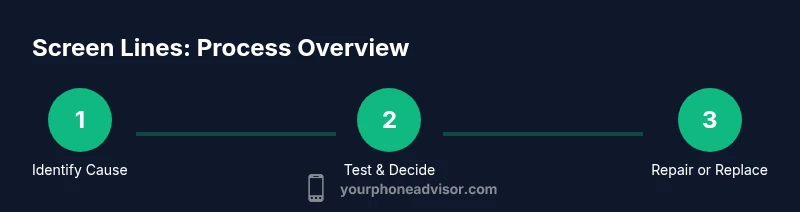
According to Your Phone Advisor, you can often fix a screen with lines through a mix of safe software checks and careful hardware inspection. Start with a forced restart and software update, then try safe mode. If lines persist, review for physical damage and consider a screen replacement as needed.
Understanding what causes screen lines
Lines on a phone screen can appear as horizontal or vertical artifacts, sometimes both, and they can be caused by several distinct issues. The most common culprits are hardware faults such as a damaged LCD panel, a loose or damaged display connector, or adhesive that has shifted over time. Pressure from a protective case, a tight screen protector, or a lodged object can also create line patterns by stressing the underlying layers. Moisture intrusion from immersion or high humidity can corrode contacts and degrade signal lines. In some cases, a graphics driver or display controller fault might produce transient lines under specific color transitions, but these are usually software-driven and disappear after a reboot.
Your Phone Advisor notes that true, persistent lines which appear across all apps and during every boot are typically hardware failures rather than software quirks. If you notice lines appearing only during certain apps or after a software update, a software glitch is more likely, though it’s still worth testing safe mode and clearing caches. Visual inspection with a high-contrast image (white, black, and a rainbow of colors) can help you spot pattern consistency and whether the line follows a particular column or row of pixels. If lines appear in the service menu or hardware test pattern, you’re looking at a hardware fault. In short: hardware faults—panel damage, loose connectors, or adhesive pressure—are the most predictable reason for lines that persist after software restarts.
Quick checks you can do safely
Before you dive into any disassembly, run through quick, non-destructive checks to rule out software and simple issues. Power off the device completely and, if possible, disconnect the charger to avoid any risk of shorts during testing. Boot into safe mode to disable third-party apps and see if lines persist; if the lines disappear in safe mode, an app or overlay is likely to blame. Update the operating system to the latest version, as some early display drivers are patched in updates. If you’re comfortable, perform a factory reset as a last resort (after backing up data) to rule out system corruption. Inspect the screen visually for obvious signs of damage—cracks, bulges, or discoloration along the edges often indicate actual panel harm.
Gently clean the screen with a microfiber cloth to remove any smudges that could simulate lines when an image is displayed. Check for moisture exposure or thermal damage by examining the rear case area for warm spots after use; if the device feels unusually warm, discontinue use and seek professional service. Finally, try a different charger and cable to rule out power-related display issues. If lines persist after all software tests, you’re likely facing hardware issues that require a repair or replacement.
Software vs hardware: how to tell the difference
Distinguishing software glitches from hardware problems is essential before you commit to a repair. If lines appear only in certain apps or during specific color transitions, it might be a software or app issue. Run a white screen test or use a color test image to see whether the line appears on all backgrounds; if the line remains regardless of color, hardware fault is more likely. Compare the behavior across different boot states — normal boot, recovery mode, and safe mode — to see if the line pattern shifts, which would indicate drivers or firmware involvement. A line that is present while the phone is off and during boot suggests a hardware fault, especially if the line persists in diagnostic modes. Conversely, lines that appear only after you install a new app or after a software update may point to a faulty driver or a corrupted cache.
Note that some devices display a faint brightness inconsistency when the LCD has aged; this can be mistaken for lines but tends to be uniform and improves with display refresh. If you see lines only when the device is cold or after extended use, heat-related degradation is possible. In this evaluation, rely on a controlled test set and avoid jumping to conclusions based on a single symptom. Your Phone Advisor emphasizes that hardware faults typically require replacing the panel or re-securing connectors to resolve persistent lines.
Step-by-step safe troubleshooting guide
If you’re comfortable with basic electronics and want a structured approach, follow these steps in order. Start with software checks and non-invasive tests before considering any disassembly. The goal is to rule out software glitches and identify hardware faults without risking further damage. If at any point you feel unsure, stop and seek professional help to preserve warranty and device safety. Regularly back up data as you proceed to avoid data loss during repairs.
- Power down and prep your workspace: Fully power off the device, remove the SIM tray, and establish a clean, dry surface to work on. This reduces the risk of short circuits during testing.
- Test in safe mode or reset options: Boot into safe mode to disable third-party apps and observe whether lines persist. If the problem disappears, a particular app or overlay is the culprit. Update the OS and firmware to ensure drivers are current.
- Run display tests: Use built-in diagnostic tools or a color/white-screen test to identify if lines appear across all backgrounds. This helps differentiate panel issues from driver glitches.
- Inspect physically for obvious damage: Look for cracks, glass separation, or edge damage. If you notice any, plan for a screen replacement rather than further software testing.
- Prepare for disassembly only if needed: If tests strongly indicate hardware faults, set aside a dedicated repair time and ensure you have the right replacement parts. Do not force connectors or bend cables during removal.
- Decide on replacement vs repair: If the device is older or the replacement cost is high, professional repair may still be worthwhile, but evaluate the device’s overall value and warranty status before proceeding.
When to replace vs repair
Hardware-origin lines can often be resolved by replacing the display assembly or reseating connectors, but the decision to repair vs replace depends on several factors. If your device is under warranty and the line issue is covered, a factory repair is usually the best option. If the device is several years old or repair costs approach the value of a newer model, replacement tends to be the smarter long-term choice. Always obtain a written diagnostic from a reputable technician and compare it with a quote for a full display replacement. Your Phone Advisor recommends seeking transparent quotes and verifying whether the price includes parts, labor, and any required reassembly work.
Consider factors such as the device class, availability of OEM parts, and the potential impact on water resistance and fingerprint sensors. Some models have a non-removable screen assembly that requires special tools and adhesives, which can increase the complexity and cost of DIY repairs. In many cases, a professional repair shop can minimize risk and deliver a warranty on the work, which provides added peace of mind.
How to prepare for a screen replacement
Preparation is key to a successful screen replacement, whether you DIY or hand the job to a pro. Start with data backup to protect your information. Power off completely, remove the SIM/tray, and work on a clean, static-free surface. Gather the precise tools for your model and ensure you have the correct replacement screen with compatible connectors. Photograph each connector’s orientation before disconnecting to help with reassembly. If you’re attempting a DIY replacement, keep track of all screws, springs, and ribbons, and store them in labeled containers. Have replacement adhesive strips ready for resealing the panel if your device uses adhesive to secure the screen. If you’re uncertain about any step or the device is water damaged, it’s safer to seek professional service.
After installation, test the display in multiple modes before sealing the chassis. Verify touch response, brightness uniformity, color accuracy, and the absence of lines. If you notice any irregularity post-installation, recheck connector seating and ensure there are no trapped dust particles behind the display. Finally, reassemble with care and power on to perform a final diagnostic.
What to expect from a repair shop
When you bring a device with persistent screen lines to a repair shop, expect a diagnostic assessment that includes a visual inspection, a test of the display layers, and a check of connectors to identify the fault. A reputable shop should provide a written quote detailing parts, labor, and warranty terms. If the panel is damaged or a connector is loose, the diagnosis will typically confirm the repair needed. Reputable shops use OEM or highly compatible aftermarket displays and will explain whether the repair preserves water resistance, fingerprint sensors, and display calibration. Ask about post-repair testing procedures and how long the warranty covers the replaced components. Your Phone Advisor recommends choosing a service with clear communication, a fair warranty, and transparent pricing.
After the repair, request a test run of the phone to ensure lines are gone in multiple apps and during different screen transitions. If the problem recurs, contact the shop promptly to address it under warranty.
Prevention and aftercare to reduce future issues
Prevention focuses on reducing strain on the display and protecting the device from physical and environmental damage. Use a high-quality screen protector and a sturdy case to minimize edge impacts. Avoid exposing the device to heat for prolonged periods and store it away from moisture. When cleaning, power down and use a microfiber cloth to remove debris without pressing on the screen. If you notice any subtle changes to brightness, color, or touch sensitivity after a repair, seek follow-up support to recalibrate the display or adjust touch settings. Regular software updates can also help prevent compatibility issues that might mimic screen-line symptoms, so keep your OS current. Finally, consider professional inspection if you frequently carry the device in tight pockets or during sports activities where it may experience repeated stress.
FAQ-style notes
If you’re unsure about any step, it’s safer to consult with a professional. Handling the internal components of a smartphone carries risk of electrical shock, battery damage, and further screen damage. Always back up data, and do not attempt a repair if you’re not confident in your tool usage.
Tools & Materials
- Small Phillips screwdriver (PH000)(For small internal screws common in many smartphones)
- Pentalobe/precision screwdriver(For outer screws on some models)
- Plastic opening tools(Non-marring, to avoid screen damage)
- Suction cup(To lift glass without cracking it)
- Spudger (non-metal)(Careful for disconnecting connectors)
- ESD-safe tweezers(Handle small connectors without slipping)
- Replacement display assembly(Exact model match; OEM or high-quality compatible part)
- Heat source (hair dryer or heat gun)(Optional for adhesives on some screens)
- Adhesive strips or tape(For resealing the display on models that use glue)
Steps
Estimated time: 60-120 minutes
- 1
Power down and prep workspace
Fully power off the device, remove the SIM tray, and set up a clean, static-free surface. This minimizes the risk of short circuits and keeps screws organized.
Tip: Take a quick photo of each connector before disconnecting to aid reassembly. - 2
Identify model and source parts
Confirm the exact model and sourcing for the replacement display. Using the wrong part can prevent proper fitment or damage components.
Tip: Double-check model numbers from the device settings or backside label. - 3
Open device safely
If your model allows rear-panel access, carefully pry the back cover or bezel with non-metal tools. Avoid bending the battery or stressing ribbon cables.
Tip: Work gradually and keep track of screw locations. - 4
Disconnect battery and display
If accessible, disconnect the battery connector first, then detach the display connectors one by one with a plastic tool. This prevents shorts during removal.
Tip: Never force a connector; align pins and seats first. - 5
Install new display and reconnect
Attach the new screen, reconnect all signal cables in the correct order, and ensure each connector clicks into place with no gaps.
Tip: If a connector offers a hint-safe latch, use it rather than forcing the cable. - 6
Reassemble and test
Reassemble the device, power on, and run a quick suite of tests (white screen, color patterns, touch responsiveness) to verify no lines remain.
Tip: Test before sealing the chassis to avoid resealing twice.
Got Questions?
Can lines on the screen be caused by software?
Lines are usually hardware-related, but some software quirks can mimic lines during boot or specific apps. Always test in safe mode and with a white screen to separate software from hardware issues.
Mostly hardware, but always check safe mode to rule out software as a cause.
Is DIY replacement safe for all phones?
DIY replacement carries risk, especially with fragile batteries and adhesives. If you’re not confident, seek professional help to avoid further damage or voiding warranties.
Careful—some devices require specialized tools; consider pro help if unsure.
Will a screen replacement fix all line issues?
A replacement fixes hardware faults like panel damage or loose connectors. If the issue is driver-based, software updates or calibration may be enough, but lines persistent after a replacement indicate a deeper fault.
Often, hardware fixes resolve lines; software may not.
How long does repair typically take?
Diagnostic and repair duration varies by model and shop. Expect a few hours to a couple of days depending on parts availability and the service queue.
Timing varies; shops usually provide a ETA after diagnosis.
Does replacing the screen affect water resistance?
Yes, re-sealing is required to restore water resistance. Ask the technician about warranty on seals and whether the device retains IP ratings after repair.
Re-sealing is needed; check warranty on the seals.
Watch Video
What to Remember
- Diagnose hardware vs software early to avoid wasted repairs
- Back up data before any repair work
- Use the exact replacement parts to ensure compatibility
- Seek professional help for complex disassembly or warranty concerns