Why Is There a Line on My Phone Screen? A Troubleshooting Guide
Discover quick, safe steps to fix a line on your phone screen. Learn how to tell hardware from software issues, protect your device, and decide when to seek professional repair.


A line on a phone screen is usually a hardware issue, not a random app glitch. The most common causes are a damaged OLED/LCD panel or a loose display connector. Quick fixes include forcing a restart, testing in Safe Mode to rule out software problems, and removing any pressure from a screen protector or case. If the line persists, seek professional repair to prevent further damage.
What the phrase why is there a line on my phone screen really means
If you’re wondering why is there a line on my phone screen, the cause is almost always hardware-related rather than an app or setting. A single persistent line typically points to damage inside the display stack or a loose connection. You might also see lines caused by pressure from a case, a screen protector pressed against the glass, or rapid temperature changes. This block explains what the line signals and why it matters for your device’s longevity. Your Phone Advisor team emphasizes that catching hardware issues early can prevent secondary damage and data loss.
Common culprits behind screen lines
There are several plausible explanations for a visible line: (1) a damaged OLED/LCD panel, which can manifest as a straight color line or a dull hue; (2) a loose or damaged display connector inside the phone, especially after a drop or impact; (3) pressure from a thick screen protector or tight case that physically presses on the display; (4) burn-in or image retention on OLED screens after prolonged static images; (5) software artifacts from GPU drivers or a faulty update, though this is less common. In most cases, hardware faults will show up consistently across all apps and screens, not just in one game or photo app.
Quick checks you can perform before service
This section helps you safely rule out simple causes. Power cycle the device to clear temporary glitches. Boot into Safe Mode to determine if a third‑party app is triggering the line. Inspect your screen for visible damage, cracks, or moisture ingress. Remove any screen protector or tight case to test for pressure-induced lines. Ensure your system software is up to date, as some fixes address display glitches via firmware improvements.
How to differentiate hardware from software issues
If the line appears in all apps and persists after a restart, it’s more likely hardware. If the line only shows during certain apps or disappears after a reboot, software or app-specific graphics could be involved. Try a factory reset only after backing up data if hardware problems are not indicated; however, remember that a reset won’t fix a damaged display. Your Phone Advisor recommends testing the phone in Recovery Mode or with an official diagnostic tool if available.
Fixes you can attempt safely (before professional help)
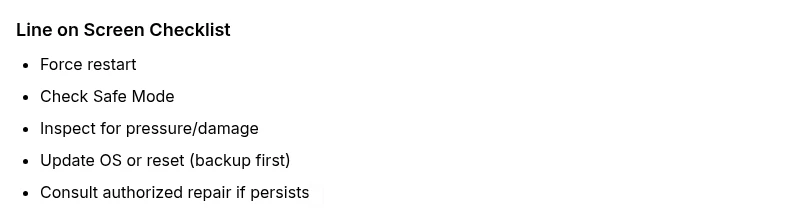
First, perform a force restart or a battery pull if your device supports it. Then update the OS to rule out a software fault. If you wear a case or screen protector, remove them and re-test. Boot into Safe Mode to check for app-related glitches. Inspect for physical damage and moisture, and avoid applying any liquid cleaners to the display. If the line remains after these steps, plan for authorized repair.
When to seek professional repair or replacement
If hardware damage is confirmed or suspected, arrange service through the manufacturer’s authorized repair network or a trusted local technician. Check your warranty status first; in many cases a cracked or nonfunctional display is covered if the device is within the warranty period or under an extended plan. Compare the cost of replacement versus upgrading; a high-end repair might approach the price of a newer device.
Prevention tips to minimize future display issues
Protect your phone from drops with a rugged case and a quality screen protector that doesn’t press on the edges. Avoid exposing the device to extreme heat or pressure (don’t sit on the phone in a pocket). Regularly clean the port areas with proper tools to prevent dust buildup that could affect connections. Finally, back up data regularly so you aren’t stranded if the screen fails and you need device replacement or service.
Real-world scenarios and what they imply
In many cases, users report a vertical line after dropping the phone, signaling panel damage or a connector shift. Another common scenario is a line that appears after a software update, which can hint at a temporary driver glitch rather than hardware failure. In all cases, if the line persists after safe-mode testing and software updates, treat it as a hardware issue requiring professional assessment. Your Phone Advisor emphasizes avoiding DIY electronics repair if you lack proper tools, as further damage can occur.
How to prepare for service and data safety
Before handing your phone to a technician, back up all data and note when the line first appeared. Remove any SIM card and memory card to prevent loss, and disable find-my-phone services only if instructed by the service provider. Ask for a written estimate and a clear explanation of the repair steps. If your device is sentimental or critical for work, request an authorized technician to preserve data and settings to the greatest extent possible.
Steps
Estimated time: 30-60 minutes
- 1
Force restart
Perform a force restart to clear minor software glitches. Wait for the device to reboot and check if the line persists.
Tip: If your model supports a battery pull, do it for a complete reset. - 2
Test in Safe Mode
Boot into Safe Mode to determine if a third‑party app is causing the issue. If the line disappears, an app is the culprit.
Tip: Document any recently installed apps before disabling them. - 3
Inspect physical factors
Remove all accessories and check for pressure from a case or screen protector. Gently press around the edges to see if the line changes.
Tip: Do not press hard; excessive pressure can worsen damage. - 4
Update or reset the software
Install the latest OS update. If stable, consider a factory reset after backing up data to rule out software faults.
Tip: Back up data to cloud or computer before resetting. - 5
Check for hardware damage
Inspect for cracks, moisture ingress, or obvious panel damage. If present, do not attempt further DIY fixes.
Tip: Take clear photos for service documentation. - 6
Consult a professional
If the line remains after all steps, contact an authorized service provider for display replacement.
Tip: Ask for a written quote and service warranty.
Diagnosis: Screen shows a persistent line or lines across most content
Possible Causes
- highHardware panel damage (OLED/LCD)
- mediumLoose or damaged display connector
- lowPressure from case/screen protector
Fixes
- easyPower cycle or force restart to clear glitches
- easyBoot into Safe Mode to test for software issues
- easyRemove screen protector / case to check for pressure
- mediumUpdate software or perform a factory reset (after backup)
- hardConsult authorized repair or display replacement
Got Questions?
What causes lines to appear on OLED screens?
Lines on OLED displays are typically due to pixel failures, panel damage, or burn-in. Hardware faults often cause persistent lines that appear across apps and not just within specific content.
Lines on OLED screens are usually caused by pixel or panel damage, or burn-in, indicating hardware issues.
Will a factory reset remove lines caused by hardware damage?
No. A factory reset may fix software artifacts but cannot repair a damaged panel or disconnected cable. Hardware-related lines persist after resets and require professional service.
A factory reset won’t fix hardware damage; you’ll still need professional repair if the line is hardware-related.
Can bad software cause permanent screen lines?
Software glitches can create temporary display artifacts, but persistent lines that stay after reboot and Safe Mode usually point to hardware faults. Software-based lines are typically resolved with updates.
Software artifacts are usually temporary and fixed by updates or resets, not permanent lines.
Is a cracked screen always the cause of lines?
A cracked screen can cause visible lines, especially if the glass is damaged and the LCD beneath is affected. If cracks are absent but lines exist, there may still be internal panel damage.
If there’s a crack, lines often come from panel damage; without cracks, internal faults are still possible.
How much does it cost to fix a line on the screen?
Repair costs vary by model and location. Hardware replacements can be significant, sometimes approaching the price of a new device, which is why comparing repair versus replacement is wise.
Repair costs depend on model and region; often you’ll weigh repair versus upgrading.
Will repairing void my warranty?
Warranty terms vary. Using authorized service providers typically preserves coverage; DIY repairs or third-party services may void warranties. Check your agreement before proceeding.
Warranties can be affected by who performs the repair; use authorized centers when possible.
Watch Video
What to Remember
- Identify whether the line is hardware or software related.
- Prioritize safe, non-destructive checks first.
- Back up data before repairs or resets.
- Use authorized repair services for hardware faults.