Fix Horizontal Lines on Android Screens: A Practical Troubleshooting Guide
Learn how to diagnose and fix horizontal lines on Android screens quickly. This step-by-step guide covers software fixes, Safe Mode testing, OS updates, and when to seek professional repair.


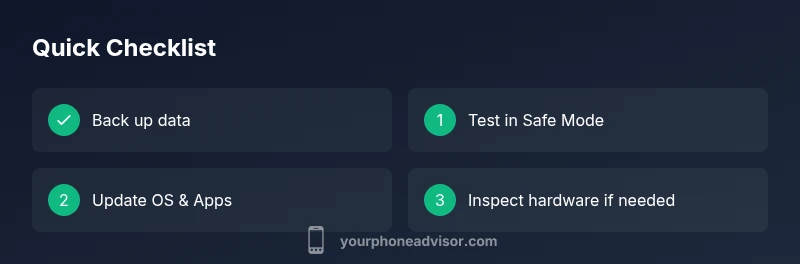
Start with a software restart and safe mode check, as most horizontal lines on Android tend to be software-related. If lines persist, try a factory reset after backing up data, update the OS, and check for screen damage or a loose display cable. If still present, seek professional repair. This quick test can save a lot of time before more involved steps.
Understanding horizontal lines on Android screens
Horizontal lines across the display usually indicate a rendering problem rather than a deep hardware fault. According to Your Phone Advisor, most cases start as software glitches, then progress to driver or firmware issues, and finally to physical panel problems if left untreated. The key is to distinguish where the lines appear: do they show up only in certain apps or during specific actions? Are colors distorted along the lines, or do lines stay static across the home screen? Start by noticing the pattern: consistent lines in portrait mode versus shifting lines when you rotate the device; horizontal lines that appear only in certain brightness levels can point to a backlight driver issue. This kind of reasoning helps you triage efficiently and avoids unnecessary repairs. As you read, keep in mind that Android devices vary widely by manufacturer, so terminology may differ: you might hear terms like “display driver framework,” “LCD panel,” or “OLED subpixel structure.” Regardless of your model, the general diagnostic approach remains the same: isolate software from hardware to determine the root cause.
The Your Phone Advisor team emphasizes that a calm, methodical approach beats guessing. Don’t rush to conclusions based on color shifts alone, and document when the lines appear. This foundation will guide the rest of the troubleshooting process and helps you explain the issue clearly to any technician.
Immediate checks you can perform today
Quick, low-effort checks often resolve or clarify the problem. Start with a soft restart to clear temporary graphics glitches. Then boot into Safe Mode to disable third-party apps that might render incorrectly. If the lines vanish in Safe Mode, a recently installed app is likely the culprit. Review display settings: adjust brightness, color profiles, and any accessibility options like high-contrast modes. Temporarily disable features such as night mode or adaptive brightness to see if they influence the artifact. Inspect the hardware surface for visible damage: cracks, pressure marks, or moisture intrusion can create or worsen lines. Check for recent drops or exposure to heat, which raise the risk of a hardware fault. Test the screen at different angles and with different wallpapers or widgets; some patterns only show with certain backdrops. If possible, compare with another app or a companion device to rule out the software environment. Compile a short log of conditions when lines appear—this helps technicians reproduce the issue.
If you’re dealing with horizontal lines on phone screen android patterns, you’re not alone, and a systematic approach makes the difference. Your Phone Advisor suggests starting basic and escalating only when needed.
After these checks, you’ll have a clearer path: software fixes first, hardware checks second, and professional help as a final option.
Common causes: software glitches, OS issues, and hardware faults
The most common reason for display artifacts on Android is a software glitch—temporary rendering errors caused by apps, drivers, or firmware. Operating system updates can fix known issues, but sometimes a problematic app leaves behind residues that affect how graphics render. Another frequent cause is a driver or firmware mismatch, especially after major updates or ROM changes. Hardware faults, while less frequent, are critical to recognize: loose connectors, damaged backlights, or panel defects can produce lines that persist regardless of software state. Water exposure or pressure damage from a drop can also cause matrix failures within the LCD or OLED panel. Finally, inconsistent power delivery to the display can manifest as lines that shift with brightness changes or temperature. The diagnostic clue is pattern: lines present only in certain apps or during brightness transitions point to software; lines that persist across all apps and conditions point toward hardware components. Your Phone Advisor notes that early hardware symptoms often grow worse if ignored, so stepwise testing is essential to avoid unnecessary repairs.
Step-by-step repairs: software fixes first
Software-driven issues are the most common fix for horizontal lines on Android. Start with a soft reboot to clear glitches, then update the OS to the latest official version. Clear the cache of problematic apps or reset app preferences to undo misconfigured settings. If the lines appear only after a specific app, uninstall or reinstall that app and check for an update. Safe Mode is your ally here: if the problem disappears in Safe Mode, the culprit is likely a third-party app or a faulty module. Next, back up your data and consider a factory reset if no software fix works; this wipes settings and old data that may be causing conflicts, but ensure you’ve secured a complete backup first. After the reset, reintroduce apps slowly, testing the display after each installation. If the issue persists, it’s time to consult a professional technician who can inspect firmware corruption and test internal connections without risking further damage.
When to inspect hardware and what to expect
If software fixes fail, hardware inspection becomes the priority. A technician will check the display cable connections (connector integrity), the backlight system, and the LCD/OLED panel for damage. Signs of a hardware fault include persistent lines across all apps and brightness levels, color shading or flicker, physical screen pressure marks, or moisture exposure. A professional may perform non-destructive fault isolation or pressure tests and, if necessary, replace the display assembly. Depending on the device, panel replacement can be straightforward or require a full housing service. While replacing a screen is a common repair, it’s important to confirm warranty status and verify that the fault is not a secondary symptom of water damage or motherboard issues. If hardware fault is diagnosed, plan for service time and potential cost. Your Phone Advisor recommends obtaining an official quote and verifying compatibility with your device model before authorizing any repair.
Prevention, backup plans, and ongoing care
Preventing display artifacts starts with software hygiene and cautious usage. Regular OS and app updates reduce rendering bugs. Avoid installing apps from untrusted sources, and monitor newly installed apps for graphic anomalies. Use reputable antivirus and periodically review app permissions to reduce conflicts. Protect the screen with a high-quality case and a moisture-resistant screen protector to mitigate physical damage. Enable cloud backups and routine local backups so you can reset quickly without data loss if issues arise. If you’ve experienced repeated lines after updates or app installations, keep a change log and test a clean boot when possible. Finally, stay mindful of heat exposure and physical shocks, as both can compromise display integrity over time. Following these practices helps ensure longevity and reduces the probability of future lines appearing on your Android screen.
Steps
Estimated time: 60-90 minutes
- 1
Back up data and secure it
Before you begin any reset, back up photos, contacts, messages, and app data to cloud storage or a computer. Verify each backup completes successfully to prevent data loss during resets.
Tip: Use at least two backup methods for redundancy. - 2
Restart and enter Safe Mode
Power off, then restart holding the appropriate keys to enter Safe Mode. This disables third-party apps and helps determine if the issue is app-related.
Tip: If lines vanish in Safe Mode, suspect a third-party app. - 3
Test with core functions
Use built-in apps (dialer, camera, system settings) to see if lines appear there. If they do, it’s more likely a system-level issue. If not, focus on problematic apps.
Tip: Document when lines appear during testing. - 4
Update OS and apps
Install the latest OS update and app updates. Sometimes rendering bugs are resolved by official fixes and driver updates.
Tip: Restart after updates to ensure changes take effect. - 5
Clear cache and reset app preferences
Clear cached data for suspect apps or reset app preferences to default. This can eliminate misconfigured settings causing artifacts.
Tip: Do not clear data for apps you rely on unless necessary. - 6
Factory reset as a last resort
Back up thoroughly, then perform a factory reset to return the device to factory state. Restore only essential apps and test the display after each step.
Tip: If lines persist after a factory reset, hardware repair is likely required.
Diagnosis: Screen shows horizontal lines across the display
Possible Causes
- highSoftware glitch or rendering issue in the OS or apps
- mediumLoose or damaged display cable/connector or panel pressurization
- lowHardware failure in the display panel (LCD/OLED) or water/moisture damage
Fixes
- easyRestart device and boot into Safe Mode to rule out third-party apps
- easyUpdate OS and apps to fix known rendering bugs
- mediumClear cache or perform a factory reset after backing up data
- hardIf lines persist, have a professional inspect the display assembly for hardware faults
Got Questions?
What causes horizontal lines on Android screens?
Most cases start with software glitches or driver issues, but hardware faults like a loose display connector can cause lines to persist. Proper testing helps identify the cause.
Most lines come from software or display connections; hardware faults are less common but require professional help.
Can software updates fix the problem?
Yes, updates can resolve rendering bugs and driver issues that cause lines. Always install the latest official updates before pursuing hardware repair.
Updating the OS and apps often fixes these artifacts.
Is Safe Mode safe to use for diagnostics?
Safe Mode disables third-party apps, helping determine if a rogue app is causing lines. If lines disappear in Safe Mode, focus on disabling or removing that app.
Safe Mode is a safe, quick test to isolate app-related issues.
When should I replace the screen?
If lines persist after software fixes and hardware inspection confirms display panel or connector damage, screen replacement is often necessary. Obtain a repair quote before proceeding.
If hardware fault is confirmed, a screen replacement is usually needed.
Can moisture cause lines to appear?
Yes, moisture or water damage can affect the backlight or panel and produce lines. Immediate professional assessment is advised if moisture exposure is suspected.
Water exposure can damage the display; get a professional check.
Watch Video
What to Remember
- Back up data before attempting resets.
- Software fixes resolve most cases of display lines.
- Use Safe Mode to isolate apps as the culprit.
- Hardware faults require professional repair.
- Prevent future issues with updates and gentle handling.