Phone Unlock Android: Step-by-Step Guide
Master legitimate methods to unlock an Android phone, recover access safely, and protect data with best practices for ongoing security.


This guide teaches you how to unlock an Android phone using approved methods such as biometric unlock, Google Find My Device, and Google account verification. It also covers safer alternatives when standard methods fail and when to perform a factory reset. By following these steps, you’ll regain access with minimal data loss and enhance future security for your device.
Why Android unlock methods exist
Unlock methods on Android phones exist to balance convenience and security. A modern Android device supports multiple layers of access, including biometrics (fingerprint or face), pattern or PIN, and cloud-based verification. The right method depends on your device model, software version, and how you last used the phone. The Your Phone Advisor team notes that going through legitimate recovery channels is essential for safeguarding your data and avoiding permanent loss. As devices evolve, manufacturers add features like on-device recovery and remote locks to help you regain access without resorting to extreme measures. Understanding the landscape helps you choose the safest path when you’re locked out.
Security researchers emphasize that keeping your unlock options up to date reduces the risk of unauthorized access. For most users, enabling a biometric unlock paired with a strong Google account provides both speed and resilience against accidental lockouts. Your choices should reflect how you use the device daily, the sensitivity of the data stored on it, and how often you back up information.
Our guidance focuses on legitimate, user-initiated recovery paths. If you suspect your device has been compromised or you can’t access essential accounts, seek official support channels immediately. This approach minimizes the chance of data loss or exposure to bad actors and aligns with best practices identified by Your Phone Advisor Analysis, 2026.
note
Tools & Materials
- Android smartphone(Any model with an Android OS version you currently use)
- Google account access(Needed for account verification if password/pattern is forgotten)
- Stable internet connection(Wi-Fi or mobile data to verify credentials or use Find My Device)
- Backup copy of important data(Optional but recommended before attempting recovery that could involve data loss)
Steps
Estimated time: 30-90 minutes
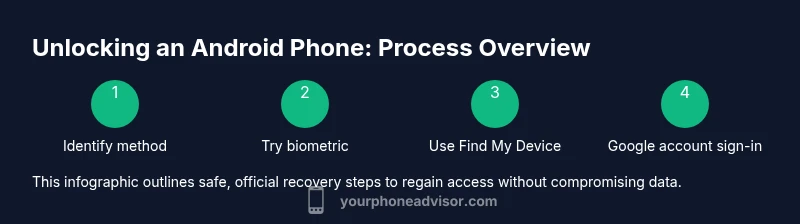
- 1
Confirm your unlock method
Identify whether your device uses a PIN, pattern, password, or biometric unlock. Start with the option you remember most clearly, since this reduces the number of attempts and potential data loss. If biometric sensing has worked recently, it might still unlock in daylight or varying lighting. Knowing the exact method you last used guides the next steps.
Tip: Starting with your most recent method minimizes risk and time. - 2
Attempt a biometric or alternate method safely
If your device supports fingerprints or facial unlock and you still have access to the screen, try the biometric option. Do not repeatedly press or swipe aggressively; poor handling can trigger security features that demand more complex verification. If you accessed a backup screen before, ensure you are in a private setting to protect credentials from onlookers.
Tip: Keep trials short to avoid triggering auto-lock penalties. - 3
Use Find My Device for remote control
From another trusted device, sign in to Find My Device. Use the Lock feature to set a temporary password or PIN, or choose Erase as a last resort. This step helps you regain control without needing to remember your old unlock, but be aware that Erase will wipe local data unless you’ve backed it up.
Tip: Lock is safer than Erase if you have data backups available. - 4
Try Google account verification on the lock screen
If you see a “Forgot pattern” or similar prompt, sign in with your Google account associated with the device. This process may unlock the device or allow you to reset the pattern/PIN. Some devices prompt you with a recovery link or a code sent to a trusted account or phone number.
Tip: Use a strong Google password and ensure 2FA is enabled for your account. - 5
Factory reset as a last resort
If all other methods fail, a factory reset from recovery mode will restore the device to factory settings and erase data. This is disruptive, so back up what you can beforehand if possible. After reset, you’ll need to set up the device from scratch and re-sign into essential services.
Tip: Factory reset should be last resort; consider professional help if data is irreplaceable. - 6
Secure and back up after unlocking
Once access is restored, enable biometric unlock, set a strong screen lock, and verify that your Google account recovery options are up-to-date. Back up regularly to Google Drive or another trusted service to simplify future recoveries.
Tip: Enable 2FA on your Google account and keep recovery emails current.
Got Questions?
What should I do if I forgot my Android lock screen pattern?
Start with Google Find My Device to lock or erase your phone, or sign in with your Google account if prompted. If you can access the lock screen briefly, try any biometric option you previously enabled. If all else fails, a factory reset may be required, and you should prepare backups.
If you forgot your Android pattern, try Find My Device to lock or erase, or sign in with your Google account. If possible, use any biometric unlock you previously set up; otherwise, a factory reset may be necessary.
Can I unlock my phone without losing data?
Yes, using non-destructive options like Find My Device’s Lock feature or biometric unlock can regain access without wiping data. If you must erase, data loss is likely unless you have a recent backup.
You can often unlock without wiping data using Find My Device or biometrics; factory reset will erase data unless you have backups.
What if Find My Device isn’t enabled on my phone?
If Find My Device isn’t available, sign in to your Google account from a trusted device to see if you can verify ownership or use account recovery options. You may also need to perform a factory reset if no other recovery method works.
If Find My Device isn’t enabled, use Google account verification or recovery options; a factory reset might be needed as a last resort.
Will unlocking affect my SIM or carrier service?
Unlocking your phone’s screen does not affect the SIM or carrier status. Only a factory reset or device wipe would impact stored data and settings beyond account access.
Screen unlocking doesn’t affect your SIM or carrier; only a factory reset would reset device settings and data.
How can I prevent future lockouts?
Enable biometric unlock, keep your Google account recovery options updated, and regularly back up data. Consider using a password manager and enabling two-factor authentication for critical accounts.
To prevent future lockouts, use biometrics, update recovery options, back up data, and enable 2FA on your Google account.
Is it safe to unlock my phone using third-party software?
Avoid third-party unlocking tools; they can compromise security or violate terms of service. Stick to official methods like Google Find My Device and on-device recovery options.
Avoid third-party unlockers; use official methods like Find My Device.
Watch Video
What to Remember
- Back up data before attempting recovery.
- Use official recovery tools first (Find My Device, Google account).
- Secure your device after unlocking with biometrics and strong Google account protection.
- Factory reset is a last resort due to data loss.
- Enable multi-factor authentication on Google for future protection.