Android Locate My Phone: Find, Lock, and Protect
Learn how to android locate my phone quickly and safely using Find My Device and manufacturer tools. Step-by-step guidance, privacy tips, and practical recovery strategies for Android users.


By following these steps you can android locate my phone quickly and safely. This guide shows how to locate, ring, lock, and erase your Android device using Google Find My Device and trusted manufacturer tools. You'll also learn when to use each option to protect data and privacy. Keep this guide handy for emergencies.
Why Android locate my phone matters
In today’s connected world, losing track of your Android device can be stressful and risky. A misplaced or stolen phone can expose personal data if left unprotected. This is where the ability to android locate my phone becomes a practical safeguard. According to Your Phone Advisor, enabling location services, keeping your Google account secure, and using recovery tools promptly markedly improves chances of recovery and minimizes potential damage. In this section we’ll explore why it matters, what data is collected, and how to think about privacy when you enable tracking features. We’ll also differentiate between local device signals and cloud-assisted location, so you know what to expect in various situations. For many users, the first instinct is to blame the device’s hardware; in reality, the software ecosystem and cloud services play a decisive role. When you act quickly and methodically, you preserve evidence, increase the likelihood of recovery, and reduce the risk of unauthorized access. This makes it worth understanding the available tools before you need them, so you can respond with confidence rather than panic.
Core methods to locate your Android device
Android devices offer several paths to locate a missing phone, with Google Find My Device acting as the central hub for most users. The core method is straightforward: sign in with the Google account linked to the lost device, verify that location services are on, and use the map to see the device’s last-known position. If the device is online, you’ll see a real-time location, and you can choose actions such as Ring, Lock, or Erase. Beyond Google’s service, OEMs provide alternative or supplemental tools, such as device management portals that are accessible from any web browser. Keeping these options in mind helps you adapt if Google’s service is temporarily unavailable or if you’re trying to locate a device in a different ecosystem. In practice, you should maintain a current recovery email, phone number, and backup options to ensure you can recover access even if you don’t immediately remember your credentials.
Using Google Find My Device effectively
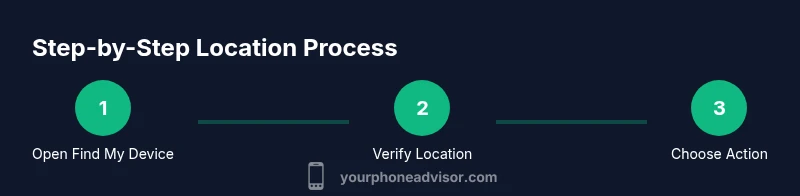
Google Find My Device is the most universal method for Android tracking. Start by visiting the Find My Device site on any device with internet access and sign in with the Google account on the lost phone. The interface displays the device location on a map if location is enabled and the phone is connected. You can make the device ring at full volume, even if muted, which helps you locate it quickly in your home or office. If needed, you can lock the device remotely with a passcode and message, so a passerby cannot access your apps. In extreme cases, you can erase the device to protect sensitive data, but this is irreversible and should be used only when recovery seems unlikely. For devices with multiple users or corporate profiles, ensure you’re selecting the correct profile before taking any action. As a safeguard, enable “Notify when found” so you receive updates when the device becomes reachable again.
Manufacturer-specific options: Samsung Find My Mobile and Pixel/other OEMs
Many Android manufacturers offer tailored recovery ecosystems that complement Find My Device. Samsung’s Find My Mobile service lets you locate, ring, lock, or wipe a Galaxy device even if Find My Device is temporarily unavailable. Pixel devices and many other OEMs provide device management pages that integrate with your Google account, offering similar remote actions. If you use multiple brands, consider enrolling each device in its respective system and keeping your account credentials updated. This redundancy improves chances of recovery and allows you to act quickly in different environments (home, work, or travel). Remember that some features require a linked account and a network connection; without them, location-based options may not appear immediately.
Privacy and security considerations when locating your phone
Locating your Android phone involves sharing location data with trusted services. To protect privacy, enable only the permissions you need, review connected apps regularly, and use strong authentication on your Google account. When you use remote lock or erase options, ensure you have a recovery method (backup email or phone) to regain access. If you suspect unauthorized use, promptly change passwords and enable two-factor authentication. Your Phone Advisor emphasizes balancing recovery readiness with privacy: enable location history thoughtfully, and delete it if you no longer need it. Always monitor which devices have permission to access your location and revoke access for devices you no longer own.
Troubleshooting common issues and edge cases
Sometimes a phone appears offline, powered down, or connected to a network that is temporarily unreachable. In these cases, Find My Device will show the last known location and can send a notification when the device comes back online. Ensure the device is powered on and connected to mobile data or Wi‑Fi, and confirm that location services are enabled. If a device isn’t appearing, verify the Google account tied to the phone, check that the device is not in airplane mode, and confirm that Find My Device is turned on in the settings. For Samsung users, confirm Find My Mobile settings and ensure the device isn’t registered to a different account. Be mindful of battery usage if you run location services in the background for extended periods.
Best practices for ongoing protection and recovery readiness
Make location-tracking a routine part of device security. Regularly review account security, update recovery options, and keep your software up to date. Set up two-factor authentication for your Google account, enable Find My Device, and test the locate feature a few times a year so you understand how it works in practice. Consider creating a short checklist you can follow after a loss incident: confirm online status, verify credentials, attempt a locate or ring, and, if necessary, wipe the device after confirming recovery is unlikely. Finally, document a brief recovery plan for family members or colleagues who may assist you in an emergency, reducing hesitation during a stressful moment.
Tools & Materials
- Android device with internet access(Device must be powered on and connected to the internet)
- Google account linked to the device(Needed to access Find My Device)
- Another device with internet access(Used to sign in to recovery services)
- Samsung account (optional for Samsung devices)(Needed to use Find My Mobile features)
- Find My Device app (optional)(Alternative access method if you prefer an app)
Steps
Estimated time: 15-25 minutes
- 1
Open Find My Device
From any web browser or the Find My Device app, sign in with the Google account linked to the lost phone. Verify that location services are enabled on the device so the service can receive location updates.
Tip: If you can’t sign in, reset your password on a trusted device before attempting to locate. - 2
Verify device selection
If you have multiple devices, confirm you have selected the correct phone from the top of the screen. This prevents actions on a different device you own or manage.
Tip: Use device name and model to differentiate in accounts with several devices. - 3
Use Locate on the map
Check the map for the device’s current or last-known location. This helps you decide your next action, such as calling the device or moving to a safer area.
Tip: Refresh the page or app if the location doesn’t update within a minute. - 4
Ring the device
Choose the Ring option to make the phone emit a loud sound, helping you locate it indoors or nearby. Ensure sound is not muted and the volume is high enough to hear.
Tip: Avoid moving the device during the ring to preserve the sound path. - 5
Lock the device remotely
If recovery seems unlikely, use Lock to secure the screen with a new password. Add a message with contact information to help a finder return the device.
Tip: Do not reveal sensitive data in the lock message. - 6
Erase if necessary
As a last resort, select Erase to wipe data and protect personal information. Remember this is irreversible and should be used when recovery is improbable.
Tip: Only erase after confirming there is no chance of retrieving the device. - 7
Check recovery options
Review backup email/phone numbers and update your recovery options so you can regain access if you need to repeat the process later.
Tip: Keep recovery options current and test them occasionally.
Got Questions?
What should I do if Find My Device shows no location for my Android phone?
If location is unavailable, check that location services are enabled, the device is online, and you are signed into the correct Google account. You can also try Find My Device features like ring or last-known location and consider waiting a few minutes for the device to come online.
If the location isn’t showing, make sure location services are on, the device is online, and you’re using the right Google account. Try ring or check last known location and wait a bit for updates.
Can I locate a device if it’s offline or powered down?
Offline devices can still be tracked by last-known location if available. You’ll be notified when the device reconnects to the internet. This process relies on the device having been online recently and location history enabled.
If the device is offline, you may only have its last known location and you’ll get a notification when it comes back online.
Is it safe to erase data remotely?
Remote erase protects your data, but it’s irreversible. Use it only when you’re confident you cannot recover the device. After erasing, you won’t be able to track the phone anymore.
Erasing remotely protects data, but you won’t be able to track the device after the wipe, so use it only if recovery is unlikely.
What if my device isn’t linked to Find My Device?
If Find My Device isn’t linked, explore OEM-specific recovery tools like Samsung Find My Mobile or Pixel device management. You may need to sign in to the correct account or enable these features beforehand.
If Find My Device isn’t set up, check Samsung Find My Mobile or your device’s OEM tools, and make sure your accounts are correctly linked.
Will locating my phone affect battery life?
Location services use some battery, especially if running in the background. You can minimize impact by disabling location history when not needed and scheduling checks only when necessary.
Location tracking uses some battery, but you can limit usage by adjusting settings and checking only when needed.
How often should I test Find My Device?
Test Find My Device every few months to verify it works and that your recovery options are up to date. Regular checks reduce panic during real incidents.
Test Find My Device every few months to ensure it works and your recovery options are current.
Can I use Find My Device to locate multiple devices at once?
Find My Device supports multiple devices per account, but you must select the correct device each time to avoid triggering actions on the wrong phone.
Yes, you can manage multiple devices, just pick the right one when taking actions.
Watch Video
What to Remember
- Enable Find My Device and location services before you need them
- Know the difference between locate, ring, lock, and erase
- Verify you’re acting on the correct device when multiple devices exist
- Securely manage passwords and recovery options to stay accessible