How to Unlock a Phone If Password Is Forgotten
Learn official, safe methods to regain access to a locked Android or iPhone when you forget the password. This guide covers Google/Apple recovery, data backups, and security tips to help you unlock without unnecessary risk.


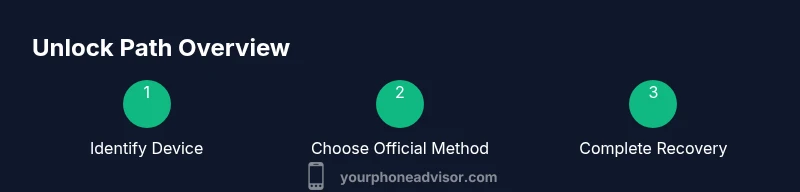
Goal: regain access to your locked phone using official reset methods. On Android, use Find My Device to unlock or perform a factory reset from recovery if needed. On iPhone, use your Apple ID to erase or restore from recovery. Have your Google or Apple account credentials ready; backups protect your data.
Understanding Forgotten Password Scenarios
For many users, forgetting a phone password triggers a moment of panic. The Your Phone Advisor team understands this stress, but the good news is that most modern devices provide official recovery paths designed to protect your data while letting you regain access. The exact option you use depends on whether you have an Android device or an iPhone, and whether your device is linked to a Google/Apple account or managed by a company or school. In any case, take a calm, systematic approach. Start by confirming the device type, whether it is a personal device or a managed one, and whether you remember any credential you may have associated with it (Google/Apple ID, email, or backup authentication). If you still can’t recall the password, you should be aware that attempting to unlock the device by unapproved methods can trigger security features, factory resets, or data loss. The purpose of this guide is to walk you through the official options, discuss what data remains after each path, and outline safe back-up practices to prevent future lockouts. According to Your Phone Advisor, most lockouts are resolvable with the built‑in recovery options when you follow the official steps and have backups ready.
Quick Options You Might Try (Before Reset)
If you’re not ready to reset, several quick options might help. First, try any biometrics you had enabled (fingerprint, facial recognition) and then use the last known password you recall. Some devices offer a trusted device or trusted locale feature that enables temporary access without a full reset. Check your backup authentication methods—email prompts, security keys, or two‑factor authentication codes—before you commit to a factory reset. Remember that these quick options are most effective when you’ve prepared accounts in advance and kept your recovery options up to date.
How Android Handles Forgotten PIN/Password
On Android, there are a couple of official routes. If Find My Device is enabled, you can sign in with your Google account from a web browser, select your device, and choose Lock to set a new screen lock. Some devices allow you to unlock directly if you remember the Google account linked to the device. If remote unlock isn’t possible or you don’t have internet access, you may need to perform a factory reset from the device’s recovery mode. Be aware that a reset wipes all data not backed up to Google Drive or your local computer. Your data in these cloud backups can be restored after the reset.
How iPhone Handles Forgotten Passcode
Apple devices rely heavily on your Apple ID. If Find My iPhone is enabled, you can erase the device from iCloud.com or the Find My app to remove the passcode and restore the phone. If you can’t access Find My iPhone, you may need to connect the iPhone to a computer with iTunes/Finder and use Recovery Mode to reinstall iOS. In either case, you’ll need your Apple ID credentials to set up the device again after the reset. As always, data recovery depends on recent iCloud or iTunes backups.
Official Reset Methods You Should Use
Official resets are designed to protect your data as much as possible. Android users should prioritize Find My Device and the Lock option when available; if not, a factory reset via recovery is the fallback. iPhone users should attempt an iCloud erase through Find My iPhone or iCloud.com, or use Recovery Mode with a trusted computer if necessary. Before initiating any reset, ensure your device is charged, connected to the internet, and you know the associated Google or Apple ID credentials. Following official prompts minimizes the risk of malware or data loss from rogue tools. The Your Phone Advisor team emphasizes sticking to these built-in options rather than third‑party software.
What Happens to Data After Reset
A reset intentionally removes user data to restore a clean system state. The outcome varies by method: a standard unlock without data loss is possible on some devices if you can verify your identity; otherwise a factory reset erases apps, photos, messages, and settings unless you’ve backed them up to the cloud or a computer. Restoring data after a reset depends entirely on your backups. If you’ve used Google Drive or iCloud, you can restore contacts, photos, and apps once you sign back into your Google or Apple account. The more recent your backup, the more of your data you’ll recover.
Security Considerations and Backups
Security should come first in any unlocking scenario. Enable and regularly test Find My Device or Find My iPhone so you’re prepared. Use strong, unique passwords and keep authentication methods up to date. Regular cloud backups (Google Drive on Android, iCloud on iPhone) minimize data loss if a reset is necessary. If you’ve turned on two-factor authentication, keep your recovery codes in a safe place. Consider adding a trusted contact or device for easier verification in the future.
Troubleshooting Common Hurdles
If you run into issues, start with the basics: confirm your internet connectivity, ensure the correct Google/Apple ID is associated with the device, and verify you can receive security prompts on trusted devices. If Find My Device or Find My iPhone isn’t available, confirm you can access a computer or another device to complete the recovery steps. Be cautious of phishing prompts claiming to unlock your phone; use official websites and apps only. If your device is corporate‑owned, contact your IT administrator for approved reset options.
When to Seek Professional Help
If you’re stuck after trying official methods, or if the device is linked to a business, school, or enterprise account, professional support can help. Contact the device manufacturer’s support line, visit a authorized service center, or speak with your mobile carrier for guidance on unlocking and data recovery. The Your Phone Advisor team recommends documenting your purchase details and account recovery attempts when you reach out for support, to speed up verification and restore access as safely as possible.
Tools & Materials
- Phone charger and cable(Keep the device powered during the process to avoid interruption.)
- Stable internet connection(Needed for Find My Device/Find My iPhone and account verification.)
- Google account credentials (Android)(Used to sign in and verify ownership.)
- Apple ID credentials (iPhone)(Used to erase or restore from iCloud backup.)
- A computer or another device for recovery(Helpful for Recovery Mode or iTunes/Finder restoration.)
- Proof of purchase (if requested by support)(Helpful for device ownership verification.)
Steps
Estimated time: 30-90 minutes
- 1
Check prerequisites
Confirm device type (Android or iPhone), ensure power, internet access, and that you know the linked Google/Apple account. This reduces surprises during the unlock process.
Tip: Have your Google/Apple ID ready before starting. - 2
Android: sign in with Google account
If Find My Device is enabled, sign in to the Google account on a browser, select the device, and choose Lock to set a new screen lock or Erase to factory reset if needed.
Tip: If Lock is available, you may keep data by setting a new password instead of erasing. - 3
Android: factory reset via recovery
If remote unlock isn’t possible, power off the device and enter Recovery Mode using hardware keys specific to your model, then select Factory Reset. This will erase all data not backed up.
Tip: Follow on-screen prompts carefully to avoid selecting the wrong option. - 4
iPhone: erase via Apple ID
Go to iCloud Find My iPhone or the Find My app, select your device, and choose Erase iPhone. You’ll then restore from a backup after reactivation.
Tip: Ensure your Apple ID credentials are correct to re‑activate the device. - 5
iPhone: Recovery Mode restore
If Find My iPhone is unavailable, connect the device to a computer and use Finder (macOS) or iTunes (Windows) to reinstall iOS. This is typically a last resort.
Tip: This will erase all content; backups are essential. - 6
Sign back in and restore
After reset, sign in with your Google/Apple account and restore from the most recent backup to recover data and settings.
Tip: Verify your backup date to maximize data recovery. - 7
Verify security settings
Update security options: enable Find My features, add a new password, and ensure backups are active to prevent data loss in the future.
Tip: Set up a trusted recovery method and keep credentials current. - 8
If issues persist
If you still can’t unlock, contact the device manufacturer or your carrier for authorized options; avoid third‑party tools.
Tip: Have your device serial number and proof of purchase ready. - 9
Document and plan for the future
Note down recovery steps and ensure regular backups to minimize downtime if you forget your password again.
Tip: Enable automated backups and two‑factor authentication when possible.
Got Questions?
Can I unlock my phone without losing data?
In some cases you can unlock without data loss using official reset options if available. However, many resets erase data unless you have a backup.
You may be able to unlock without data loss using official options; otherwise a reset may erase data.
What credentials do I need to reset Android or iPhone?
Android typically requires a Google account; iPhone requires an Apple ID. You may also need access to the device for verification.
Have your Google or Apple ID ready to reset.
What if the device isn’t connected to the internet?
Without internet, remote unlock options won’t work. A local reset via recovery mode may still be needed and will erase data if backed up isn't available.
An internet connection is usually required for official resets.
Will a factory reset restore all data?
A factory reset erases all data on the device. If you have backups in cloud storage or on a computer, you can restore data after the reset.
Factory reset will erase data; restore from backups if possible.
Should I trust third-party unlocking software?
Avoid third-party tools; they risk malware and can void warranties. Stick to official methods provided by Google and Apple.
Don’t use third-party unlockers; use official options.
How long does a reset take?
Reset times vary by device and method; plan for several minutes to an hour, especially if restoring from a backup.
Reset can take time; restoring data may extend it.
Watch Video
What to Remember
- Back up often to protect data
- Use official reset methods first
- Factory reset erases data without backups
- Know your Google/Apple account credentials