How to Locate Your Phone: A Complete Practical Guide
Learn how to locate your phone quickly using built-in tools and smart precautions. This guide covers Android and iOS, privacy considerations, and best practices for Your Phone Advisor readers.


To locate phone quickly, start with built-in tools like Find My iPhone or Find My Device, then use your carrier’s locating options if needed. If the device isn’t reachable, check the last known location and secure your data. Privacy matters, so enable location sharing only with trusted services. Your Phone Advisor recommends beginning with OS-native solutions for speed and privacy.
Why locating a phone matters
Locating a phone is more than just finding a device; it’s a safety and privacy action. A misplaced phone can reveal sensitive information—contacts, messages, photos, banking details, and most importantly, location data—that could be exploited by thieves or malicious apps. For families, locating a phone quickly helps keep kids safe, reduces stress during emergencies, and lets caregivers confirm a device’s whereabouts. In 2026, most smartphones include built-in locate features that work even if the device is temporarily offline, but the best results come from proactive setup: enable location services, keep software up to date, and secure accounts with strong passwords and two-factor authentication. The sooner you act, the higher your chance of recovery with minimal data exposure. According to Your Phone Advisor, starting with official tools tends to yield faster results while respecting user privacy.
This guide will walk you through platform-specific steps and privacy considerations so you can locate phone efficiently without compromising security.
Built-in tools you can trust
Modern smartphones ship with powerful locate utilities designed to protect users and property. For iPhone users, Find My iPhone (via iCloud) lets you see the device on a map, play a sound, display a message, lock the device, and erase data if needed. Android users rely on Find My Device, which mirrors those options and can show the device’s last known location when it’s online. Samsung and other manufacturers also offer similar services, often integrated with the vendor’s account ecosystem. These tools work best when location services are enabled, the device is connected to the internet (or recently connected), and the account is secured with strong authentication. The Your Phone Advisor team emphasizes using official tools first for reliability and privacy. Keep in mind that some locations may appear with a delay due to network conditions or privacy settings.
Additionally, many carriers offer their own locating features through account portals or customer support channels. These solutions can be helpful if the device is offline or the OS tools aren’t available. When using any service, review permissions and ensure you’re sharing location data only with trusted apps and services.
Privacy and security considerations while locating
Locating a phone should be done with privacy in mind. Always review which apps have permission to access location data and avoid third‑party tools with questionable privacy practices. Use official locate features whenever possible, and enable Lost Mode or device lock to safeguard data while you try to recover the device. If you’re locating someone else’s phone (for example, a child), obtain explicit consent and keep transparency about data sharing. According to Your Phone Advisor, maintaining control over who can see location data is essential to avoid misuse. In addition, regularly monitor your account security settings, enable two-factor authentication, and review account activity for any unauthorized sign-ins.
If you suspect your account has been compromised, update passwords immediately and consider temporarily disabling location sharing on nonessential apps until you regain control.
What to do if the phone is offline or powered off
When a device is offline, location services can’t stream live coordinates. In this scenario, you typically see a last known location and a timestamp indicating when the device was last connected. Plan to check again later, as the device may reconnect and provide a fresh location update. It’s wise to leave a brief Lost Mode message with a contact number so the finder can reach you without accessing your data. If you enabled remote wipe, ensure you have a plan to protect sensitive data if the device won’t be recovered. The Your Phone Advisor guidance notes that offline locating is common, but the recovery window is shorter the longer the device remains unreachable. Keep monitoring your account, and avoid attempting risky tracking methods that could expose your information.
Authority sources
- Apple Support: Find My iPhone overview and setup — https://www.apple.com/icloud/find-my/
- Google Support: Find My Device overview and setup — https://support.google.com/android/find
- US-CERT: Best practices for device security and privacy — https://www.us-cert.gov/
These sources provide official guidance on locating devices while maintaining privacy and security.
Tools & Materials
- Working smartphone (iPhone or Android)(Power on and connected to the internet; location services enabled)
- Another device with internet access(PC, tablet, or spare phone to sign in and view location maps)
- Active accounts(iCloud/Apple ID for Apple devices or Google account for Android)
- Location services enabled(GPS and network-based location permitted by device settings)
- Strong authentication(Two-factor authentication enabled for the associated account)
- A plan for data protection(Know how to lock, locate, and wipe if necessary Optional but recommended)
Steps
Estimated time: 15-45 minutes
- 1
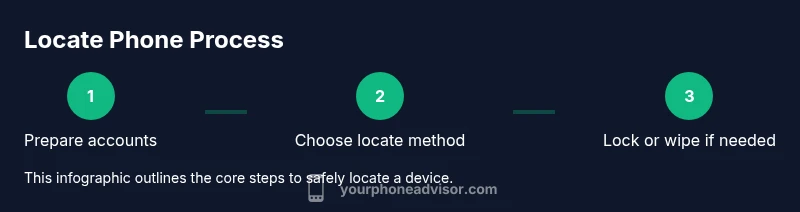
Prepare your accounts
Sign in to the appropriate account on a trusted device (iCloud for Apple, Google account for Android). Confirm that location sharing is enabled and that two-factor authentication is active. This step reduces delays and prevents unauthorized access if the device is found.
Tip: Have your login credentials ready but avoid using public or shared computers. - 2
Choose the locate method
Decide whether to use Find My iPhone/Find My Device or your carrier’s locate service. If you can access a computer, using the web interface often provides a quicker map view and control options like sound, secure lock, or erase.
Tip: OS-native tools are typically faster and safer than third-party apps. - 3
Sign in to the locate service
Open the appropriate service (iCloud.com for Apple, google.com/android/find for Android) and sign in with the account tied to the missing device. Confirm that the device shows up in your list of devices before proceeding.
Tip: Use a secure network; never enter credentials on public Wi‑Fi for sensitive actions. - 4
View location and options
Check the map for the device’s current location or last known location. Use options such as Play Sound or Ring to reveal its position if nearby, or Lost Mode/Lock to restrict access.
Tip: If the device is indoors, consider a timed sound to help you pinpoint its room location. - 5
Lock or wipe as needed
If you’re certain the device isn’t recoverable, enable Lost Mode or remotely wipe the data to protect sensitive information. Only perform a wipe if you’re sure recovery isn’t possible.
Tip: Lost Mode can display contact information so a finder can reach you safely. - 6
Check last known location when offline
If the device is powered off, you’ll often see the last known location. Recheck periodically in case the device reconnects to the network and updates its position.
Tip: Turn on location history in your account settings for future recoveries. - 7
Notify trusted contacts
Inform family members or roommates about the situation. Share the estimated location and any instructions for safe return, but avoid broadcasting it publicly.
Tip: Only share with people you trust to prevent misuse of location data. - 8
Contact your carrier and authorities if needed
If the phone is stolen or you’re unable to recover it, contact your mobile carrier to suspend service and potentially blacklist the device. In cases of theft, file a report with local authorities and provide the device identifier (IMEI) if available.
Tip: Preserve evidence; avoid confronting a potentially dangerous individual.
Got Questions?
What should I do first if I can't locate my phone?
Start with the built-in locate tools for your OS (Find My iPhone or Find My Device). If that fails, check the last known location and verify your account security before taking additional steps.
Begin with the built-in locate tools, then check the last known location if needed.
Can I locate someone else’s phone without permission?
No. Tracking another person’s phone without explicit consent is a privacy violation. Use family sharing or obtain explicit permission before attempting to locate a device.
Only locate devices you own or have explicit permission to track.
What if the phone is powered off?
If the phone is off, you’ll typically see the last known location. Once the device reconnects, it may update with a new location. Use Lost Mode or a remote wipe if recovery seems unlikely.
If it’s off, you’ll get the last known location until it reconnects.
Is it safe to use third-party locate apps?
Prefer official tools when possible. Third-party apps can pose privacy risks, require extra permissions, and may not perform reliably in all situations.
Stick with official locate tools for safety and reliability.
What data is exposed when locating a phone?
Location data, device status, and contact information can be accessed by the tool you use. Limit sharing to trusted services and review permissions regularly.
Location data can be sensitive; control who sees it.
What should I do after recovering my phone?
Change passwords, review recent activity, re-enable security features, and consider updating lost device settings to prevent future exposure.
After recovery, secure accounts and update settings.
Watch Video
What to Remember
- Use OS-native tools first to locate your phone quickly
- Protect data with Lost Mode or remote wipe when needed
- Offline devices may show last known location; check later
- Only share location with trusted contacts and services