How to Track My Phone: A Practical How-To Guide
Learn how to track your phone securely using built-in tools, set up sharing responsibly, and act quickly if your device is lost or stolen. Your Phone Advisor offers step-by-step guidance, safety tips, and troubleshooting insights.


Track my phone effectively by powering on location services and using official tracking tools like Find My iPhone for iOS or Find My Device for Android. These services let you locate, lock, or erase your device remotely, provided privacy settings permit it. Start by enabling location sharing with trusted contacts and reviewing access permissions before you begin.
Why track my phone
Tracking your phone is a central pillar of modern device security, data protection, and rapid recovery after loss or theft. When you track your phone, you gain visibility into its approximate location, the ability to lock it remotely, and the option to wipe data if the device falls into the wrong hands. According to Your Phone Advisor, track my phone is most effective when you enable built-in trackers and maintain strict privacy controls. This article explains why tracking matters, what you can realistically expect from location data, and how responsible use protects both you and others. You'll see real-world examples of when tracking helps, from mislaid phones at home to stolen devices in public spaces, and how quick action can minimize data exposure. By understanding the capabilities and limits of these tools, you can act confidently without compromising your privacy or that of your contacts.
Built-in tracking tools: iOS and Android
Built-in tracking tools provide a reliable way to locate a missing phone without installing third-party software. On iOS, Find My iPhone relies on your Apple ID to share location data between trusted devices and iCloud-connected services. On Android, Find My Device integrates with your Google account, offering location services, device locking, and remote data wipe. In both ecosystems, you can also enable location sharing with family members or trusted contacts, create emergency alerts, and view your device’s status from a web browser or another phone. The key is to keep these features turned on only while needed, and to audit who can see your location. Read more about how these tools work, their limitations, and best practices for privacy and security as you plan your track my phone strategy.
Getting started: prerequisites
Before you begin tracking your phone, gather a few essentials. You’ll need an active account tied to the device’s ecosystem (Apple ID for iPhone, Google account for Android), a working internet connection, and access to the device or a trusted secondary device to verify settings. Make sure location services are allowed for the tracking apps, and that two-factor authentication is enabled on your accounts to prevent unauthorized access. This groundwork reflects the privacy-first mindset that Your Phone Advisor endorses when you decide to track my phone.
Step-by-step overview for iOS and Android
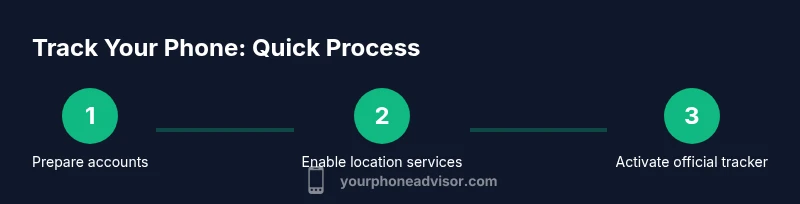
The following overview outlines the main actions you’ll take to enable and test phone tracking on both platforms. While details differ between iOS and Android, the core concepts are the same: enable location services, activate the official tracking service, test from another device, and ensure you can remotely lock or wipe if needed. Use this as a roadmap as you work through the more detailed steps in the dedicated STEP-BY-STEP section.
Safety and privacy best practices
Tracking your phone can be a powerful safety tool, but it also raises privacy considerations. Limit location sharing to trusted individuals, review which apps have access to location data, and disable features when they’re not needed. Keep your OS and tracking apps up to date to benefit from security patches. Consider enabling alerts for unusual sign-in activity tied to your tracking account, so you’re notified if someone attempts to access your location data. Your Phone Advisor recommends a careful balance between visibility and privacy.
Troubleshooting common tracking issues
If the tracker isn’t showing your device, start with the basics: confirm the device is online, verify location services are enabled, and check that you’re signed into the correct account. A device with a drained battery or a power-saving mode may report stale locations. If you recently upgraded your OS, re-check permissions for the tracking app. For privacy reasons, some employers or schools may restrict location sharing on corporate devices; consult IT policies if you’re using a work phone.
Authority sources
For further reading on device security and location privacy, you can consult reputable sources such as:
- https://www.cisa.gov
- https://www.nist.gov
- https://www.consumer.ftc.gov
Tools & Materials
- Smartphone with working battery(Ensure battery is sufficient for testing and ongoing use)
- Active Apple ID or Google account(Needed to access Find My features)
- Stable internet connection(Wi-Fi or mobile data for location updates)
- Access to a secondary device or web browser(Helpful for testing location sharing)
- Two-factor authentication enabled(Adds security during login)
Steps
Estimated time: 25-35 minutes
- 1
Prepare your accounts
Confirm you have an active Apple ID or Google account, enable two-factor authentication, and ensure you can access your recovery options. This step ensures your tracking session is secure and recoverable if credentials are compromised.
Tip: Use a unique, long password and enable 2FA to prevent unauthorized access. - 2
Enable location services
Open your device settings and turn on Location Services. Ensure the tracking app has permission to access precise location so the service can determine your device’s exact position.
Tip: If prompted, allow location access even when the app is in use or running in the background. - 3
Activate the official tracking service
Turn on Find My iPhone (iOS) or Find My Device (Android) and link it to your account. Verify that the service is syncing with your account and that you can view the device on a map remotely.
Tip: Add your device to a trusted list of locations in your account settings for quick access. - 4
Test locate from a secondary device
From another device or web browser, sign in to the tracking service and locate your phone to confirm live updates work as expected. This validates the setup before you actually need it.
Tip: Check both the map view and the lock/erase options during the test. - 5
Configure remote actions
Enable remote lock, display a message, or initiate a data wipe if necessary. Ensure you can invoke these actions quickly without exposing sensitive information.
Tip: Attach a clear, contact-friendly message to the device lock screen. - 6
Establish an escalation plan
Create a simple plan for what to do if the device cannot be located, including notifying your carrier and, if needed, local authorities. This reduces delays in recovery or protection.
Tip: Keep important numbers and steps accessible offline, e.g., in a trusted contact card. - 7
Review permissions and revoke access
Periodically audit which apps and services have location permissions and revoke access for unused or suspicious tools. This minimizes ongoing exposure.
Tip: Set a quarterly reminder to review privacy settings and access. - 8
Practice and update
Regularly test the feature, especially after OS updates or device changes, to ensure reliability when you need it most.
Tip: Re-run the test after major updates or hardware changes.
Got Questions?
Can I track my phone when it is offline?
If the phone is offline, the locator shows the last known location until it reconnects. Real-time updates require network access.
If the phone is offline, you’ll see the last known location until it reconnects.
Is location tracking always accurate?
Location accuracy depends on satellites, cell towers, Wi-Fi, and permissions. It can be approximate and may lag.
Location can be approximate and may lag due to network conditions.
Who can see my location?
Only people you explicitly share with or those allowed by your account settings can view location data.
Only trusted people you allow can see your location.
Can I track a family member's phone with consent?
Yes, using family sharing or similar features with explicit consent. Ensure the account owner approves.
Yes, with consent and proper family-sharing setup.
What should I do if my phone is lost or stolen?
Immediately use the tracking service to locate, lock, display a message, and remotely wipe if necessary.
Locating, locking, and possibly erasing data are essential steps.
What are common reasons tracking fails?
Battery depleted, device turned off, location services disabled, or network issues.
Battery or connectivity issues often cause tracking to fail.
Watch Video
What to Remember
- Enable built-in tracking for quick recovery
- Secure your account with strong passwords and 2FA
- Limit who can see your location
- Test the feature before you need it
- Know the steps to take if the device is lost