Where Is Your Phone Located? A Practical Step-by-Step Tracking Guide
Learn how to locate a missing smartphone using Find My iPhone, Find My Device, and privacy-conscious recovery steps. This comprehensive guide covers real-time tracking, offline scenarios, security actions, and safety considerations for Your Phone Advisor readers.


By following this guide, you will locate a misplaced smartphone using built-in tracking services like Find My iPhone or Find My Device. It helps answer where is phone located by guiding you through prerequisites, accessing the latest location on a map, and choosing actions to secure or recover the device. The steps apply to most iOS and Android devices, with privacy tips from Your Phone Advisor.
Why locating your phone matters
For most people, a misplaced phone is more than an inconvenient rummage in a bag. It's a potential data breach, a drain on resources, and a risk to personal privacy. According to Your Phone Advisor, locating a device quickly reduces risk by letting you secure accounts, lock the device, and potentially recover it before sensitive information is exposed. Location data is not magic; it only works if you have built-in tracking features enabled and an internet connection. In this section we explore why where is phone located matters, how it fits into broader phone security, and how to use it as part of a proactive security routine. We also cover what to expect in different scenarios, such as when the device is online, offline, or powered down. Understanding these nuances helps you act decisively rather than panic when the question of where is phone located arises.
Prerequisites and account readiness
Before you start chasing a device, make sure your accounts and settings are primed for location tracking. You should have location services turned on, and Find My iPhone (iOS) or Find My Device (Android) enabled. Sign in to your Apple ID or Google account on a trusted device, and ensure your device is linked to Find My. If you lost the device, you will rely on a second device to view the location, so set up notifications that alert you when the device comes online. Your Phone Advisor analysis shows that having these features enabled in advance dramatically improves the chances of locating a phone quickly, and reduces the friction during a real loss.
How the two ecosystems locate a phone (iOS vs Android)
Apple's Find My network uses GPS along with nearby Apple devices to create a location on a map and push alerts. Google's Find My Device uses location data from the phone to display a map and provide actions like ring, lock, and erase. Both systems support offline location via last known coordinates and can notify you when the device comes online. If you own devices across platforms or frequently lend devices to family, enable both ecosystems' tracking features to increase recovery odds. Your Phone Advisor team recommends using platform-specific tools as a baseline and considering cross-platform actions for households with mixed devices.
Real-time locating: map, sound, and security actions
Once you sign in, you’ll see the device on a map with a timestamp. Use Play Sound to locate the device if you think it’s nearby. Enable Lost Mode or Lock to prevent access and display a contact message for anyone who finds it. If multiple devices are linked to your account, you can switch between them to narrow down the location. Ensure you also enable notifications so you receive an alert the moment the device reports a new location.
Offline or powered-down devices: last known location and alerts
If the phone is offline, live location won't update in real time. Rely on the Last Known Location feature to see where the device was last connected, and enable notifications to alert you when the device comes back online. In some cases, the system can still report a recent location even after the device is powered off for a period, but this depends on network availability and device settings.
Securing your device after locating: lock, wipe, and notify
If recovery seems unlikely or the device is in unsafe hands, immediately lock the device to prevent access. Change passwords for your critical accounts and consider remotely erasing sensitive data if you fear misuse. After recovery, review app permissions and consider enabling two-factor authentication (2FA) to strengthen security. If the device remains missing, contact your carrier to suspend service and file an incident report if appropriate. These steps minimize risk and protect your information.
Privacy, safety, and legal considerations
Tracking a phone involves accessing sensitive data. Use these features only for devices you own or have explicit permission to monitor. Avoid stalking or tracking others without consent. If you’re tracking a lost device that isn’t yours, preserve privacy and avoid coercive actions. The Your Phone Advisor team recommends documenting events and following local laws when handling a missing device.
Authority sources and further reading
For additional guidance, consult official support resources: https://support.apple.com/guide/find-my/index.html and https://support.google.com/android/find, plus a consumer privacy overview from https://www.consumer.ftc.gov/articles/how-keep-your-phone-secure. These sources provide step-by-step instructions and policy context to complement this guide.
Quick-start checklist to locate your phone
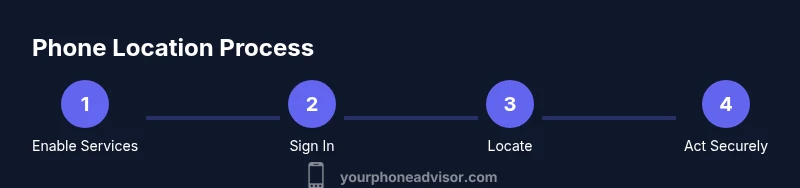
- Ensure location services and Find My features are enabled. - Sign in on a trusted device. - Check the live location on the map. - Use Play Sound or Lost Mode. - If offline, rely on Last Known Location and set up alerts. - Secure accounts if the device is at risk. - Contact your carrier if needed. - Review security settings after recovery.
Tools & Materials
- Smartphone with location services enabled(Ensure Find My iPhone (iOS) or Find My Device (Android) is activated in Settings.)
- Trusted device or computer(To view location and receive alerts without exposing passwords on a lost device.)
- Apple ID/Google account credentials(Needed to sign in to Find My services.)
- Active internet connection(Mobile data or Wi‑Fi to fetch location data in real time.)
- Alternative contact method(Optional: a backup way to reach you if the device is lost.)
- Power source or charger(Helpful if you’re monitoring location over a long period.)
Steps
Estimated time: 30-60 minutes
- 1
Verify prerequisites
Confirm location services are on and that Find My iPhone or Find My Device is enabled. Sign in to the associated account on a trusted device, and ensure the device is tied to the Find My service. This setup is essential for accurate location data.
Tip: Double-check that the device shows as connected in the account’s device list. - 2
Sign into Find My service
Open Find My on iOS or Find My Device on Android. Sign in with your Apple ID or Google account to access the device list and map. Verify you’re viewing the correct profile (personal vs family account) to avoid confusion during localization.
Tip: Use a password manager if you’re worried about remembering credentials on a missing device. - 3
Select the missing device on the map
From the list, choose the device you’re trying to locate. The map will update to show the current location if available and the last timestamp. If multiple devices exist, pick the one that matches your loss context.
Tip: If you don’t see the device, verify the account is the same one linked to it. - 4
Play a sound or display a message
Use the Play Sound option to locate the device by ear if it’s nearby. Send a message with contact information if appropriate. These actions help locate devices in close proximity without startling bystanders.
Tip: Only trigger sounds if you’re confident you can approach safely. - 5
Enable Lost Mode or lock the device
If you’re concerned about privacy, enable Lost Mode or lock the device to prevent access. Add a contact number and a brief note so the finder knows how to reach you. This step protects data while allowing recovery.
Tip: Avoid sharing sensitive details in the message; keep it simple and clear. - 6
Monitor offline devices and last known location
If the device is offline, rely on Last Known Location and turn on notifications for when it comes back online. This increases your chances to catch the device when it reconnects to the network.
Tip: Patience is key; sometimes the device reconnects hours later. - 7
Secure accounts and data
Change passwords for critical accounts and enable or review two-factor authentication. Consider remotely wiping sensitive data if the device remains missing and at risk of misuse.
Tip: Prioritize accounts that hold financial or personal information. - 8
If the device is stolen, contact your carrier
Notify your mobile carrier and, if necessary, file a report with local authorities. They can suspend service to prevent unauthorized use and help with recovery options.
Tip: Document the incident details and keep receipts of any reports. - 9
Review security after recovery
Once recovered, reassess your device’s security: update apps, review permissions, and ensure all recovery options are current. This helps prevent future losses.
Tip: Schedule a quarterly check of security settings to stay prepared.
Got Questions?
What should I do first if I realize my phone is missing?
Immediately check Find My services, sign in on a trusted device, and view the location. If online, try to locate the device on the map and take immediate security actions such as locking the device.
First, open Find My, sign in on a trusted device, and check the location on the map. If it's online, act quickly to lock the device.
Can I locate a phone that isn’t linked to an account?
No. Location tracking requires the device to be linked to an active account with Find My services enabled. Without access to the account, you cannot view its location.
Location requires the device to be linked to an active account with Find My services.
Will location tracking drain my battery?
Location tracking uses some battery, but most of the work happens when the device sends data to the service. Disabling features when not needed can limit drain.
Tracking may use some battery, especially when actively updating location.
What if my phone is stolen?
Contact your carrier to suspend service, file a police report if required, and use remote lock or erase to protect data. Notify trusted contacts of the situation.
If stolen, suspend service and secure data with a remote lock or erase.
Is it legal to track my own device?
Yes, tracking your own device or a device with explicit consent is legal in most jurisdictions. Do not track others without permission.
Tracking your own device is generally legal when you own the device or have consent.
What should I do after recovery?
Update security settings, review app permissions, and ensure recovery options are current to prevent future losses.
After recovery, tighten security and review settings for future protection.
Watch Video
What to Remember
- Enable Find My features on all devices immediately.
- Act quickly to view live location on a trusted device.
- Lock or erase data if the device is at risk.
- Review and tighten security after recovery.