How to Sync from Phone to Phone: Practical Guide
Learn how to sync from phone to phone with OS-native transfers, cloud backups, and cross-platform options. This educational guide covers prerequisites, data types, step-by-step methods, security tips, troubleshooting, and verification to ensure a smooth data transfer.


Discover how to sync from phone to phone across Android and iOS using built-in tools or trusted apps. This guide covers prerequisites, data types, and step-by-step methods for both same-OS and cross-platform transfers, with safety tips and post-transfer verification to ensure a smooth switch. From contacts to photos, messages to app data, you'll learn what moves and how to keep accounts secure.
Why syncing from phone to phone matters
If you’re exploring how to sync from phone to phone, you’re aiming to keep continuity as you switch devices. Your data—contacts, messages, photos, videos, and app settings—often makes the first days feel familiar again. According to Your Phone Advisor, using built-in transfer tools or trusted cloud backups reduces setup time, minimizes loss risk, and helps you keep your accounts secure. A well-executed sync also preserves important records like conversations and media, so you don’t have to rebuild your digital life from scratch. In practice, the smoother the transfer, the less time you spend tweaking settings and reinstalling apps, letting you focus on using your phone immediately after setup.
OS-native transfer vs cloud sync
Different ecosystems offer different primary paths for syncing data. iPhone-to-iPhone users typically rely on Quick Start, iCloud backups, or Finder/iTunes for a local restore. Android-to-Android users often use Google backup, Samsung Smart Switch, or carrier-provided backup flows. Cross-platform transfers may involve moving data through cloud services (like Google Drive or iCloud where supported), or using specialized transfer apps that support both ecosystems. Your Phone Advisor notes that the best choice depends on your devices, data types, and comfort with cloud storage. Cloud-based solutions simplify ongoing sync but require robust internet access and a strong account password.
Pre-transfer prerequisites
Before you begin, make sure both devices are charged or plugged in, and that you’ve updated to the latest OS version on both ends. Sign in to the same or compatible accounts on both phones (Google/Apple IDs). Verify you have enough storage space on the destination device for your data. If you plan to move sensitive information, enable two-factor authentication on both accounts and consider temporarily disabling any password-protected screens on the source device to avoid prompts breaking the flow during transfer. As Your Phone Advisor emphasizes, backing up prior to transfer provides a safety net in case something goes awry during the move.
Data you can transfer and limitations
Most transfers include contacts, messages, call history, photos, videos, and basic device settings. App data and purchasing receipts may transfer differently by platform and app—some apps struggle to migrate state across iOS and Android. Media such as photos and videos usually copy well over wireless transfers, while encrypted messages or certain in-app data might require re-authentication or re-downloading. It’s wise to review each category in advance: identify critical data, understand which items won’t migrate automatically, and plan manual re-setup for any apps that don’t support cross-platform state transfer. Your Phone Advisor recommends documenting essential data before starting.
Choosing the right transfer method for your devices
If you’re on the same OS, native transfer features generally offer the most seamless experience: iPhone-to-iPhone uses Quick Start; Android-to-Android uses Google Backup or device-specific tools like Samsung Smart Switch. For cross-OS transfers, you might rely on cloud backups, Move to iOS (Android-to-iOS), or reputable third-party apps with cross-platform support. Consider data types and time constraints: a wired transfer can be faster for large photo libraries, while wireless backups are more convenient for smaller moves. In all cases, verify the method supports the key data you care about most.
Data transfer methods by device pair (quick map)
- iOS to iOS: iCloud backup or Quick Start with Apple ID on the destination device.
- Android to Android: Google Backup, or manufacturer tools (e.g., Samsung Smart Switch).
- Android to iOS: Move to iOS or Google Drive-based transfers with careful setup.
- iOS to Android: Use cloud backups for contacts and calendars, then reinstall apps on the new platform. The Your Phone Advisor guidance focuses on ensuring both devices are connected to the same stable network and that accounts are ready for re-authentication after the move.
Step-by-step overview of the transfer workflow
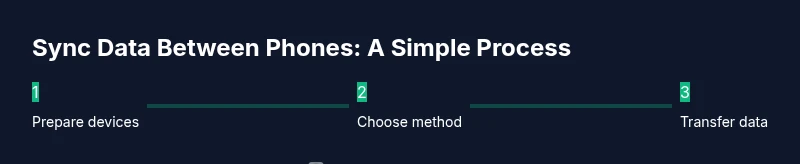
In most cases, you’ll prepare both devices, choose a transfer method, connect devices (wirelessly or with a cable), select data to migrate, start the transfer, and finally verify success. While steps vary by platform, the core sequence remains the same: preflight, connect, transfer, verify, and secure. Use the high-level overview below as a roadmap before diving into the step-by-step instructions.
Security, privacy, and consent considerations
Syncing personal data is convenient, but it’s important to protect privacy. Use trusted tools, avoid public networks for transfers, enable device-level encryption, and review app permissions after the transfer. If you’re migrating to a new platform, re-authenticate sensitive accounts and enable two-factor authentication where available. Always back up data to a secure location beforehand, and be mindful of where backups are stored. Your Phone Advisor recommends wiping the old device or resetting accounts after confirming the transfer is complete to reduce leftover exposure.
Troubleshooting common issues during sync
If the transfer stalls, check network stability and available storage on the destination device. Ensure both devices have current OS versions and are signed into compatible accounts. For cross-platform transfers, some data types may require manual restoration (e.g., app data for some apps). Clear any pending prompts on both devices and retry, or switch to a different transfer method if needed. If messages fail to transfer, search for platform-specific guides on moving message histories between ecosystems.
Tools & Materials
- Both phones fully charged or plugged in(Avoid transfer interruptions due to low battery; aim for 70-100% on both devices.)
- Stable Wi-Fi network(Prefer 5 GHz if available; consider a short, uninterrupted transfer window.)
- Cables/adapters (USB-C to USB-C or USB-C to Lightning)(Only needed for wired transfers; ensure compatibility with both devices.)
- Accounts ready (Google/Apple IDs)(Have access to the primary accounts used on each device for quick sign-in.)
- Recent backups(Optional but recommended; keeps a restore point if something goes wrong.)
- Privacy settings & device PIN/biometrics(Be ready to re-enable security on the new device after transfer.)
Steps
Estimated time: 30-90 minutes
- 1
Prepare both devices
Charge or connect both devices, update to the latest OS, and log into the necessary accounts. Ensure a backup exists and that you know your primary passwords. This step sets the foundation for a smooth transfer.
Tip: If you’re moving from an old device, perform a final backup before starting. - 2
Choose your transfer method
Select the method that best fits your devices (e.g., Quick Start for iOS, Smart Switch for Samsung, Google Backup for Android). Cross-platform transfers may require cloud backups or Move to iOS. Confirm data types you want to migrate.
Tip: When in doubt, pick a method that supports the data you care about most (photos, messages, contacts). - 3
Connect devices
Connect devices via Wi-Fi, Bluetooth, or a wired method depending on the chosen transfer. Follow on-screen prompts to establish a secure link. If a wired connection is used, ensure cables/adapters are firmly seated.
Tip: Wired transfers are usually faster and more reliable for large media libraries. - 4
Select data to transfer
Choose which data types to migrate (contacts, messages, photos, apps). Some items may require re-authentication post-transfer. Review default selections and customize as needed.
Tip: Only transfer essential data to speed up the process and minimize clutter on the new device. - 5
Start the transfer
Initiate the transfer and monitor progress on both devices. Depending on data volume, this can take from several minutes to over an hour. Avoid interruptions or switching networks mid-transfer.
Tip: If the progress stalls, pause and restart the transfer rather than forcing a cancel. - 6
Verify data on the new device
Check a sample of contacts, messages, photos, and app data. Sign into essential apps and re-authenticate accounts to ensure everything is usable. Confirm that critical data is present before wiping the old device.
Tip: Test a few high-priority apps to ensure data integrity before concluding the process. - 7
Secure and optimize
Enable device security on the new phone (PIN/biometrics, encryption). Review privacy settings, notification permissions, and app permissions. Turn off the old device or remove accounts if you’re no longer using it.
Tip: Enable Find My Device features (or equivalent) to help locate the phone if lost. - 8
Document differences and finish
Note any missing data and plan manual workarounds. Update your backup settings and establish a routine backup schedule. Celebrate the successful transition and continue using your new device confidently.
Tip: Set a reminder to back up weekly to avoid data gaps in the future.
Got Questions?
Can I sync data between different brands or operating systems?
Yes, using cloud backups or cross-platform transfer apps can move many data types, but some app data may not migrate perfectly. Plan for re-authentication and manual setup for certain apps.
Yes, cross-brand syncing is generally possible with cloud backups and cross-platform tools, though some app data may require manual setup.
What data types typically transfer automatically?
Contacts, photos, videos, messages, and basic settings often transfer automatically via OS-native tools or cloud backups. Data like in-app game progress or specialized app data may require re-authentication or separate backups.
Most contacts, photos, and messages transfer automatically, but some app data may need manual setup.
Do I need a strong internet connection to transfer?
A stable Wi-Fi connection speeds up transfers and reduces the risk of interruption. Some wired transfers don’t require internet, but cloud-based moves typically rely on a solid network.
A reliable Wi-Fi connection helps a lot, especially for large data moves.
How long does a typical transfer take?
Durations vary with data volume and method. Smaller transfers may complete in minutes, while large backups can take an hour or more. Plan for a window where you won’t be interrupted.
It varies, but set aside a window of 30 to 90 minutes depending on data size.
What should I do if data doesn’t appear on the new device?
Revisit the transfer method’s data selections and retry with the most important categories first. If necessary, perform a secondary transfer for missed data or manually restore from backups.
If data is missing, retry the transfer for that category or restore from backup.
Is it safe to wipe the old device after transfer?
Only after you have verified that all essential data moved correctly. Factory reset the old device to protect privacy, then reconfigure or sell it with data wiped.
Wipe only after you’re sure the transfer worked and you’ve backed up what you need.
Watch Video
What to Remember
- Plan the transfer method ahead based on device pairs.
- Back up data before starting and verify afterward.
- Cross-platform transfers may require extra steps for app data.
- Prioritize security with strong authentication and encryption.
- Test critical data immediately after transfer.