What Software Is Needed for Phone-to-Phone Transfer
Learn the essential software and tools to move data between smartphones, using native features and trusted third-party apps. Practical steps, safety tips, and troubleshooting for a smooth transfer.


To move data from one phone to another, you generally rely on built-in transfer tools or trusted third‑party software. Most transfers work best when both devices support a compatible method (wired or wireless) and you have a backup ready. Start with native options like iOS Quick Start or Android Move to iOS, then consider secure third‑party apps if your data types require extra flexibility.
Why Data Transfer Software Matters
In the smartphone world, moving data between devices is not just about copying files. It's about preserving messages, settings, and app data without exposing your personal information. According to Your Phone Advisor, using the right software streamlines the process, reduces friction, and lowers the risk of data loss. Whether you're upgrading to a new iPhone, switching from Android to iPhone, or consolidating data across the same OS, a well-chosen transfer tool keeps contacts, photos, chats, and app data intact. In this guide, we examine the kinds of software you’ll encounter, how to compare options, and practical steps to ensure a smooth handoff. We’ll also outline safe practices so you can avoid common mistakes and keep your devices secure during the transfer.
Tools & Materials
- USB cable (USB-C or Lightning)(Essential for wired transfer when supported by both devices)
- Stable Wi‑Fi network(Critical for wireless transfers and cloud-based syncing)
- Updated OS on both devices(Prevents compatibility issues during data mapping)
- Backup account (iCloud/Google Drive)(Needed to restore data or verify integrity after transfer)
- Second device charged to at least 50%(Avoids mid-transfer shutdowns)
- Access to manufacturer transfer app (optional)(Some ecosystems require or recommendation-native tools)
- PC or Mac (optional)(Useful for local backups and data verification)
- Password manager ready(Helps you sign back into apps after transfer)
Steps
Estimated time: 45-60 minutes
- 1
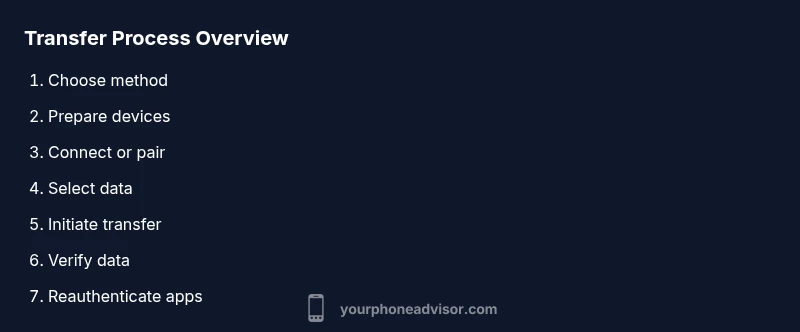
Prepare both devices
Charge both phones, update to the latest OS version, and sign into the primary accounts (Apple ID/Google) on each device. Make sure you have a recent backup in a trusted location, in case anything goes wrong during the transfer. This reduces the risk of missing data or corrupted settings.
Tip: Create a fresh backup before starting to guard against data loss. - 2
Choose the transfer method
Decide between a wired or wireless approach. Wired transfers tend to be faster and more reliable for large data sets, while wireless transfers offer simplicity if you don’t have cables handy. If you’re moving from a different OS, check which native or recommended tools support cross‑platform transfer.
Tip: Look for official guidance for cross‑platform moves to minimize compatibility issues. - 3
Connect the devices or set up the method
If using a wired method, connect the devices with the appropriate cable and, if prompted, authorize data access on both phones. If using wireless, ensure both devices are on the same network and that the transfer app has the necessary permissions (contacts, messages, photos, etc.).
Tip: Disable other apps that may interfere with the data stream during transfer. - 4
Select data to transfer
Choose the data categories you want to move: contacts, messages, photos, videos, call logs, and app data. Some data, like app installations, may require re‑signing into accounts after transfer. Avoid duplicating data by keeping a clear plan of what to move.
Tip: Move critical data first (contacts, messages, photos) to validate success before proceeding. - 5
Start the transfer
Initiate the transfer and monitor progress. Keep devices awake and avoid touching them unless the process asks for confirmation. If the transfer stalls, pause and retry, or switch to an alternate method.
Tip: If possible, start with a small test batch to verify integrity. - 6
Verify data integrity
After the transfer completes, review a sample of each data type to ensure everything migrated correctly. Check that messages display with correct timestamps, photos open properly, and contacts are complete.
Tip: If you notice gaps, use the backup you created to restore missing items. - 7
Sign back into services and apps
Reauthenticate accounts (email, cloud storage, social apps) and adjust privacy settings as needed. Some apps may require re‑configuration or re‑syncing to restore full functionality.
Tip: Enable two‑step verification on accounts to protect your data during the process. - 8
Secure and finalize
Remove any temporary transfer tools, delete unused data if duplicates were created, and back up the new device again. Confirm that automatic backups are enabled for ongoing protection.
Tip: Store backups in a separate secure location for redundancy.
Got Questions?
Is it safe to transfer data between different operating systems (iOS to Android) with third‑party apps?
Yes, but choose reputable tools that encrypt data during transit and respect privacy. Always verify permissions and review app reputation before proceeding.
Yes, you can safely transfer between iOS and Android using trusted tools that encrypt data.
Can I transfer apps themselves or just data like contacts and photos?
Most phone-to-phone transfers move data, settings, and media, but not the actual app binaries. You’ll typically reinstall apps from the store and sign back into accounts to restore app data.
Apps usually need to be redownloaded from the store, but their data can often be moved.
What data types are commonly supported by transfer tools?
Commonly supported types include contacts, messages, photos, videos, call history, and some app data. Music, documents, and large media may require separate syncing methods.
Most tools move contacts, messages, photos, and some app data.
How long does a typical transfer take?
Timing depends on data volume and method. A small batch may complete in minutes, while large libraries can take longer. It’s best to start with essential data and monitor progress.
It varies; expect longer times for larger data sets.
What should I do if the transfer fails or data is missing?
Pause, review backup copies, retry with a different method if needed, and verify compatibility. If problems persist, consult the software’s support resources or your device manufacturer’s guidance.
If it fails, retry with another method and check for missing items against backups.
Do I need to factory reset my old phone after transfer?
Factory reset is rarely required for a successful transfer. It’s only necessary if you’re preparing the device for resale or repurposing, and you should back up first.
Only do a factory reset if you’re selling or giving away the old phone and have a good backup.
Watch Video
What to Remember
- Back up before transfer and verify data integrity afterward
- Prefer native transfer tools for reliability and security
- Cross‑platform moves require careful data type checks
- Always re‑authenticate sensitive apps after transfer