How to Transfer Android Phone Data to iPhone: A Step-by-Step Guide
Learn practical methods to move contacts, photos, messages, and apps from Android to iPhone. This Your Phone Advisor guide compares Move to iPhone, cloud backups, and computer transfers with clear, actionable steps.


If you're wondering how to transfer android phone data to iphone, you have several safe options. Use Move to iPhone for a direct, one-time transfer, cloud backups (Google Drive, Google Photos) for media, or iCloud for Apple data. This guide explains each method with actionable steps.
Why Migrating Data Matters
Understanding how to transfer android phone data to iphone matters because it minimizes disruption when switching ecosystems. A clean transfer preserves contacts, messages, photos, and files, helping you stay connected without re-adding information manually. According to Your Phone Advisor, planning your data migration before you start reduces the risk of data loss and duplicate records. This guide will help you choose the right method for your needs and walk you through each step with practical tips.
- Preserve essential data: contacts, messages, photos, videos, and documents
- Reduce post-migration friction: verify items after setup
- Choose a path that matches your data mix and internet access
Methods Overview
There isn’t a single best way to move all data from Android to iPhone; the right method depends on what you need to transfer and how you prefer to connect the devices. The most common options are a direct device-to-device transfer using Move to iPhone, cloud-based backups via Google Drive or Google Photos, and a computer-backed restore through iTunes or Finder. Each method has pros and cons related to speed, completeness, and data types supported. This section lays out what to expect from each method so you can decide quickly which path to take.
Method 1: Move to iPhone App (Android → iPhone)
Move to iPhone is Apple’s official tool designed to transfer a subset of data from an Android device to a new iPhone during setup. It typically moves contacts, message history, photos, videos, web bookmarks, mail accounts, and some apps. The transfer happens over a private Wi‑Fi connection between the devices, so you should not use data-intensive apps during the process. While convenient, it can be limited by app availability on iOS and by the types of data you want to move. If you only need core data for a smooth start, this method is often fastest and simplest.
Tip: Turn off other heavy network activities on both devices to avoid interruptions. Prepare your Google or Apple IDs in advance to speed up sign-in on the new iPhone.
Method 2: Cloud Backups (Google Drive, Google Photos, etc.)
Cloud backups provide flexibility when moving data that Move to iPhone can’t fully capture, such as certain media libraries, cloud-stored documents, and non‑Android apps’ data. On Android, back up essential files to Google Drive or Google Photos, ensuring photo and video quality settings preserve the originals when restored. On iPhone, install necessary Google apps and sign in to access those backups, then selectively import contacts, calendars, and media. This approach gives you ongoing backups and a safety net if transfer iterations are needed.
Note: Not all app data may migrate via the cloud; confirm data compatibility with essential apps before relying solely on cloud backups.
Method 3: Backup and Restore via Computer
If you prefer a more controlled transfer, back up your Android data to a computer (via Windows or macOS) and then transfer to the iPhone through iTunes/Finder or direct restoration workflows where supported. This method is especially useful for larger media libraries and documents. Connect the Android device, copy key files to your computer, then transfer compatible content to the iPhone using iCloud Drive, Finder integration, or iTunes-based syncing where available. Expect a longer setup time but gains in completeness and data integrity.
Pro-tip: Keep both devices connected to power during transfers and avoid turning off either device mid-process.
Data Categories and Transfer Order
When planning a migration, it helps to think in data categories: contacts, messages, photos/videos, calendars, apps (and app data where supported), documents, and bookmarks. Prioritize the categories you use most: contacts and messages first, then media, calendars, and documents. Apps with cloud backup may restore automatically, while others may require reinstall and manual sign‑in. A staged transfer minimizes the chance of missing items and helps verify data as you go.
Troubleshooting Common Issues
If data doesn’t transfer as expected, recheck network connections, confirm accounts are active, and verify that you’re using compatible methods for each data type. Common hiccups include incomplete media transfers, missing contacts, and apps that don’t have equivalents on iOS. Re-run the transfer for the affected category or switch to an alternate method (cloud backup or computer transfer) for those items. Keeping a quick recovery plan helps you finish the migration with confidence.
Security and Privacy Considerations
Data transfers involve sensitive information. Always use trusted methods and enable encryption when possible. Avoid unsecured public Wi‑Fi for backups and transfers, and review app permissions on both devices after migration. If you’re dealing with enterprise or work data, follow your organization’s data handling policies and consider a secure transfer window to minimize exposure.
Post-Migration Verification and Clean-Up
After completing the transfer, verify that critical items are present on the iPhone: contacts, messages, photos, and calendars. Open a few sample files and messages to ensure they render correctly. Sign back into apps that were moved and reconfigure notifications, ringtones, and wallpaper. Finally, delete or archive redundant data on the Android device to prevent confusion and ensure a clean slate.
Choosing the Right Method for You
Your choice depends on data quantity, internet availability, and how much you value speed over completeness. If you need a quick start with essential data, Move to iPhone typically suffices. For larger media libraries or app data not supported by Move to iPhone, cloud backups or computer transfer provide more thorough coverage. Your Phone Advisor recommends starting with the direct transfer method and then supplementing with cloud backups if needed.
Tools & Materials
- Android phone (source device)(Fully charged; up to date OS)
- iPhone (target device)(Set up with Apple ID; ready for transfer)
- Stable Wi‑Fi network(Prefer 5 GHz network for faster transfers)
- USB-C to Lightning or USB-C cables(Optional for wired or enhanced transfers)
- Google Drive/Google Photos account(For cloud backups and media transfer)
- Computer with iTunes or Finder(Needed for computer-based backups)
- Accounts ready (Google account, Apple ID)(Sign-in ready on both devices)
Steps
Estimated time: 60-120 minutes
- 1
Prepare both devices
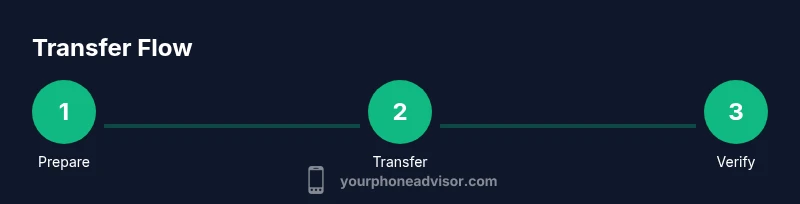
Charge both devices to at least 60%, ensure both are connected to a reliable Wi‑Fi network, and confirm you know your Google and Apple IDs. Update to the latest OS on both devices to minimize compatibility issues. This initial check helps prevent mid‑process failures and data loss.
Tip: Have both devices near each other and avoid interruptions during setup. - 2
Back up Android data (optional safety net)
On your Android device, back up essential data to Google Drive and Google Photos if you plan to use cloud-based transfer. Verify that contacts, calendars, photos, and documents are included in the backup. This creates a safety net if direct transfer misses items.
Tip: Enable backup over Wi‑Fi only to conserve mobile data. - 3
Use Move to iPhone for direct transfer
During iPhone setup, select Move data from Android. On your Android device, install and open Move to iPhone, then follow prompts to join the temporary Wi‑Fi network and start transferring. Choose the data you want to migrate and wait for the progress to complete.
Tip: Keep both devices powered and close to each other during transfer. - 4
Restore via Google Drive on iPhone (if needed)
If you used Google Drive, install Google Drive and Google Photos on the iPhone and sign in. Access your backups and selectively restore contacts, calendars, and media. This step helps recover data that Move to iPhone doesn’t fully cover.
Tip: Verify Google account permissions so items can be restored without prompts. - 5
Computer-based backup and transfer (alternative)
Connect the Android device to a computer and copy key data (media, documents) to a designated folder. Use Finder/iTunes or cloud storage to move these files to the iPhone if supported. This approach is useful for large media libraries and document-heavy transfers.
Tip: Avoid unplugging devices while file transfers are in progress. - 6
Verify transfer success and sign back in
On the iPhone, open key apps and review contacts, messages, photos, and calendars. Sign back into apps that require login credentials and reconfigure notifications. If anything is missing, repeat the relevant method for that data type.
Tip: Create a quick checklist to verify items across categories. - 7
Clean up and finalize
After verification, you can wipe the Android device or keep it for a grace period. Remove duplicate contacts or photos and disable any redundant syncing on Android to prevent confusion after the switch.
Tip: Back up the Android device before erasing data.
Got Questions?
Can I transfer app data and game progress from Android to iPhone?
Many apps support cloud save sync between platforms, but not all do. You may need to reinstall apps on iPhone and sign in, or rely on the app's own cloud service to recover progress.
Many apps support cloud saves, but not all. Reinstall and sign in on iPhone to restore progress where supported.
Is Move to iPhone compatible with all Android versions?
Move to iPhone works with most recent Android versions, but some older devices or carrier restrictions may affect compatibility. If you encounter issues, try cloud backups or computer transfer as alternatives.
Move to iPhone works with most recent Android versions; if you have issues, try alternatives like cloud backups.
Will photos transfer reliably using Move to iPhone?
Yes, Move to iPhone can transfer photos and videos, but very large libraries may take longer. For extremely large libraries, consider backing up to Google Photos and restoring from the Google app on iPhone.
Photos and videos usually transfer, but large libraries may take longer. Consider Google Photos for large libraries.
What data cannot transfer to iPhone from Android?
Some cross-platform app data, system settings, and certain device-specific data may not migrate. You might need to reconfigure settings or use each app’s own transfer method.
Some data, like certain app data and system settings, may not migrate automatically. Reconfigure as needed.
Do I need internet for all transfers?
Moving data via Move to iPhone uses a direct local connection, but cloud backups require internet. If you’re short on data, prioritize the direct transfer first.
Direct Move to iPhone uses a local connection; cloud backups require internet. Plan accordingly.
What if I have two-factor authentication on accounts?
Two-factor authentication may prompt for codes during login on the new device. Prepare backup codes or access to the authenticator app to complete sign-ins smoothly.
Be ready with backup codes or authenticator access to log into accounts on the new iPhone.
Watch Video
What to Remember
- Choose the direct Move to iPhone path for speed.
- Use cloud backups to supplement data not supported by direct transfer.
- Verify data on the iPhone before erasing the Android device.
- Prioritize security by avoiding public Wi‑Fi for transfers.