How to Link Your Phone: A Practical How-To Guide
Learn how to link your phone to Google or Apple accounts and other devices for secure syncing, backups, and easier recovery. This practical How-To covers Android and iPhone, with tips on privacy and troubleshooting.


You can link your phone to your Google or Apple account and to other devices for syncing, backups, and security controls. The steps differ by OS, but the core idea is to sign in with the same account, enable syncing, and grant permissions. This guide covers Android and iPhone processes, plus quick security checks.
Understanding Why Linking Your Phone Matters
Linking a phone to online accounts and other devices creates a centralized control point for data, apps, and security. When you link, you can sync contacts, photos, and settings across devices, back up data automatically, and locate a lost phone more easily. According to Your Phone Advisor, establishing intentional links helps reduce friction when upgrading devices or restoring services after a reset. This is especially important for people who rely on multi-device workflows or who want stronger protection against loss or theft.
In practical terms, linking means you sign in with a shared account, authorize key permissions, and enable services that keep devices aligned. The use cases extend from everyday backups to emergency recovery and parental controls. Before you begin, take a quick inventory of the accounts you plan to tie to the phone and decide which devices should be considered trusted.
Key Concepts and Safety Considerations
Linking enables cross-device syncing, easier recovery, and centralized security controls, but it also expands the set of data that passes between services. Privacy controls let you choose what data to share (contacts, photos, location, app data), while permissions determine which apps can access data in the background. Your Phone Advisor analysis shows that clear consent and minimal necessary permissions reduce risk while keeping features usable. Always review each linked service’s privacy settings after setup and enable two-factor authentication where available. Finally, keep your OS and apps updated to minimize security gaps.
Link Your Phone to a Google or Apple Account
The most common linking path is through major platform accounts. On Android, you typically link by signing in with a Google account during device setup or via Settings > Accounts > Add account. This creates a baseline for app data, backups, and Find My Device-like features. On iPhone, you sign in with your Apple ID and enable iCloud, which activates Find My, iCloud Backup, and device sync. Both paths rely on cloud synchronization and permission grants that you can tailor later to fit your privacy preferences. Regularly check your connected services from the account dashboard to ensure only trusted devices are linked.
As you proceed, consider how each service will use your data and adjust permissions accordingly. If you use both ecosystems, you may want to maintain separate profiles to keep work and personal data distinct.
Android: Step-by-Step Linking Guide
Android devices primarily rely on Google accounts for linking. This section provides a high-level flow: sign in with your Google account, enable backup and sync settings, and verify that critical services (Contacts, Photos, Drive, and Messages) are syncing correctly. You should also ensure Google Play Services is active and that the device is protected by Google’s security features. If you have a corporate profile, follow your organization’s policy for device enrollment. By the end, you should see your Google account listed under Settings > Accounts on the device and in the Google apps you use daily.
Pro tip: Keep your Google account’s recovery options up to date and enable 2FA for stronger protection.
iPhone: Step-by-Step Linking Guide
For iPhone users, linking centers on Apple ID and iCloud. Start by signing into iCloud with your Apple ID, then activate Find My and iCloud Backup. Ensure iCloud Drive is on and that Photos, Notes, and Contacts are set to sync if you need cross-device access. Verify that your devices appear under your Apple ID account page, and enable key privacy controls like App Tracking Transparency and location sharing only where necessary. Remember to keep your device updated and review permissions for each app that accesses iCloud data.
Tip: If you use a Mac or iPad, use Continuity features to extend linking across devices for a seamless ecosystem experience.
Linking with Other Devices (Wearables, Cars, Home Hubs)
Linking isn’t limited to phones and accounts. Wearables like smartwatches, car infotainment systems, and smart home hubs can be integrated to extend syncing, notifications, and remote controls. Start by ensuring the device supports your phone’s ecosystem (Android Wear/Google Assistant or Apple Watch/CarPlay). Pair the device through its companion app or car system, then grant appropriate permissions (notifications, contacts, location). These connections improve accessibility but increase the importance of maintaining strong passwords and regularly reviewing paired devices.
When in doubt, consult the device’s support page for compatibility notes and any platform-specific requirements. This helps prevent compatibility hiccups during initial setup.
Managing Linked Devices: Backups, Sync, and Permissions
Once linked, ongoing management is essential. Regularly review which devices are connected, what data can be synced, and which apps have access to critical information. Turn on automatic backups if you rely on cloud storage, and periodically confirm your backups are completing successfully. Manage permissions on a per-app basis—restrict access to sensitive data unless an app truly needs it. If you ever change accounts or ownership, re-assess linked devices and security settings to avoid stale connections.
Remember to enable two-factor authentication for your primary accounts to reduce risk if credentials are compromised.
Troubleshooting Common Issues When Linking
If linking doesn’t work as expected, start with a quick sanity check: confirm internet access, verify account credentials, and ensure there are no pending terms or security prompts on the account. Check that the OS and apps are up to date, and look for any error codes in the account settings or help sections. Some issues come from regional restrictions or device compatibility, so consult the platform’s official help resources for guidance. If problems persist, remove the affected device from the linked list and re-add it from scratch.
For corporate or managed devices, contact your IT administrator if policy settings block linking.
Privacy and Security Best Practices After Linking
Security should be a continuous practice, not a one-time setup. Use strong, unique passwords and enable two-factor authentication on all linked accounts. Review permissions quarterly and disable access for apps you no longer use. Enable Find My features and keep location services only on when needed. Your Phone Advisor Team recommends documenting changes so you know exactly what’s linked and why. Regular OS updates and security patches are essential to prevent new vulnerabilities.
Real-World Scenarios: When a Link Breaks or Is Updated
Sometimes links break due to software updates, account changes, or device resets. In these cases, re-check sign-in status, re-enable required permissions, and ensure backup data remains intact. If you replace a device, re-link with the new hardware and verify data continuity across platforms. Combining robust backup workflows with careful permission management minimizes data loss and downtime when changes occur. Keeping a small audit trail of linked devices helps you stay aware of where your data flows.
Quick Checklist to Finish Linking
Review accounts and passwords, enable 2FA, verify backups, confirm linked devices, and test syncing across platforms. Make sure Find My/Find My Device is active and that privacy settings reflect your preferences. Finally, document your linking configuration and set reminders to review permissions every few months.
Tools & Materials
- Smartphone (Android or iOS)(Must be powered on with internet access)
- Active Google account(Android users sign in with Google account)
- Apple ID and password(iPhone users sign in with Apple ID)
- Stable internet connection(Wi-Fi or cellular data)
- Backup storage access (cloud or computer)(Optional for backups before linking)
- Secondary device or computer (optional)(Helpful for cross-checking settings)
Steps
Estimated time: 25-45 minutes
- 1
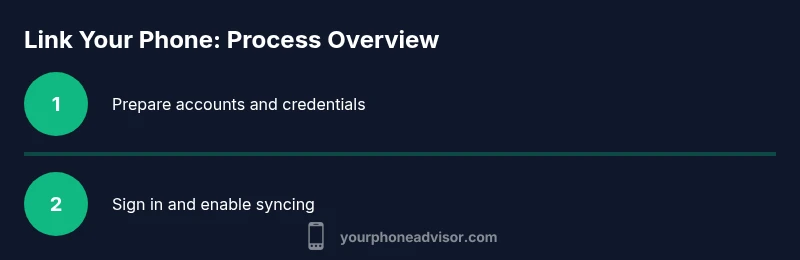
Prepare accounts and credentials
Gather your Google and Apple IDs, passwords, and recovery options. Enable two-factor authentication where available. Have recovery codes or backup options ready in case you’re asked to verify identity during linking.
Tip: Use a password manager to securely store credentials. - 2
Sign in to Android with your Google account
On your Android device, sign in with the Google account you plan to link. This establishes a baseline for syncing apps, contacts, photos, and settings. If you’re already signed in, double-check that the account is the one you intend to use.
Tip: Verify you’re using a personal or work account as appropriate. - 3
Enable Android backup and sync
In Settings, enable backup and sync options for apps, photos, and data to Google Drive or Google Photos. This ensures important data is available across devices after linking. If you use corporate devices, align with your organization’s policy.
Tip: Turn on automatic backups to avoid manual steps later. - 4
Sign in to iPhone with Apple ID
On your iPhone, sign in with your Apple ID to access iCloud and Find My. Ensure iCloud Drive and Photos syncing are enabled if you want cross-device access to those files. Check that you’re using the same Apple ID across devices where you want data sharing.
Tip: Keep Apple ID recovery options current. - 5
Enable iCloud and Find My on iPhone
Turn on Find My iPhone and iCloud Backup, and enable Find My network if available. These features help locate devices if lost and ensure data can be restored from iCloud backups. Review which apps have permission to use location services.
Tip: Only enable Find My when you need it, to preserve privacy when not in use. - 6
Link third-party devices and apps
Pair wearables, car systems, and smart home hubs to your phone’s ecosystem. Grant only necessary permissions and confirm that notifications and data sharing are aligned with your preferences. This step broadens your connected experience while increasing the importance of secure credentials.
Tip: Avoid granting broad access; customize permissions per device. - 7
Verify linkage across devices
Check that linked devices appear in your account dashboards and that sync appears active (photos, contacts, settings). Ensure you can locate your phone through the linked services if needed. If something is missing, re-run the pairing steps for that device.
Tip: Use a secondary device to confirm cross-platform syncing. - 8
Review app permissions and privacy settings
Go through apps that have access to contacts, location, photos, and camera. Revoke access where it isn’t essential. Align each app’s permissions with your privacy comfort level.
Tip: Document permission changes for future reference. - 9
Test data sync by creating a note or contact
Create or modify a note, contact, or calendar event on one device and confirm it appears on another. This confirms end-to-end syncing works as expected. If not, recheck account sign-ins and permissions.
Tip: Choose simple data types first (notes, contacts) to validate basic sync. - 10
Troubleshoot common linking issues
If linking fails, verify internet access, re-enter credentials, and check for policy blocks on work devices. Update OS and apps. If issues persist, remove the device and re-add it from scratch.
Tip: Consult official support pages for error codes and guidance. - 11
Document and maintain your linking setup
Keep a record of which devices and accounts are linked and the reasons. Schedule periodic reviews of permissions and security settings to stay aligned with evolving privacy needs.
Tip: Set a reminder every few months to review connections.
Got Questions?
What does it mean to link a phone?
Linking a phone means connecting it to online accounts and other devices to sync data and enable security features like Find My or backups.
Linking a phone connects it to your accounts and other devices for syncing and security
Should I link to both Google and Apple accounts?
Only if you actively use both ecosystems; otherwise link to your primary account to avoid confusion.
Only link to your primary ecosystem unless you use both.
Can I unlink my phone later?
Yes. You can remove accounts and devices from your phone's settings at any time.
Yes, you can disconnect later from settings.
Is linking safe?
Linking is safe when you use strong passwords and two-factor authentication and review permissions regularly.
Yes, with strong security practices and regular reviews.
Why does linking require permissions?
Permissions let apps access the data and features needed to sync and function across devices.
Permissions enable necessary data access for syncing.
What if I have trouble linking?
Follow the troubleshooting steps in this guide or contact support for assistance.
Try the steps above; contact support if needed.
Watch Video
What to Remember
- Prepare accounts and credentials before starting.
- Linking enables cross-device syncing and security benefits.
- Android and iPhone linking paths differ; follow OS-specific steps.
- Review permissions after linking to protect privacy.
- Maintain ongoing checks and updates for secure linking.