How to Stop Phone from Vibrating on Silent
Learn a practical, step-by-step approach to stop your phone from vibrating on silent. This educational guide covers Do Not Disturb, per-app settings, and haptic controls for Android and iOS, with tips to test and verify results.


By the end of this guide, you will stop your phone from vibrating when it’s on silent by adjusting system vibration settings, Do Not Disturb rules, and per-app notification controls. Whether you use iOS or Android, the steps below help you silence vibrations while preserving critical alerts from calls or alarms. A quick test after changes confirms everything works as expected.
Why Vibrations Persist in Silent Mode
If you’ve ever wondered how to stop phone from vibrating on silent, you’re not alone. Modern phones use multiple mechanisms to trigger haptics: system-wide vibration, per-app alerts, accessibility features, and focus modes. According to Your Phone Advisor, the problem often isn’t a single setting but a combination of features that still vibrate despite the phone being silent. The trick is to locate every source of vibration, then disable or tailor it. In this section, we’ll explain what causes vibrations in silent mode and how to approach the problem methodically. We’ll use clear language and practical steps so you can apply the same approach across devices and OS versions. By following these guidelines, you’ll build a practical map for turning off vibrations while preserving critical alerts from essential contacts or alarms.
Understanding Do Not Disturb, Focus, and Silent Modes
Vibration behavior is closely tied to how your phone handles silent states. Do Not Disturb (DND) on Android and Focus modes on iOS provide a centralized way to mute sounds and vibrations, but settings can vary by version and vendor. In some configurations, DND or Focus can still vibrate for calls from favorites, alarms, or repeated callers. Understanding these modes is essential before changing individual app settings. Your Phone Advisor recommends a methodical approach: identify each mode, verify its vibration settings, and then tailor exceptions so you don’t miss truly important alerts.
Android vs iOS: How Vibration Works on Each Platform
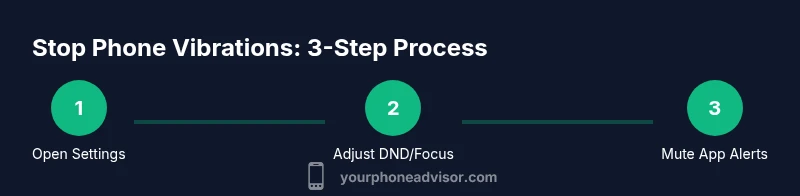
Android devices often separate vibration controls into System Haptics, Do Not Disturb (DND), and per-app notification settings. iPhone devices blend Silence, Focus, and notification haptics, with subtle differences across iOS versions. The key is to know which controls affect which alerts. If you’re asking how to stop phone from vibrating on silent, remember: you may need to adjust multiple switches—system haptics, DND/Focus, and per-app vibrations—to fully silence unwanted feedback while preserving high-priority alerts.
Android: Core settings to check first
Start by opening Settings and locating Sound or Notifications. Look for Do Not Disturb, or a dedicated Vibration toggle under Silent mode. Disable Vibrate for calls and notifications if present, and then inspect any Do Not Disturb exceptions to ensure important alerts aren’t blocked. You should also check Accessibility > System Settings > Haptic Feedback and turn off or reduce system haptics where possible. Finally, review per-app notification settings to mute vibration for nonessential apps.
iPhone (iOS): Core steps for stopping vibration in silent
On iPhone, begin in Settings > Do Not Disturb (or Focus in newer iOS) and review the options for Silence and Vibration. Ensure that vibration for calls, messages, and notifications is turned off or configured to a non-vibrating state. Then navigate to Settings > Notifications and inspect each app’s alert style to disable vibration, or set to banners without sound if necessary. Don’t forget Settings > Accessibility > Touch > System Haptics to turn off haptic feedback that could vibrate the device in quiet scenarios.
Per-app vibration management: fine-tuning alerts
Even after disabling global vibrations, some apps may retain vibration for critical events. Begin with a per-app audit: Settings > Apps & notifications (Android) or Settings > Notifications (iOS). For each app, disable vibration or select a silent or banner-only alert style. This is especially important for messenger, social, or productivity apps that frequently generate alerts you do not want to feel as taps. If an app cannot be silenced completely, consider disabling the app’s notification channel or changes to its in-app notification preferences.
Accessibility and haptic feedback: when to adjust
Haptic feedback can come from keyboards, system gestures, or accessibility features. If you rely on silent operation, you may still encounter vibrations from a soft keyboard or screen taps. Check Settings > Accessibility (Android and iOS) and disable or minimize haptic feedback where feasible. Reducing haptics can noticeably improve quiet environments, but be mindful of accessibility impacts for users who rely on physical feedback.
Testing and verification: validate your changes before relying on them
After adjusting settings, perform a structured test. Send yourself test notifications from several apps, trigger a door or alarm notification, and have a few others send messages to verify vibrations are not occurring. If you still feel a buzz, revisit Settings to identify any remaining vibration sources—some platforms require a sign-out or reboot to apply the changes fully. Your goal is a reliable, silent device that still delivers essential alerts.
Troubleshooting: what to do when vibrations persist
If vibrations persist after you’ve adjusted Do Not Disturb, Focus, and per-app settings, consider a broader approach: update your OS, clear cache for notification services if applicable, and reset only the notification settings to their defaults. In some rare cases, a factory reset may be required, but that should be a last resort. Before that, back up your data and review backup options. You’ll often find that a targeted reset resolves stubborn vibration issues without altering personal data.
OS version considerations and feature differences
New OS versions frequently reintroduce or rename vibration controls. If your device received a major update, revisit the vibration and DND/Focus settings. Some vendors introduce new quick toggles in the Quick Settings panel, or new controls in the Settings app. Always consult your device’s official support pages for any post-update changes, and re-check your app permissions after updates to ensure no app re-enables vibrations implicitly.
Quick verification checklist
Use this concise checklist to confirm you’ve silenced vibrations on silent: (1) DND/Focus is configured for silent or minimum alerts, (2) System Haptics is off or reduced, (3) Per-app vibrations are disabled, (4) Keyboard and accessibility haptics are off, and (5) A test notification does not cause vibration. If any item fails, revisit the relevant settings area and adjust accordingly.
Authoritative sources and further reading
For further guidance, consult official documentation and trusted sources. Authoritative references can help you navigate platform-specific quirks and keep your device quiet when needed. Always verify settings after updates and consider keeping a quick-start note for reference.
Summary: practical path to silence with preserved essential alerts
By methodically adjusting DND/Focus modes, system haptics, and per-app vibration controls, you can stop your phone from vibrating on silent while preserving critical notifications. The key is to test incrementally and re-check after updates. With these steps, you’ll achieve a quiet device that still serves as a reliable alert system when you need it.
Tools & Materials
- Smartphone with access to Settings(Identify OS (iOS or Android) and version to tailor steps.)
- Official support pages or user manuals(Helpful for platform-specific steps.)
- Quiet testing environment(Test with your own quick test notifications.)
Steps
Estimated time: 30-40 minutes
- 1
Open the Settings app
Access the device settings to locate vibration and notification controls. You’ll want to start with the centralized Do Not Disturb or Focus options and then drill into app-level settings. This keeps changes organized and minimizes the risk of missing a source of vibration.
Tip: Use the search bar in Settings to quickly locate 'vibrate', 'silent', or 'Do Not Disturb'. - 2
Check Do Not Disturb or Focus modes
Review whether DND (Android) or Focus (iOS) is active and whether it still allows vibrations for certain alerts. If there is a vibration setting, turn it off or set it to silent only. This step often resolves persistent vibrations without affecting core notifications.
Tip: Some devices allow exceptions—confirm none apply to calls from favorites or repeated callers. - 3
Disable vibration for calls and notifications
In the DND/Focus menu, locate the toggle for ‘Vibrate on Silent’ or a similar option and switch it off. If your device uses separate vibrate controls for calls and notifications, disable both to silence almost all haptic feedback.
Tip: After turning off vibration, test a call and a test notification to verify behavior. - 4
Review per-app notification settings
Go to each app’s notification settings and turn off vibration or switch to silent alerts. Some apps override system-level settings, so per-app control is essential for complete silence.
Tip: Prioritize apps that frequently alert you (messaging, social, calendar) and silence them first. - 5
Adjust system haptics and accessibility options
In Accessibility or System settings, mitigate or disable haptic feedback for keyboards and gestures. Reducing or turning off haptics can eliminate residual vibrations from system interactions.
Tip: If you frequently use haptic feedback elsewhere, consider creating a separate quiet profile for times you need silence. - 6
Test with multiple notification scenarios
Send yourself test alerts from several apps, and check other potential sources like alarms, calendar reminders, and doorbell simulations. Documentation helps ensure no source is overlooked.
Tip: Schedule a test that covers both audio and visual alerts to confirm silent mode behavior. - 7
Check for OS updates and re-verify after updates
Some updates reset vibration settings or add new controls. After updating, re-check DND/Focus, per-app settings, and system haptics to ensure your silence remains intact.
Tip: If an update introduces changes, note them for future reference. - 8
Consider a targeted reset before a full factory reset
If vibration still persists after adjustments, consider resetting notification settings or a targeted reset on the device. This is less drastic than a full restore and preserves your data.
Tip: Back up important data before any reset steps. - 9
Document your preferred configuration
Create a short reference of the exact settings that work for you. This helps you reapply the same configuration if you reset or upgrade your device.
Tip: Keep your notes in a secure place for quick reference.
Got Questions?
Why does my phone keep vibrating in silent mode after changes?
Vibration can come from multiple sources: Do Not Disturb/Focus modes, per-app notifications, and accessibility haptics. If even one source remains enabled, vibrations may continue. Review all areas: system settings, app-level alerts, and accessibility options.
Vibration can come from several places, so check DND or Focus modes, app alerts, and accessibility haptics. If any stay on, vibrations can persist.
Is Do Not Disturb the same as Silent on my device?
Do Not Disturb is broader than silent mode; it may still vibrate for certain exceptions or repeat calls unless configured. Silent generally mutes sounds but can still allow some haptic feedback depending on settings. Always review both features to ensure alignment with your silence goals.
DND is broader than silent and can still vibrate for exceptions. Silent might still vibrate if not fully configured.
How do I disable vibration for all apps on Android?
Go to Settings > Apps & notifications, select each app, and turn off vibration or switch to silent alerts. Also check Settings > Sound and vibration for a system-wide toggle. This per-app approach helps silence vibrations without affecting audibles.
Open each app's settings and disable vibration, then check the system sound settings for a global toggle.
How do I disable vibration on iPhone?
In iOS, disable vibrations via Settings > Accessibility > Touch > System Haptics (or set Do Not Disturb/Focus to silent) and adjust per-app notifications under Settings > Notifications. This combination prevents most vibrations while maintaining critical alerts.
Turn off System Haptics in Accessibility and silence apps under Notifications to reduce vibrations.
What should I do if vibrations persist after all settings changes?
Double-check all sources: DND/Focus, system haptics, per-app alerts, and any third-party apps with their own notification controls. If nothing works, consider updating the OS or performing a targeted reset of notification settings, then re-test.
Recheck all control points and consider OS updates or a targeted reset if needed.
Will turning off vibration affect accessibility features?
Disabling haptics may reduce feedback for some accessibility features. If you rely on tactile cues, balance silence with essential feedback by selectively disabling nonessential vibrations and keeping critical alerts audible.
Turning off haptics can affect accessibility cues; adjust nonessential vibrations while preserving critical alerts.
Watch Video
What to Remember
- Disable vibration through DND/Focus first.
- Mute per-app vibrations for nonessential apps.
- Turn off system haptics and accessibility feedback when needed.
- Test comprehensively and verify after updates.
- Document settings to simplify future changes.