How to Put Your Phone on Silent: A Practical Step-by-Step Guide
Learn to put your phone on silent across iOS and Android with easy steps, differences between Silent and Do Not Disturb, and best practices for meetings, work, and travel. Your Phone Advisor provides a clear, safety-minded approach.


Learn how to put phone on silent across iOS and Android with simple, actionable steps. This guide covers quick silencing methods, the differences between Silent and Do Not Disturb, and how to customize exceptions for calls or alarms. By following these steps, you’ll mute alerts during meetings, studies, or focus time without missing critical notifications.
Understanding Silent Modes on Modern Phones
In today’s smartphones, several modes control how sound reaches you. The three most common options are Silent, Do Not Disturb (DND), and Focus or Quiet hours. Silent mode mutes ringtones and alerts, but some apps may still surface notifications. Do Not Disturb can silence calls and notifications for a defined period, while Focus modes tailor silent behavior to specific situations (work, personal time, driving). For people new to these features, the simplest starting point is the physical mute switch or the quick settings panel. According to Your Phone Advisor, understanding the difference between these modes is essential to avoid missing critical alarms or messages. When you search for how to put phone on silent, you’ll notice that platform-specific settings can impact what you hear and when you hear it. Android devices vary by manufacturer, while iOS sticks to a consistent pattern via Control Center and the Settings app. The key practice is to map each mode to your daily routines: meetings, study time, driving, or family time. This mapping reduces interruptions while preserving access to essential notifications from trusted contacts, calendars, and emergency alerts.
Quick Ways to Silence Your Phone Immediately
You can silence a phone in several fast ways that work across most devices. The quickest is using the hardware or software controls you already know: flip the iPhone's physical mute switch on the side, press the volume down until the device becomes silent, or pull up the Control Center (iOS) or Quick Settings (Android) and enable Do Not Disturb or Silent mode. Another common approach is to enable Do Not Disturb with a quick tap, which can silence calls and alerts except from favorites or alarms if you configure exceptions. If you’re in a noisy environment, lowering the volume with the hardware button and then turning on DND is a reliable two-step method. For many users, the best practice is to combine a quick silence action with a future schedule—so you’re silent during meetings but not all day. The exact steps vary by device and OS version, but most modern phones offer a consistent path: silence first, then refine with focused exceptions.
Silent Mode vs Do Not Disturb: When to Use Each
Silent mode simply stops the phone from ringing or vibrating for all calls and alerts; notifications may still appear as banners or previews, depending on OS and app settings. Do Not Disturb is more nuanced: you can silence everything except alarms, favorites, repeated callers, or people in a specific list. Use Silent mode when you want a momentary quiet without changing your notification preferences, such as during a quick work session or in a classroom. Use Do Not Disturb when you need longer silence or when you’re in a meeting where interruptions are unacceptable, but you still want to receive alarms or important messages from selected contacts. Many devices also support Focus modes that combine DND rules with automation (time-based, location-based, or app-based triggers). When choosing between these, consider whether you need permanent quiet or simply a temporary hush. This distinction helps you avoid missing critical alerts while reducing disruption during your daily routines.
Step-by-Step: Silent Mode Across iOS and Android
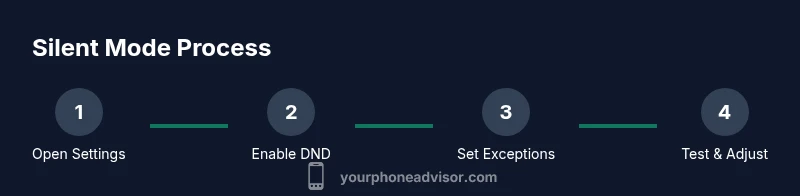
Below is a practical, platform-agnostic roadmap you can adapt to your device. It’s designed for clarity and speed, so you can silence your phone effectively in under a minute when needed. Start with awareness of your default Silent settings, then tune exceptions for calls from favorites or emergency numbers. This section pairs with the Step-by-Step guide to ensure you understand what each action achieves and why it matters. If you’re pressed for time, practice these steps once, then use the quick-access methods in the future. The key is consistency: once you’ve configured silent behavior, you won’t have to rethink it during important moments. When you test the setup, confirm you can still hear alarms and calendar alerts. This is essential to avoid missing time-sensitive information, especially if you rely on your device for reminders. By maintaining a short, predictable silencing routine, you reduce interruptions without sacrificing important communication, and you stay in control of when and how your device speaks to you.
Troubleshooting Silent Mode Issues
Even with straightforward controls, silent mode can fail to deliver the intended quietness. Common issues include alarms not sounding because the alarm exception isn’t enabled, or notifications still surfacing as banners when DND is too permissive. Some apps implement their own notification channels that bypass system silence; in these cases you may need to adjust app-level permissions or notification categories. If you notice that Silent mode persists after a system change (OS update or new device), a quick reboot can reset temporary settings. Another frequent pitfall is forgetting to disable Focus or DND exceptions that you set during work hours. Finally, remember accessibility settings like haptic feedback and captions—they can affect how you perceive silenced alerts. Keep a small checklist handy: confirm alarm status, check exceptions, review app notifications, and verify any automation rules. By diagnosing settings step by step, you’ll restore quiet mode quickly and avoid repeated interruptions during tasks that demand concentration.
Additional Tips for Meetings and Quiet Environments
Tips for different environments: in meetings, silence your phone using a dedicated Do Not Disturb profile with only essential notifications allowed; in classes, enable Focus mode with a calendar-based trigger; while traveling, enable quiet hours during transit times. You can also set a weekly quiet window to accommodate recurring events. If your device supports a notification preview setting, disable previews when you’re in quiet mode to prevent subtle sounds from slipping through. For accessibility, consider enabling vibration or haptic feedback for emergencies; ensure your alarm stays audible if you rely on wake-up calls. Finally, test your configuration whenever you install a major app update because notification behavior can change after updates.
Tools & Materials
- Smartphone with silent/Do Not Disturb capability(Android or iOS device with silent options)
- Access to Control Center (iOS) or Quick Settings (Android)(For quick toggling)
- Optional: Focus mode automation(To automate silent periods)
Steps
Estimated time: 5-15 minutes
- 1
Open Control Center/Quick Settings
On iOS, swipe to access Control Center and tap Silent/DND. On Android, pull down Quick Settings and enable Do Not Disturb or Silence mode. This action sets the silent state quickly and signals your device to mute most notifications.
Tip: If your device has a dedicated mute switch, use it for instant silence. - 2
Mute with Hardware or Volume Controls
Use the physical mute switch (iPhone) or lower the volume using the hardware buttons until the device remains silent. Ensure media playback isn’t actively silencing you with audio in the background.
Tip: Test by calling from another phone to confirm silence. - 3
Enable Do Not Disturb (DND) or Focus
Turn on DND/Focus in Settings and choose exception rules (alarms, favorites, repeated callers). This grants quiet without sacrificing access to critical alerts.
Tip: Set a temporary schedule for recurring events. - 4
Customize Exceptions
Within DND/Focus, allow alarms and VIP contacts so you don’t miss urgent alerts. Review any calendar entries that may require attention.
Tip: Keep exceptions minimal to preserve quiet. - 5
Schedule Silent Periods
Use OS scheduling to automatically silence during meetings or bedtimes. This reduces manual toggling and helps maintain consistency.
Tip: Choose start/end times that align with your routine. - 6
Test the Configuration
Verify that alarms and important reminders still function and adjust misconfigurations based on your test results.
Tip: Always test with a real alarm. - 7
Review and Revisit
Revisit silent settings after OS updates or app changes to ensure reliable silence.
Tip: Make it a monthly habit to review silence configurations.
Got Questions?
What is the difference between Silent mode and Do Not Disturb on my phone?
Silent mode mutes ringtones and alerts; Do Not Disturb silences calls and notifications with configurable exceptions.
Silent mode mutes sounds; Do Not Disturb lets you tailor which alerts come through.
Will alarms still ring if I enable Do Not Disturb?
Most devices allow alarms to bypass Do Not Disturb; verify settings for your OS.
In most cases, alarms still ring even if DND is on; check settings to be sure.
Can I schedule silent mode?
Yes. You can schedule Silent or Do Not Disturb modes to turn on and off automatically.
Yes. Use schedules so you don’t have to toggle manually.
How do I silence calls from unknown numbers?
Use Do Not Disturb settings to silence unknown callers or enable 'silence unknown callers' where available.
Enable unknown caller silencing in DND if your OS supports it.
What if my notifications still come through while silent?
Check individual app notifications and DND exception settings; some apps route alerts differently.
Review app settings and DND rules to ensure silence is enforced.
How do I turn off silent mode?
Disable Silent or Do Not Disturb in the same menus you used to enable them, or use quick access controls.
Turn off silent by disabling DND or switching the mute state.
Watch Video
What to Remember
- Know the difference between Silent and Do Not Disturb.
- Use quick toggles for immediate silence selectively.
- Customize exceptions to balance quiet with essential alerts.
- Test and revisit settings after OS updates.