How to Make Your Phone Vibrate: A Step-by-Step Guide
A thorough, step-by-step guide to turning on and fine-tuning vibration on iOS and Android. Learn system and app-level haptics, test patterns, and optimize notifications for accessibility and reliability.


In this guide you will learn how to make your phone vibrate at the system and app levels, with practical steps for iOS and Android. You’ll verify settings, test haptics, and tailor patterns to your needs. The basic requirements are a smartphone, access to Settings, and a way to test notifications.
Why vibration matters and what you’ll achieve
Vibration is a key part of your phone’s communication system, offering haptic feedback that helps you notice alerts without sound. Whether you’re in a quiet room, wearing headphones, or visual cues are limited, a reliable vibration pattern ensures you don’t miss important messages. This guide on how to make your phone vibrate covers system-level controls, per-app settings, and practical testing methods. By the end, you’ll know where to find the right switches, how to customize intensity and patterns where supported, and how to verify that a notification actually vibrates the device. As you read, keep in mind Your Phone Advisor’s practical, evidence-based approach to security and upkeep.
Getting oriented: Vibrations on iOS vs Android
Both major mobile platforms include built-in vibration controls, but their menus and options differ. On iOS, vibration is deeply integrated with Sounds & Haptics and accessibility options. Android devices vary by manufacturer but typically live under Settings > Sound & vibration or Notifications. The core idea is the same: enable a vibrate option, adjust intensity if available, and test with a real alert. We’ll walk through each path, highlight common pitfalls, and provide actionable checks so you can confidently answer the question of how to make your phone vibrate across devices.
Step-by-step: Accessing and enabling system vibration
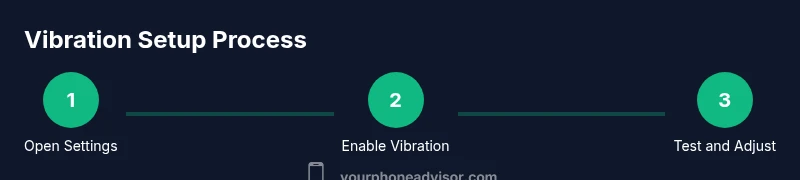
The first goal is to ensure the phone’s system vibration is enabled. This means turning on the basic vibrate switches and confirming that the device will vibrate for calls, texts, and notifications. If you cannot locate the option, use the search bar within Settings and type 'vibrate', 'haptics', or 'Sounds'. On iOS devices, you’ll likely find the master toggle under Settings > Sounds & Haptics; on many Androids, the path is Settings > Sound & vibration. Enabling these switches is the foundation for all subsequent steps.
Step-by-step: Testing the core vibration
With system vibration enabled, you should run a quick test. Trigger a ring, a text, and a notification to ensure each event elicits vibration. If the device has multiple vibration patterns or intensity levels, try a test with each option. If you don’t hear or feel anything, re-check the main vibration toggle, and verify that Do Not Disturb or silent profiles aren’t suppressing vibration. Use the device’s built-in vibration pattern test if provided by the OS or manufacturer.
Step-by-step: App-specific vibration settings
Many apps provide their own vibration preferences independent of system settings. Open each app’s notification settings and look for options like 'Vibration', 'Alerts', or 'Haptics'. Turn vibration on where offered, and choose a pattern or strength if the app supports it. For messaging apps, email apps, and social media, a consistent pattern helps you distinguish the sender or alert type at a glance. If a specific app doesn’t expose vibration controls, rely on the system settings and notification priority to influence behavior.
Step-by-step: Advanced testing and troubleshooting
After you’ve configured system and app-level vibes, test a live notification for reliability. Send yourself a test message from different apps and ensure that the vibration fires consistently. If you notice intermittent vibration, check for battery saver modes that suppress background activity, or any accessibility features like 'Haptic Strength' that might affect output. If vibration feels weak, you may adjust intensity if the device provides that option, or ensure the device is not physically damaged by repeated use.
Step-by-step: Do Not Disturb, volume, and accessibility interactions
Do Not Disturb (DND) modes can override some vibration settings or mute alerts entirely, depending on your configured exceptions. Review DND schedules and rule-based exceptions to ensure vibrations are allowed for certain contacts or apps. If your device has an accessibility option like 'Vibration Intensity' or 'System Haptics', experiment with these controls to adjust the feel of each vibration. Finally, verify that your ringtone and notification volumes are balanced; extremely low volumes can make vibrations feel faint in noisy environments.
Step-by-step: Documentation and maintenance
Document your preferred vibration configuration in a simple note. Include where to find each setting path for iOS and Android, and a quick testing checklist you can repeat monthly. Regularly check for OS updates, as new versions refine haptic feedback. If a critical alert suddenly stops vibrating after an update, re-run the steps outlined here, and consider restoring system settings if necessary.
Quick-references and common tips
- Always start with a full system test before adjusting per-app settings.
- If you can customize, choose a strong, short vibration for urgent alerts and a lighter pattern for routine notifications.
- Use Do Not Disturb rules to tailor vibration for important contacts while silencing others.
- On some devices, cleared cache or reset of notification settings can resolve stubborn issues. This should be a last resort and done carefully.
The takeaway: a reliable vibrate setup that fits your life
With the steps above, you’ll have a consistent, reliable vibration experience across your phone. You’ll better notice calls, messages, and app alerts even when sound isn’t an option. A well-configured vibrate system improves accessibility, helps you stay connected, and reduces the need to physically check your device constantly. Remember to revisit your settings after OS updates to ensure your configuration remains intact.
Tools & Materials
- Smartphone (iOS or Android)(Any model with built-in vibration/haptic feedback)
- Access to Settings(You will locate vibration controls under Sounds & Haptics (iPhone) or Sound & vibration (Android))
- Charged battery(Keep device above 20% to test vibration reliably)
- Test notifications(Optional: prepare a sample notification to test vibration patterns)
Steps
Estimated time: 20-40 minutes
- 1
Open Vibration Settings
Open your Settings app and navigate to the vibration or sounds section. Identify the main toggle that enables system vibration and note any sub-options for intensity or pattern. This step sets the baseline so you can reliably feel subsequent tests.
Tip: If you don’t see a 'Vibration' option, use the search bar in Settings and type 'vibrate' or 'haptics' to locate the correct menu. - 2
Turn on system vibration
Enable the primary vibration switch for calls, texts, and notifications. On some devices you’ll see separate toggles for Ring and Silent modes; ensure both are active where you want vibration.
Tip: If one switch is missing, your device may have a manufacturer-specific setting; check the user guide for exact naming. - 3
Test the system vibration
Trigger a ring, a text, and a notification to confirm vibration. If available, switch between patterns or intensities and repeat until you find a comfortable feel.
Tip: Use built-in test options if your OS provides them to quickly compare patterns. - 4
Check app-specific vibration
Open each app’s notification settings and enable vibration where present. Select a pattern or strength if supported by the app. For apps without an option, rely on system-level alerts.
Tip: Consider testing with a messaging app and an email app to cover different alert types. - 5
Verify Do Not Disturb interactions
Review DND rules to ensure vibrations are allowed for selected contacts or apps. Adjust schedules or favorites if necessary to maintain critical alerts.
Tip: Some DND modes silently mute everything; ensure you don’t miss key notifications during work hours. - 6
Test live notifications
Send test alerts from multiple apps to confirm vibration consistency. If any app doesn’t vibrate, re-check its individual settings and the OS-level notification permissions.
Tip: Create a short list of apps to test and keep it handy for monthly checks. - 7
Adjust intensity and patterns (if supported)
If your device allows it, customize vibration intensity and pattern strength. Avoid overly long or harsh patterns that can become annoying or drain battery.
Tip: Document your preferred pattern for quick setup after OS updates. - 8
Review battery and hardware health
If vibration feels unusually weak, consider hardware wear or battery health. Poor battery performance can affect haptic output; address by charging or service if needed.
Tip: If vibrator hardware fails, external diagnostics may be required and professional support is recommended. - 9
Document and maintain your configuration
Keep a short note of where each setting lives for iOS and Android, along with a testing checklist. Revisit settings after major OS updates to confirm the configuration remains intact.
Tip: Set a reminder to re-check vibration settings every few months.
Got Questions?
Why is my phone not vibrating even after enabling settings?
This can be due to a hardware issue, Do Not Disturb rules, or app-specific overrides. Start by testing system vibration, then check DND and per-app notification settings. If it persists, consult support to test the vibrator hardware.
If your phone isn’t vibrating after checking settings, start with a system test, review Do Not Disturb, and inspect app-level alerts. If it still fails, you may need hardware support.
How do I test vibration on Android?
Go to Settings > Sound & vibration, then use the vibration test or intensity controls. If your device lacks a test option, trigger different notification types to confirm responsiveness.
Open Android settings, look for vibration or haptics, and run a test or send test notifications to confirm.
Can I customize vibration patterns?
Some Android devices offer pattern and intensity options; iPhone users can adjust haptics under Sounds & Haptics. Availability depends on device model and OS version.
Yes, depending on your device you can customize patterns and intensity for vibrations.
Will Do Not Disturb silence vibrations?
DND can mute or suppress vibrations unless you configure exceptions for certain contacts or apps. Review DND settings to preserve essential alerts.
DND can stop vibrations unless you set exceptions, so check those rules first.
Is vibration the same as haptic feedback?
Vibration is the physical motion; haptics include broader tactile feedback patterns your device can produce, depending on hardware and software.
Vibration is the basic motion, while haptics cover richer tactile patterns.
How can I test vibration with a live alert?
Send yourself a test notification from different apps and verify vibration for each. Use a log to track which apps respond reliably.
Send test alerts from multiple apps to confirm vibration works across them.
Watch Video
What to Remember
- Enable system vibration for core alerts
- Test both system and app-level vibrations
- Adjust patterns and DND interactions for reliability
- Document and revisit settings after OS updates