How to Put iPhone on Vibrate: A Practical Guide
Learn how to put your iPhone on vibrate quickly and reliably. This guide covers Ring/Silent switch, Settings vibrate options, Focus modes, and testing to ensure you never miss important alerts.


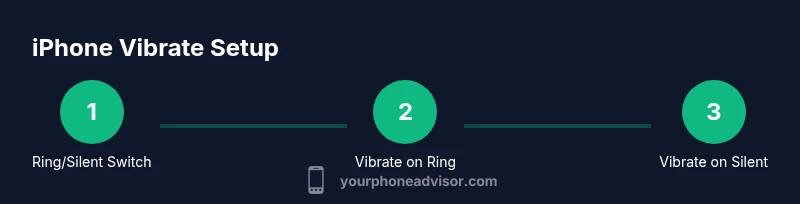
You can put your iPhone on vibrate in several reliable ways. Start with the physical Ring/Silent switch for instant silence with vibration, then enable Vibrate on Ring and Vibrate on Silent in Settings, and finally use Focus (Do Not Disturb) for quiet environments that still need haptic alerts. This quick guide helps you choose the best method for your situation.
Why Vibrate Matters on iPhone
Vibration provides a discreet alert when sounds would disturb others or when you cannot hear a ringtone. For many users, knowing how to put phone on vibrate iphone is essential for meetings, libraries, driving, or when you simply want to reduce audible interruptions without missing critical notifications. iPhone vibration is controlled by a combination of hardware (the Taptic Engine) and software settings, so you can customize how and when your device vibrates. In practice, having vibration enabled alongside sound options gives you a robust alert system that adapts to your environment. If you ever wonder how to put phone on vibrate iphone, remember that it’s about balancing accessibility with situational awareness, not just flipping a switch.
Your Phone Advisor team notes that many people rely solely on the physical silent switch and forget to verify Vibrate on Silent or Vibrate on Ring. These toggles determine whether vibration accompanies incoming calls, messages, and app alerts. Regular checks ensure you don’t miss important notifications in quiet environments. In addition, vibrations can be customized to be stronger or weaker in Settings, aiding in different lighting or hearing conditions. The goal is predictable, consistent cues that fit your daily rhythm.
Method 1: The Ring/Silent Switch for Instant Vibration
The simplest way to put your iPhone on vibrate is to use the hardware Ring/Silent switch located on the left side of most iPhone models. When you flip the switch to silent, your phone won’t emit audible ringtones, but it can still vibrate if you’ve enabled Vibrate on Silent. This method is ideal for quick changes when you’re heading into a meeting or cinema. If you want the phone to vibrate every time it would otherwise ring, make sure Vibrate on Silent is turned on in Settings. This combination gives you effective, silent alerts with tactile feedback. In practice, many users find this to be the most reliable, fastest way to achieve vibration on the fly while keeping sounds off in sensitive environments.
Quick tip: If you frequently switch modes, consider adding a reminder to recheck Vibrate on Silent after you flip the switch. This reduces the chance of surprises when you receive calls in Silent mode.
Method 2: Settings - Vibrate on Ring and Vibrate on Silent
For more granular control, use the Settings app to enable Vibrate on Ring and Vibrate on Silent under Sounds & Haptics. This ensures vibration accompanies both calls and notifications, regardless of whether the phone is in ring mode or silent mode. To adjust: open Settings > Sounds & Haptics, toggle on Vibrate on Ring and Vibrate on Silent, and set a moderate volume for Ringer and Alerts. If you prefer stronger feedback, you can also tweak the vibration pattern by selecting the Vibration option and choosing a different pattern. Implementing these toggles makes the phrase how to put phone on vibrate iphone a straightforward process through software rather than manual switching.
Pro tip: After enabling both toggles, test by asking someone to call you or sending a test notification to confirm vibration is active in both states.
Method 3: Focus/Do Not Disturb - Quiet Modes with Vibration
Focus modes (including Do Not Disturb) are designed to quiet notifications while letting you tailor which alerts can still come through. While Focus won’t automatically turn on vibration by itself, you can configure it to preserve vibration for critical alerts. Go to Settings > Focus > Do Not Disturb (or any Focus mode), and under Notifications you can allow calls from certain people or apps while ensuring your device still vibrates. Also keep Vibrate on Ring and Vibrate on Silent enabled so that even when notifications are silenced, vibration remains active. This approach is ideal for long meetings or focused work sessions where you want minimal disruption but still want tactile alerts for essential communications.
Bonus: If you rely on vibration for critical alerts, pair Focus with a custom vibration pattern for easily identifiable cues.
Method 4: Testing and Verifying Your Vibrate Settings
After configuring Vibrate on Ring and Vibrate on Silent, test to ensure the device vibrates as expected. You can use a friend’s call, a test notification, or a quick self-test by sending a message from another device. Pay attention to the strength and duration of the vibration, and adjust the pattern in Settings > Sounds & Haptics > Vibration to suit your sensitivity. If you notice weak or inconsistent vibrations, try a stronger pattern or check the physical Ring/Silent switch for any obstruction or dust. Consistent testing helps confirm how to put phone on vibrate iphone in real-world situations and reduces missed alerts.
Your environment impacts vibration perception; in noisy settings, a pronounced pattern is easier to detect.
Troubleshooting Common Vibration Issues
If vibration isn’t occurring as expected, start with the simplest checks: ensure the Ring/Silent switch isn’t stuck in a conflicting position, confirm Vibrate on Ring and Vibrate on Silent are On, and verify that the Selected Vibration pattern is not set to none. If you’re using Do Not Disturb or a Focus mode, confirm you have allowed essential alerts to vibrate. Accessibility settings can also influence haptic feedback; if Motion or Haptics are disabled for some reason, vibrations may be affected. In most cases, re-enabling Vibrate on Ring/Silent and re-testing resolves the issue. If the problem persists after following these steps, consider a software update or contacting support for deeper diagnostics.
Tip: A clean iPhone can improve vibration consistency; ensure vents and speakers aren’t blocked or dusty.
Best Practices and Real-World Scenarios
Different scenarios require different vibration behavior. In professional settings, ensure Vibrate on Silent is enabled so you are alerted to calls without disturbing others. For workout or outdoor activities, a stronger vibration pattern can improve detection. When you travel across time zones or work across devices, revisiting your Vibrate on Ring/Silent settings helps maintain uniform behavior. Finally, periodic checks of Focus configurations ensure your vibrate alerts align with your current priorities. By maintaining a consistent approach to vibration, you can manage attention and reduce missed notifications in everyday life.
Remember to stay aware of model differences: older iPhone models have similar vibrate options, while newer models may include subtle haptic nuances tied to iOS updates.
Summary of Practical Tips
- Use the Ring/Silent switch for fast, reliable vibration control.
- Enable Vibrate on Ring and Vibrate on Silent in Settings for consistent haptic alerts.
- Leverage Focus to silence without sacrificing vibration for critical alerts.
- Regularly test vibrations with real alerts to ensure you don’t miss important notifications.
This comprehensive approach ensures you can answer the question how to put phone on vibrate iphone with confidence in any situation.
Tools & Materials
- iPhone (any model with iOS 12+)(No extra hardware needed; ensure your device is updated for best results.)
- Settings app access(Needed to modify Vibrate on Ring/Silent and vibration patterns.)
Steps
Estimated time: 5-7 minutes
- 1
Identify the Ring/Silent switch
Inspect the left side of your iPhone to locate the Ring/Silent switch. This hardware toggle lets you switch between ring mode and silent mode quickly. The orange indicator means Silent is active. Understanding this physical control helps you understand how to put phone on vibrate iphone in moments.
Tip: Familiarize yourself with the switch position by flipping it back and forth a few times in a safe environment. - 2
Enable Vibrate on Silent
Open Settings > Sounds & Haptics and toggle on Vibrate on Silent. This ensures that even when you’ve silenced the ringer, the device will still provide a haptic alert. If Vibrate on Ring is off, you won’t feel vibrations for missed calls when the phone is not silent.
Tip: After enabling, flip the switch to silent and listen for a vibration cue during a test alert. - 3
Enable Vibrate on Ring
Within the same Sounds & Haptics menu, turn on Vibrate on Ring. This guarantees vibration during regular ringing, which is useful in noisy environments or when you don’t want audio notifications.
Tip: Test by asking someone to call you and observe the vibration strength in different ambient conditions. - 4
Adjust the vibration pattern
Tap on Vibration and select a pattern you can easily notice. A bolder pattern helps you detect alerts in busy settings. If none feels right, create a custom vibration by editing the pattern.
Tip: Choose a pattern that you can recognize quickly even when distracted. - 5
Configure Focus/Do Not Disturb for quiet times
Go to Settings > Focus > Do Not Disturb (or a custom Focus). Adjust notifications so that only critical alerts can bypass silence, and ensure vibration is still active. This lets you stay productive while still feeling alerts during important events.
Tip: Include family or work contacts in allowed lists to avoid missing essential calls. - 6
Test and verify
Send a test alert from another device or ask a friend to call you. Verify the vibration strength and duration, and tweak the pattern if needed. Re-test after any change to ensure the settings meet your needs.
Tip: Keep a short routine to test at least weekly or after OS updates.
Got Questions?
How do I enable Vibrate on Silent on my iPhone?
Open Settings > Sounds & Haptics, toggle on Vibrate on Silent, and ensure Vibrate on Ring is also On if you want vibrations for calls. This combination makes silent mode vibrate as well.
Go to Settings, switch on Vibrate on Silent, and check that Vibrate on Ring is on too.
What should I do if my iPhone vibrates but I can't hear alerts?
Check that Vibrate on Ring and Vibrate on Silent are enabled, confirm the ringer volume, and verify that Focus or Do Not Disturb isn’t silencing all notifications. You may also adjust the vibration pattern for better detectability.
Make sure vibration is enabled for both Silent and Ring, and review Focus settings if notifications are still muted.
Can I keep vibration while Do Not Disturb is on?
Yes, but you’ll want to configure a Focus mode to allow essential alerts and keep Vibrate on Ring/Silent active. This ensures you remain vibrated for critical calls.
Yes, you can, by allowing essential alerts in Focus while keeping vibration on.
How do I test if vibration is working on iPhone?
Use a test notification or have someone call you to feel the vibration. If you don’t feel it, check Vibrate on Ring/Silent and test a different pattern.
Test with a real alert and adjust settings if needed.
Is vibration available on all iPhone models?
Yes. All iPhone models support vibration, though some subtle haptic differences may occur across iOS versions.
All iPhones support vibration; check your iOS version if you notice differences.
Watch Video
What to Remember
- Enable Vibrate on Ring and Vibrate on Silent for comprehensive alerts.
- Use the Ring/Silent switch for quick, reliable vibrate states.
- Test vibrations regularly to ensure alerts are noticeable in real environments.
- Leverage Focus to quiet notifications while preserving essential vibrate cues.
- Review settings after iOS updates to maintain consistent behavior.