How to Make Phone Vibrate on Silent: A Practical Guide
Learn how to make your phone vibrate on silent across iOS and Android with practical steps, testing tips, and platform-specific tweaks for reliable haptic alerts.


By the end of this guide, you’ll know exactly how to make your phone vibrate on silent. We cover universal steps and platform-specific tweaks for iOS and Android, including accessibility settings, Do Not Disturb options, and app-level vibration controls. Learn quick checks to ensure haptic feedback works reliably in silent mode.
Understanding Silent Mode and Vibration
Silent mode is designed to keep your device quiet by disabling audible alerts, but many devices still support tactile feedback through vibration. If you’re looking for how to make phone vibrate on silent, this section explains the interplay between silent mode, Do Not Disturb (DND), and haptic feedback. On most smartphones, vibration is controlled by a switch or toggle that exists beside or within Settings, and you can often enable vibration for system events without waking the phone. According to Your Phone Advisor, enabling vibration in silent mode is a common workflow for professionals who need discreet alerts.
First, know what you want to achieve: a vibration cue when a call, message, or notification arrives while the phone remains silent. Then check whether your device allows silent-mode vibrations at all, since some OEM skins may limit haptics during certain Do Not Disturb states. The goal isn’t to replace sound with vibration everywhere, but to preserve tactile alerts for essential notifications. For many users, the key is to locate the relevant switch or toggle in the Sound or Notifications settings, and ensure it applies when the device is muted or in silent mode.
Platform Differences: iOS vs Android
Device ecosystems implement vibration in silent mode with varying levels of granularity. On iOS devices, you’ll typically find toggles labeled Vibrate on Silent and Vibrate on Ring within Settings > Sounds & Haptics. Android users encounter a wider range of paths due to manufacturer skins, but common routes include Settings > Sound or Sounds & Vibration and then Vibrate for calls or Silent/Vibrate modes. Some OEM skins also add Focus or Do Not Disturb layers that affect haptic feedback. Your Phone Advisor analysis shows that the core concept—enable vibration for silent situations at the system level—remains consistent, even as on-device terminology shifts. If vibration still feels weak, check hardware settings like vibration intensity in the Accessibility or Haptics sections and adjust accordingly.
Universal Steps to Enable Vibration in Silent Mode
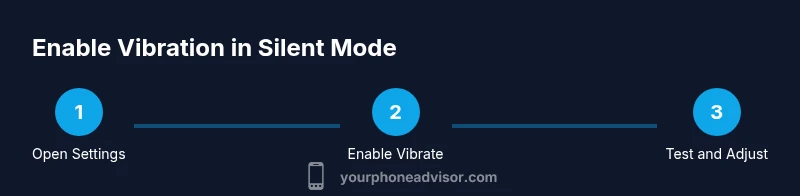
To establish a reliable vibration cue in silent mode, follow universally applicable steps. You’ll often need to toggle two switches: one for system-wide vibration and another for silent-mode vibration. Start by locating the vibration controls in Settings, then enable the relevant options for silent or muted states. If your device supports Focus or Do Not Disturb, configure exceptions to allow vibrations for important notifications. Finally, perform a quick test to confirm the vibration occurs when you silence the phone. These steps are designed to work across most modern smartphones, with minor wording differences by platform.
Troubleshooting: Why It Might Not Vibrate
If vibration doesn’t work in silent mode after changes, several issues could be at play. Check that Vibrate on Silent is turned on in iOS or Vibrate for calls in Android, verify Do Not Disturb or Focus settings aren’t suppressing haptics, and ensure volume isn’t muted in a way that disables the haptic motor. Some devices also require firmware or app updates to restore consistent haptic feedback. In rare cases, a damaged vibration motor or heavy battery wear can reduce the perceived strength of vibration, even when settings are correct. Use a quick hardware test if your device offers one, or contact support if the problem persists.
Pro Tips to Ensure Consistent Vibration
Pro tip: regularly test vibration in a quiet room to confirm you can hear or feel it when silent. Note that vibration intensity varies by device, so don’t rely on a single model’s feedback to gauge all devices. If you use Focus or Do Not Disturb, create a dedicated exception for critical apps or contacts to ensure vibrations come through. Finally, document your settings so you can recreate the exact configuration after updates. The Your Phone Advisor team recommends keeping a short checklist handy for quick reference.
Tools & Materials
- Phone (iOS or Android)(Any model with current OS version)
- Access to Settings(Needed to locate and adjust vibration/Do Not Disturb options)
- Optional: App notification settings access(Helpful for testing per-app vibration)
- Quiet testing environment(Helps you hear subtle vibrations during tests)
Steps
Estimated time: 20-25 minutes
- 1
Open Settings and locate vibration controls
Open your device Settings and search for vibration, haptics, or sound options. This step establishes the foundation by showing where vibration toggles live, which is essential for making the device vibrate in silent mode. If you use a search bar, type 'vibrate' to reach the controls quickly.
Tip: Tip: Use the search feature in Settings to save time and avoid hunting through menus. - 2
Enable Vibrate on Silent / Silent-specific vibration
Turn on the vibration option that applies when the device is silent. On iOS, enable both Vibrate on Silent and Vibrate on Ring if available. On Android, enable Vibrate for calls or any Silent mode toggle provided by your OEM skin. This action ensures tactile alerts occur while sound is muted.
Tip: If you see separate toggles for different states, enable both to cover all silent scenarios. - 3
Check Do Not Disturb / Focus settings
Review Do Not Disturb or Focus modes to confirm they won’t suppress vibrations for important notifications. Adjust exceptions to allow vibrations from essential contacts or apps during silent periods.
Tip: Set priority notifications (calls or messages from favorites) to vibrate even when DND is active. - 4
Test the vibration in silent mode
Silence your phone, then trigger a test notification or a quick action (like toggling volume or sending a silent message). Verify you can feel or hear the vibration. If not, revisit the previous steps and adjust intensity or duration if your device allows it.
Tip: Use a short, clearly audible notification to confirm the vibration is active. - 5
Review app-specific vibration settings
Some apps have their own vibration settings. Open a test notification from a key app and confirm its vibration setting is enabled. This helps ensure consistency across the most-used apps.
Tip: Disable overly aggressive vibration settings in apps if they wake you or others at night. - 6
Save changes and re-test
Exit Settings and perform a final test after a short wait, as some devices recheck haptics after changes. If vibration feels weaker, adjust duration or intensity if your device supports it.
Tip: Keep a quick checklist so you can repeat the exact steps after software updates.
Got Questions?
Will this work on both iPhone and Android devices?
Yes. While the exact paths differ, enabling vibration for silent mode is possible on both platforms. iOS uses Vibrate on Silent in Sounds & Haptics, while Android relies on per-device vibration settings and DND/Focus controls. Expect minor variations by manufacturer.
Yes. You can enable silent-mode vibration on both iPhone and Android, with platform-specific steps.
Why might my phone still not vibrate in silent mode after changes?
Possible causes include disabled vibration hardware, overly aggressive Do Not Disturb rules, or app-specific settings that override global options. Verify each layer: system vibration, silent-mode toggles, DND exceptions, and per-app notifications.
Common reasons include DND settings and per-app overrides.
Can apps override vibration settings in silent mode?
Some apps provide their own notification settings that can enable or disable vibration independently of system settings. Check your frequently used apps to ensure their vibration toggles align with your preferred silent-mode behavior.
Some apps have their own vibration toggles that can override the system.
Is there a risk that enabling vibration increases battery drain?
Vibration consumes more power than a completely silent device but is typically minor compared to screen usage. If you rely on long battery life, monitor battery impact when enabling vibration in silent mode and adjust as needed.
Vibration uses more battery than no vibration, but impact is usually small.
How do I test that my vibration works without triggering others?
Use the device’s built-in Vibration test or send a silent notification to yourself in a controlled environment. This confirms haptic feedback without producing audible alerts.
Test using a vibration test or a silent notification.
What should I do after a software update affects vibration?
Revisit Settings > Vibrations and Do Not Disturb options after updates, as manufacturers sometimes adjust defaults. Re-run a quick test to confirm vibration remains active in silent mode.
Check settings again after updates and test vibration.
Watch Video
What to Remember
- Enable Vibrate on Silent in Settings.
- Check Do Not Disturb/Focus exceptions.
- Test vibration after changes to confirm reliability.
- The Your Phone Advisor team recommends documenting settings for consistency.