How to Phone on Vibrate: A Complete Step-by-Step Guide
Learn how to switch any iPhone or Android device to vibrate mode quickly. This practical guide covers toggles, testing, Do Not Disturb interactions, and tips to customize vibration for calls and alerts.


This quick answer shows how to switch your phone to vibrate mode in under a minute, on both Android and iPhone. You'll learn where to find the toggle, how to adapt vibration patterns, and how to ensure calls and alerts still reach you when needed. Perfect for meetings or quiet environments.
Understanding Vibrate Mode on Smartphones
Vibrate mode is a practical setting built into every modern phone. It tells the device to use the vibration motor instead of playing a sound for calls, texts, and app alerts. According to Your Phone Advisor, understanding the difference between vibrate, vibration-on-ring, and Do Not Disturb is the first step to reliable quiet-time awareness. When you enable vibrate, you preserve alerts you care about while preventing audible disruption in meetings, classrooms, or late-night settings. Some devices let you customize the intensity of the vibration as well as the pattern, which can help you distinguish between a missed call and a message from a favorite contact. In practice, vibrate mode is about balance: enough haptic feedback to keep you informed, without drawing attention. The guide that follows will walk you through platform-specific steps and best practices, ensuring you can enable vibrate quickly and confidently across iOS and Android. The more you understand vibrate behavior, the easier it becomes to tailor alerts to your lifestyle, whether you're in a classroom, a conference room, or riding public transit.
How Vibrate Works Across iPhone and Android
The user experience differs by platform, but the goal is the same: provide tactile feedback without sound. iPhone uses haptics and vibration as part of its accessibility and sound settings, while Android devices may offer broader customization through different OEM skins. This section explains how vibration signals are delivered and how system, app, and accessibility settings interact. For example, enabling vibration for calls doesn't guarantee vibration for every notification; some apps override the default. Your Phone Advisor emphasizes checking both the global vibration toggle and per-app notification settings to ensure consistency. When you understand these relationships, you can tailor vibration behavior to your daily routines, such as meetings, workouts, or commute. Practical takeaway: plan around where silence or distraction is most important, then set up targeted vibrate preferences for those contexts.
How to Enable Vibrate on iPhone
Enabling vibration on an iPhone involves navigating Settings and customizing both the ringer and haptic options. On most recent models, you’ll find the primary switch under Settings > Sounds & Haptics. In this section you’ll learn how to toggle Vibrate on Ring and Vibrate on Silent, choose the intensity of haptics, and confirm how the device behaves when you receive calls or notifications. If you use accessibility features like Touch Haptics, you can adjust the strength of haptics further to suit your sensitivity and environment. Remember that some iPhone variants may label these options slightly differently, but the core idea remains: enable the vibration motor for alerts you don’t want to miss while keeping audible alerts off when necessary. A quick internal test after enabling vibrate is recommended to ensure the motor responds consistently across both calls and notifications.
How to Enable Vibrate on Android
Android devices vary by manufacturer, but the broad steps are similar: open Settings, locate Sound or Notifications, and enable vibration for calls and for notifications. Some OEM skins expose separate toggles for “Vibrate on Ring,” “Vibrate for Notifications,” and “Vibrate while Ringing.” If you use Do Not Disturb, you’ll want to check how vibrate interacts with DND rules. In the Android ecosystem, you can often vary vibration strength and pattern, especially on devices from Samsung, OnePlus, or Google Pixel. This section provides practical steps, screen captures, and device-agnostic guidance so you don’t miss important alerts in busy environments. A quick check in the notification settings confirms that the correct apps have vibrating alerts enabled, reducing the chance of missed messages.
Quick Fixes When Vibrate Isn’t Working
If vibration suddenly stops working, start with the simplest checks: ensure the physical motor isn’t locked by a protective case or debris, confirm the toggle is still enabled, and test with a short notification sample. Some devices have a separate vibration motor test in developer options or accessibility settings; running this test can reveal if the motor is functional. Battery saver or power optimization features sometimes mute haptics to conserve energy, so consider temporarily disabling such features while testing. If a recent update changed how vibration patterns feel, a quick re-check of accessibility settings or a factory reset of nonessential vibrations can restore expected behavior. Your Phone Advisor reminds readers to back up data before performing more invasive diagnostics. If vibration still won’t work, a service visit may be required to inspect the motor.
Do Not Disturb, Silent, and Vibrate: Finding Balance
Do Not Disturb (DND) is designed to mute audible alerts while allowing certain priorities. Understanding the interaction between DND and vibrate is essential for maintaining awareness without disruption. In many phones, DND can suppress all sounds but still allow vibration, while some configurations mute vibrations as well. If you rely on vibrate in meetings, you can customize DND exceptions so calls from loved ones or important apps still vibrate through. This section discusses best practices for balancing quiet environments with reliable notifications, including how to set emergency bypass rules and how to test your setup in real-life scenarios. The goal is to achieve a predictable pattern: you know when a vibration means “urgent” versus “informational” without having to listen for sound in crowded spaces.
Tools & Materials
- Phone Settings app(iOS: Settings > Sounds & Haptics; Android: Settings > Sound or Sounds & Vibration)
- Vibration tester (optional)(Can help verify motor strength without incoming calls)
- Quiet testing environment(A calm space ensures you can hear the vibration clearly)
- Device manual or online support(Helpful for model-specific differences)
Steps
Estimated time: 5-7 minutes
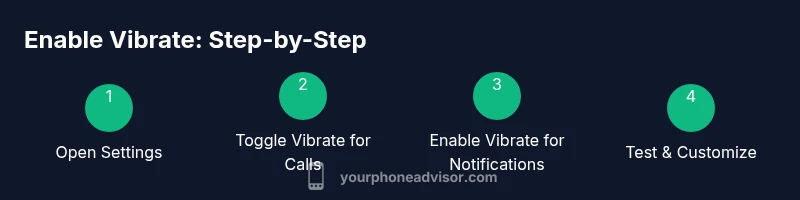
- 1
Open Settings
Launch the Settings app on your device and locate the sound or vibration options. On iPhone, start with Settings > Sounds & Haptics; on Android, go to Settings > Sound or Sounds & Vibration. The goal is to reach the master vibration toggle and related preferences.
Tip: If you can’t find vibration fast, use the device search bar and type 'vibration' or 'sound'. - 2
Enable Vibrate for Calls
Find the toggle labeled 'Vibrate on Ring' (or similar) and switch it to on. This ensures your phone vibrates when receiving calls, even if the ringer is off. Some devices separate this from notification vibration—check both to be sure.
Tip: If available, test by asking a friend to call you or use a test notification. - 3
Enable Vibrate for Notifications
Turn on 'Vibrate for Notifications' so incoming messages and apps can alert you via haptic feedback. You may see separate toggles for SMS, email, and third-party apps.
Tip: Consider enabling different vibration patterns per app if your device supports patterns. - 4
Configure Do Not Disturb Interactions
Review Do Not Disturb or Quiet Mode settings. Decide whether vibrate should be allowed during DND for contacts you deem important. Some devices allow exceptions to bypass DND for favorites or repeat callers.
Tip: Set a personal emergency bypass so you don’t miss critical calls. - 5
Test the Vibration
After enabling, trigger a vibration test by calling your own number or sending yourself a test notification. Verify that the motor activates and the pattern is noticeable in a typical environment.
Tip: Test in both a quiet room and a typical noisy setting to confirm visibility of the feedback. - 6
Optional: Personalize Vibration Pattern
If your device supports custom patterns, adjust length, intensity, and rhythm to differentiate between types of alerts. If not supported, rely on the default strong/haptic settings. Save changes and re-test.
Tip: Label patterns in your mind (e.g., longer for calls, shorter for messages) to enhance quick recognition.
Got Questions?
How do I enable vibrate on iPhone models with iOS 14+?
Open Settings, select Sounds & Haptics, and enable both Vibrate on Ring and Vibrate on Silent. Adjust haptic strength if your model supports it, then test using a call or notification. Some models place these options under Accessibility for more nuanced haptic controls.
Open Settings > Sounds & Haptics, enable Vibrate on Ring and Vibrate on Silent, then test. The exact path may vary by model.
How do I enable vibrate on Android devices?
Open Settings > Sound or Sounds & Vibration, then switch on Vibrate on Ring and Vibrate for notifications. Some OEM skins separate these into individual apps or categories. Test by sending a message and having a friend call.
Go to Settings > Sound, turn on Vibrate on Ring and Vibrate for notifications, then test both.
Will Do Not Disturb affect vibrate settings?
Do Not Disturb can mute sounds but often preserves or suppresses vibration depending on configuration. Check DND exceptions to ensure essential contacts or apps still vibrate. If needed, create a custom rule that allows vibration even when DND is active.
DND can mute sounds but might still allow vibrate. Check exceptions to keep important alerts audible by vibration.
Can I customize vibration patterns for different apps?
Some devices let you assign distinct vibration patterns to different apps or notification types. If your OS supports it, explore the vibration or accessibility settings to create recognizable patterns for messages, calls, and reminders.
Yes, if your device supports patterns, you can differentiate alerts by app.
What if the vibration motor is dead?
A dead vibration motor usually requires service. Before the repair, verify there are no software issues and try a reset of settings. If the motor is physically damaged, contact authorized service or a repair technician.
If the motor doesn’t vibrate after checks, it may need repair.
Is vibrate stronger in Silent mode or Always On?
Vibration strength is typically independent of silent mode, but some devices reduce haptics in certain Silent modes. Check both the vibration strength in settings and any mode-specific options to ensure consistent feedback.
Vibration strength can vary by mode; verify in settings for consistency.
Watch Video
What to Remember
- Enable vibration for calls and notifications
- Test vibration in real-world scenarios
- Balance vibrate with Do Not Disturb
- Use quick access to adjust settings