How to Keep Your Phone from Shutting Off
Learn step-by-step how to stop your phone from shutting off unexpectedly. We cover battery health, software fixes, charging habits, and maintenance to keep your device powering on reliably.


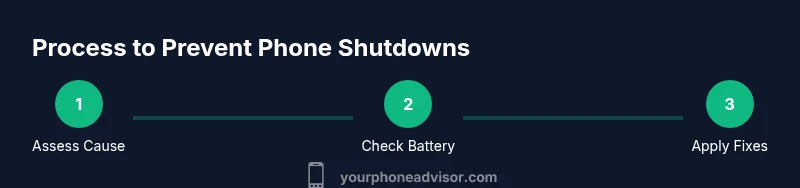
To stop your phone from shutting off unexpectedly, first assess battery health, update software, and adjust charging habits. Use the original charger, avoid overheating, close unnecessary apps, and consider a battery replacement if the device is several years old. According to Your Phone Advisor, aging batteries and software glitches are common culprits, but most shutdowns can be resolved with a few diagnostic steps.
Understanding Why Phones Shut Off Unexpectedly
Phone shutdowns can happen for several reasons. According to Your Phone Advisor, the most common culprits are aging batteries, software glitches, overheating, and charging port issues. By understanding these factors, you can diagnose quickly and restore reliable performance. In this section, we break down each cause with practical indicators and quick tests you can perform at home. This knowledge helps you decide whether to pursue a DIY fix or seek professional help.
- Aging battery: Lithium-ion cells lose capacity over time, leading to sudden drops in power. If your device shuts off near 20-30% or at random times, battery wear is a likely factor.
- Software bugs: Background updates or problematic apps can misreport charge or trigger a shutdown during high CPU use.
- Heat: Excessive warmth reduces battery efficiency and may force the phone to shut down to prevent damage.
- Charging port and cables: A loose port or degraded cable can cause unstable charging, making the device think the battery is empty.
If you notice a pattern (only at high temperatures, or only after a software update), you have a better clue where to focus your fixes.
Check Battery Health and Replace if Needed
Battery health is the cornerstone of reliable power. On iOS devices, go to Settings > Battery > Battery Health to see maximum capacity and peak performance capability. On Android, look under Settings > Battery > Battery Health or Diagnostics to gauge remaining capacity and any calibration warnings. If health is significantly degraded or the phone shuts off even when the display shows charge, it's time to plan a replacement. While you can sometimes calibrate the battery, the practical remedy for aging cells is a new battery or a professional service.
What to look for:
- Sudden power-offs at various battery levels
- Rapid drop in percentage during usage
- The device not charging past a certain threshold despite being plugged in
Tip: If your device is within the warranty period, contact the manufacturer for a free diagnostic.
Update Software and Manage Background Apps
Software problems can cause misreporting of battery level or unexpected shutdowns during heavy processing. Ensure your device runs the latest operating system by going to Settings > Software Update on iOS or System > Updates on Android. After updating, restart to clear any residual processes. Review battery usage to identify apps that drain power in the background; disable or restrict those that aren’t essential. If the problem started after a recent update, you may temporarily roll back or perform a clean install:
- Update to the latest security patch first
- Clear cache for problematic apps
- Consider a factory reset only after backing up data
Note: Some devices may require a reboot in safe mode to isolate problematic apps.
Inspect Charging Habits and Accessories
Even a healthy battery can be compromised by poor charging habits. Always use the original charger or a certified replacement, and avoid cheap third-party cables that don’t meet safety standards. Check the charging port for lint or corrosion and clean gently with a dry brush if needed. If charging is slow or inconsistent, try a different outlet or charger and test with a fresh cable. Calibrating the battery by performing a full charge-discharge cycle can help the system report accurate charge levels on occasion.
Recommended steps:
- Inspect charging port and cable for wear
- Use certified chargers (USB-C or Lightning) for best results
- Avoid charging on soft surfaces that trap heat
Manage Temperature and Environmental Factors
Heat is a major trigger for shutdowns. Exposing your phone to high ambient temperatures or charging in a hot environment can force automatic shutdowns to protect the battery. Keep the device out of direct sunlight, remove from tight cases if it overheats, and avoid using resource-intensive apps while charging in warm rooms. If the device feels hot during use, pause heavy tasks, close background processes, and let it cool before continuing.
Practical cooling tips:
- Remove bulky cases during charging when possible
- Don’t leave the phone inside a hot car
- Use airplane mode during long downloads to reduce heat generation
Calibration and Battery Training
If the battery gauge seems inaccurate, a calibration cycle can help the system learn the true capacity. This involves fully charging to 100%, then discharging to 0% before charging again to 100%. Do this sparingly (every few months) to avoid unnecessary wear. If your device frequently shuts off before hitting 20%, calibration alone may not fix the issue and replacement may be warranted.
Calibration steps:
- Charge uninterrupted to 100%
- Use until device shuts off at 0%
- Charge back to 100% without interruption
Caution: Do not routinely drain to 0% for long periods on modern devices; use this as a diagnostic tool rather than a daily habit.
When to Consider Battery Replacement or Professional Help
If your device is aged (typically several years), or you notice the battery swells, leaks, or consistently shuts off at high charge percentages, a replacement is often the most practical fix. Professional repair centers can provide a battery replacement with safe handling and testing. If your phone is still under warranty, check with the manufacturer for options. In some cases, persistent software issues that survive resets indicate deeper hardware faults.
Before you replace:
- Back up all data
- Confirm model-specific battery availability and service cost
- Compare repair versus replacement value for older devices
Practical Daily Habits to Extend Battery Life
Just as important as fixes is prevention. Develop daily habits that minimize wear and reduce the chance of shutdowns. Keep software updated, close unnecessary apps, and monitor battery health regularly. Avoid letting the battery run completely dry and operate within moderate temperatures. Consider enabling built-in power-saving modes during long days away from a charger. Small habits add up to a more reliable device over time.
Tools & Materials
- Phone charger (original or certified)(Use the manufacturer-approved charger for safe, stable charging.)
- USB cable(A high-quality cable that matches your device (USB-C or Lightning).)
- Cleaning supplies (microfiber cloth, soft brush)(Gently clean the charging port to remove lint.)
- Clean diagnostic app or quick-start guide(Optional tool to assess battery health on Android or iOS.)
- Notepad or voice recorder(Log symptoms, temperatures, and charging times for tracking.)
- Backup storage device or cloud access(Back up data before any reset or repair.)
Steps
Estimated time: 90-150 minutes
- 1
Back up and prepare
Back up all data to a secure location before performing any diagnostic steps. This protects you in case a reset or battery replacement is needed. Ensure you have access to your accounts and can restore contacts, photos, and apps after changes.
Tip: Use cloud backup or a computer backup to minimize data loss. - 2
Check battery health
Look up the battery health status in the device settings (iOS: Battery Health; Android: Battery or Diagnostics). If the health percentage is low or a health warning appears, plan for replacement. If the device shuts off at varying levels, battery wear is a strong suspect.
Tip: If you’re outside warranty, request a diagnostic estimate before replacing hardware. - 3
Update and reboot
Install the latest OS update and perform a clean restart to remove rogue processes. Updates fix bugs that can misreport charge and cause shutdowns during heavy tasks. Reboot to ensure new software components initialize correctly.
Tip: Check for updates again after reboot in case a pending patch remains. - 4
Review app battery usage
Open the battery section to identify apps consuming abnormal power in the background. Disable or restrict those apps, or replace with lighter alternatives. Persistent drain from a single app can trigger system shutdowns during peak usage.
Tip: Force stop or uninstall apps with high background activity. - 5
Test charging port and accessories
Inspect and clean the charging port; try a different certified charger and cable. If charging is intermittent or the device never reaches full charge, port damage may exist and require professional cleaning or port replacement.
Tip: Avoid using the device while plugged in if you suspect port instability. - 6
Calibrate if needed
If the gauge seems inaccurate, perform a battery calibration by charging to 100% and discharging to near 0% in a controlled cycle. Do not perform this frequently; it’s a diagnostic step for lead-in battery wear.
Tip: Do this on a day when you don’t need the phone immediately afterward. - 7
Try safe mode or reset
Boot into safe mode to determine if the issue is caused by third-party apps. If the phone stays on in safe mode, a recent app is likely responsible. As a last resort, consider a factory reset after backing up; this resolves software glitches but erases personal data.
Tip: Back up before a factory reset to avoid data loss. - 8
Decide on replacement or service
If the battery health is poor or the device repeatedly shuts down despite fixes, a replacement battery or professional service is often the most cost-effective path.
Tip: Compare repair cost with device value to decide the best option.
Got Questions?
Why does my phone keep shutting off even when the battery shows charge?
Shutoffs despite a charge can be caused by aging battery chemistry, software bugs, or a faulty charging port. Start with battery health checks and software updates, then test with a different charger to rule out charging issues.
Aging battery or software bugs can cause your phone to shut off even when it shows charge. Start with battery health checks and ensure software is up to date.
Should I replace the battery if the phone dies at 50%?
Yes, if a phone dies consistently around the mid-range of the battery, the battery is likely worn. A replacement will restore reliable power. Check warranty and service options first.
If it dies around 50%, the battery is likely worn. Replacing it can restore reliability.
Can a software update fix shutdowns?
Software updates often fix bugs that can cause shutdowns and misreport battery level. Install the latest update and monitor for continued issues after a reboot.
Installing the latest software update can fix shutdown bugs. See if the issue repeats after reboot.
Is overheating a common cause of shutdowns?
Yes. High temperatures can trigger protective shutdowns to prevent damage. Reduce heat by avoiding heavy tasks in hot environments and removing bulky cases during charging when needed.
Overheating often triggers shutdowns. Cool the device and limit heavy use when hot.
What should I do if the phone dies while charging?
If it dies while charging, inspect the charger and port, try a different certified charger, and test in another outlet. If the issue persists, port damage or battery wear may be present.
If it dies while charging, check cables and port. Try another charger and outlet; persistent issues mean service may be needed.
How can I extend battery life to avoid shutdowns?
Adopt daily habits like updating software, reducing screen brightness, limiting background apps, and using power-saving modes. Regularly check battery health and avoid charging to 100% repeatedly.
To extend life, update software and use power-saving modes; monitor health regularly.
When should I see a professional?
Consult a professional if the device continues to shut off after all fixes, or if you hear swelling, notice heat, or port damage. A technician can safely replace the battery or diagnose hardware faults.
See a pro if shutdowns persist after fixes or you notice swelling or port damage.
Does warranty affect battery replacement?
If under warranty, battery replacement is often covered or discounted. Check warranty terms and service options with the manufacturer before paying out of pocket.
Under warranty, battery replacement may be covered; check terms with the manufacturer.
Watch Video
What to Remember
- Identify the root cause using battery health and software checks
- Use certified charging accessories to stabilize power
- Calibrate or replace the battery as needed
- Limit heat exposure to prevent shutdowns
- Backup data before major fixes or replacements