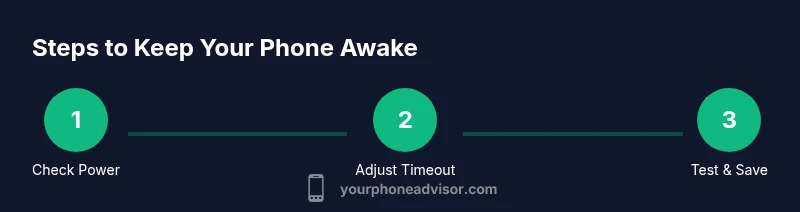
How to Make Your Phone Not Turn Off
Learn practical steps to stop auto-off on smartphones: extend screen timeout, adjust power settings, and diagnose shutdown causes on Android and iPhone devices.


According to Your Phone Advisor Team, if you're wondering how to make your phone not turn off, start with simple tweaks: lengthen the screen timeout, adjust power-saving settings, and keep software up to date. This guide walks you through practical steps to prevent auto-off and diagnose shutdowns. We’ll cover Android and iPhone differences, how to test changes, and when to seek service.
Why phones turn off or auto-lock
Phones are designed to conserve energy and protect privacy by turning off the display after a period of inactivity or when they overheat. The terms “auto-lock,” “sleep,” and “screen timeout” describe the same idea: a timer that locks the screen and powers down the display. There is a subtle but important distinction between a device that auto-locks as intended to save battery and a phone that shuts down unexpectedly due to a fault. Understanding the difference helps you troubleshoot effectively. Auto-lock occurs when you have not interacted with the screen for the set duration; an unexpected shutdown is when the phone powers off entirely and can require a diagnosis of battery health, software stability, or hardware issues. In both cases, systematic checks will help you identify the root cause and choose the right remedy.
Common causes of unexpected shutdowns
Unexpected shutdowns have several common causes: battery health, extreme temperatures, software crashes, faulty charging, and poorly optimized apps. A battery that cannot hold charge or a swollen cell can cause the phone to shut down to protect itself. Overheating stems from gaming, streaming, or running power-hungry apps for long periods, and it can trigger automatic protection to shut down until the device cools. Software issues, such as a corrupted update or a stuck background process, can also cause a device to power off. Finally, some third-party apps or services may misbehave, waking the device repeatedly or preventing the screen from staying on. By noting when the shutdown occurs (during gaming, video, charging, or idle moments), you can narrow down the cause. According to Your Phone Advisor Team, battery health and heat are the most frequent culprits.
How to extend screen timeout on Android and iOS
Extending the screen timeout reduces accidental off-switches by giving you more time before the device locks. Android users should go to Settings > Display > Screen timeout (or Sleep) and choose a longer duration such as 1 minute or 2 minutes. iPhone users should navigate to Settings > Display & Brightness > Auto-Lock and select a longer interval. If you frequently watch videos or use apps that keep the screen active, temporarily choosing a longer timeout can help. After testing, revert to a reasonable timeout to preserve battery life. Be mindful that extremely long timeouts may slightly shorten overall battery longevity due to extended screen-on time.
Disable or adjust battery saver and adaptive features
Many devices include battery saver or adaptive battery features that limit performance to save power. Temporarily turning these features off can help determine if they are causing the screen to turn off early. On Android, disable Battery Saver and review Adaptive Battery settings in the Battery section. On iOS, check Low Power Mode, then test with it off for a period. If the phone stays awake with these features disabled, you may prioritize a longer timeout or adjust app-specific battery optimization rules for the most used apps.
Update software and check for faulty apps
Software updates fix bugs that can cause random shutdowns, and they may also improve power management. Check for and install any available OS updates. Next, review battery usage by app (Android: Settings > Battery > Battery usage; iOS: Settings > Battery) to identify apps that keep the device awake or crash frequently. Force-stop or uninstall suspicious or poorly optimized apps. If the issue begins after a recent app install, this is a strong signal that the app needs replacement.
Check battery health and charging habits
Battery health declines with time and use. If the battery is producing less capacity than designed, the phone may shut down when it hits a critical voltage. Use built-in diagnostics (where available) to assess health and consider a professional battery test if your device reports poor health. Also, ensure you use a reputable charger and cable, and avoid charging on soft surfaces that trap heat. Improper charging can generate heat and trigger shutdowns to protect circuitry.
Manage background processes and notifications
Background processes and constant notifications can wake the device and interfere with screen timing. Review installed apps for background activity permissions and restrict wake-up access for rarely used apps. Disable push notifications that aren’t essential and close apps that remain in memory after use. Clearing memory and adjusting what can wake the device helps keep it awake when you need it and reduces random sleep cycles.
Test changes and confirm results
After making adjustments, test by performing common activities that previously triggered a shutdown—for example, watching a video, gaming, or using the device while charging. Observe for at least several hours or until you encounter the issue again. If the issue persists, try combinations of settings (e.g., timeout extended, Battery Saver off, software updated) to see which combination reliably prevents shutdowns. Document your results to help if you need to consult support later.
Hardware issues: overheating and battery degradation
Hardware faults can manifest as unexpected shutdowns. Overheating can cause automatic shutdown to protect internal components, while a failing battery can drop voltage below safe operating levels. If you notice heat during charging, bent devices, or a battery that swells, stop using the device and seek professional servicing immediately. Do not attempt risky DIY battery replacements, which can be dangerous.
Special scenarios: video playback and gaming
Video playback and gaming push the display and GPU, increasing power draw. If your phone tends to shut off during these activities, ensure the device has adequate cooling, keep it out of direct sunlight, and use a longer screen timeout during high-load sessions. Consider lowering brightness and frame rate in games, and close other background apps to reduce heat and power usage. This helps stabilize performance during intensive tasks.
When to seek professional help
If none of the above steps resolve the issue, there may be a deeper hardware problem, such as a swollen battery or damaged internal connections. Contact the manufacturer support line or visit an authorized service center for a battery health check and potential replacement. If you rely on your device for critical tasks, consider scheduling a diagnostic with a trusted tech professional to prevent data loss and future shutdowns.
Quick-start checklist
- Verify screen timeout is set to a longer duration for testing.
- Temporarily disable Battery Saver and Adaptive features.
- Update the OS and inspect app battery usage.
- Check battery health and charging quality.
- Monitor after changes and document results.
- Seek professional help if issues persist.
Tip: Back up data before major changes to avoid potential loss.
Tools & Materials
- Phone(Any smartphone (Android or iOS))
- Charger and cable(Use a known-good charger to rule out charging fault)
- Access to device settings(You may need passcode or biometrics to change settings)
- Backup method (cloud or computer)(Recommended before major changes)
- Stable internet connection(Needed for software updates and app checks)
Steps
Estimated time: 25-40 minutes
- 1
Open the Settings app
Locate and open the Settings app on your device. This is where you manage display, battery, and system behaviors that control when your screen turns off. If you can’t find it quickly, use the search function in your app drawer or settings search bar.
Tip: If you’re unsure where Settings lives on your model, use the device’s search feature to locate it fast. - 2
Extend the screen timeout
Navigate to Display settings and choose a longer Screen timeout / Auto-Lock interval. Pick 1–2 minutes for testing, then adjust as needed. Longer timeouts reduce accidental lock but can impact battery life.
Tip: Test in a low-usage scenario first to evaluate impact on battery life. - 3
Disable aggressive power-saving temporarily
Turn off Battery Saver or Adaptive Battery options while testing. These features can prematurely turn off apps or limit performance, which may resemble a shutdown problem.
Tip: If you rely on power-saving modes, re-enable them after testing and note changes in behavior. - 4
Check for problematic apps
Review battery usage by app to identify wakelocks or misbehaving software. Force stop or uninstall apps that show abnormal wake behavior or crash reports.
Tip: Consider updating or reinstalling apps before removing them entirely. - 5
Update software
Check for OS updates and apply them. Updates fix known bugs, improve power management, and may resolve shutdown issues.
Tip: Back up data before large updates to prevent data loss. - 6
Inspect battery health and charging
If available, run a built-in battery diagnostic. Test charging with a reputable charger and cable. Look for heat while charging, which can indicate a problem.
Tip: Avoid charging on soft surfaces that trap heat and cause overheating. - 7
Test wake behavior
Put the device through typical use (gaming, streaming, camera) with the changes active. Observe if the screen stays on as expected or still locks unexpectedly.
Tip: Keep a log of successful vs. problematic sessions for reference. - 8
Reboot and re-test
Restart the device after applying settings and updates, then test again to ensure all changes took effect and issues aren’t due to a temporary glitch.
Tip: A clean reboot often resolves intermittent glitches. - 9
Decide on next steps
If the problem persists, document symptoms and contact support or a service center. Hardware faults like a swollen battery require professional attention.
Tip: Do not attempt DIY battery replacements on devices with risk of fire or injury.
Got Questions?
Why does my phone turn off unexpectedly?
Unexpected shutdowns usually stem from battery health, overheating, software crashes, or faulty apps. Inspect recent changes, run updates, and check battery status to identify the culprit.
Most unexpected shutdowns come from battery or software issues. Start by checking battery health and running updates.
How can I increase screen timeout on Android?
Go to Settings > Display > Screen timeout (or Sleep) and select a longer duration. If your device supports it, test with a 1–2 minute timeout and adjust as needed.
Android timers are under Display; set a longer timeout to prevent mid-use lock failures.
Is it safe to disable adaptive battery or battery saver?
Disabling adaptive features can help diagnose if they’re causing the issue. Re-enable them after testing if you still need power management benefits.
It's fine to temporarily disable for testing, but re-enable for daily use.
What should I do if the phone still shuts off after updates?
If shutdowns persist after updates, test with apps removed or reset to default settings. If needed, perform a factory reset or seek service for hardware checks.
If updates don’t help, try app removal or factory reset; hardware check may be needed.
How do I check battery health on iPhone?
On iPhone, go to Settings > Battery > Battery Health to view maximum capacity and performance management. Consider service if the health is degraded.
Check Battery Health in Settings; degraded health often needs replacement.
Could a faulty charger cause shutdowns?
Yes, a faulty charger or cable can cause voltage fluctuations that force the system to shut down. Use a known-good charger for testing.
A bad charger can trigger shutdowns; try a different charger for testing.
Watch Video
What to Remember
- Extend screen timeout to reduce unintended lock
- Test power-saving features before disabling them
- Update OS and check app battery usage
- Assess battery health regularly
- Identify and fix wakelocks from misbehaving apps
- The Your Phone Advisor team recommends professional help if hardware faults are suspected