How to Keep Your iPhone from Turning Off
Learn practical steps to stop your iPhone from turning off unexpectedly. From Auto-Lock tweaks to Focus modes and battery health tips, this Your Phone Advisor guide helps you keep your screen awake when you need it most.


If you’re wondering how to keep phone from turning off iphone, the core solution is to extend Auto-Lock time, manage Focus modes, and ensure iOS is up to date. This quick plan covers the simplest fixes first and then deeper settings if needed.
Why iPhone screens turn off and what it means for you
If you’re exploring how to keep phone from turning off iphone, you’re mostly dealing with Auto-Lock, screen timeout settings, and occasional system quirks. The screen is designed to switch to sleep after a period of inactivity to save battery and protect privacy. In practice, a long phone session—watching a video, reading a recipe, or following a detailed setup—benefits from a longer Auto-Lock interval, a few accessibility tweaks, and ensuring Background App Refresh won’t force the device into a lower-power state mid-task. Your goal is to balance usability with security and battery health. Start with the simplest change: adjusting Auto-Lock in Settings > Display & Brightness > Auto-Lock and test across common tasks like streaming, reading, and navigation.
As you tune these settings, keep in mind that your broader goal is a reliable, predictable screen-on behavior that serves your needs without compromising privacy or draining the battery too quickly.
Step-by-step path to reliable screen-on behavior
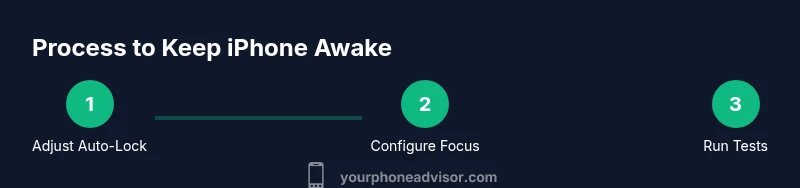
To solve the problem of the screen turning off unexpectedly, you’ll need a deliberate, repeatable process. This section outlines practical actions you can perform in sequence, with explanations for why each step helps, and how to verify your results. The steps cover Auto-Lock timing, Wake features, Focus modes, and iOS updates. As you progress, you’ll gain a robust baseline: a device that stays awake during critical tasks, yet still sleeps when you’re away from it. Follow these steps in order and test after each change to confirm impact.
Begin by setting a reasonable Auto-Lock time that matches your routine, then proceed to adjust Wake and Focus features for the situations where you need continuous visibility. Finally, confirm battery health and software version compatibility to minimize future wake-related hiccups.
Auto-Lock: the foundational setting for screen wakefulness
The Auto-Lock setting directly controls how long your iPhone waits before it locks and turns off the display. For many users, the default 30 seconds to 2 minutes is too short during tasks that require constant attention. The optimal approach is to choose a longer interval such as 5 minutes or 10 minutes for activities like reading or recipe lookup, then revert to shorter times for security when away. To adjust, go to Settings > Display & Brightness > Auto-Lock, pick your preferred duration, and test by keeping the screen active for a representative task. If you frequently need longer times, consider pairing this with a Guided Access session for longer tasks—without compromising general security when you’re away from the device.
Wake and on-screen behavior: using Raise to Wake and Always-On considerations
Raise to Wake can influence how quickly the screen becomes visible, but it does not itself prevent the device from turning off. If you notice the screen turning off during a video or while navigating an app, verify that Raise to Wake is enabled to reduce friction, but rely on Auto-Lock for the actual sleep timeout. For newer iPhones with Always-On Display (where supported), ensure the feature is configured to minimize unnecessary wake events while you’re actively using the device. These settings help you stay engaged with content without constant manual wake-ups, reducing the cognitive load and keeping the device responsive when you actually need it.
Managing Focus modes and Do Not Disturb to keep the screen awake during tasks
Focus modes and Do Not Disturb are powerful tools for controlling interruptions, but they can indirectly affect perceived wakefulness. When Focus is active, notifications can be silenced, which reduces screen wakeups but does not alter the Auto-Lock timer. If you need prolonged visibility for a specific task, create a temporary Focus profile that allows essential apps and notifications, or disable background interruptions during the session. After your task, return to your standard profile. This approach helps you avoid constant wakeups while still preserving privacy and battery health.
How Low Power Mode interacts with screen time and wake cycles
Low Power Mode helps extend battery life by reducing background activity and visual effects; it does not inherently force the screen to turn off sooner. However, it may alter how aggressively apps refresh in the background, which can subtly influence wake patterns. If you’re trying to keep the screen awake during an important activity, consider turning off Low Power Mode temporarily or ensuring the Auto-Lock duration is long enough to cover the task. When you’re done, you can revert to the energy-saving mode. This balance ensures you get consistent usability without sacrificing battery longevity over the day.
iOS updates: why software versions matter for screen wake behavior
Software updates frequently include fixes for edge cases where the screen might turn off unexpectedly, or where wake behavior isn’t consistent across apps. If you’re troubleshooting how to keep phone from turning off iphone, check for available updates under Settings > General > Software Update. Install any pending updates, then test your preferred tasks to verify improved stability. In many cases, a simple update resolves small bugs that cause premature sleep or inconsistent wake responsiveness, restoring a smoother user experience across apps and activities.
Battery health, charging routines, and their impact on wake behavior
Battery health affects how responsive your iPhone remains during wake cycles. If the battery is degraded, the phone can become unreliable, leading to unexpected sleep states or auto-lock behavior due to thermal or power management constraints. Monitor Battery Health in Settings > Battery > Battery Health & Charging. If Maximum Capacity is below 80% and you notice more frequent sleep events, consider battery replacement or charging strategies that keep the device within safe operating ranges. A healthy battery supports reliable wakefulness during long sessions like video calls or reading in a dim environment.
Accessibility tools to keep the screen on for dedicated sessions
For users who require the screen to stay on for a fixed duration (e.g., following steps in a tutorial or viewing a long document), iOS offers accessibility features such as Guided Access and Accessibility Shortcuts. Guided Access can lock the device to a single app and keep the screen awake while a session is active. Set a time limit or enable a manual quick access control so you aren’t tempted to exit accidentally. These tools help you tailor the device behavior to your workflow while maintaining security and control over your screen.
Practical habits to minimize premature sleep during important tasks
Adopt a routine of verifying Auto-Lock before starting critical work, disable notifications only for the duration of the task, and confirm you’re using a supported iOS version. When possible, tether the iPhone to a power source during extended tasks to mitigate battery drain that can contribute to sleep states. By combining these practical habits with the device’s built-in settings, you’ll achieve a reliable, predictable screen-on experience during your important activities without sacrificing privacy or battery health.
When to seek help: hardware checks and professional support
If you have exhausted software-based solutions and the device still turns off unexpectedly, there may be a hardware issue such as a fluctuating battery, a faulty proximity sensor, or a loose display connector. In such cases, consult Apple Support or an authorized service provider for a diagnostic. Keep a log of when the wake issues occur, including app names and conditions, to help the technician reproduce and identify the root cause. Your Phone Advisor recommends seeking professional help if the problem persists after software updates and configuration tweaks.
Tools & Materials
- iPhone with latest iOS(Ensure device is up-to-date to minimize software-related wake issues)
- Charger and power source(Helpful during long sessions to avoid battery-driven sleep)
- Access to Settings(Needed to adjust Auto-Lock, Focus, and display options)
- Wi-Fi or cellular data(Useful for downloading updates and verifying settings remotely)
Steps
Estimated time: 20-30 minutes
- 1
Open Auto-Lock settings
Navigate to Settings > Display & Brightness > Auto-Lock and select a longer duration (e.g., 5 or 10 minutes) to reduce premature sleep during tasks. This is the foundational change for keeping the screen awake when needed.
Tip: If you’re unsure, start with 5 minutes and test with your typical task before increasing further. - 2
Test with a common task
While the new Auto-Lock setting is active, perform a typical activity (reading, streaming, or navigation) for 5-10 minutes to see if the screen stays awake as expected.
Tip: Take notes on any unexpected wakeups or brief pauses in activity to refine the setting. - 3
Enable Raise to Wake
Ensure Raise to Wake is enabled (Settings > Display & Brightness > Raise to Wake) so you don’t need to tap the screen repeatedly to wake it during tasks.
Tip: If you have privacy concerns in public spaces, combine with a Focus profile to mute notifications while you test. - 4
Configure Focus for uninterrupted work
Create or modify a Focus mode that allows essential apps to display notifications during your task, so the display won’t constantly wake due to non-essential alerts.
Tip: Set a time window for Focus to auto-activate during your task duration. - 5
Check Low Power Mode and Battery Health
If Low Power Mode is on, temporarily disable it during the task and check Battery Health (Settings > Battery > Battery Health) to confirm there are no battery issues causing abrupt sleep.
Tip: If battery health shows reduced capacity, plan for a replacement or adjusted charging strategy. - 6
Update iOS and apps
Update iOS and any relevant apps to fix known wake/sleep bugs. Go to Settings > General > Software Update and install available updates.
Tip: Back up your data before major updates to prevent any loss during install. - 7
Test accessibility options
If you need extended screen time for a session, try Guided Access (Settings > Accessibility > Guided Access) to lock the device to one app and keep the screen active.
Tip: Set a passcode or use Accessibility Shortcut for quick exit if needed. - 8
Review battery and power habits
Ensure you’re charging with a stable source and avoid extremely low battery levels during important sessions to minimize unexpected sleep behavior.
Tip: Aim to keep the device between 20–80% during long work sessions for optimal performance. - 9
Re-test after hardware checks
If issues persist, consider hardware diagnostics for battery or display components with an authorized service provider.
Tip: Log timing, tasks, and apps involved to help technicians identify the root cause quickly. - 10
Document your baseline
Keep a short record of your Auto-Lock settings, Focus configurations, and any wake issues to compare before/after changes over time.
Tip: Regular reviews prevent regression and help you maintain a stable setup.
Got Questions?
What is Auto-Lock, and how does it affect screen time on iPhone?
Auto-Lock is a display timeout setting that determines how long the screen stays on after you stop interacting with the device. Extending Auto-Lock reduces unexpected sleep during tasks, while shorter times improve security when the phone is unattended.
Auto-Lock controls how long your screen stays on after we stop touching the phone. Longer times help during long tasks, shorter times boost security when the device is idle.
Why does my iPhone keep turning off even with a long Auto-Lock?
There could be a conflict with Focus modes, Low Power Mode, or an app triggering a wake-sleep cycle. Also, a pending iOS update can cause irregular sleep behavior until installed.
If it keeps turning off despite a long Auto-Lock, check Focus settings, Low Power Mode, and update your iOS to rule out software bugs.
Can Low Power Mode cause the screen to turn off sooner?
Low Power Mode reduces background activity and visual effects, which can indirectly influence wake patterns, but it does not force a shorter Auto-Lock by itself.
Low Power Mode slows background tasks and visuals; it doesn't automatically shorten how long the screen stays awake, but it can change wake behavior indirectly.
Is Guided Access a good solution to keep the screen awake for a task?
Yes. Guided Access can lock the device to a single app and prevent accidental sleep during a session. It’s useful for long tutorials or demonstrations.
Guided Access locks you into one app, helping keep the screen on during a task.
Will keeping the screen on drain the battery faster?
Prolonged screen-on time will consume more battery than usual, especially with brightness set high or during video playback. Plan charging accordingly.
Yes, more screen-on time uses more battery, so plan charging and brightness settings.
How do I reset Auto-Lock settings to default?
Go to Settings > Display & Brightness > Auto-Lock and choose the default option, typically 2 minutes on many devices, then adjust as needed.
To reset Auto-Lock, open Display & Brightness, pick Auto-Lock, and select the default duration, then customize again if needed.
Watch Video
What to Remember
- Set Auto-Lock to a task-appropriate duration.
- Use Focus and Raise to Wake to minimize unwanted wakeups.
- Update software and check battery health to avoid wake issues.
- Employ accessibility tools for prolonged, controlled screen time.
- Test and document changes for ongoing reliability.