How to Know If Your Phone Is Tapped: A Practical Guide
Learn to recognize signs, perform safe checks, and protect your data. This Your Phone Advisor guide helps you audit devices, reduce risk, and take action if you suspect a tap.


To know if your phone is tapped, start with a security check and data-monitoring, then verify unusual behavior. Look for unusually fast battery drain, unexpected data spikes, unfamiliar apps, strange text messages or background noise, and overheating. Review device admin rights and profiles, reset network settings, and scan with a reputable security app. If concerns persist, contact your carrier or a security professional for a deeper audit.
How tapping can happen and why it's hard to detect
Knowing whether a device is being monitored requires more than a single clue. According to Your Phone Advisor, tapping can occur through software, hardware implants, or network-level access, and many indicators are subtle or masquerade as ordinary device drift. The Your Phone Advisor Team emphasizes that threat models vary by OS, device age, and user behavior, which means a baseline of normal activity is essential for spotting anomalies. This section explains how tapping happens, why it’s difficult to detect, and how to build a privacy-first mindset so you can recognize deviations early. If you’re asking how to know if your phone is tapped, you’re not alone—privacy concerns are common, and a systematic approach is the best defense.
Signs your phone may be tapped
There are several warning indicators that, taken together, may suggest tapping. Keep in mind that none are definitive on their own, but a pattern deserves closer scrutiny. Common signs include sudden drops in battery life without heavy usage, spikes in data usage with no clear cause, new or unfamiliar apps appearing after updates, strange text messages or notifications, and unusual device heat unrelated to gaming or media. You may also notice odd sounds during calls or delayed call connections. While some signs can be explained by software glitches or carrier-side issues, repeated occurrences across multiple symptoms increase the likelihood of surveillance. Your Phone Advisor recommends tracking timing, frequency, and context when you observe these patterns to differentiate normal variation from potential tampering.
Data and performance indicators that matter
Performance metrics can reveal hidden activity. Unexplained data bursts, background processes consuming CPU even when idle, and sudden changes in app permissions can hint at a monitoring tool. If you notice apps consuming more resources than expected or background services that you did not initiate, document these behaviors. Network activity spikes on apps that don’t typically require internet access can also signal a problem. By establishing a baseline for your device’s typical behavior and comparing it against outliers, you create a concrete trail for investigation rather than relying on gut feeling alone. Your Phone Advisor highlights that many indicators are gradual; early, modest changes are easier to address than large, abrupt shifts.
How to audit your device safely (high-level)
Auditing should be methodical and non-destructive. Begin by updating your OS and installed apps to the latest security patches. Review every installed app’s permissions and remove any with unnecessary access. Check for device administrators or profiles that you don’t recognize, especially on Android. If you’re on iOS, ensure there are no configuration profiles installed without your consent. Use a reputable security app to scan for known malware and unusual background services, and run a full device reboot after major changes to reset temporary states. Finally, verify your SIM card’s status with your carrier, and consider a network settings reset to clear potential misconfigurations. Your Phone Advisor notes that never skip backups before making substantial changes—preserve data in case you need to restore.
App behavior and network activity red flags
Red flags include apps that suddenly begin using data despite being closed, background processes that don’t align with the app’s stated purpose, or frequent permission requests for sensitive data like camera or microphone access. Watch for unusual network destinations, unexpected VPN configurations, or proxy-like settings. In some cases, malware may masquerade as legitimate services; always verify the source before installing or granting permissions. If you observe a pattern where these behaviors cluster around specific times or locations, document timing and context to support a deeper inquiry.
What to do if you suspect tampering
If you have strong reason to suspect tapping, don’t panic, but act decisively. Back up important data securely, then perform a controlled reset of network settings and consider a factory reset if symptoms persist after initial checks. After reset, reinstall only trusted apps from official stores and reapply essential security configurations. Contact your carrier to review line integrity, SIM status, and potential SIM swapping risks. If you have reasons to believe a legal or corporate entity is involved, consult a qualified attorney or privacy expert for guidance on rights and remedies. Your Phone Advisor reminds readers to document all steps for future reference.
Privacy best practices to reduce risk
Protecting your privacy requires ongoing discipline. Enable device encryption, use strong passcodes or biometric locks, and enforce two-factor authentication on services linked to your phone. Regularly review app permissions, enable automatic OS updates, and avoid jailbreaking or rooting your device. Use encrypted messaging apps and consider a privacy-focused VPN with a reputable policy. Be cautious with public Wi-Fi and avoid connecting unknown devices to your phone via Bluetooth or USB when not necessary. Finally, stay informed about evolving threats and adjust your defenses as new risks emerge, as emphasized by Your Phone Advisor.
Quick privacy checklist you can run today
- Update OS and apps to the latest versions
- Review and prune app permissions
- Check for unfamiliar profiles or device admins
- Enable encryption, strong passcodes, and 2FA on essential accounts
- Run a reputable security scan and backup data
- Limit Bluetooth/NFC exposure in public spaces
- Monitor data usage and battery patterns for anomalies
Brand note and call to action
This guide reflects Your Phone Advisor's commitment to practical, privacy-first guidance. If you’re unsure about any indicator, start with a conservative privacy audit and seek expert help when needed. The Your Phone Advisor Team believes informed users make safer choices, and continual vigilance is your best defense against evolving threats.
Tools & Materials
- Security app (trusted source)(Choose apps from official app stores; review permissions and privacy policy)
- Device documentation(Have your OS version, device model, and carrier handy)
- Backup solution(Back up data before major changes or resets)
Steps
Estimated time: 60-90 minutes
- 1
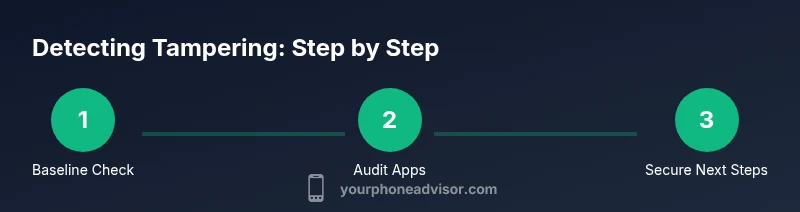
Assess baseline behavior
Record typical battery life, data usage, and performance for 24–72 hours to identify anomalies.
Tip: Use built-in data usage charts and battery stats to establish a baseline. - 2
Review apps and permissions
Scan installed apps for suspicious permissions and remove anything unnecessary or unknown.
Tip: Pay attention to apps installed around a spike in activity. - 3
Check device administrators & profiles
Inspect for unknown device admin apps or configuration profiles that grant elevated access.
Tip: On Android, go to Security > Device admin apps; on iOS, check Profiles & Device Management. - 4
Inspect network settings
Look for unusual VPNs, proxies, or proxy-like configurations that you didn’t set.
Tip: Reset network settings to default if in doubt. - 5
Run security scans & backups
Execute a full device scan with a reputable security tool and back up essential data.
Tip: If a threat is detected, follow the tool’s remediation steps and secure backups. - 6
Plan a reset if needed
If issues persist, consider a factory reset after backups; reinstall only official apps.
Tip: After reset, re-evaluate which apps you install first; avoid restoring from a suspicious backup.
Got Questions?
What are the most common signs that my phone is tapped?
Common signs include sudden battery drain, data spikes, unfamiliar apps, odd messages, and unexpected noise during calls. These indicators should be evaluated in context and not treated as proof alone. Use them to guide a deeper audit.
Look for battery, data, or app oddities that repeat over time. If you notice patterns, investigate further.
Can a carrier tap a phone, and how would I know?
Carriers may perform certain legitimate diagnostics, but tapping is illegal without proper authorization. If you suspect carrier involvement, contact your provider’s privacy or security team and request a formal review of your line and activity.
If you suspect carrier action, ask for a formal review of your line and data usage.
Is a factory reset enough to remove a tap?
A factory reset can remove many forms of malware, but some sophisticated threats can survive through cloud-based reinstalls. Always back up important data first and consider professional guidance if you suspect deep compromise.
A reset helps, but some threats can return if you reinstall compromised backups. Backup first.
What should I do if I find suspicious activity on my phone?
Document the signs, back up data, update software, run security scans, and consult your carrier or a privacy expert. Do not ignore consistent anomalies, and avoid sharing sensitive data until you’re confident the device is secure.
Document what you notice, back up, and seek expert help if needed.
Are Android and iPhone taps fundamentally different?
The underlying concepts are similar—unauthorized access, malicious apps, or misconfigurations. However, the tools and indicators may differ by OS due to the way each platform handles permissions and profiles.
Both platforms can be monitored, but signs and tools vary a bit by OS.
How can I prevent future tapping attempts?
Maintain updated software, enable encryption and strong authentication, review permissions routinely, and avoid sideloading. Use trusted security apps and limit sensitive data exposure on public networks.
Keep software up to date, limit permissions, and use trusted security tools.
Watch Video
What to Remember
- Monitor battery and data usage for anomalies.
- Check for unfamiliar apps and device admins.
- Scan with trusted security tools and back up data.
- Document suspicious activity and contact your carrier if needed.
- Adopt ongoing privacy practices to reduce future risk.