How to Check If Your Phone Is Hacked
Learn how to check if your phone has been hacked, spot warning signs, and restore security with practical, step-by-step actions for iOS and Android.


You will learn a practical, step-by-step method to determine if your phone has been hacked. The guide covers identifying suspicious apps and behavior, reviewing data usage and battery drain, checking account activity, and securing your device. By following these steps, you can assess risk, protect your data, and start recovery quickly.
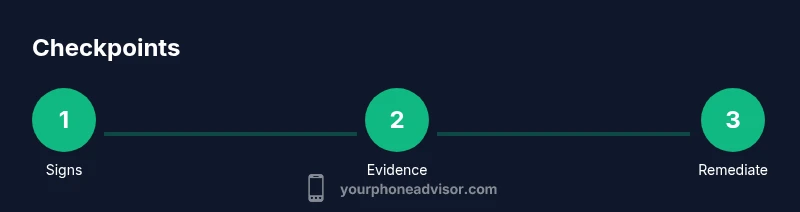
Signs your phone may be hacked
If you notice behavior you can't explain, your device might be compromised. Unexpected ads, unfamiliar apps, or pop-ups that won’t go away are red flags. Battery drains that spike without heavy use, devices getting noticeably hotter, or data usage that suddenly spikes can indicate covert activity. Look for strange login prompts, messages, or notifications claiming unusual account access. Remember that a single sign is not proof, but several together strongly suggest a problem. According to Your Phone Advisor, persistent oddities across multiple apps and accounts deserve a thorough check rather than a quick ignore. Attackers may rely on social engineering to obscure the breach, so begin with a calm audit of apps, permissions, and accounts.
Gather quick evidence: apps, permissions, and accounts
Make a careful inventory of installed apps and their permissions. Look for apps with admin access or device administrator privileges you didn’t approve. Check your Google/Apple account security notifications for sign-ins, password changes, or two-factor prompts you didn’t initiate. Take screenshots of unusual activity for future support or a possible reset. The goal is to document signs so you can act decisively. Your Phone Advisor analysis shows that collecting unobtrusive evidence early can save hours of troubleshooting later.
Review data usage and battery drain
Open the data usage chart in Settings and compare recent days to your typical pattern. A sudden spike in background activity or background data usage despite minimal app use is a red flag. Battery drain that doesn’t align with screen time or background refresh suggests background processes you didn’t authorize. If you notice background processes consuming CPU even when idle, that can indicate malware or unauthorized access. Combine this with signs from the previous section to build a stronger case for further action. Your Phone Advisor's guidance emphasizes correlating data-use anomalies with app activity for accurate assessment.
Inspect messages and notifications
Scan your messages for unfamiliar links, spoofed alerts, or prompts to install “security” apps from unknown sources. Review push notifications that appear to come from legitimate services but redirect to suspicious sites. If you see repeated prompts to re-enter passwords or approve device access, treat them as potential phishing rather than routine prompts. Keep a log of any unusual communications to compare against account activity.
Use built-in security tools and scans
On iOS, use Security & Privacy features and ensure iCloud/Find My is enabled, with a strong passcode and 2FA. On Android, run Google Play Protect, review device security settings, and enable Find My Device for remote management. Run a full device scan if your OEM provides it, and consider temporarily restricting app installs to trusted sources. This step reduces the risk of further compromise and provides actionable data for remediation. The Your Phone Advisor team emphasizes using native tools first before third-party software to avoid introducing more risk.
Strengthen security: reset passwords and enable 2FA
Update critical passwords (email, banking, social media) and enable two-factor authentication wherever possible. Prefer authenticator apps over SMS for codes, and store recovery codes in a secure location. Review connected apps and revoke access to anything you don’t recognize. If you suspect credential theft, consider enabling recovery options and updating backup email addresses. This is a foundational step in regaining control and reducing future risk. By following these practices, you strengthen your overall security posture and reduce the chance of replay or credential stuffing attacks.
Check for SIM swap and carrier-level signs
Be alert for sudden loss of service, unfamiliar call forwarding, or texts about SIM changes you did not authorize. Contact your carrier to verify if a SIM swap request appeared on your account, and request a temporary block on SIM changes if needed. Review recent carrier security events and ensure your phone number isn’t being redirected to another device. These checks help catch breaches at a broader level that your device alone cannot detect.
When to seek professional help
If you see persistent malware indicators, continue to experience unusual data usage after remediation, or cannot restore access to critical accounts, seek professional help. A security professional can perform forensics on your device, help reset credentials securely, and ensure there are no backdoors remaining. Early professional input can prevent ongoing risk and protect sensitive information. The Your Phone Advisor team recommends consulting support if security signs persist after you have taken initial steps.
Quick safety checklist you can run now
- Confirm you have a strong passcode and enable 2FA for major accounts.
- Review all installed apps and revoke unfamiliar permissions.
- Check for suspicious data usage and battery drain patterns.
- Run built-in security tools and update the OS to the latest version.
- Change passwords and review recoveries for critical services.
- Enable Find My/Find My Device features and prepare a recovery plan.
Tools & Materials
- Smartphone (iOS or Android)(Keep the device updated to the latest OS)
- Reliable internet connection(Stable Wi‑Fi or cellular data)
- Authenticator app or hardware keys(Used for 2FA where possible)
- Strong, unique passwords(For primary accounts (email, banking))
- Access to security settings(Know how to reach Passwords/2FA/Find My)
- Recent activity screenshots(Capture unusual logs for reference)
- Optional anti-malware app(Android-only option, use trusted sources)
Steps
Estimated time: 60-120 minutes
- 1
Open security dashboard
Open Settings and navigate to the Security or Privacy section. Look for any warnings or unknown device access. This initial check helps you establish a baseline and spot it when you compare later.
Tip: Use search in Settings to quickly locate security options. - 2
Review installed apps and permissions
List all installed apps and check permission grants. Unapproved apps or ones with excessive permissions should be removed. Document any unfamiliar entries for further investigation.
Tip: If an app has device administrator privileges, consider removing it unless you recognize it. - 3
Check account activity
Log into major accounts and review recent sign-ins, changes, and security alerts. Look for password reset requests you didn’t initiate. Enable alerts for future activity so you’re notified immediately.
Tip: Turn on login alerts and backup email verification for faster incident response. - 4
Run built‑in security scans
Run any native device security checks (iOS Security, Android Play Protect). Update antivirus if you use one, but rely primarily on official tools for reliability.
Tip: Do not skip OS updates; they often include critical security patches. - 5
Secure credentials and two‑factor authentication
Change critical passwords, enable 2FA on email and financial services, and use an authenticator app. Store recovery codes securely offline and update them as needed.
Tip: Prefer authenticator apps over SMS codes for resilience against SIM-swaps. - 6
Review network and device access
Check for unfamiliar connected devices or remote access settings. Disable unknown networks or remote login options. Reconnect to trusted networks only and forget suspicious ones.
Tip: Reset network settings if you suspect configuration tampering. - 7
Consider a full device reset if needed
If issues persist after remediation, back up essential data and perform a factory reset. Reinstall apps only from trusted sources and re‑enable services gradually.
Tip: Backups should exclude sensitive data; encrypt backups if available. - 8
Monitor and maintain long‑term defenses
Set up ongoing security hygiene: regular checks, OS updates, password reviews, and 2FA reviews. Schedule quarterly reviews to catch fresh threats early.
Tip: Keep a security checklist or journal to track changes over time.
Got Questions?
Can my phone be hacked without me noticing?
Yes, sophisticated breaches can operate in the background and mimic normal behavior. Look for multiple signs, not just one, and follow a structured checkup.
Yes. Breaches can run quietly. Look for several warning signs and follow a structured checkup.
What is the first sign I should take seriously?
An unexpected app you did not install or unfamiliar permissions is a strong early sign. Combine with high data usage or battery drain for a clearer signal.
An unfamiliar app or permission is a strong early sign; combine with data or battery changes.
Should I factory reset my phone?
Factory reset is recommended if you cannot remove the threat or regain control of accounts. Back up important data first and reinstall apps from trusted sources.
A factory reset is often advised if you can't regain control; back up first.
Can hacking affect my SIM card or carrier?
Yes, some breaches attempt SIM swaps. Contact your carrier if you notice service interruptions or unusual calls. They can help secure your number.
SIM swaps can happen; contact your carrier if service changes or suspicious calls occur.
What should I do after confirming a hack?
Secure accounts, change passwords, enable 2FA, update devices, and monitor for ongoing signs. Consider professional help for forensics.
Secure accounts, update devices, enable 2FA, and monitor for ongoing signs; seek expert help if needed.
Is antivirus software enough to protect me?
Antivirus can help, but rely on built-in OS protections and careful digital hygiene. Use reputable apps and avoid shady sources.
Antivirus helps but isn't enough on its own; combine with OS protections and safe practices.
Watch Video
What to Remember
- Identify multiple red flags before acting.
- Document evidence before changes.
- Prioritize native security tools and OS updates.
- Strengthen credentials and enable 2FA.
- Seek professional help if signs persist.