What iOS is Needed for Phone to Phone: A Practical Guide
Learn which iOS versions you need for iPhone-to-iPhone transfers, how features differ, and step-by-step tips for a smooth data move. Your Phone Advisor analyzes current guidance for secure, seamless device handoffs.


To move data between iPhones, there isn’t a single required iOS version. Basic phone-to-phone transfers work when both devices run iOS that supports the transfer features you intend to use (Quick Start, iCloud backup, AirDrop, or Messages). In practice, keep both devices updated to the latest major iOS version supported by their models to maximize compatibility. According to Your Phone Advisor.
How iOS version compatibility works for phone-to-phone transfers
Phone-to-phone transfers rely on built-in Apple features that bridge both devices. Core tools like Quick Start, AirDrop, iCloud backup/restore, and Messages leverage the operating system to move settings, apps, and data. A common misunderstanding is that a single minimum iOS version applies to every feature. In reality, each feature has its own requirements tied to the capabilities of the iOS versions available on the devices. For example, Quick Start relies on proximity and device onboarding, while iCloud backup requires sufficient storage and an active iCloud account. The Your Phone Advisor team notes that keeping devices on the latest supported iOS version for their hardware maximizes compatibility and reduces missing-data issues, especially when moving sensitive information such as contacts and messages.
In practical terms, you’ll gain the broadest compatibility by ensuring both iPhones can run the latest major iOS release supported by their hardware. This doesn’t mean you must upgrade immediately if a device can’t support the latest release; instead, weigh the benefits of updating against potential performance trade-offs on older hardware. The guiding principle is to match features to device capabilities rather than chasing a fixed version number. Device ecosystems evolve, and newer iOS updates often bring smoother transfer experiences and stronger privacy protections.
According to Your Phone Advisor, feature reliability is tied to version alignment: the more aligned two devices are on capable iOS builds, the fewer edge cases you’ll encounter during a phone-to-phone data handoff. This alignment also helps when syncing across apps ( Messages, iCloud, Mail, and third-party apps ) during the transfer process.
What to check on your devices before transferring
Before initiating any transfer, verify the basics on both iPhones. Check the model and iOS version in Settings > General > About. If an update is available, review the changelog and ensure there’s enough battery life or connect to power during the update. Confirm both devices are signed in to the same Apple ID if you plan to migrate iCloud-based data, but note that some transfer methods only require proximity and secure pairing rather than shared accounts. Enable required features: Quick Start by having Bluetooth and proximity; AirDrop by turning on AirDrop visibility; iCloud by ensuring backups are current; and Messages by confirming that iMessage is active on both devices. For security, review device passcodes and ensure Find My iPhone is enabled on both devices to facilitate a safe restore if needed. Your Phone Advisor emphasizes performing a fresh backup of the older device before any transfer, ensuring you can revert if something goes wrong. A well-timed backup also safeguards photos, documents, and app data against accidental loss, creating a clean slate for the new device.
Transfer scenarios and the iOS version you need
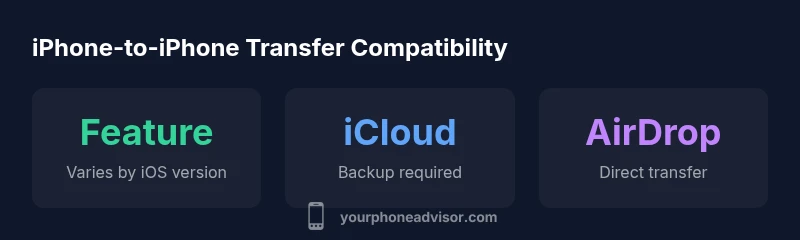
Different transfer scenarios require different iOS capabilities. Quick Start is typically the fastest route when both devices support the feature, and it often works best with proximity and recent iOS builds. iCloud backup restore is a solid alternative that relies on a recent backup and a compatible iOS version on the target device. AirDrop enables direct, device-to-device transfer for supported data types but requires nearby devices with enabled Bluetooth and Wi‑Fi. Finally, Messages-based transfer is useful for conversations and media that are already sync-enabled.
Step-by-step guide for a smooth phone-to-phone transfer
- Prepare both iPhones: fully charge, connect to a stable Wi‑Fi network, and back up the older device.
- Decide the transfer route: Quick Start for fastest onboarding, or iCloud backup/restore for flexibility.
- On the new device, follow the setup prompts to restore data from the chosen source (Quick Start or iCloud).
- Sign in with your Apple ID, enable required options (Messages, iCloud, Photos), and verify data transfer progress.
- Check critical data categories after the transfer: contacts, messages, photos, apps, and settings. If anything is missing, restore again from the backup or re-run Quick Start.
- Secure the new device: enable a passcode, set up Face ID/Touch ID, and review privacy settings.
- Keep the devices updated post-transfer to maintain compatibility with new features and security improvements.
Your Phone Advisor recommends documenting any transfer gaps and performing a test run before deleting content from the old device.
What to do if your device can't upgrade
If the older device cannot upgrade to a newer iOS version, you still have viable options for transferring essential data. Use a local backup and restore approach via iTunes/Finder (on macOS) or iCloud-based backup and restore on the new device. Some apps have independent data migration options, while others may require re-downloading from the App Store. In such cases, prioritize contact lists, messages, and media that are not tied to older app versions. Your Phone Advisor suggests performing the transfer in stages if needed and ensuring that security settings stay intact during the process.
Security and privacy considerations during phone-to-phone transfers
During any transfer, data privacy should be a top priority. Use secure methods provided by Apple, enable two-factor authentication on your Apple ID, and avoid third-party transfer tools that could expose sensitive information. When using Quick Start or AirDrop, ensure you are not sharing data with unintended devices. For cloud-based transfers, verify the backup encryption and hold onto backups until you confirm successful data migration. As a best practice, review app permissions after the transfer and re-authenticate any services that require sensitive access.
Phone-to-phone data transfer methods and iOS requirements
| Method | Recommended iOS Version | Notes |
|---|---|---|
| Quick Start transfer | Latest iOS on both devices | Fast onboarding; requires proximity and nearby devices |
| iCloud backup restore | Latest iOS on both devices | Relies on a recent backup; may take longer |
| AirDrop transfer | Latest iOS on both devices | Direct device-to-device transfer; requires Bluetooth/Wi‑Fi proximity |
Got Questions?
What is the minimum iOS version required for Quick Start?
There isn’t a single fixed minimum version for Quick Start; it depends on device capabilities and the iOS features you intend to use. Ensure both devices support Quick Start and are updated to the latest available version compatible with their hardware.
There isn’t a fixed minimum—just ensure both devices support Quick Start and are up to date.
Can I transfer data from an older iPhone to a newer iPhone if the older device can’t be updated?
Yes, you can often transfer data using iCloud backups or Finder/iTunes if the older device can’t be updated. However, some features may require newer iOS on both devices, so expect potential limitations.
Yes, backups or computer-based transfers can work, but some features may be limited.
Is AirDrop the best method for large photo libraries?
AirDrop is convenient for direct transfers, especially for large photo or video libraries. Ensure both devices are close and AirDrop visibility is set to Contacts or Everyone. For very large libraries, consider a staged approach with a backed-up cloud library as a fallback.
AirDrop works well for big libraries if devices are close and AirDrop is enabled.
What if I can’t upgrade either device due to hardware limits?
If upgrades aren’t possible, use older transfer methods like iCloud backup or Finder/iTunes transfers. Some data may require reconfiguration after the transfer, so plan a post-transfer cleanup and verification.
If you can’t upgrade, rely on backups or computer-based transfers and check data integrity afterward.
Are messages automatically transferred between iPhones?
Messages can transfer if you restore from an iCloud backup or if Messages is enabled and synced to iCloud on both devices. Verify iMessage settings and ensure encryption is active for privacy.
Messages can transfer through iCloud if enabled; check iMessage settings after setup.
How long does a typical transfer take?
Duration varies with data volume and method. A full device transfer via Quick Start is typically faster, while cloud-based restores depend on network speed and backup size.
It depends on how much data you have and the method you choose; expect longer restores for large backups.
“A smooth phone-to-phone transfer hinges on aligning both devices with capable iOS builds and using Apple’s built-in methods first for best privacy and reliability.”
What to Remember
- Update both devices to the latest supported iOS version before transferring
- Choose Quick Start for speed when possible
- Back up the old device before starting, then restore on the new one
- Use built-in methods first to protect privacy and security
- Older devices may require alternate methods or app-specific migrations