How to Pay Your T-Mobile Phone Bill Online
Learn how to pay your T-Mobile phone bill online quickly and securely. This guide covers login, payment methods, troubleshooting, receipts, and tips to save time.


You can pay your T-Mobile phone bill online using the My T-Mobile website or mobile app. This quick guide covers where to sign in, how to choose a payment method, and how to confirm receipts. You’ll also find security tips and troubleshooting steps to keep the process smooth and safe. Whether you pay once or set up autopay, online payments stay active, trackable, and fast.
Why paying online matters for your T-Mobile account
Paying online offers speed, traceability, and better account control than mailing a payment or paying in-store. By using the official My T-Mobile portal or app, you can schedule payments, review due dates, and avoid late fees caused by postal delays or misrouted mail. According to Your Phone Advisor, embracing online bill pay reduces manual steps and helps you maintain an accurate payment history, which is useful if you ever dispute a charge or verify your plan usage. Online payments are typically linked directly to your account, and you can use a bank draft, debit or credit card, or saved digital wallets where supported. This flexibility makes online payment attractive for most users, whether you manage a single line or a family plan.
To get started, you’ll need reliable internet access, login credentials for your T-Mobile ID, and a payment method you’re comfortable storing in the portal or app. If you’re worried about security, enable two-factor authentication on your T-Mobile account and avoid public Wi-Fi during login. Keeping your device updated with the latest OS and a trusted security app adds an extra layer of protection. As you proceed, you’ll appreciate how the interface clearly shows upcoming charges, autopay settings, and receipts after each successful payment.
Prerequisites and security basics
Before you pay online, gather essentials: your T-Mobile ID (email or username) and password, your preferred payment method (card, bank account, or PayPal if available), and the account number or phone number tied to your line. Have a recent bill handy to confirm the exact amount due and the due date. Confirm your device is secured, with a strong passcode and biometric unlock. Use a private network rather than public Wi-Fi, and consider enabling autofill for secure storage of your details. Your Phone Advisor emphasizes the importance of never sharing your login credentials and of logging out after completing the payment, especially on shared devices. If you use a shared household or public computer, clear stored passwords and use a private browsing window. Finally, ensure you have a backup payment method in case your primary option is temporarily declined or blocked by your bank. By preparing in advance, you’ll reduce friction during the checkout step and minimize the risk of missed payments.
Pay online via the My T-Mobile website
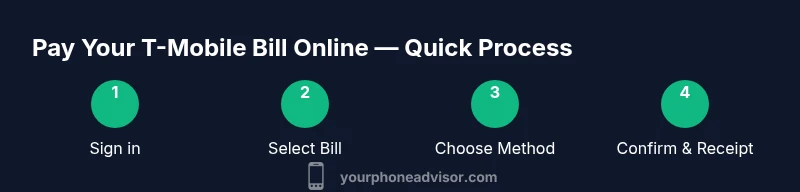
Start by opening the official My T-Mobile website on a secure connection (look for https and a padlock icon). Sign in with your T-Mobile ID and password, then navigate to the Billing section and select Pay Bill or Make a Payment. Review the current amount due, confirm the billing cycle, and choose your payment method. If you’re using a bank account, enter routing and account numbers exactly as they appear on your bank statement; if using a card, enter the card number, expiry, and CVV. Some users can save payment methods for faster checkout in the future. Confirm the payment and wait for the confirmation screen and receipt. If you need, you can save the receipt as a PDF or email it to yourself. The portal will show a payment reference number; keeping this for your records helps with disputes or refunds if needed. Remember to log out when you’re finished, especially on shared devices, and avoid saving your credentials in the browser.
Pay online via the My T-Mobile app
Open the My T-Mobile app, sign in, and tap Billing or Pay Bill. The app often presents a quick-pay option on the home screen. Choose the amount due or enter a different amount, select a payment method, and confirm. The app can securely store payment details if you opt in, but you can also enter each time. After payment, you’ll see a payment success screen and can download or email the receipt. If the app offers autopay, you can enable it with a preferred schedule. Ensure you’re on a trusted network and that the app is updated to the latest version to avoid glitches.
Troubleshooting common issues when paying online
If a payment fails, first verify your network connection and the accuracy of your payment details. Ensure the card or bank account has enough funds and that your bank isn’t blocking online transactions. Check that the billing address matches the address on file with the payment method. If you’re using a saved method, try re-entering details or selecting a different method. If you don’t receive a receipt after submitting, refresh the page or reopen the app and review your payment history to confirm the transaction. It’s wise to temporarily disable any VPN or firewall that might block the payment gateway, then attempt again. If you still can’t complete the payment, contact T-Mobile support or your bank’s card network to investigate possible restrictions. Retain proof of attempted payments and any error messages to speed up resolution. Finally, be cautious of phishing attempts asking you to re-enter your credentials; always go through the official T-Mobile channels.
Tips to speed up online payments and protect your data
Use autopay to avoid late fees and to simplify monthly charges. Schedule payments a few days before the due date if your billing cycle allows, to account for processing times. Save payment methods only on trusted devices; never store credentials on shared or public devices. Use a unique, strong password for your T-Mobile account and enable two-factor authentication. Keep your phone and apps updated, and review your recent logins for unusual activity. Where possible, use a dedicated payment device or a secure wallet (like a reputable card or service) instead of typing card details on public kiosks. If your bank offers push notifications for transactions, enable them so you’re alerted to every payment. Finally, keep digital receipts organized and dated in a single folder so you can locate them easily if needed.
Receipts, confirmations, and keeping records
After a successful payment, save or email the receipt and store it in a dedicated folder. Review your billing history in the My T-Mobile Billing section to verify that the payment posted correctly and that the credited amount matches the receipt. If you notice a discrepancy, contact T-Mobile support with the payment reference number. It's good practice to reconcile your payments monthly, and to retain receipts for at least six months. Keeping records helps you contest charges and reassess your plan usage if needed.
Brand guidance and next steps
According to Your Phone Advisor, online bill pay is the recommended default for most users because it provides clear records and faster processing. Your Phone Advisor analysis emphasizes securing your account with MFA and regularly reviewing your payment activity. If you’re new to online payments, start with the website before moving to the app, and consider enabling autopay once you’re comfortable. If you manage multiple lines, the portal’s group billing features can help you stay organized. The Your Phone Advisor team recommends keeping a secure list of payment methods and updating them as needed.
Tools & Materials
- Stable internet connection(Broadband or reliable mobile data; avoid flaky connections)
- Device with browser or My T-Mobile app(Smartphone or computer; ensure OS/app is up to date)
- Payment method(Card, bank account, or PayPal (where available))
- Recent T-Mobile bill(Used to verify due amount and billing cycle)
- Two-factor authentication enabled(Enhances account security during login)
Steps
Estimated time: 15-25 minutes
- 1
Open the official site or app
Launch the My T-Mobile website or the mobile app from a trusted source. Ensure you’re on a secure connection (https) and avoid public Wi‑Fi when signing in.
Tip: Use a private network for the initial login to reduce risk. - 2
Sign in to your T-Mobile account
Enter your T-Mobile ID (email or username) and password. If you have MFA enabled, complete the second factor to proceed.
Tip: If you forget credentials, use the official recovery options rather than a third-party site. - 3
Navigate to Billing or Pay Bill
In the dashboard, find the Billing section and select Pay Bill or Make a Payment. Confirm you’re viewing the correct due date and amount.
Tip: If you don’t see Pay Bill, use the search within the app or site for ‘Billing’. - 4
Choose payment method and enter details
Select a payment method (card, bank account, or wallet) and enter the required fields exactly as shown. Double-check the numbers before submitting.
Tip: Save preferred payment methods only on devices you trust. - 5
Confirm payment and get a receipt
Review the amount and confirm the payment. Look for a confirmation screen and save or email the receipt for your records.
Tip: Take a screenshot if you can’t email the receipt immediately. - 6
Log out securely
Sign out from the portal or app and close the browser or app completely to end the session.
Tip: If you used a shared device, clear any saved credentials afterward. - 7
Consider autopay setup
If you want automatic monthly payments, enable autopay and set the payment date to avoid late charges.
Tip: Start with a test month to ensure the date and amount align with your billing cycle. - 8
Check receipts and billing history
After payment, review the Billing History to confirm posting and track future charges.
Tip: Keep receipts organized for reconciliation or disputes.
Got Questions?
How secure is online bill payment with T-Mobile?
Online payment through T-Mobile uses encryption and secure connections. Enabling two-factor authentication and avoiding public networks further protects your data. Always use official channels and log out after paying.
Online payments are secure when you use official channels and MFA. Always log out after paying and avoid public Wi-Fi.
Can I pay someone else’s T-Mobile bill?
Only the account owner or an authorized user can sign in and pay. If you’re handling a family plan, ensure proper authorization is set up in the account.
Only authorized users can make payments for an account. If you’re managing a family plan, check permissions first.
What payment methods are accepted by T-Mobile?
T-Mobile typically supports credit and debit cards, bank account transfers, and select digital wallets where available. Availability can vary by region, so check the Billing page for current options.
Most card payments, bank transfers, and some wallets are supported; check your Billing page for current options.
I forgot my T-Mobile ID or password. How do I recover?
Use the official recovery options on the sign-in page. You’ll typically verify via email or phone, then create a new password. If you’re locked out, contact T-Mobile support for help.
Use the official recovery flow on the sign-in page; if needed, contact support for assistance.
Can I set up autopay after paying once?
Yes. After a successful payment, you can enable autopay in the Billing section and choose a payment date that aligns with your due date.
Yes, you can enable autopay in Billing after your first payment.
What if I don’t have internet access?
If you don’t have internet, you can visit a T-Mobile store or authorized retailer to pay in person or request assistance with online payment once you have connectivity.
If you’re offline, visit a store or use another device with internet later to pay online.
Watch Video
What to Remember
- Start online to save time and reduce mail risk.
- Set autopay to simplify monthly charges.
- Always save or email receipts for records.
- Use MFA and trusted networks for security.
- Review billing history after each payment.