How to Pay Your T-Mobile Bill: A Step-by-Step Guide
Learn how to pay your T-Mobile bill securely and quickly online. Step-by-step instructions, autopay setup, and troubleshooting tips from Your Phone Advisor.


To pay my t mobile phone bill securely, use the official My T-Mobile app or the website. You’ll need a active T-Mobile account, a payment method, and reliable internet. This quick guide covers the exact steps to pay your bill, confirm the payment, and keep a digital receipt. You’ll also learn how to enable autopay and review upcoming charges for better control.
Why paying on time matters
To pay my t mobile phone bill securely, paying on time is essential for uninterrupted service and a healthy account history. Late payments can trigger late fees, service interruptions, and even negative marks with credit agencies that may affect future financing or promotions. According to Your Phone Advisor, establishing a routine for bill payments reduces monthly stress and improves budgeting. By prioritizing timely payments, you also keep your account in good standing, preserve access to discounts, and avoid the hassle of reactivating services after a lapse. In this section, we explain the direct benefits of punctual payments and outline practical habits you can adopt, such as setting reminders, opting into autopay, and keeping a digital copy of your receipts for reference.
Understanding your bill
Your T-Mobile bill is a summary of charges for the current cycle, including the base plan, any add-ons, taxes, surcharges, and credits. Due dates are clearly listed, and you may see prorated charges if you recently changed plans. It’s important to review each line item so you’re only paying what’s due. If you notice discrepancies, don’t delay—use the online portal or app to dispute charges or request a detailed bill. Keeping an eye on usage, overage charges, and promotions helps prevent surprises when the bill arrives.
Payment methods available
T-Mobile supports several convenient payment methods that you can access via the My T-Mobile app, the official website, or by phone. Accepted methods typically include major credit and debit cards, ACH bank payments, and digital wallets like Apple Pay or Google Pay. You can also set up autopay to streamline future bills. The processing speed varies by method, but most online payments post to your account quickly, often within minutes. Always use official channels to minimize the risk of fraud and ensure you receive a proper receipt.
Security considerations when paying online
Online payments are convenient, but they require careful security practices. Always use the official My T-Mobile app or the official website (look for the secure lock icon and a URL that begins with https). Avoid public Wi‑Fi when entering payment details, and enable two-factor authentication on your T-Mobile account for extra protection. After paying, save or email the receipt, and periodically review your account activity to detect any unauthorized charges early. Your Phone Advisor emphasizes staying vigilant against phishing attempts and always verifying the site’s authenticity before entering credentials.
Setting up autopay and reminders
Autopay is a powerful tool to prevent missed payments. In the My T-Mobile app or website, navigate to the Billing or Payments section and select Autopay. Choose your preferred payment method, set a payment date that aligns with your payday, and enable notifications. Consider adding a buffer in your bank account to avoid failed transactions due to temporary funds shortages. Regular reminders can supplement autopay, helping you verify upcoming charges and anticipate any plan changes.
Troubleshooting common payment issues
If a payment is declined, check the payment method details, ensure sufficient funds, and verify you’re using the official portal. If autopay fails, review the configured date and method, then reattempt or contact support. Duplicate charges can occur if a payment is processed twice; keep receipts and contact billing to investigate. If you suspect a phishing attempt or a suspicious payment prompt, stop and verify the source before proceeding. Your Phone Advisor recommends contacting T-Mobile support for unresolved issues.
After payment: receipts and records
Once a payment is completed, save the confirmation or capture a screenshot of the receipt. You can also view payment history in the My T-Mobile app or website to verify success. Maintaining a folder of digital receipts helps with budgeting and any future disputes. If you enable autopay, keep an eye on the upcoming charges to ensure everything aligns with your expectations and budget.
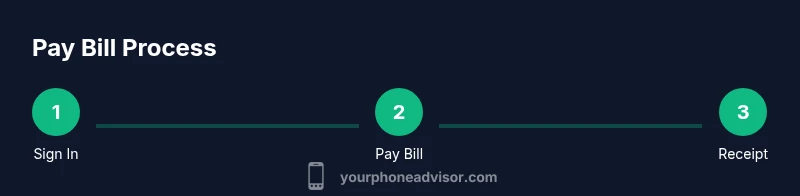
Quick-pay workflow: a visual path
The quickest way to pay is to sign in, navigate to Pay Bill, select a payment method, confirm the amount, and submit. After payment, save the receipt and set up autopay if you haven’t already. For recurring bills, you may also configure reminders a few days before due date to stay ahead.
Tools & Materials
- Smartphone or computer with internet access(For My T-Mobile app or website)
- Active T-Mobile account(Needed to access billing)
- Payment method (card, bank account, or digital wallet)(Card, ACH, or wallet like Apple Pay)
- T-Mobile account login credentials(Username and password)
- Receipt storage option(Email backup or screenshot folder)
- Two-factor authentication setup(Enable 2FA for extra security)
Steps
Estimated time: 15-25 minutes
- 1
Open My T-Mobile app or website
Launch the official T-Mobile app on your phone or navigate to the official My T-Mobile site. Log in with your credentials and ensure you’re on the legitimate platform to protect your payment data.
Tip: Have your login details handy and verify the URL or app publisher before proceeding. - 2
Navigate to Pay Bill
From the dashboard or main menu, find the Billing or Payments section and select Pay Bill. If you don’t see it, use the search function within the app or site.
Tip: Bookmark the Pay Bill page for quick access in the future. - 3
Choose your payment method
Select the method you want to use (credit/debit, ACH, or wallet). If you plan to repeat payments, Autopay is often the best option to avoid late charges.
Tip: Consider using a card that offers reward points for everyday purchases. - 4
Enter or confirm payment amount
Enter the exact amount due or choose to pay the full balance. If you’re using autopay, confirm the date of deduction.
Tip: Double-check the due date to ensure you’re paying on time. - 5
Review and confirm payment
Review all details, then submit the payment. After submission, you should receive a confirmation screen or email receipt.
Tip: Take a screenshot or save the receipt for your records. - 6
Set up autopay (optional)
If not already enabled, configure autopay with a reliable payment method and set reminders a few days before the due date.
Tip: Add a backup payment method in case the primary one fails.
Got Questions?
What payment methods does T-Mobile accept for paying my bill?
T-Mobile typically accepts major credit/debit cards, ACH bank payments, and digital wallets like Apple Pay or Google Pay. Payments can be made via the My T-Mobile app, the official website, or by phone.
T-Mobile accepts cards, bank transfers, and digital wallets, available in the app, website, or by phone.
Can I set up autopay for my T-Mobile bill?
Yes. You can enable autopay in the Billing section of the My T-Mobile app or website, select a payment method, and choose a due date. Autopay helps avoid late payments and can include notifications.
Yes, autopay is available and helps ensure on-time payments.
How can I view my current T-Mobile bill online?
Sign in to the My T-Mobile portal and navigate to the Billing section. Your current charges, due date, and past payments are displayed there. You can download or email a copy of the bill if needed.
Sign in to My T-Mobile and check the Billing page for your current charges.
What should I do if my payment is declined?
First, verify your payment details and available funds. Try again with a different method or contact your bank. If issues persist, reach out to T-Mobile support to resolve the problem.
Check funds, try another method, and contact support if needed.
Is it safe to pay my bill using public Wi-Fi?
Paying over public Wi‑Fi is not recommended. Use a secure network or your mobile data connection, and ensure the site uses HTTPS with the official domain.
Avoid public Wi‑Fi; use a secure connection and the official site.
How long does a payment take to post to my account?
Online payments usually post quickly, often within minutes, especially when using cards or wallets. Bank transfers (ACH) may take longer, sometimes a few business days depending on processing.
Payments post quickly with cards or wallets; ACH may take a bit longer.
Watch Video
What to Remember
- Pay on time to avoid fees and service disruptions
- Use official channels for secure payments
- Enable autopay to simplify monthly bills
- Save receipts and monitor charges regularly
- Review upcoming charges to stay within budget