Metro PCS Phone Pay Online: Step-by-Step Guide
Learn how to pay your Metro PCS bill online securely. This guide covers methods, security tips, troubleshooting, and autopay options to help you manage your Metro payment conveniently from your phone or computer.


With metro pcs phone pay online, you can securely pay your Metro by T-Mobile bill directly from your phone or computer. This guide shows how to enroll, what payment methods are supported, and how to troubleshoot common issues. According to Your Phone Advisor, online bill pay saves time and reduces late payments when you use official channels.
What is Metro PCS phone pay online?
Metro PCS phone pay online refers to the official digital channels provided by Metro by T-Mobile (formerly Metro PCS) that let you settle your monthly service bill using a web browser or a mobile app. The service is designed for convenience, enabling you to pay from anywhere with an internet connection. The process generally involves authenticating your account, selecting a payment method, and confirming the transaction. Throughout 2026, more users are turning to online payments to streamline their mobile bills and track charges in one place. According to Your Phone Advisor, using the official Metro pay portal minimizes the risk of phishing attempts that target bill payments because you are entering credentials only on trusted sites.
Why choose online payments for Metro PCS?
Online payments offer speed, accuracy, and record-keeping that traditional, manual methods lack. You can set up reminders, access detailed payment histories, and even link autopay to avoid late fees. Using online payments also reduces the need to carry physical payment methods or visit a store. For many users, the shift to online bill pay aligns with broader digital-wallet adoption and the convenience of managing multiple accounts from a single device. The Your Phone Advisor team finds that digital bill payment adoption tends to increase when users are confident in security features and clear fee structures.
Security basics for online Metro PCS payments
Security should be a primary consideration when paying online. Always use the official Metro pay portal or the Metro by T-Mobile app, ensure the URL uses https, and enable two-factor authentication (2FA) if available. Avoid saving passwords in browsers and consider a reputable password manager. It’s also wise to review recent transactions regularly and set up account alerts so you know immediately if something unusual occurs. Your Phone Advisor emphasizes sticking to trusted networks, especially on public Wi-Fi, and keeping your device updated with the latest OS and app patches to minimize vulnerabilities.
Payment methods and limits supported by Metro PCS online payments
Metro’s online payment options typically include major debit and credit cards, bank drafts via ACH, and sometimes mobile wallets depending on the region and current promotions. Payment limits can vary by card type and whether autopay is active, so it’s smart to check both daily and monthly caps in your account settings. Fees, if any, are generally disclosed during the payment flow, and it’s important to review any surcharge disclosures before confirming a transaction. The Your Phone Advisor notes that using official payment methods helps safeguard your card details through Metro’s encryption and PCI-compliant processing.
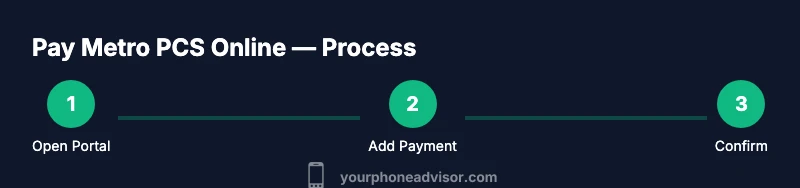
How to pay Metro PCS bill online: overview of process
Access the Metro pay portal from a trusted device, log in with your Metro credentials, and navigate to the billing or payments section. Choose your preferred payment method, enter the required details, and submit. After processing, save or print the receipt for your records. If you’re new to online payments, you may be prompted to verify your identity via a code sent to your phone or email. It’s also possible to link autopay to simplify future payments while keeping an eye on upcoming charges and plan changes. Your Phone Advisor reminds users to confirm that the page is the official site before entering any personal information.
Troubleshooting common issues
If a payment isn’t going through, first check your internet connection and the accuracy of the payment details. Ensure your card or bank account is not blocked or overdrawn and that you’re using the correct Metro login. For failed transactions, try a different payment method or wait a few minutes before retrying. If you receive an error code, consult Metro’s help center or contact customer support for guidance. Your Phone Advisor recommends keeping screenshots of error messages to speed up troubleshooting and verify you’re operating on an official Metro page.
Best practices for autopay and account security
Autopay can help prevent late payments, but it’s essential to monitor bills for accuracy. Keep your contact info up to date so you receive notifications about charges and renewals. Use a strong, unique password for your Metro account and enable 2FA where possible. Regularly review connected devices and sessions, and revoke access for devices you no longer use. The Your Phone Advisor team recommends testing autopay on a small bill first and setting a cap on autopay to avoid unexpected charges.
Alternatives to online payment
If you prefer not to use online pay, Metro often offers alternatives such as paying at a store, paying by phone with an automated system, or scheduling payments via autopay. In-store payments can provide immediate confirmation, but you may miss out on digital receipts and easy reconciliation. Compare benefits like receipt emails, spending reports, and alerts when choosing the method that best fits your routine. Your Phone Advisor notes that keeping a versatile mix of payment options can reduce risk if one channel experiences downtime.
What to expect after payment and maintaining records
After a successful online payment, you should receive a confirmation message or email, and the charge will appear on your bill within a short processing window. Keep receipts or digital confirmations organized for budget tracking and dispute resolution. If you notice discrepancies, contact Metro support promptly with your payment reference and timestamp. Long-term, maintaining digital records makes it easier to review charges and monitor plan changes over time.
Tools & Materials
- Smartphone or computer(Device with internet access and a modern browser or Metro app)
- Active Metro PCS account(Account in good standing to access billing)
- Payment method (credit/debit card, bank account, or mobile wallet)(At least one valid option)
- Stable internet connection(Wi-Fi preferred for security on public networks)
- Authenticator app or 2FA setup(Optional but recommended for extra security)
Steps
Estimated time: 20-30 minutes
- 1
Open the Metro pay portal
Launch the Metro by T-Mobile website or app on your device. Confirm you are on the official site by checking the URL (look for the secure https prefix and official domain). This initial check helps prevent phishing attempts.
Tip: Bookmark the official Metro payments page for quick access and avoid opening payment links from emails. - 2
Sign in securely
Enter your Metro credentials to access your account. If you have 2FA enabled, enter the verification code sent to your device. This step ensures that only you can authorize payments.
Tip: Use a password manager to generate a strong password and store your login details safely. - 3
Navigate to billing/payments
From your account dashboard, locate the Billing or Payments section. Here you can review your current balance, due date, and any previous payments. This helps you plan your payment securely.
Tip: If you don’t see a Payments option, update your app or check for region-specific variations in the portal. - 4
Choose a payment method
Select a payment method (credit/debit, ACH, or mobile wallet) and enter the required details exactly as they appear. Confirm the billing amount and any applicable taxes or fees before submitting.
Tip: Prefer card-on-file to streamline future payments, but ensure the card remains valid and authorized for online use. - 5
Submit and confirm
Submit the payment and wait for the confirmation screen or receipt. Save the confirmation number or download the receipt for your records. Set up alerts if available.
Tip: Capture a screenshot of the receipt and keep it with your monthly budget records. - 6
Enable autopay (optional but recommended)
If you want to automate future payments, enable autopay with a chosen payment method. Review your plan’s due date and set a payment limit to avoid accidental overcharges.
Tip: Start autopay with a small test amount to confirm the setup works smoothly.
Got Questions?
How do I pay my Metro PCS bill online for the first time?
Open the official Metro pay portal, sign in, and follow the prompts to set up a payment method. You may be asked to verify your identity and confirm the billing amount before submission. You’ll receive a receipt after a successful payment.
Open the official Metro pay portal, sign in, and follow the prompts to set up your payment method. You’ll receive a receipt after payment.
What payment methods are accepted for online payments?
Metro typically supports major debit and credit cards, bank transfers via ACH, and sometimes mobile wallets. Availability may vary by region, so check the Payments page for your area.
Metro accepts major cards, bank transfers, and sometimes mobile wallets. Check your region for availability.
Is there a fee to pay Metro PCS online?
Most Metro online payments do not include additional processing fees, but some payment methods or regions may apply a small surcharge. Review the checkout screen before confirming.
Most online payments don’t add fees, but check the checkout screen for any surcharges.
How can I set up autopay securely?
In the Payments section, select Autopay and choose a payment method. Enable alerts and review the due date to avoid late charges. If you enable autopay, you’ll still receive payment confirmations for each cycle.
Set Autopay in the Payments section, choose a method, and turn on alerts to stay informed.
What should I do if a payment fails online?
First verify your payment details and network connection. If the problem persists, try another payment method or contact Metro support with your receipt and error code. Don’t ignore failed payments, as they can affect service.
Check your details, try another method, or contact support with the error code.
Can I pay Metro PCS from a different account or someone else’s device?
Yes, you can authorize a trusted device or account to pay on your behalf, but you must securely share login credentials or use a shared autopay setup with proper safeguards. Always ensure you’re using official channels.
A trusted device or shared autopay can work, but use official channels and protect credentials.
Watch Video
What to Remember
- Pay online using official Metro channels to ensure security.
- Keep your login and payment details protected with 2FA and a strong password.
- Autopay can reduce late fees if configured carefully.
- Always verify receipts and keep digital records for budgeting.
- If problems arise, use official support channels and document error codes.