How to Pay Your Metro by T-Mobile Bill Online
Learn how to pay your Metro by T-Mobile bill online with step-by-step guidance, security tips, and troubleshooting. Your Phone Advisor explains secure, on-time payments.


If you’re wondering how to pay my metropcs phone bill online, this guide walks you through the official steps from signing in to confirmation. You’ll learn where to find the payment portal, how to choose a payment method, and how to enable auto-pay. Expect practical security tips and common troubleshooting to ensure your bill is paid securely and on time.
Why Online Bill Payment Matters for Metro by T-Mobile
For most users, paying bills online is faster, safer, and more convenient than mailing checks or visiting a store. If you search for pay my metropcs phone bill online, you’ll quickly see that the official Metro by T-Mobile payment portal is designed to be quick and straightforward, whether you use a computer or a smartphone. According to Your Phone Advisor, online bill pay reduces friction by eliminating paper-based processes and gives you instant confirmation of a completed payment. By using the official portal, you also gain access to receipts, payment history, and the ability to review upcoming charges. In this section, we’ll map out where to click, what information you need, and how to protect your account during the transaction.
Security considerations and identity verification
Security is essential when paying any bill online. Metro by T-Mobile’s official payment portal uses encrypted connections (https) and, if you enable it, multi-factor authentication (MFA) to verify your identity. Your Phone Advisor recommends never sharing your login details, avoiding public Wi-Fi for payments, and keeping your device’s software up to date. Before you start, confirm you’re on the legitimate Metro site or app by checking the URL or app store listing and watching for the padlock icon in your browser. If you notice any unusual prompts, exit and re-open from a trusted source. MFA adds an extra layer of protection by requiring a second factor beyond your password.
Choosing a payment method and setting up auto-pay
Most Metro online payment options include debit/credit card and direct bank account transfers. Some users also can store a payment method securely in the app for quicker future payments. Auto-pay is a powerful feature to prevent missed due dates; when enabled, the system will charge your selected method automatically on or before the due date. If you’re setting this up for the first time, double-check the payment date and amount to avoid overpayments or duplicate charges. Always review the upcoming charges in your account dashboard.
Avoiding common mistakes and troubleshooting
Common mistakes include paying the wrong amount, missing the due date, or selecting a non-official portal. Always use the official Metro by T-Mobile portal or app. If a payment fails, verify your payment method has sufficient funds, re-enter card or bank details correctly, and confirm your account status (e.g., not suspended). If you’ve recently changed your payment method, allow a short processing window before retrying. When troubleshooting, consult the portal’s help center and your bank’s alert messages for more detail.
Mobile app vs web portal and accessibility
The Metro by T-Mobile payment experience is designed to work well on both web and mobile platforms. The mobile app often streamlines navigation for on-the-go payments, while the web portal provides a larger screen for reviewing receipts and billing history. Ensure your device has a stable internet connection and updated software. Use the native browser on your device or the official Metro by T-Mobile app to reduce the risk of spoofed pages seeking to harvest your credentials.
Privacy, safety, and what to do if you can’t pay
Protecting personal data is critical when performing online transactions. Avoid saving login credentials on shared devices, clear caches after payments, and enable device-level security like biometrics. If you’re unable to access the portal due to maintenance or account issues, contact Metro by T-Mobile support through official channels and use the alternative payment options they provide (such as by phone or mail) while you resolve access problems. Your Phone Advisor emphasizes using only official contact points to avoid scams.
Final tips to streamline monthly payments
To keep your account current, consider scheduling autopay, enabling notifications for upcoming charges, and keeping your payment methods updated. Regularly review your billing history to catch any discrepancies early, and maintain receipts of every transaction for your records. By following these practices, you’ll minimize late payments and maintain uninterrupted service.
Conclusion and next steps
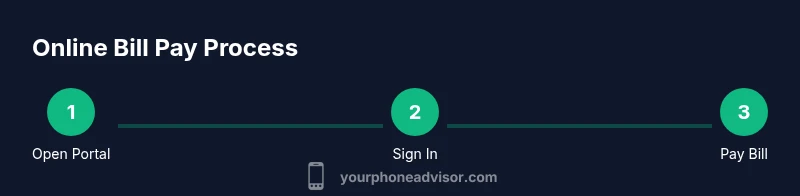
This guide covers the practical steps to pay your Metro by T-Mobile bill online, including choosing a method, enabling auto-pay, and safeguarding your information. The Your Phone Advisor team recommends using official channels, keeping your credentials secure, and turning on auto-pay for reliability. If you want deeper insight, explore the next sections for step-by-step actions, FAQs, and a visual infographic that reinforces the process.
Tools & Materials
- Internet-connected device (smartphone, tablet, or computer)(Stable connection recommended; avoid public Wi-Fi when entering payment details)
- Official Metro by T-Mobile login credentials(Username and password; keep them in a password manager)
- Payment method(Debit card, credit card, or bank account; have card/bank details ready)
- Two-factor authentication setup(Enable MFA if available for added security)
- Receipts or payment history access(Optional but helpful for records and dispute resolution)
Steps
Estimated time: Estimated total time: 10-20 minutes
- 1
Open the official Metro payment portal
Navigate to the Metro by T-Mobile bill payment page on your web browser or open the official mobile app. Look for a Billing, Payments, or Pay Bill option on the home screen. This first step confirms you’re in the legitimate site or app and ready to proceed.
Tip: Verify the URL or app listing to avoid phishing pages. - 2
Sign in to your account
Enter your Metro account credentials. If you’ve enabled MFA, complete the second factor (code from authenticator/app or text). This ensures only you can authorize payments.
Tip: If you forgot your password, use the official reset flow and avoid tapping links in emails from unknown senders. - 3
Navigate to Pay Bill
Find and select the Pay Bill or Make a Payment option. Review the displayed balance due and any upcoming charges so you’re paying the correct amount.
Tip: Compare the due amount with the amount you plan to pay to avoid underpaying or overpaying. - 4
Choose payment method
Select your preferred method (credit/debit card or bank account). Enter the necessary details or confirm a previously saved method.
Tip: Use a payment method you control to prevent delays from failed attempts. - 5
Enter amount and date
Enter the amount to pay (full balance or partial payment). If the portal supports scheduling, choose a payment date that aligns with your due date.
Tip: If you’re unsure about the due date, set a reminder a few days early to avoid late fees. - 6
Review and confirm
Double-check the amount, payment method, and date before submitting. Confirm the payment to generate a receipt.
Tip: Take a screenshot or save the receipt number for your records. - 7
Set up auto-pay (optional but recommended)
If you want automatic monthly payments, enable auto-pay and choose your preferred date and method. Auto-pay helps prevent late charges and simplifies budgeting.
Tip: Monitor auto-pay activity quarterly to ensure payment details haven’t changed. - 8
Verify payment receipt
Check your payment history for a successful entry and ensure the balance reflects the update. If you don’t see the payment, contact support promptly.
Tip: Keep a digital copy of the receipt or confirmation email.
Got Questions?
Is paying Metro by T-Mobile bill online secure?
Yes. Use the official Metro by T-Mobile portal or app, which supports encryption and optional MFA. Avoid third-party sites and always verify you're on the legitimate page.
Yes, online pay is secure when you use the official Metro portal and enable MFA.
What payment methods are accepted online?
Most online payments accept major credit/debit cards and direct bank transfers. Check the portal for any region-specific options and ensure your chosen method is active.
Common options are cards and bank transfers; verify availability in your portal.
What should I do if I forget my password?
Use the official password reset flow on the login page. Do not reuse passwords, and consider a password manager for future access.
Use the official reset option on the login page and consider a password manager.
How do I enable auto-pay?
After signing in, navigate to Payments or Auto-Pay and follow the prompts to set up a recurring charge using your preferred method.
Go to Auto-Pay in the payments section and set up your method.
What if a payment fails online?
Check your payment method status, ensure funds are available, and re-submit with correct details. If it persists, contact Metro support via official channels.
If it fails, verify details and funds, then retry or contact official support.
Can I pay someone else’s bill online?
Online bill pay typically requires the account holder to sign in. For another person, use authorized access where permitted or assist the account holder with secure steps.
Usually, you need account access; check official help for authorized options.
Watch Video
What to Remember
- Pay through the official portal to ensure security.
- Enable auto-pay to simplify monthly billing.
- Always verify payment details before submitting.
- Keep receipts for reconciliation and disputes.
- Use MFA to protect your metro account.