Pay Your Metro Phone Bill: Step-by-Step Guide
Learn secure, simple ways to pay your Metro phone bill online, via app, by phone, or in-store. This step-by-step guide covers autopay, due dates, troubleshooting, and staying on top of your bill.


Goal: Learn how to pay your Metro phone bill quickly and securely using online portals, the MyMetro app, autopay, phone payments, or in-store options. This guide covers accepted payment methods, step-by-step instructions, timing tips, and troubleshooting. By the end, you’ll be able to schedule autopay, avoid late fees, and confirm payments with confidence.
Understanding Metro bill payments
Metro bills typically post monthly and come with a due date that, if missed, can lead to late fees or service holds. According to Your Phone Advisor, knowing your due date, available payment channels, and your account status streamlines the process and reduces errors. Most users can review their statement online, see the balance, and choose a payment method that fits their routine. Keeping a digital receipt and note of the confirmation number helps you resolve any potential disputes quickly. This section helps you lay a solid foundation before you pay, so you’re confident in every step you take.
Payment methods you can use
Metro offers several convenient ways to pay your bill. You can pay online through the MyMetro portal or the Metro app, which provide quick access to your current balance and due date. Autopay is available for many plans, simplifying due-date management. You can also pay by phone using Metro’s payment line or visit a Metro store for in-person payment. Each method has slightly different processing times, but all are designed to be straightforward and secure. Always verify you’re on the official site or app to protect your payment data.
How to pay online through MyMetro
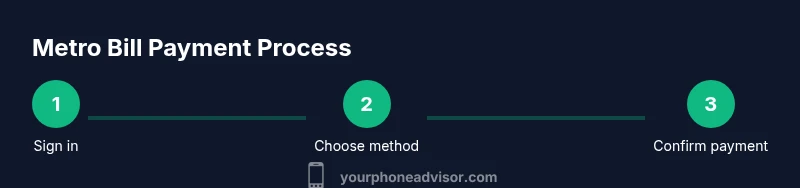
Online payments via MyMetro are typically the fastest option. Start by signing in to your account, navigate to the Bills or Payments section, and select the amount to pay. You can choose a one-time payment or set up autopay. Enter your payment details, review the amount due, and submit. You should receive an on-screen confirmation and an emailed receipt. If you don’t see a confirmation within a few minutes, refresh the page and check your bank or card statement for the transaction, then contact support if needed.
Paying with the Metro app
The Metro app mirrors the online portal with a mobile-first experience. Open the app, sign in, and tap the Payments tab to review your balance. You can pay using a saved card or bank account and enable push notifications for payment confirmations. The app often supports autopay with flexible scheduling and provides visual cues about payment status. If you rely on the app for budgeting, consider enabling reminders a few days before the due date.
Autopay and reminders to avoid late fees
Autopay is one of the most reliable ways to stay current. When you enroll, your bills are paid automatically on or before the due date, which reduces the chance of late fees and service interruptions. Pair autopay with calendar reminders set a few days before the due date, especially during holidays or travel. If you switch plans or add lines, re-check autopay settings to ensure the correct balance is charged and the payment method is current.
In-store and phone payments
If you prefer in-person assistance, visit an authorized Metro store to pay your bill with cash, debit, or credit. Some customers also have the option to pay by phone, using a recorded payment system. When paying by phone, have your account number, last name, and payment method ready. In-store payments provide a receipt immediately, which can be useful for record-keeping.
Security tips for paying your bill
Protect your payment information by using trusted networks and avoiding public Wi-Fi for financial transactions. Always verify you’re on the official MyMetro site or app, and enable two-factor authentication where available. Regularly monitor your account activity and use a strong, unique password. If you receive an unexpected payment request or email asking for payment details, treat it as suspicious and contact Metro support directly.
Troubleshooting common payment issues
If a payment doesn’t go through, check your card or bank details, ensure sufficient funds, and retry after a few minutes. Network outages or site maintenance can cause temporary failures; reattempt later or switch to another method. If a payment posts but not to your account, confirm the transaction ID in your receipt and contact support with the confirmation details. For recurring autopay problems, reconfigure autopay schedules and test the next due date to ensure seamless processing.
Tools & Materials
- Smartphone or computer(Access the MyMetro portal or Metro app)
- Active Metro by T-Mobile account(Have your account number and last name ready)
- Payment method (card, bank account, or mobile wallet)(Needed for online/app payments)
- Reliable internet connection(Stable connection speeds up processing)
- MyMetro app installed(Optional if you prefer online portal)
Steps
Estimated time: 15-25 minutes
- 1
Sign in to your Metro account
Open the MyMetro portal or the Metro app and log in with your credentials. This confirms you’re paying the correct account and prevents misapplied payments. If you use biometrics, enable them for faster access.
Tip: Use a saved password or biometric login to speed up the process. - 2
Navigate to the Bills or Payments section
Once signed in, find the Bills, Payments, or Balance tab. Review the amount due, minimum due, and due date before proceeding. This step ensures you’re paying the right amount and avoids mistaken payments.
Tip: Double-check the due date to avoid late charges. - 3
Choose a payment method and enter details
Select a payment method (credit/debit card, bank account, or digital wallet) and enter the required details. If you’re paying online for the first time, you may need to authorize the payment source.
Tip: Verify card expiration, billing address, and CVV before submitting. - 4
Confirm payment and submit
Review the final amount and payment details, then confirm the payment. Look for a confirmation number or receipt. Save or screenshot the confirmation for your records.
Tip: If you don’t receive a confirmation within 5 minutes, retry or use a different method. - 5
Set up autopay or reminders
Optionally enroll in autopay to reduce late payments. You can also set reminders a few days before the due date to catch any changes like rate adjustments or plan updates.
Tip: Autopay provides consistency; ensure your payment method stays current. - 6
Verify payment posted and keep records
After the payment posts, check your balance to confirm it’s updated. Save the receipt or confirmation number for future reference and reconciliation.
Tip: Store receipts in a safe place or a dedicated folder in your email.
Got Questions?
What payment methods does Metro support?
Metro supports online payments through the MyMetro portal and the Metro app, autopay options, and in-person payments at stores or by phone. Always use official channels to protect your data.
Metro offers online, app-based, autopay, and in-store payment options through official channels.
Is autopay required to avoid late fees?
Autopay is not required, but it’s a highly recommended way to prevent late payments. You can still pay manually before the due date using your preferred method.
Autopay isn’t required, but it’s a strong safeguard against late fees.
How long does a payment take to post?
Most online or app payments post promptly, but processing times can vary by method. If in doubt, check your statement after a few minutes or within an hour.
Payments usually post quickly, but check your statement if you don’t see it right away.
What should I do if my payment fails?
If a payment fails, retry with a different method, verify card details, and ensure funds are available. If it still fails, contact Metro support or check the system status for maintenance.
If it fails, try another method and verify details, then contact support if it continues.
Can I schedule a future payment?
Yes, most methods allow scheduling a future payment. You can set the date to ensure it posts before the due date.
You can schedule future payments to align with your budget.
How do I find my Metro account number?
Your account number is available in your online dashboard, the bill statement, or the Welcome/verification email from Metro. If you can’t locate it, contact support for assistance.
Check your dashboard or a recent bill to find your account number, or ask support.
Watch Video
What to Remember
- Pay on time to avoid late fees.
- Autopay helps ensure consistency and reduces manual steps.
- Use the Metro app or MyMetro for the fastest processing and receipts.
- Keep confirmation numbers until your payment posts successfully.