How to clean a phone virus: A practical, step-by-step guide
Learn to remove phone viruses safely with practical steps, backups, and prevention tips. This guide covers Android and iPhone scenarios, official app stores, and when to reset. Your Phone Advisor shares actionable advice for lasting device health.


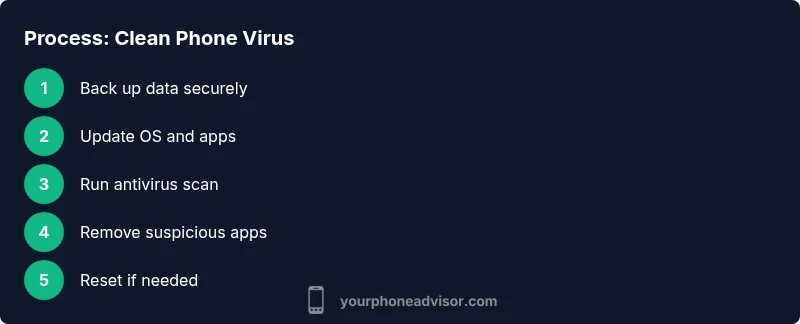
To clean a phone virus, start with a soft reset, OS update, and a trusted antivirus scan, then remove suspicious apps and data. If issues persist, back up and consider a factory reset. Protect future devices with mindful app installs and regular updates. Ensure settings allow security scans, disable unknown sources on Android, and review device admin apps.
What is a phone virus and how it affects your device
According to Your Phone Advisor, a phone virus is any form of malicious software designed to compromise performance, drain battery, steal data, or track your activity. Viruses on phones can take many shapes—from adware that floods your screen with unwanted ads to spyware that silently logs keystrokes. The line between legitimate software and malware is sometimes thin, especially when apps request excessive permissions or come from outside official stores. Your Phone Advisor analysis shows that infections often result from installing apps from untrusted sources, phishing links, or compromised updates. Staying informed about common attack vectors helps you recognize symptoms early and act quickly to protect privacy and data.
Key terms to know include malware, spyware, adware, ransomware, and trojans. While some infections are obvious, others hide in plain sight—causing battery drain, slow performance, odd popups, or unfamiliar device behavior. Understanding how these threats manifest helps you distinguish between a temporary glitch and a genuine security issue. A proactive security posture is more effective than reactive fixes.
Quick checks before you start cleaning
Before you dive into cleaning, perform quick, structured checks to avoid wasted effort or data loss. Start by confirming the device is charged and has a stable internet connection, then review recent app installs and permissions. Look for unfamiliar apps or sudden spikes in data usage, battery drain, or unusual popups. If your phone shows repeated crashes or heat spikes, assume a potential infection and proceed with guided steps rather than random fixes. Keep in mind that some symptoms mimic legitimate issues like software bugs or low-memory behavior, which is why careful observation is essential. Remember to back up important data early, so a later reset won’t jeopardize personal files.
In this phase, prioritize safety: avoid clicking suspicious links, do not grant administrator rights to unfamiliar apps, and keep your device connected to a trusted Wi-Fi network to download security updates. If you use corporate or school accounts, inform IT before performing broader resets. Finally, verify your backup plan and ensure you have a recovery path in case a full device wipe becomes necessary.
Step 1: Back up your data
Back up all important information before you begin cleaning. This protects photos, messages, contacts, and documents from accidental loss during cleaning or a factory reset. Choose a backup method you trust—cloud-based backups with encryption or an offline local backup on a computer. Verify the backup by checking that you can view key files on another device. This step is critical because even a thorough virus removal can require data loss to achieve a clean state. Proactively testing restores makes future recovery predictable.
Tip: Encrypt backups when possible and store sensitive data behind a password or biometric protection to minimize risk if the backup file is compromised.
Step 2: Prepare the device (safe mode, updates, and setting checks)
Prepare the device by entering a safe state to minimize disruption from malware. On Android, reboot into Safe Mode to prevent third-party apps from running; on iOS, a simple reboot can clear temporary glitched processes. Immediately check for and install any available OS updates, as these often include security patches that fix exploited vulnerabilities. Review app permissions and disable anything unnecessary, particularly access to the microphone, camera, and location. This preparation reduces the risk of malware reinstalling itself and makes subsequent scans more effective.
Tip: Turn on automatic security updates if available and review permissions quarterly to catch risky changes early.
Step 3: Update the OS and apps, then run a trusted antivirus scan
With the device prepared, update the operating system and all installed apps from official stores. Updates patch known security flaws that malware often exploits. After updating, run a full-system scan with a reputable antivirus app from a trusted source. If your antivirus flags suspicious items, investigate each finding carefully—avoid deleting system components that could harm device stability, and rely on official guidance to determine safe removal. This step is the core defense against persistent threats and helps you identify specific malicious components.
Tip: Do not install multiple antivirus apps at once; they may conflict and slow your device. Allow the security software to auto-quarantine or remove malicious items as recommended by the app’s guidance.
Step 4: Identify and remove suspicious apps and data
Review your installed apps list for anything unfamiliar or recently updated in a way that seems suspicious. Uninstall apps that you do not recognize or trust, especially those that request excessive permissions or access to sensitive data. Clear the caches and data for apps showing unusual behavior, then monitor the device for improvements over 24–72 hours. If you notice continued problems, you may need to escalate to a reset.
Tip: For Android, use the “apps” page to check permissions and revoke suspicious ones; for iPhone, revoke broad app permissions from Settings > Privacy. Wipe data associated with problematic apps only after confirming backups exist.
Step 5: Decide whether to reset (soft reset vs factory reset) and restore carefully
If malware persists after removal of suspicious apps and data, consider a factory reset. A factory reset restores the device to its original state, erasing all apps, data, and settings. Before performing a reset, verify your backup can be restored cleanly and that you only reinstall apps from trusted sources afterward. If you have a critical app or data, evaluate whether a full wipe is necessary or if a targeted reset to specific configurations could suffice.
Tip: Annotate your backup with a date and reason for the reset so you can track changes and reasons for future reference.
Warning: Factory resets erase all personal data—confirm backups and confirm you won’t lose essential information.
Step 6: Reconfigure and harden security to prevent future infections
After a reset, reinstall only essential apps from official stores and enable two-factor authentication where possible. Reapply device settings in moderation to minimize data exposure; avoid enabling unknown “permissions” that grant broad access to your device. Revisit privacy and security settings, disable auto-connecting to unfamiliar Bluetooth devices, and use a strong, unique password manager. Finally, enable periodic security checks and keep your system and apps updated. This hardening phase helps prevent repeated infections and improves overall device hygiene.
Step 7: Ongoing hygiene and best practices to avoid future infections
Maintain ongoing hygiene by staying on top of OS updates, downloading apps only from official stores, and reviewing app permissions at least quarterly. Be cautious with phishing links, avoid giving apps access to sensitive information, and enable security features like secure boot and device encryption if available. Regular backups and a robust password strategy reduce risk if a malware incident occurs. With these practices, you’ll minimize exposure to new threats and keep your device secure for the long term.
Step 8: Common mistakes to avoid during cleaning and prevention
Avoid overtrusting pop-up warnings or dubious antivirus claims that promise instant fixes. Do not sideload apps from unknown sources, ignore updates, or dismiss security warnings. Do not rush resets without validating backups. Finally, avoid reusing compromised passwords after a infection; instead, switch to a password manager and enable 2FA on critical accounts.
Tools & Materials
- Smartphone (Android or iOS)(Fully charged or connected to a charger during the process)
- Trusted antivirus app(From a reputable developer; download from official store)
- Official OS update(WiFi or stable data connection required)
- Backup method(Cloud or local backup; encrypt backups when possible)
- Access to a computer (optional)(For offline backups or more thorough data checks)
- Factory reset capability(Only if necessary to fully remove malware)
Steps
Estimated time: 45-60 minutes
- 1
Back up your data
Back up all important information before you begin cleaning. Use a trusted method, verify integrity of the backup, and ensure you can restore critical files if needed.
Tip: Encrypt backups and test a restore on another device. - 2
Charge and review permissions
Ensure the device is charged and review app permissions to identify excessive access. Disable nonessential permissions to limit malware ability to operate.
Tip: Disable unknown sources on Android and review admin apps. - 3
Update OS and apps
Install the latest OS updates and app updates from official stores to close security gaps. Running up-to-date software reduces malware footholds.
Tip: Enable automatic updates if available. - 4
Run antivirus scan
Run a full-device scan with a reputable antivirus. Quarantine or remove any detected threats per the tool’s guidance.
Tip: Do not disable security features during the scan. - 5
Remove suspicious apps and data
Uninstall unfamiliar apps, clear caches, and remove any data tied to suspicious activity. Monitor device behavior after cleanup.
Tip: Keep a record of removed apps for reference. - 6
Decide on reset
If problems persist, consider a factory reset and restore from a clean backup. Avoid reinstalling risky apps after the reset.
Tip: Only reset if you have confirmed a clean backup. - 7
Reconfigure securely
Reinstall only essential apps from official stores, re-enable security features, and configure strong authentication.
Tip: Use a password manager and 2FA where possible. - 8
Maintain long-term hygiene
Set up ongoing security practices: regular updates, permission reviews, and encrypted backups to prevent future infections.
Tip: Schedule quarterly security checks.
Got Questions?
What counts as a phone virus?
A phone virus is any malicious software designed to harm the device, steal data, or display unwanted behavior. It includes malware, spyware, adware, and ransomware variants that target mobile operating systems.
A phone virus is malware that can steal data or disrupt how your phone works. It includes things like spyware and adware that you should remove with trusted tools.
Do I need a factory reset if cleaning doesn’t work?
If malware persists after uninstalling suspicious apps and applying updates, a factory reset is often the most reliable path. Ensure you have a clean backup before proceeding to avoid data loss.
If cleaning fails, a factory reset is usually the safest option, but back up first to protect your data.
Can antivirus apps fix everything on Android and iOS?
Antivirus apps help detect and remove many threats, but no tool is perfect. They work best as part of a layered security approach that includes OS updates, careful app installs, and strong authentication.
Antivirus apps are helpful, but they aren’t perfect—combine them with updates and good practices for best results.
Is it safe to reset only some settings?
Partial resets can fix specific issues but may miss deeply embedded malware. A full factory reset is often necessary for stubborn infections.
A partial reset can help some issues, but for strong infections a full reset is usually required.
How can I prevent future infections on Android or iPhone?
Stick to official stores, avoid sideloading apps, review permissions regularly, keep the OS updated, and enable two-factor authentication where possible.
To prevent infections, use official stores, update software, and enable 2FA on your accounts.
Watch Video
What to Remember
- Back up data before cleaning
- Update OS and apps to patch security gaps
- Use trusted antivirus and official app stores
- Factory reset is a last resort but highly effective
- Harden device after clean to prevent re-infection