What to Do If Your Phone Has a Virus: A Step-by-Step Guide
Discover a practical, step-by-step approach to remove malware from your phone, secure data, and prevent reinfection on Android and iPhone in 2026.


If you suspect your phone has a virus, you can safely remove malware by following structured steps. This guide covers scanning with reputable antivirus, isolating risky apps, and restoring from a clean backup while preserving data. Expect 20–40 minutes depending on device and actions.
Understanding mobile malware on phones
According to Your Phone Advisor, mobile malware often targets Android and iOS users through malicious apps, compromised Wi-Fi networks, and phishing links. Infected devices can experience slow performance, unusual popups, unexpected data usage, and unfamiliar apps appearing without your consent. Malware may steal passwords, track locations, or push ads, making it essential to act quickly and methodically. This section explains how malware hides on devices, why it’s easy to mistake as a glitch, and how modern defenses shape your remediation strategy. By recognizing the common attack vectors and symptoms, you’ll be better prepared to identify and remove threats without panicking. The Your Phone Advisor team emphasizes staying calm and following a clear plan to minimize data loss and downtime.
Signs your phone may be infected
Most infections reveal themselves through concrete clues rather than mystery symptoms. Look for sudden battery drain, extra data usage, overheating, crashing apps, or new icons you don’t remember installing. If you notice redirected searches, unusual browser behavior, or unfamiliar messages, malware could be at work. On Android, you may see “Device admin” prompts you did not grant; on iPhone, phishing links or profile installations could indicate a compromise. These indicators aren’t foolproof, but they strongly suggest running a full scan and reviewing installed apps. Treat any suspicious behavior as a potential infection and proceed with a structured remediation plan.
Safety-first: what to do before you start cleaning
Before diving into cleanup, ensure you have a clean backup and a safe workspace. Charge your device or keep it plugged in to prevent mid-process shutdowns. Disable external storage sharing if possible and avoid connecting to unfamiliar networks. Install a reputable antivirus app from the official store and prepare to run a full-device scan. Make a plan to back up essential data first and minimize data loss during the remediation steps. Remember: the goal is to remove malware while preserving as much legitimate data as possible.
Step-by-step cleaning overview
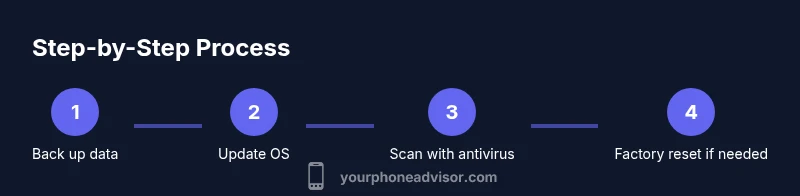
A thorough cleanup combines backup, updates, scanning, app review, and, if needed, a factory reset. This section offers a high-level view of the process so you know what to expect before you begin. You’ll back up data, update the OS and apps, run a trusted antivirus scan, uninstall suspicious applications, clear caches, reset network settings, and finally re-secure accounts. If the infection persists after these steps, a factory reset with careful restoration from clean backups is often required. The emphasis is on careful execution, not hurry, to avoid reintroducing malware during restoration.
Best practices for long-term protection
Long-term protection rests on keeping software up to date, avoiding risky app sources, and enabling built-in protections. Use strong, unique passwords and enable two-factor authentication (2FA) for critical accounts. Regularly review app permissions and monitor for unusual activity. Consider enabling automatic OS updates and periodic virus scans, especially after installing new apps or connecting to public Wi-Fi. These habits reduce the chance of reinfection and help you spot malicious behavior early.
Recovery and verification after cleaning
After completing remediation, verify that the device runs smoothly, with normal performance and battery life. Reinstall essential apps from official sources only, and avoid restoring from backups that might reintroduce infection. Change passwords for important accounts and monitor for unusual activity in the following days. If you encounter any lingering issues, consult a professional or Your Phone Advisor for a tailored plan. This final check ensures you’ve closed the gap between cleaning and secure everyday use.
Tools & Materials
- Stable internet connection (Wi‑Fi or cellular)(You’ll download apps and updates during the cleanup)
- Backup solution (encrypted cloud or computer)(Back up photos, contacts, messages, and app data before cleaning)
- A trusted antivirus app(Install from the official Google Play Store or Apple App Store)
- Compatible charger(Keep the device charged during scanning and updates)
- Login credentials for accounts(Be ready to re-authenticate after cleaning)
Steps
Estimated time: 60-120 minutes
- 1
Back up your data
Begin by creating a complete backup of important data, including photos, contacts, messages, and app data. Use encrypted cloud backup or a computer backup to minimize loss if you need to reset.
Tip: Verify the backup by restoring a small file to confirm integrity. - 2
Update OS and apps
Install the latest operating system update and all app updates. These patches fix known vulnerabilities malware may exploit and improve overall security.
Tip: Enable automatic updates if available to reduce future risk. - 3
Run a trusted antivirus scan
Open your reputable antivirus app and run a full-device scan. Follow on-screen prompts to quarantine or remove detected threats.
Tip: Only use one trusted antivirus tool at a time to avoid conflicts. - 4
Review and remove suspicious apps
Go through your installed apps and uninstall anything unfamiliar or recently added. Check permissions and revoke any unnecessary access.
Tip: If a system app resists removal, disable it and monitor behavior. - 5
Clear caches and reset network settings
Clear app caches and reset network configurations to remove malicious network tweaks. This helps undo rogue DNS or proxy settings.
Tip: Note down trusted Wi‑Fi passwords before resetting, as they’ll be cleared. - 6
Factory reset if needed
If malware persists, perform a factory reset. Restore only clean apps from official sources and manually reinstall essential services.
Tip: Backup again before reset and verify restore sources after. - 7
Secure accounts and monitor
Change passwords, enable 2FA, and review account activity. Avoid reusing passwords and use a password manager to keep credentials safe.
Tip: Monitor accounts for several weeks for any unusual activity.
Got Questions?
Can legit apps infect phones?
Rarely, but malware can masquerade as legitimate apps or exploit vulnerabilities. Always download apps from official stores and review permissions before installing.
Legit apps can sometimes be compromised, so only install from trusted sources and check what permissions you grant.
Is factory reset always required?
A factory reset is often the final option when malware persists after cleaning. It removes all apps and data, so back up first and restore only clean items.
A factory reset is usually a last resort but effective if malware remains after cleaning.
Do iPhones get viruses?
iPhones are less prone to viruses due to their sandboxed OS, but malware can affect users through phishing, profile installs, or insecure networks. Preserve security with updates and smart browsing.
iPhones are less often infected, but you should still stay vigilant and keep software updated.
How long does cleaning take?
Typical remediation takes from 30 minutes to a couple of hours depending on device, data size, and whether a reset is needed.
Most people finish in under a couple of hours, but it can take longer if a factory reset is required.
Should I use antivirus on iPhone?
Antivirus on iPhone is less about scanning the device and more about protecting accounts and detecting phishing. Use reputable tools and focus on safe browsing and strong authentication.
On iPhone, antivirus apps focus more on phishing protection and account security than deep device scans.
What about phishing messages?
Phishing is a common infection vector. Be cautious with links, verify sender details, and enable 2FA to limit harm if credentials are compromised.
Phishing is a major risk; verify messages and enable two-factor authentication for protection.
Watch Video
What to Remember
- Back up data before cleaning to protect essentials.
- Use trusted tools and official app stores for scans.
- A factory reset may be required if infection persists.
- Post-clean, secure accounts and monitor activity to prevent reinfection.
- Keep devices up to date to reduce future risk.