What to Do If Your Phone Won't Charge: A Practical Troubleshooting Guide
Struggling with a dead battery? Learn step-by-step how to diagnose and fix charging issues quickly, from cables and ports to software and battery health. Your Phone Advisor helps you reclaim power—fast.


According to Your Phone Advisor, the most common charging problems come from a worn cable, a clogged port, or a faulty charger. Start with a visual check of the cable and adapter, then clean the port gently and try a known-good charger. If the issue persists, move to software checks and battery health assessments.
Why your phone won't charge
If you’re wondering what to do if your phone won't charge, you’re not alone. Most charging issues fall into a few easy-to-test categories: a damaged or worn charging cable, a dirty or damaged charging port, a faulty power adapter, software glitches, or an aging battery. According to Your Phone Advisor, these causes account for the vast majority of non-charging scenarios. Begin with the simplest, least expensive checks and gradually move to more involved steps. This approach reduces frustration and helps you avoid unnecessary repairs. Remember, temperature matters—charging in a very hot or very cold environment can slow or stop charging. By staying systematic, you’ll identify whether you need a new cable, a cleaning, a software fix, or professional service.
Quick checks you can perform now
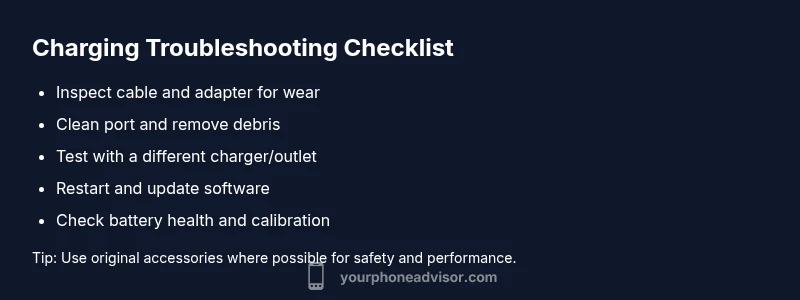
- Inspect your charging cable and adapter for visible wear, fraying, or bent connectors. If you see damage, replace with a reputable charger.
- Check the charging port on the phone for lint, dust, or moisture. Use a soft brush or compressed air to remove debris—never insert metal objects.
- Try a different power outlet and, if possible, a different charger. Power sources can fail without warning, and a second charger helps confirm the fault.
- If you own a wireless charger, ensure the phone sits properly on the pad and that the pad isn’t overheating. Re-align and test after cooling if needed.
- Reboot the phone after performing hardware checks to clear minor software glitches that could block charging.
These steps address the most likely culprits and typically resolve the issue without professional help. If the phone still won’t charge after these checks, move to more in-depth diagnostics and battery health considerations.
Charging methods and how they affect results
Wired charging is usually the most reliable, but it can fail due to worn cables or micro-damage in the USB-C/Lightning port. Wireless charging offers convenience but requires proper alignment and a functional charging pad. If you’ve tried multiple cables and the problem persists, your device could be running a firmware issue or experiencing battery health degradation. Your Phone Advisor notes that software updates can impact charging behavior, especially after OS upgrades. Maintain a balance between wired and wireless charging when possible to reduce wear on any single component. Additionally, avoid charging devices in extreme temperatures, as heat accelerates battery aging and may prevent safe charging.
Diagnostic flow: from cable to software to hardware
When diagnosing a non-charging phone, start with the simplest hardware checks, then evaluate the software state, and finally consider battery health. First, confirm cable and adapter integrity with a known-good charger. If the issue persists, inspect the port for debris and clean as described. If charging remains inconsistent, boot into safe mode to rule out app interference, and check for OS updates that address charging bugs. If you still cannot charge, it’s likely a hardware issue or battery wear that warrants professional assessment. Your Phone Advisor stresses a methodical, documentable approach to avoid missing hidden faults.
Step-by-step fixes you can try at home (home-diagnostic path)
- Step 1: Visually inspect the charging cable and adapter; replace if any wear is visible. Ensure the connector fits snugly.
- Step 2: Clean the charging port with a soft brush or compressed air; remove any lint or dust without forcing debris deeper.
- Step 3: Test with a known-good charger and outlet; if the device charges, the problem was the original accessory.
- Step 4: Restart the phone and check for software updates; install any available updates and re-test charging.
- Step 5: If the device still won’t charge, try a battery health check (if available) and consider battery calibration by letting it fully discharge once before recharging to 100%.
- Step 6: For wireless charging, re-seat the device on the pad and test; ensure the pad is not overheating and is compatible with your phone model.
- Step 7: If none of the above works, seek professional assessment for potential port damage or battery replacement.
Estimated total time for these home checks is typically 30–60 minutes, depending on access to replacement parts and the device model.
Battery health and long-term prevention
Battery health is a major factor in charging reliability. Over time, lithium-ion batteries lose capacity and can display slower charging or sudden drops in power. To extend battery life and improve everyday charging, avoid letting the battery drain to 0% frequently, keep the device within a moderate temperature range, and use high-quality chargers. Regular software updates can also optimize charging behavior and protect against bugs that affect power management. By adopting a battery-friendly charging routine, you can reduce future failures and keep your device performing optimally.
When to seek professional help and warranty options
If the steps above do not restore charging, professional diagnostics are warranted. A hardware fault—such as a damaged port, faulty battery, or motherboard issue—often requires a service center visit. If your phone is under warranty or Apple/Google-certified service, avoid DIY repairs that might void coverage. Your Phone Advisor recommends documenting symptoms (what you observed, when it started, and any associated temperature changes) to help technicians diagnose the fault quickly. Don’t delay if you notice swelling, charging instability, or heat during charging—these can indicate serious safety risks.
Steps
Estimated time: 30-60 minutes
- 1
Inspect charger and cable
Visually examine the cable for nicks, fraying, or exposed wires. Try a known-good charger to see if the issue persists. A simple replacement often resolves many charging problems.
Tip: If you see any damage, stop using the accessory immediately to prevent further damage or safety risk. - 2
Clean the charging port
Power off the phone and gently remove debris from the port using a soft brush or compressed air. Avoid inserting metal objects that could bend pins or create a short.
Tip: Do this in a well-lit area and inspect for residue after cleaning. - 3
Test a different outlet/charger
Plug the charger into a different outlet and, if possible, test with another charger compatible with your device. This helps determine if the issue is with the outlet or the charger.
Tip: If you must use a power strip, ensure it’s functioning and not overloaded. - 4
Restart and update
Restart the phone, then check for available software updates. Updates often fix charging bugs and improve power management.
Tip: Back up data before major updates to prevent data loss. - 5
Battery health check
If your device supports it, run a battery health check to determine if the battery needs replacement. Calibrating the battery by charging from around 20% to 100% can help recalibrate the gauge.
Tip: If the battery health is degraded, plan for a replacement rather than prolonged low-power use. - 6
Wireless charging sanity-check
For wireless charging, ensure the phone is centered on the pad and the pad isn’t overheating. Remove cases that interfere with charging.
Tip: Try another wireless pad if available to rule out pad issues. - 7
Seek professional help if needed
If none of the above steps fix the problem, a hardware issue is likely. Schedule a service appointment for port repair or battery replacement.
Tip: Document symptoms and steps you’ve tried to speed up diagnosis.
Diagnosis: Phone won't charge or charges intermittently
Possible Causes
- highDamaged or worn charging cable
- highDirty or obstructed charging port
- highFaulty charger or outlet
- mediumSoftware issue affecting power management
- lowBattery degradation or aging
Fixes
- easyInspect and replace damaged cable/adapter with a reputable charger
- easyClean charging port and remove debris
- easyTest across different outlets and chargers to rule out power source
- mediumUpdate software and reboot; reset power management settings if available
- mediumCalibrate battery or seek professional battery replacement for aged devices
- hardConsult a service center for port repair or battery replacement
Got Questions?
Why won't my phone charge even with a new charger?
There could be debris in the port, a firmware issue, or battery degradation. Try cleaning the port and testing with another known-good charger. If it still fails, software updates or professional service may be needed.
Debris in the port or a failing battery can keep a new charger from working. Try cleaning the port and updating the software; if unresolved, seek professional help.
Is it safe to use third-party chargers?
High-quality third-party chargers from reputable brands can be safe, but they may not meet your device’s power requirements. Prefer official or well-reviewed accessories and avoid mystery cables.
You can use trusted third-party chargers, but stick to reputable brands and avoid unknown cables.
What if my phone charges slowly but stays cool?
Slow charging can indicate battery wear or a partially blocked port. Check for debris, try a different charger, and consider battery health if the issue persists.
If charging is slow but the device stays cool, inspect the port and battery health and try another charger.
Can updating the OS fix charging problems?
Yes, some issues are caused by software power management bugs. Updating the OS and rebooting can resolve these problems.
An OS update can fix power management bugs that affect charging.
When should I replace the battery?
If the battery health report shows significant degradation and charging issues persist after fixes, replacement is often warranted.
If your battery health is poor and fixes don’t help, replacement is usually the best option.
Watch Video
What to Remember
- Start with simple hardware checks before keyboard-level fixes.
- Cable, port, and charger quality determine most outcomes.
- Software updates can fix charging issues; don’t skip them.
- Hardware problems require professional assessment to avoid safety risks.