Why is My Phone Charging Slow? A Practical Troubleshooting Guide
Struggling with slow charging? This urgent, step-by-step guide helps you diagnose causes, test fixes, and safely speed up charging on iPhone and Android.


Most slow charging comes from a poor charger, damaged cable, or a clogged port. Start by swapping to a known-good charger and cable, then plug into a wall outlet instead of a computer USB port. If charging remains slow, inspect battery health and close background apps that drain power. Wireless charging is often slower, and cheap adapters can cap speed.
Why is my phone charging slow?
According to Your Phone Advisor, a fast, reliable charge is a basic requirement for staying connected. If you find yourself asking why is my phone charging slow, you’re not alone—this issue affects many users at some point. The core causes are usually simple: a weak charger, a frayed or incorrect cable, debris in the charging port, or a battery that’s past its prime. More subtle factors include software tasks that drain power while you plug in, and environmental heat that slows the charging process. The good news is that most slow charging can be diagnosed and corrected with a few careful checks. In this guide, we walk through a logical, step-by-step process to identify the culprit and restore speed without risking your device. By staying calm and methodical, you’ll speed up charging and extend your phone’s life.
Quick checks you can perform without tools
Start with the simplest checks first. Use the original charger and a sturdy cable designed for your device. Plug into a wall outlet instead of a computer USB port, which often provides less power. Inspect the charging port for lint or debris and clean gently if needed. If you suspect cable or port damage, try a different, certified charger and cable. After each change, monitor the charging rate for a few minutes. If it’s still slow, move to the deeper checks.
Common culprits behind slow charging
From Your Phone Advisor observations, the most frequent culprits are cheap or counterfeit chargers, worn cables, and dirty ports. Battery health matters too—as batteries age, their maximum capacity and charging speed decline. Background apps can also keep draining energy even when plugged in, especially on devices with aggressive power-management settings. Environmental factors, like device heat, can temporarily throttle charging. Finally, using wireless charging or adapters that don’t support your device’s fast-charging protocol can halve the speed.
How charging method and ports affect speed
Wired charging, when done with a certified charger, typically delivers the fastest results. USB-C with Power Delivery and a matching wall outlet charger often outperforms USB-A or computer USB ports. Wireless charging is convenient but usually slower and more variable depending on alignment and case material. The charging port itself isn’t just a sink—it’s a gatekeeper: dust, lint, or bent pins will dramatically reduce flow. Always test with a dedicated charger before blaming the cable.
Battery health and age: when replacement matters
Battery health is a major determinant of charging speed. Over time, lithium batteries lose their ability to accept charge quickly, especially if you frequently let the battery run to zero or overheat. If your device shows a battery health warning or the capacity has visibly declined, replacement can restore charging speed and overall performance. Note that some devices also throttle charging as a safety precaution to preserve remaining capacity.
Software and background activity impact
Your device’s software can influence charging speed. Background processes and apps that aggressively fetch data, sync files, or run animations can offset the gains from a charger. Ensure your OS is up to date, disable power-hungry features temporarily while charging, and consider enabling a battery saver mode during top-ups. In some cases, a settings reset or a fresh app audit provides meaningful improvements.
Safe charging tweaks to speed things up
For a practical boost, pair a certified charger with a good cable and avoid charging through low-power USB ports. Remove heavy cases that trap heat during charging, and keep the device in a cool, ventilated area. If you suspect a heats issue, pause gaming or camera use while charging. Avoid third-party fast chargers that fail to meet safety standards, as they can risk damage over time.
When to seek professional help
If your phone still charges slowly after trying recommended fixes, seek professional support. Warranty coverage, manufacturer support lines, or a certified repair center can evaluate battery health and hardware integrity. Don’t attempt risky disassembly or DIY battery replacements if you’re unsure—these can void warranties or cause injury. Your Phone Advisor recommends consulting official channels for safety and reliability.
Putting it all together: your next steps
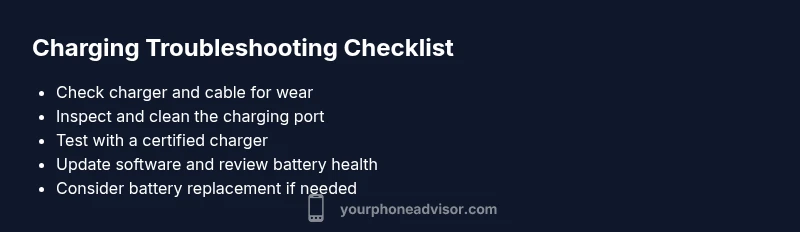
Start with a certified charger and cable, test in a wall outlet, and inspect the port for debris. If the issue persists, assess battery health and software activity, then consider a battery replacement if needed. For ongoing problems, schedule a quick diagnostic with a trusted technician. By following these steps, you’ll recover charging speed and protect your device over time.
Steps
Estimated time: 20-45 minutes
- 1
Identify your current charging setup
Document what charger, cable, and outlet you’re using. Note whether the charger is official or certified and whether the cable shows wear. This helps you decide which component to swap first.
Tip: Use a known-good charger and cable to isolate variables. - 2
Inspect the charging port for debris
Power off the device and gently inspect the port with a light. Remove lint or dust using a soft brush or compressed air. Do not insert metal objects that could damage pins.
Tip: A tiny amount of debris can drastically slow charging. - 3
Test with alternative hardware
Plug into a wall outlet with a different certified charger and cable. If speed improves, the original charger/cable was likely the bottleneck.
Tip: Avoid mixing multiple brands; use a single certified setup. - 4
Check battery health and OS updates
Navigate to battery health in settings and install any available OS updates. These can optimize charging speed and power management.
Tip: A software update can improve charging efficiency. - 5
Manage background activity
Close apps that heavily use the processor or sync data while charging. Enable battery saver mode if it’s available.
Tip: Limit background activity during top-ups for faster charging. - 6
Consider charging environment
Charge in a cool, ventilated area away from direct sunlight or heat sources. Remove bulky cases if they trap heat.
Tip: Overheating can slow charging to protect the battery. - 7
Evaluate wired vs wireless
If you’re using wireless charging, test wired charging as a baseline. Wireless is often slower and can be less consistent.
Tip: Ensure alignment and a compatible charger for best results. - 8
Know when to upgrade or seek help
If charging remains slow after these steps, a battery replacement or professional diagnostic may be necessary.
Tip: Avoid attempting risky internal repairs yourself.
Diagnosis: Phone charges slowly even with a known-good charger
Possible Causes
- highCharger or cable not meeting power requirements for the device
- highCharging port blocked with lint or debris
- mediumBattery health degraded or aging
- lowBackground apps draining power during charge
- mediumSoftware settings or OS issues affecting power delivery
Fixes
- easyTest with a certified fast charger and original cable
- easyClean the charging port carefully and re-test
- easyTry a different wall outlet or power strip
- mediumCheck battery health in settings and consider replacement if needed
- easyUpdate the device software and reset power-related settings if available
- easyClose background apps and enable battery saver mode during charging
Got Questions?
Why does my charger work for other devices but not my phone?
Charger compatibility is key. If a charger isn’t rated for your device, it won’t deliver the necessary power. Try a certified charger designed for your phone and see if charging speed improves.
Compatibility matters—use a charger made for your device and check if charging speeds improve.
Will wireless charging be slower than wired charging?
In most cases, wireless charging is slower and less consistent than wired charging. If speed is critical, switch to a wired charger and ensure the cable and adapter are certified.
Yes, wireless charging is usually slower than wired charging.
How can I tell if my battery needs replacement?
Many devices show a battery health indicator in settings. If performance is poor and the health gauge is low, a replacement may restore charging speed and overall performance.
If the battery health is low, replacement can improve speed and reliability.
Can software updates impact charging speed?
Yes. Updates can optimize power management and charging routines. Install the latest OS version and any firmware updates available for your device.
Software updates can improve charging performance.
Is it safe to use a higher-watt charger than the phone’s rating?
Modern devices regulate charging to protect the battery, but using an uncertified charger can pose safety risks. Stick to the manufacturer-recommended accessories.
Stick to certified, manufacturer-recommended chargers for safety.
What should I do if the phone gets hot while charging?
If overheating occurs, stop charging and move the device to a cooler environment. High heat can damage the battery and slow charging. Seek professional care if it repeats.
Stop charging if it gets hot and let it cool down.
Watch Video
What to Remember
- Verify with certified hardware first
- Clean the port to remove debris
- Check battery health if slow persist
- Update software and manage background activity