Phone Not Charging: Step-by-Step Troubleshooting Guide
A practical, step-by-step guide to diagnose and fix a phone that won't charge, with safe DIY fixes and guidance on when to seek professional help.


Most charging failures start with a simple fix: inspect and clean the charging port, check the cable and adapter, and try a known-good charger. If the phone still won’t charge, reboot, test with a different outlet, and ensure the charger selection matches your device. If none of these work, the problem may be a degraded battery or port damage requiring professional service.
Why your phone is not charging: a practical, methodical approach
If you’ve searched for the phrase phone is not charging, you’re not alone. In many cases, the fix is simple and stands up to test: start with the basics and move to targeted checks. According to Your Phone Advisor, charging problems rarely come from a single failure. Most are caused by a combination of a faulty cable, a dirty port, or a software hiccup that stalls power delivery. The goal is to rule out user-serviceable issues before assuming hardware damage. With a calm, step-by-step plan, you can reclaim reliable charging without losing data or peace of mind. First, identify the symptom: is the phone completely dead, charges intermittently, or shows a charging symbol only when you wiggle the plug? Next, gather the common tools and accessories you already own and prepare a clean, well-lit workspace. This article guides you through quick checks, safe cleaning, software considerations, and when to escalate. By treating charging problems as a triage scenario, you protect your device and avoid unnecessary replacements.
Quick checks you can do before disassembly
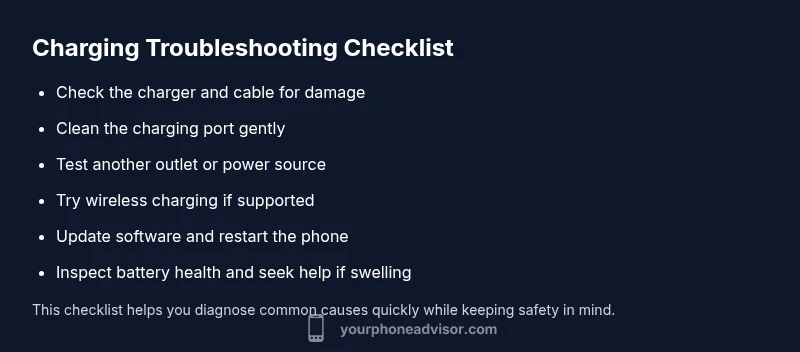
Before you tear into the hardware, run through these quick checks. They cover the most common, easy-to-fix causes and help you decide whether you can DIY or should seek service. - Is the charging cable firmly connected to both the charger and the phone? - Have you tried a different charger or a different cable that you know works? - Is the wall outlet functioning by testing another device? - Do you see dust, lint, or pocket debris in the phone’s port? - Have you updated the phone’s software recently or performed a soft restart? If any answer is no or uncertain, start there. These small steps are often enough to restore charging or reveal the real fault.
Safe cleaning of the charging port
Dust, lint, and pocket debris are frequent culprits. To clean safely: power off the device, use a soft-bristled brush or a wooden toothpick gently to loosen debris, and then blow or use compressed air from a distance. Do not insert metal objects, avoid excessive force, and never use liquids inside the port. If you can’t remove debris safely, stop and move to alternative charging methods or seek professional help. Cleaning is one of the most effective DIY fixes and usually requires only a few minutes.
Testing with alternate accessories
A defective cable or adapter is a dominant cause of charging failure. Test with a known-good USB-C, Lightning, or micro-USB cable, and use a certified wall adapter. If you have access to a wireless charger and your device supports wireless charging, try that as a temporary workaround. When testing, ensure the accessory rating matches your device’s charging standard (PD, QC, or standard USB charging). Note any changes in charging behavior to help triangulate the fault.
Software and battery health checks
Software issues can pause charging or falsely indicate charging problems. Check for OS updates and install any available patches. Restart the phone, then monitor charging behavior. On many devices, you can inspect battery health in Settings (iOS: Battery > Battery Health; Android: Settings > Battery > Battery Health or similar). If health is poor or the device runs hot during charging, this points to battery degradation or thermal throttling, which may require service or a battery replacement.
Hardware issues and safety signs
If you notice visible port damage, bent connectors, or a swollen battery, stop charging immediately and seek professional service. A swollen battery can be dangerous and should not be punctured or pressed. If the device emits a strong odor, becomes excessively warm, or the screen flickers during charging, power it down and consult a technician. Always practice safe handling to avoid personal injury or device damage.
When to seek professional help and how to prepare
If the basic checks and safe DIY fixes don’t restore charging, a professional assessment is warranted. Prepare by backing up data, noting the steps you’ve already tried, and bringing your charger, cable, and the device to the service provider. Ask about port replacement, battery replacement, or motherboard-related charging faults. A qualified technician can diagnose hardware faults and replace components safely, preserving device integrity.
Prevention tips to avoid future charging problems
Preventive care reduces recurring issues. Use the original or certified chargers, avoid cheap third-party cables, and unplug devices from heat sources. Keep ports clean with regular, gentle maintenance, and perform periodic software updates. If you notice frequent hiccups, consider a battery health check every 12–18 months and plan for timely battery replacement when health drops below a practical threshold.
Steps
Estimated time: 45-60 minutes
- 1
Power down and inspect the port
Turn off your device and visually inspect the charging port for lint, lint, or moisture. Look for any loose debris that could block the connector. If you see obstruction, carefully remove it with a soft brush or compressed air from a distance. Do not insert metal objects. This step often resolves intermittent charging without disassembly.
Tip: Use good lighting and a magnifying glass if needed to spot tiny particles. - 2
Try a known-good charger and cable
Connect with a cable and charger you know work on another device. If charging starts, your original accessories are likely at fault. If not, move to the next step. Ensure the charger’s rating matches your device’s charging standards (PD, QC, etc.).
Tip: Avoid extremely cheap third-party cables to reduce further risk. - 3
Test another power source
Plug into a different outlet, power strip, or USB port on a computer. Inconsistent outlets can fail to deliver steady current, giving you a false sense of a port or cable fault. If the device charges from another source, the issue is likely the original outlet.
Tip: Test in multiple rooms to rule out a localized outlet problem. - 4
Restart and check for updates
Restarting can clear software glitches affecting charging. After reboot, check for OS updates and install any that are pending. Then try charging again for a defined window (e.g., 10–15 minutes) to see if behavior improves.
Tip: If you recently installed a new app, consider whether it could interfere with charging. - 5
Assess battery health (where available)
If your device shows battery health information, review it for degradation. A significantly reduced health score often indicates aging hardware. Weight the impact against usage patterns and plan for possible battery replacement if needed.
Tip: On iPhone, battery health insights are under Settings > Battery > Battery Health. - 6
If unresolved, seek professional help
When basic steps fail, a professional diagnosis is prudent. Ask about port cleaning, cable board testing, or battery replacement. A certified tech can verify whether the issue is hardware or software related and perform safe repairs.
Tip: Bring all accessories and a copy of your troubleshooting notes to the appointment.
Diagnosis: Phone won't charge or charges intermittently
Possible Causes
- highDamaged charging cable or adapter
- highDebris or lint in the charging port
- mediumPort damage or bent connector
- mediumOutdated software or OS bug causing charging pause
- lowDegraded battery or battery health issue
Fixes
- easyReplace the cable and adapter with official or certified accessories
- easyClean the charging port safely and re-test
- easyTest a different power source/outlet
- easyRestart the phone and check for OS updates
- mediumIf problems persist, have the battery or port inspected by a professional
Got Questions?
Why won't my phone charge even with a new charger?
If a new charger doesn’t work, check for port debris, damaged cable/port, or software issues. Try a different outlet and ensure the device isn’t in airplane mode or using a faulty USB port. If it still fails, there may be hardware damage.
If a new charger doesn’t work, inspect the port, test different outlets, and consider software or hardware causes.
Can software updates fix charging problems?
Yes, software updates can resolve charging bugs or power management glitches. After updating, reboot and test charging again. If issues persist, broader hardware checks may be needed.
Sometimes, updates fix charging bugs; reboot after updating and test again.
Is wireless charging a workaround when wired charging fails?
If your device supports wireless charging, it can be a workaround while you diagnose wired charging issues. However, failed wireless charging may indicate broader hardware or battery problems that still require attention.
Wireless charging can work as a workaround if your device supports it, but it doesn’t fix underlying hardware problems.
When should I replace the battery?
If battery health is poor or charging is inconsistent despite fixes, replacement is often the most practical solution. A degraded battery affects performance and charging reliability.
A battery replacement is usually best when health is poor and charging is unreliable.
Is it safe to attempt DIY fixes at home?
Many fixes are safe if you stay within basic guidelines. Avoid using metal tools or liquids inside ports, and stop if you see swelling or damage. For complex repairs, seek professional help.
DIY can be safe for simple checks, but avoid risky repairs if you see damage.
What should I do if the phone overheats while charging?
Unplug the device and let it cool before testing again. Check charger compatibility and avoid charging on soft surfaces that trap heat. If overheating continues, seek professional assessment.
Unplug and let it cool; check charger compatibility and avoid heat build-up.
Watch Video
What to Remember
- Check cables and adapters first
- Clean the port safely before disassembly
- Software issues can mimic hardware faults
- Seek professional help for hardware damage or swelling