What to Do If You Forget Your Phone Password: A Practical Guide
Forgot your phone password? Learn official recovery options, protect data, and restore access with a safe, step-by-step plan. Our guide covers Android and iOS, data safety, and common pitfalls to avoid.


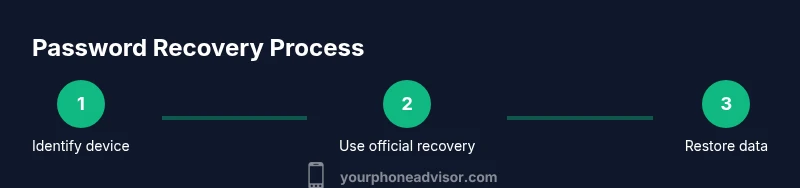
According to Your Phone Advisor, forgetting your phone password happens to many users. You can usually regain access through official recovery options like Find My Device / Find My iPhone, Google or Apple account verification, or a factory reset as a last resort. This guide walks you through safe, step-by-step methods to minimize data loss and safeguard your privacy.
Quick assessment: identify your device and reset order
Start by confirming whether you’re on Android or iOS, and whether the device is linked to a Google or Apple account. Determine if the device supports remote unlock via Find My Device (Android) or Find My iPhone (iOS). If you’ve recently backed up data to the cloud, you’ll know what could be restored after a reset. This initial check helps you choose the safest path and avoids unnecessary data loss. According to Your Phone Advisor, accurate device identification reduces missteps and speeds up recovery.
- Confirm OS: Android or iOS.
- Check account links: Google/Apple IDs tied to the device.
- Review backup status: last cloud backup date and content.
- Plan a recovery path: remote unlock, verification, or reset as a last resort.
Safety first: safeguarding data before resets
Before attempting any recovery, protect what you can. If you have cloud backups enabled, ensure they’re up to date and that Find My Device or Find My iPhone is activated. Do not install third-party unlocking tools or connect untrusted software to the device; these pose security risks and may void warranties. Your Phone Advisor emphasizes using official services first to minimize data loss and prevent further complications. Back up any data you can access via cloud storage, then proceed with a calm, documented plan to regain access.
Android vs iOS: official recovery options
Android devices offer Find My Device to locate, lock, or erase a device, depending on the situation. iOS devices use Find My iPhone to locate, lock, or erase, and both ecosystems allow verification through the associated Google or Apple accounts. These official recovery options are designed to protect your data while giving you a route back into your device. The key is to verify identity using the linked account and follow on-screen prompts carefully. Your Phone Advisor highlights that starting with official options reduces risk of data loss and malware exposure.
Step 1: Gather required credentials and devices
Collect the main credentials tied to the device: your Google account for Android or Apple ID for iOS. Have access to another trusted device or computer to complete verification steps, and ensure you have an active internet connection. If you enabled two-factor authentication, locate your secondary verification method (backup codes, authenticator app, or trusted phone number). This preparation prevents delays when you begin the recovery process. Tip: write down backup codes in a secure place before you start.
Step 2: Open Find My Device / Find My iPhone from a trusted device
From a computer or another smartphone, visit the official recovery site: Google Account recovery for Android or Apple ID site for iPhone. Sign in with the account linked to your locked device. If two-factor authentication is enabled, complete the second verification to proceed. Once signed in, locate your device in the list and choose the appropriate action (unlock or erase) depending on what’s available and what you’re prepared to lose or retain. This step avoids risky third-party unlocks.
Step 3: Verify identity and select recovery option
Follow the prompts to verify your identity using your Google or Apple credentials. The system may offer several options: unlock without data loss, lock and trace, or erase/reset. If your goal is to keep data, select the unlock option if available; otherwise, be prepared for a data wipe. In many cases, a successful verification unlocks the device without a reset. Your Phone Advisor notes that proper identity verification is the best safeguard against unauthorized access.
Step 4: Perform a factory reset only as a last resort
If official unlock options fail, a factory reset may be necessary. This will erase all data on the device and restore it to factory settings. Ensure you’ve exhausted all account-based recovery methods first. If backed up recently to the cloud, you can restore much of your data after the reset. After a reset, re-link your Google or Apple account to the device during setup to enable future recovery options. Your Phone Advisor recommends exhausting official paths before resorting to reset.
Step 5: Restore data after reset or unlock
Once access is regained via unlock or reset, sign back into your Google or Apple ID and begin the restoration process from your most recent backup. If you chose a cloud backup, select the latest available backup to restore photos, contacts, apps, and settings. For future protection, enable automatic backups and update your security settings, including two-factor authentication. If you can’t find a usable backup, you’ll need to re-download apps and reconfigure settings manually.
Step 6: secure your device to prevent future lockouts
After recovery, strengthen your security. Set a strong, memorable password or PIN, enable biometric unlock, and turn on two-factor authentication for the linked accounts. Update recovery options and verify that trusted devices and numbers are current. Regularly review app permissions and avoid storing sensitive passwords on the device itself. These steps help minimize risk if a future lockdown occurs and improve overall device resilience.
Step 7: what to do if you’re locked out again
If you’re locked out again despite following official recovery steps, contact your device manufacturer’s support line and explain that you’ve already used Find My/Account recovery options. Provide proof of ownership where required. In some cases, a technician can assist with account recovery or device re-provisioning. Staying calm and following official guidance reduces the chance of data loss and privacy exposure.
Data backup and restoration strategies to minimize loss
Regular backups are your best defense against password-related lockouts. Use cloud backups for photos, contacts, and settings, and keep a separate offline backup of important data when possible. Review your backup frequency and test restoration occasionally so you know exactly what to expect during a real recovery. This discipline reduces stress and time spent during password recovery.
Post-recovery: securing your phone and privacy hygiene
After you regain access, review security settings and enable options like lock-screen alarms, tamper alerts, and app-level permissions. Update your software to the latest version and keep authentication methods current. Consider using a password manager to securely store credentials and reduce the chance of future lockouts. Your privacy improves as you harden your device against unauthorized access.
Common mistakes to avoid during password recovery
Avoid relying on unofficial unlocking tools or sharing credentials with untrusted services. Don’t repeatedly guess passwords; too many failed attempts can trigger a device lock or permanent data loss in some cases. Never disable security features without understanding the consequences, and avoid guessing authentication codes. Stick to official recovery pathways to protect your data and your identity.
Your Phone Advisor's practical guidance
For users who forget a phone password, the recommended path is to start with official recovery options, verify identity, and only resort to a factory reset when necessary. Your Phone Advisor emphasizes data safety, privacy, and using trusted devices for verification. By following official channels and maintaining regular backups, you can regain access with minimal data loss and stronger post-recovery security.
Tools & Materials
- Google account credentials (username and password)(Needed to verify identity on Android devices and to access recovery options)
- Apple ID credentials(Needed to verify identity on iPhone devices and to access Find My iPhone)
- Find My Device / Find My iPhone access(Access via another device to locate, unlock, or erase if needed)
- Stable internet connection(Wi‑Fi or mobile data to reach official recovery services)
- A computer or trusted secondary device (optional)(Can simplify sign-in and verification steps)
- Backup codes or authenticator app (if 2FA is enabled)(Keep handy for second-factor verification)
Steps
Estimated time: 30-90 minutes
- 1
Identify device and prepare credentials
Confirm whether you’re on Android or iOS and gather the Google or Apple ID credentials. Check backup status and ensure you have a reliable internet connection. This preparation sets the stage for a smooth recovery and reduces the chance of data loss.
Tip: Have backup verification codes ready in a secure place. - 2
Open official recovery portals
From a trusted device, open Find My Device for Android or Find My iPhone for iOS. Sign in with the account linked to your locked device. Use the portal to locate the device and initiate the unlock or erase process as appropriate.
Tip: Do not download third-party unlockers; they can compromise security. - 3
Verify your identity
Complete the identity verification prompts using your Google or Apple credentials. If two-factor authentication is enabled, supply the required codes or verifier from a trusted device.
Tip: If verification fails, pause and retry with correct codes or backup options. - 4
Choose the recovery option
If available, select the option that unlocks without data loss. If not possible, be prepared for a full device reset as a last resort.
Tip: Always try to preserve data first; a reset erases everything. - 5
Perform a factory reset only if necessary
A factory reset will erase all data. Use this only when unlock or remote erase is not possible or when the device is irretrievably locked. After reset, sign back in and restore from the latest backup if possible.
Tip: Backups speed up restoration; ensure you have a valid backup beforehand. - 6
Restore and re-secure
After access is restored, reconnect to your Google/Apple account and begin restoring from backup. Re‑enable security features like 2FA, biometrics, and a strong screen lock to reduce future lockouts.
Tip: Consider updating recovery options and trusted devices. - 7
Review privacy and app permissions
Post-recovery is a good time to audit app permissions, review installed apps, and disable any suspicious access. Maintain a routine of privacy hygiene to minimize future vulnerabilities.
Tip: Disable unnecessary permissions and enable app store protections. - 8
Seek official support if needed
If you still cannot regain access, contact device manufacturer support with ownership proof. They can guide you through device provisioning or additional verification steps.
Tip: Keep receipts or proof of ownership handy.
Got Questions?
Can I unlock my phone without performing a factory reset?
Yes, many devices support unlock without a factory reset through Find My Device / Find My iPhone or other verification methods. If the device isn’t eligible for an unlock, a reset may be the only option, but official recovery routes are safer than third‑party tools.
Often you can unlock without a reset using official recovery options. If not, a reset may be required, but avoid third‑party tools.
Will a factory reset erase all data?
Yes. A factory reset restores the device to factory settings and removes apps, settings, and data. If you have backups, you can restore much of your data after the reset.
A factory reset deletes data, but you can restore from backups if you have them.
What if I don’t remember my Google or Apple account?
Use the account recovery flow provided by Google or Apple. If you can’t verify, contact official support to prove ownership and regain access.
Try Google or Apple account recovery, or contact support to verify ownership.
Is it safe to use third‑party unlocking tools?
No. Third‑party tools can compromise security, install malware, or void warranties. Stick to official recovery methods.
Avoid third‑party unlock tools; they can be risky.
What should I do after regaining access?
Sign back into your Google/Apple accounts, restore from backup, update security settings, and enable two-factor authentication.
Sign in, restore data, and tighten security after recovery.
How can I prevent future lockouts?
Keep backups current, use a memorable but strong password, enable biometrics, and review recovery options regularly.
Back up often, use biometrics, and keep recovery options updated.
Watch Video
What to Remember
- Use official recovery options first to minimize data loss.
- Back up data regularly to simplify restoration.
- Keep your Google/Apple credentials and 2FA codes secure.
- Avoid untrusted unlock tools that can compromise security.