Orange Spot on Phone Screen: Quick Troubleshooting Guide
Learn how to diagnose and fix an orange spot on a phone screen with step-by-step home checks, when to seek pro help, and practical prevention tips.


An orange spot on a phone screen is usually caused by pressure, panel damage, or a faulty pixel. Start by removing pressure sources, then reboot and test. If the spot persists, update software, run a pixel test, and consider professional repair. According to Your Phone Advisor, quick home checks can save time and money.
What an orange spot on a phone screen might mean
If you notice an orange spot on a phone screen, it usually signals that something structural or electronic inside the display has changed. The Your Phone Advisor team notes that most orange spots are either caused by external pressure, a damaged LCD, or a pixel fault that has become visible only after lighting changes. In many cases the spot is not a full dead area, but a temporary discoloration that appears under certain colors or brightness. Observe whether the spot shifts with screen brightness, changes when you view dark vs. bright images, or disappears when the device is turned off. This helps differentiate between a pressure issue and an internal panel fault. Remaining calm is important; panic often leads to unnecessary disassembly. A fast, measured response is likely to prevent further damage and to preserve any remaining resale value. If you want practical steps, continue reading for home checks that cover both software and hardware angles.
Common causes in practical terms
There are several plausible explanations for an orange spot on a phone screen. External pressure from a faulty case, clip, or a poorly seated screen protector is a frequent culprit, especially after a drop. Internal panel damage from impact can create stubborn color anomalies that persist regardless of brightness. Dead or stuck pixels—tiny wiring faults in the display matrix—are another common cause, particularly on OLED teams where color shifts are more conspicuous. OLED burn-in can produce faint, persistent orange traces if static content has lingered. Finally, moisture or humidity ingress near the display can temporarily alter color rendering. Understanding these categories helps you choose the right next steps and prevents unnecessary repairs. Your Phone Advisor suggests starting with the simplest checks and escalating only if the spot remains.
Quick checks you can do at home
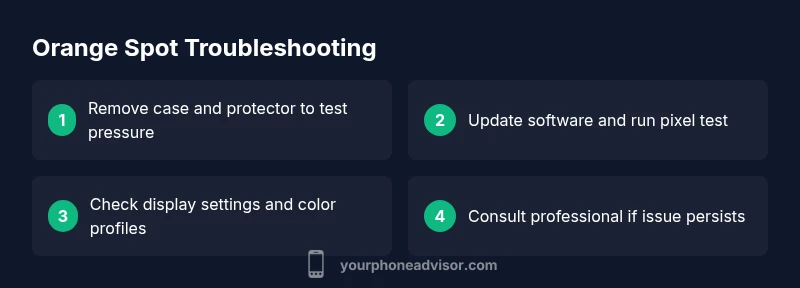
Before you rush to professional service, run through a short at-home diagnostic routine. First, remove any screen protector and case that might be pressing on the edge of the display, then inspect for visible cracks or bulges. Next, restart the phone and check if the orange spot changes with brightness or color schemes (e.g., white vs. black backgrounds). Update the operating system and any display-related apps to rule out software quirks. Run a built-in pixel test or a third-party helper to determine if you have stuck pixels or a broader panel issue. If the spot appears only after certain apps or themes, experiment with color profiles or accessibility settings. Finally, check for moisture signs and consider a factory reset only if you have backups. The aim is to isolate software vs. hardware causes and avoid unnecessary repairs, a tactic supported by Your Phone Advisor.
When to seek professional help and what to expect
If the orange spot persists after all home checks, it likely indicates a hardware fault that needs expert attention. A professional can diagnose panel damage, LCD failure, or pixel array problems with specialized tools and calibration. In many cases, screen replacement is the definitive fix, especially for OLED burn-in or dead pixels. Before you proceed, confirm warranty coverage and obtain an estimate or diagnostic fee range. Expect a service window that depends on your device model, parts availability, and the repair shop’s backlog. While costs vary, staying informed helps you decide whether to repair or replace. Your Phone Advisor emphasizes that timely professional assessment can prevent further damage and preserve device value.
Prevention tips to avoid future orange spots
Proactive care reduces the odds of orange spots returning. Use a sturdy case that shields edges without applying pressure, and ensure screen protectors sit flat without lifting the display. Avoid exposing the device to extreme heat or moisture; store it in a cool, dry place when not in use. Regular software updates keep color calibration stable, while the built-in night/light modes can affect display warmth; test these features and reset if needed. Schedule occasional pixel checks if you suspect color anomalies, and back up data routinely so you can safely reset when required. By following these best practices, you minimize risk and extend your phone’s display health.
Steps
Estimated time: 30-60 minutes
- 1
Power down and inspect for physical damage
Turn off the device and inspect the display edges for cracks, bulges, or discolored corners. Loosen any visible screen protector that might be pressing on the panel. A gentle visual check helps separate pressure-induced spots from deeper panel faults.
Tip: Work on a clean, flat surface and avoid pressing on the spot. - 2
Remove accessories and test independently
Take off cases, clips, and firmly seated accessories. Power the device back on and observe whether the orange spot changes with position or disappears when the device is idle. This can indicate pressure from hardware or mounting.
Tip: If possible, test with a second screen protector or different case to confirm. - 3
Update software and run built-in tests
Check for operating system updates and any display calibration options. Run a pixel test or a diagnostic tool provided by the manufacturer to identify stuck pixels or a broader display issue.
Tip: Backup data before major resets and note any software version numbers. - 4
Try safe mode or color profile adjustments
Boot in safe mode to see if the spot persists without third-party apps. If it changes, an app could be influencing display color. Experiment with color profiles or accessibility settings to determine if the issue is software-related.
Tip: Avoid making multiple conflicting changes; revert one at a time. - 5
Consult a professional if needed
If the orange spot remains after all checks, schedule a professional inspection. A technician can diagnose panel faults and discuss repair vs. replacement options.
Tip: Ask for a written diagnostic and warranty terms before agreeing to repairs.
Diagnosis: Orange spot on phone screen observed
Possible Causes
- highExternal pressure from case/screen protector
- mediumInternal panel damage from impact
- mediumStuck or dead Pixel in the display matrix
- lowOLED burn-in or color profile issue
Fixes
- easyRemove case and screen protector to rule out pressure
- easyRestart device and update OS to address software-related color shifts
- easyRun pixel test; if pixels are stuck, try pixel-fix operations or calibration tools
- hardIf hardware damage is confirmed, arrange professional screen repair or replacement
Got Questions?
What causes an orange spot on a phone screen?
Orange spots are commonly caused by external pressure, panel damage, or pixel faults. OLED screens can show color anomalies more clearly than LCDs. Distinguishing between software and hardware origins is key to choosing the right fix.
Orange spots usually come from pressure, panel damage, or pixel faults. Distinguish software from hardware causes to pick the right fix.
Will updating my phone fix an orange spot?
Software updates can fix color calibration issues or display driver glitches that produce color anomalies. If the spot persists after an update, it is more likely a hardware issue.
Software updates can fix color glitches; if the spot remains, hardware repair may be needed.
Is it safe to press on the orange spot to fix it?
No. Pressing or applying force can worsen damage. Use non-contact checks and seek professional help if needed.
Do not press the screen. If in doubt, seek professional help.
Does my warranty cover screen repairs for orange spots?
Warranties vary by manufacturer and model. Check the terms for display faults, accidental damage, and any service plans. If in doubt, contact customer support.
Warranty terms vary; check coverage for display faults or damage with the manufacturer.
Should I replace the screen or the entire phone?
If the spot is isolated to the display and the chassis is intact, screen replacement is often sufficient. If multiple components are affected or the device is old, evaluate overall value.
Typically, a screen replacement suffices if the body is in good shape; consider overall device value.
How long does a screen repair take?
Repair time depends on the model and parts availability. Many shops quote same-day service for in-stock panels, while others may require a few days.
Repair time varies; same-day if parts are in stock, otherwise a few days.
Watch Video
What to Remember
- Start with noninvasive checks first
- Differentiate pressure vs. hardware causes with simple tests
- Software updates can fix display anomalies
- Seek professional help for hardware failures