Dark Spot on Phone Screen Troubleshooting: Solutions That Work
Urgent guide to diagnose and fix a dark spot on your phone screen. Learn quick checks, a diagnostic flow, step-by-step fixes, safety tips, and when to seek professional repair.


Quick fix: start with software checks and non-destructive tests. The most likely causes are software glitches, screen protector pressure, or LCD/OLED panel issues. Begin with a soft reboot, remove the protector, and test in safe mode. If the spot persists, move to deeper diagnostics and consider professional help if hardware damage is suspected.
What a dark spot on a phone screen is and why it matters
A dark spot on a phone screen can be a dead pixel, a stuck pixel, or damage from pressure, moisture, or heat. It may appear as a fixed mark or a cloudy patch, and it can worsen over time if ignored. For many users, the first impulse is concern, but not every spot signals a catastrophic failure. Early, calm troubleshooting can reveal whether it's software-related, a surface issue, or hardware failure. According to Your Phone Advisor, most screen spots are fixable when addressed early, especially when the cause is software or surface-related rather than a full-panel defect. So, start with safe, non-destructive checks to protect data and avoid unnecessary repairs.
Important: If the spot changes shape, grows, or spreads to nearby areas, treat it as a potential hardware problem and seek professional assessment quickly. This article guides you through a logical, urgent troubleshooting flow that emphasizes safety and data protection while helping you determine the likely cause.
Common causes of a dark spot on a phone screen
A dark spot can stem from several root issues. A software-driven stuck pixel or a temporary image retention can mimic a dark spot, especially after a heavy app or game session. Burn-in is a common concern on OLED displays, where a persistent image leaves a faint ghost. Surface-related problems include pressure damage from a hard impact or a pressed edge, or debris trapped under a screen protector. Moisture intrusion can corrode layers and create staining. A damaged or defective display panel, especially after a drop or exposure to heat, is a hardware problem that typically requires service. Screen protectors with aggressive adhesives or trapped air pockets can also cast a dark patch. In short, software glitches are often reversible, while hardware issues demand professional attention. Your Phone Advisor emphasizes distinguishing surface or software issues from panel damage to avoid unnecessary repairs and preserve data.
Quick checks you can do now to identify the cause
- Reboot the device to clear minor software glitches and observe if the spot persists. A full power cycle can resolve transient artifacts.
- Remove any screen protector or case that could press on the display or trap air around the edges. Re-test the display after removal.
- Clean the screen with a microfiber cloth to rule out dirt, oils, or residues that look like a spot. Avoid harsh cleaners.
- Test in safe mode (Android) or quit applications on iOS to rule out third-party apps causing display anomalies. If the spot disappears in safe mode, the issue is likely software-related.
- Check for a recent OS update or a known display bug in the release notes. If an update exists, install it and retest.
- Compare brightness and color across different apps and white screen tests to see if the spot remains constant across background colors. If it varies, it’s more likely software-based; if it’s fixed, hardware is more probable.
How to test if it's software vs hardware
Software-related issues often move or disappear with a reboot or app changes. Hardware problems stay fixed in place and may become more noticeable with screen brightness or temperature. Start with a clean boot (safe mode), then perform a color test using built-in color calibration or a pixel-testing app. If the spot persists across all colors and test screens, it’s likely hardware-related. On OLED screens, burn-in tends to be more visible with static UI elements (status bars, navigation buttons) left on for long periods. If a software fix is not enough, prepare for possible panel inspection or replacement by a qualified technician.
Diagnostic flow: symptom → diagnosis → solutions
- Symptom: Dark spot on screen that remains visible across apps and colors.
- Diagnosis: Could be software glitch or display hardware issue. Run software tests and hardware tests in sequence.
- Solutions: If software-related, apply updates or factory reset after backing up data. If hardware-related, schedule professional assessment for repair or panel replacement. Always back up data before major steps, and consider warranty coverage if applicable.
Step-by-step overview (not a substitute for the full guide)
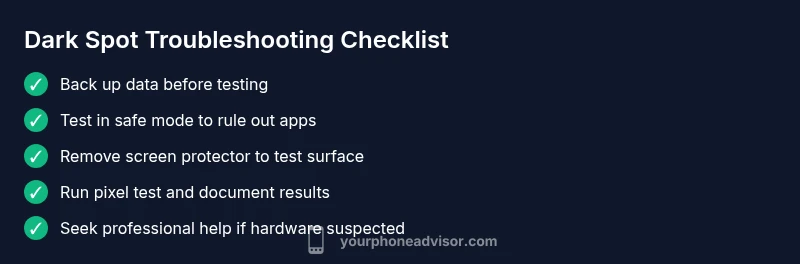
This section provides an overview of the most common fixes. For a detailed, step-by-step procedure, see the dedicated STEP-BY-STEP block below. In brief, begin with data backup, then isolate software, then surface tests, then decide on professional repair if needed. Do not attempt aggressive surface manipulation or heat exposure, as that can worsen panel damage.
Safety tips and precautions
- Do not rub or press hard on the spot; it can cause further damage or moisture ingress.
- Avoid applying heat or chemical cleaners to the screen.
- Always back up important data before performing major troubleshooting.
- If you hear unusual cracking sounds or see liquid near the display, stop using the device and seek professional help immediately.
- If your device is under warranty, contact the manufacturer or authorized service provider first, as improper handling can void coverage.
Prevention and long-term care for your display
- Use a protective case and high-quality screen protector that does not press on the display edges.
- Avoid carrying the device in tight pockets or under heavy loads that press on the screen.
- Limit exposure to high heat and direct sunlight, which can accelerate panel degradation.
- Regularly update software to prevent glitches and image retention from lingering apps.
- Schedule periodic professional checkups if you notice recurrent display anomalies, especially after drops or moisture exposure.
Steps
Estimated time: 60-90 minutes
- 1
Back up data and prep
Begin with a full data backup to prevent loss during troubleshooting. Ensure you have cloud or local copies of contacts, photos, and app data. Clear space if needed so updates or resets can proceed smoothly.
Tip: Use multiple backup methods (cloud + local) for security. - 2
Reboot and test in safe mode
Power the device off, then back on in safe mode to disable third-party apps. Observe whether the dark spot remains. If it vanishes in safe mode, a third-party app is the likely culprit.
Tip: Note which apps were recently installed before the issue began. - 3
Check for updates and reset if needed
Install any available OS updates. If the issue persists, consider a factory reset after backing up. This helps determine if software corruption is the cause. Remember to re-install only essential apps afterward.
Tip: Factory reset as a last resort; keep a backup ready. - 4
Remove accessories and clean the screen
Take off any screen protector and case. Clean the screen with a microfiber cloth to rule out residue causing the spot. Re-test the display after cleaning.
Tip: Inspect the edge area where the case or protector might press. - 5
Run a pixel test and color sweep
Use built-in color tests or a reputable pixel test app to cycle colors and detect stuck or dead pixels. Document results with photos for reference.
Tip: Capture a short video during color tests to share with a technician. - 6
Decide on next steps
If the spot remains in all tests, schedule a professional assessment. If it’s hardware-related, plan for panel repair or replacement. Do not delay if the device is still under warranty.
Tip: Check warranty coverage and service options before repair.
Diagnosis: Dark spot on screen that persists after a soft reset
Possible Causes
- highSoftware glitch or stuck pixel that can be refreshed
- lowSurface issue from screen protector, oils, or debris
- mediumHardware damage to the panel from pressure, impact, or moisture ingress
- lowManufacturing defect or wear-related panel degradation
Fixes
- easyPerform a soft reset and check for OS updates
- easyTest in safe mode to rule out third-party apps
- easyRemove screen protector to rule out adhesive or debris
- mediumBackup data and consult repair service if spot persists
- mediumIf hardware damage is suspected, stop using the device and seek professional assessment
Got Questions?
What causes a dark spot on a phone screen?
A dark spot can be caused by software glitches, stuck pixels, burn-in on OLED, or hardware damage from pressure or moisture. Start with software checks and surface inspections before considering repair.
Dark spots can come from software glitches, stuck pixels, burn-in, or hardware damage. Begin with software checks and surface inspections to identify the cause.
Can a dark spot be fixed without replacing the screen?
Some software-related spots can be resolved with updates or resets. If the spot persists and hardware damage is suspected, panel replacement or professional repair is usually required.
If it’s software-related, you might fix it with updates or a reset. If hardware damage is suspected, you’ll likely need a screen replacement.
Is a dark spot a sign of water damage?
Water or moisture exposure can cause staining or corrosion that appears as a dark spot. Look for other moisture signs like foggy display or corrosion; if present, stop using the device and seek professional help.
Moisture can cause dark spots. If you see signs like fogging or corrosion, get professional help promptly.
Should I rub or press the screen to remove the spot?
No. Rubbing or applying pressure can worsen damage. Use software tests and non-destructive checks first, then consult a professional if needed.
Don’t rub the screen. It can make the spot bigger. Start with software tests and then seek help if needed.
When should I contact a professional?
If the spot remains after software checks and safe-mode tests, or if you notice any hardware symptoms (response lag, discoloration spreading), seek professional repair. Check warranty coverage first.
If software checks don’t fix it and hardware damage seems possible, get a professional repair. Check your warranty first.
Watch Video
What to Remember
- Back up data before diagnosing
- Start with software checks to rule out glitches
- Hardware damage requires professional repair
- Protect the display to prevent future spots