Blue Spot on Phone Screen: Troubleshoot and Fix Guide
Urgent guide to diagnose and fix a blue spot on your phone screen, covering stuck pixels, panel damage, software factors, and repair options with safety tips and prevention.


An urgent, hardware-related issue is usually the cause of a blue spot on a phone screen—often a stuck pixel or panel damage. According to Your Phone Advisor, start with a quick pixel test and a soft reset, then check for software updates and display settings. If the spot persists after safe troubleshooting, arrange professional repair. This initial triage prevents wasted time on unlikely software fixes.
What a blue spot on phone screen typically indicates
A blue spot on the display is most often a hardware symptom rather than a casual software glitch. On OLED panels, a single exposed subpixel can appear bluish, and a group of affected subpixels may form a visible spot. In LCD panels, a damaged backlight or pixel matrix can also create blue artifacts. Urgently assess whether the spot changes with on-screen color, brightness, or viewing angle, because that can distinguish pixels from broader panel damage. Your Phone Advisor notes that early-stage pixel defects are common after drops or prolonged pressure, while panel faults usually worsen with time. If you notice irregular color at multiple angles or across apps, prioritize a diagnostic with a technician.
Pixel-level vs panel-level issues: how to tell them apart
Pixels are the tiny drivers of color. A stuck pixel remains fixed in a color, often blue or red, while a dead pixel stays black. If only one or a few pixels are affected and you can still display a normal image elsewhere, the issue is likely pixel-related. A broader blue tint or a patch that remains even after a full screen refresh suggests panel damage or backlight problems. This distinction matters because it guides the repair path and potential warranty coverage. If you’re unsure, move on to structured testing methods and safe remedies.
Quick ambient checks you can perform safely
Before tearing into hardware, perform noninvasive checks: power off and restart the device, update the OS to the latest version, and reset display settings to default color profiles. Run a built-in pixel test or a simple white screen test under bright light to observe the spot’s behavior. If the blue spot disappears on a white background but reappears with certain content, software rendering or color calibration might be involved. Never press hard on the screen; excessive force can worsen underlying damage.
Software and color settings that can mimic hardware issues
Color profiles, accessibility options, and dark mode can subtly shift how colors render on the screen. Some devices allow you to switch between Vivid, Natural, or sRGB color profiles; an improper profile can amplify a tint that looks like a blue spot. Check battery saver and refresh rate settings, as aggressive throttling or high refresh rates can cause transient artifacts. If nothing changes after adjusting these, the issue is more likely hardware-based. Your Phone Advisor emphasizes a cautious approach: treat software adjustments as a diagnostic step, not a guaranteed fix.
Mechanical and environmental contributors to blue spots
Pressure, bending, or impact from drops can cause microcracks or backlight misalignment, which manifest as blue patches. Temperature swings, humidity, and dust ingress near seams can also influence display color. Examine the device for signs of deformation, corner damage, or a screen protector that’s pulling at the edges. If the blue spot appears after a specific incident or when the device is warm, prioritize a professional inspection to determine if the display needs realignment or replacement. Your Phone Advisor cautions that cosmetic changes don’t always mean safe DIY fixes.
Safe DIY fixes you can attempt now (with caution)
If you suspect a pixel fault, you can try software-based pixel refresh tools offered by reputable manufacturers or your device’s own diagnostic app. Gently cycling the screen with static white frames may help some stuck pixels, but avoid aggressive pressure or massaging the area. Back up your data before attempting resets, and avoid disassembling the phone. Document the spot’s size and color before and after tests to help a technician diagnose accurately. If the blue spot persists after these steps, it’s time to seek professional repair.
When to contact professional repair or manufacturer support
Persistent blue spots, especially after a safe 2-3 step triage, typically require a hardware assessment. If your device is under warranty, contact the manufacturer or authorized service center for diagnostic options and potential screen replacement. If not, compare repair quotes from authorized providers and consider the device’s value and age. Bring along purchase receipts, the steps you’ve tried, and photos of the blue spot to speed up the evaluation. Your Phone Advisor recommends securing data first, then scheduling a screen evaluation with a trusted technician.
Prevention: protect your display and extend its life
Invest in a quality screen protector and a robust case to minimize pressure points around the edges. Avoid placing phones in tight pockets or under heavy objects. Regularly update software to minimize rendering problems, and consider gentle, periodic pixel tests to catch issues early. If you notice color shifts during high brightness or gaming, reduce screen brightness and enable high-refresh rate optimizations cautiously. Prevention isn’t foolproof, but it significantly lowers the risk of visible blue spots developing over time. Your Phone Advisor stresses proactive care as the best defense.
What to expect next: repair timelines and data safety
Hardware repair timelines vary by model, location, and availability of replacement panels. Some OLED displays require calibration after replacement, which can add a day or two to the process. Back up your data immediately and verify that your data remains intact after any diagnostic steps. If your device is still under warranty, you should expect quoted costs to be minimal or covered. The key is to stay informed, document every step, and work with authorized service providers to protect device integrity.
Steps
Estimated time: 60-90 minutes
- 1
Back up your data
Secure your photos, messages, and app data before testing or repairing. Use cloud backup or a local option, and confirm a successful restore later.
Tip: Create a restore point or backup verification before risky steps. - 2
Run a pixel test
Use a built-in diagnostic tool or a reputable pixel test app to identify stuck vs dead pixels. Note whether the blue spot remains on a pure white screen.
Tip: Take screenshots of the test to document the results. - 3
Soft reset / restart
Power off completely, wait 30 seconds, and boot again. Observe if the spot changes during the boot sequence.
Tip: Avoid forceful button combinations that could trigger other issues. - 4
Check for updates
Install any available OS or firmware updates. A software fix can sometimes address rendering anomalies.
Tip: Ensure your battery is sufficiently charged before updating. - 5
Test in safe mode
Boot into safe mode to rule out third-party apps contributing to the artifact. If the spot disappears, a misbehaving app may be the culprit.
Tip: Note which apps were active when the test started. - 6
Try pixel-refresh tools (if available)
Some manufacturers offer tools to cycle pixels; use only official solutions from the device maker.
Tip: Do not use unverified software that claims to fix hardware faults. - 7
Consult a professional
If the blue spot persists after all safe steps, schedule an evaluation with an authorized service center for panel inspection or replacement.
Tip: Bring evidence from tests and your backup plan. - 8
Protect and monitor
After any repair or test, monitor for color stability. Apply a screen protector and use a protective case to minimize future injury.
Tip: Document post-repair color consistency for warranty records.
Diagnosis: Blue spot on phone screen persists across apps and content, not affected by color changes.
Possible Causes
- highStuck pixel or subpixel defect
- mediumPanel damage or backlight issue due to pressure/impact
- lowSoftware-driven color issue or calibration fault
Fixes
- easyRun a built-in pixel test and perform a soft reset / restart
- easyUpdate OS and reset color profiles or display settings to defaults
- hardIf the spot remains, schedule professional repair or panel replacement
Got Questions?
What is the most common cause of a blue spot on a phone screen?
The most common cause is a hardware fault, typically a stuck pixel or panel damage. Software glitches are less likely to create a persistent blue patch. A proper test helps determine the right path—from software tweaks to professional repair.
Usually hardware, like a stuck pixel or panel damage. Run tests and update software, then see a technician if it stays.
Can software updates fix blue spots on OLED or LCD screens?
Software updates rarely fix a genuine display defect. If colors shift after an update, it might be related to calibration, but a persistent blue spot usually points to hardware. Use software tests only as a diagnostic step.
Updates can fix glitches, but persistent blue spots are usually hardware.
Will a blue spot be covered under warranty?
Warranty coverage depends on the defect and policy. Manufacturing defects are often covered, while accidental damage might not be. Check the terms and contact the manufacturer or an authorized service center for a definitive assessment.
Warranty depends on the defect type; contact support for a formal evaluation.
Is it safe to press or rub the blue spot to fix it?
No. Pressing or rubbing can worsen the damage and cause additional backlight or panel faults. Stop interacting with the area and proceed with non-contact diagnostics instead.
Avoid pressing the spot; it could make things worse.
How long does a screen repair typically take?
Repair timelines vary by model and availability of parts. Most repairs take a few days to a week, depending on whether the panel needs replacement and the service center’s queue.
Most repairs take a few days to a week, depending on parts.
What can I do to prevent blue spots in the future?
Protect the screen with a sturdy case and a high-quality screen protector, avoid pressure in pockets or bags, and keep software up-to-date. Regular safe tests can catch issues early before they worsen.
Use a case, protect the screen, and keep software current.
Watch Video
What to Remember
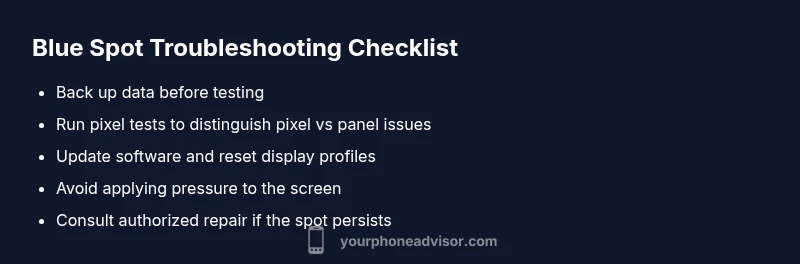
- Back up data before testing hardware faults.
- Differentiate pixel vs panel issues to choose the repair path.
- Only use manufacturer-approved tools for pixel fixes.
- Seek professional repair for persistent blue spots.
- Protect the screen to prevent future defects.