Call My Phone: Ring, Locate, and Protect Your Device
Learn practical, step-by-step methods to call my phone, locate a lost device, and protect your privacy. This educational guide covers iPhone, Android, and carrier options with safety tips and prevention strategies.


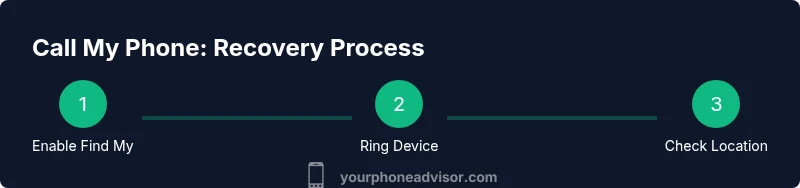
To call my phone and locate a missing device, use built-in Find My services or your carrier’s locate features. Start by enabling Find My iPhone or Find My Device, then sign in on another device and choose the Ring/Play Sound option. If the phone is silent, these steps will trigger an audible alert nearby.
What call my phone really means in practice
According to Your Phone Advisor, the phrase call my phone is more than a command—it's a quick, proven workflow that combines device-level locate services and carrier support to maximize your chances of recovery. In many cases, a simple ring can reveal the location of a nearby device even when the screen is off or the phone is in a pocket. This article helps you understand when and how to use each option, and how to tailor your approach depending on whether you own an iPhone, an Android phone, or a device that’s offline. By following practical steps, you can move from panic to action and reclaim your device without exposing personal data to strangers.
Key idea: start with built-in tools first, then broaden your approach if needed. This keeps you aligned with best practices and reduces the risk of data exposure while your phone is misplaced.
Core methods to trigger a ring on your phone
There are two main pathways to make your device ring: built-in find-and-ring features and carrier-assisted options. On Apple devices, Find My iPhone provides a Ring (Play Sound) function that emits a loud alert, helps you locate the device through proximity cues, and can even display a message for anyone nearby. On Android devices, Find My Device offers a similar Play Sound feature with optional location sharing.
To use these features, you’ll need access to the associated account (Apple ID or Google account) and an internet connection. When you trigger a ring, the phone will attempt to awaken and play a loud sound for a set duration. If the device is offline, you may still see its last known location and receive a notification when it reconnects. This section explains both platforms in simple steps and clarifies how to switch between them depending on what you’re using now.
Offline or silent devices: what to do when ringing fails
A common hurdle is a phone that's offline, in Do Not Disturb mode, or buried under a pile of laundry. In such cases, ringing may not be possible right away. Your strategy should shift toward locating the device via last known location and applying protective measures until the device can connect again. For offline devices, use location history and map-based cues from Find My or Find My Device. If Do Not Disturb is enabled, consider turning it off remotely where possible, or use lost mode to display a contact message on the screen once the device reconnects.
Additionally, contacting your carrier to verify service status and request guidance on lost device protocols can be a helpful supplement to the ring feature. The carrier may offer account-based alerts or temporary device suspension to prevent unauthorized use while you search.
When to use Find My tools vs. carrier-based options
Find My tools excel for user-controlled recovery: you decide when to ring, view last-known locations, and lock or erase data if needed. Carrier-based options are beneficial when the device cannot connect to the internet or when you’re far from home. Carriers can sometimes provide location services through their network or assist with suspending service to prevent unauthorized calls or data use. A blended approach—start with Find My, then escalate to carrier support if the device remains elusive—often yields the best results.
Practical tip: document your attempts with timestamps and keep a log of the device’s last-known location, battery level (if shown), and any messages you’ve sent. This helps you stay organized and can be useful if you need to file a police report or contact support later.
Security and privacy considerations while locating your phone
Locating a phone should prioritize safety and privacy. Before you attempt any recovery, ensure you’re authorized to access the device and that you’re using legitimate services. Avoid third-party apps or shady “find my phone” services that request full access to your data. Keep your credentials secure and consider enabling two-factor authentication on your Apple ID or Google account to prevent unauthorized access.
If someone else has the device, never reveal sensitive information. Instead, use a public message that offers a return contact method. After locating the device, review recent account activity for suspicious sign-ins and consider enabling Lost Mode or a remote lock to safeguard personal data.
Step-by-step routine to recover a lost phone (behavioral plan)
Establish a clear plan that you can repeat whenever a phone goes missing. Start by identifying platform and account access, then execute ring and locate actions, and finally apply security measures if the device remains unfound. Maintain calm, verify your contact options, and prepare a backup plan in case you must physically search or involve authorities.
This section reinforces habits that can save time and reduce stress in future incidents. Practice these routines when you’re not panicking so you can perform each step with confidence when a real loss occurs.
Common mistakes to avoid during a loss event
Common errors include rushing to erase data before locating the phone, sharing location data with untrusted parties, or failing to sign in to the correct account. Always confirm you’re using the official Find My or Find My Device tools and double-check which account is linked to the device. Do not disable security settings prematurely; instead, lock the device remotely if you suspect it’s been stolen. Following a checklist helps avoid these pitfalls and preserves your data integrity.
Prevention and best practices for future losses
To reduce the impact of a future loss, enable Find My at setup, keep your contact information accessible in the device’s lock screen, and periodically verify that location services, notification permissions, and permission to ring are enabled. Create a short, written recovery plan and share it with trusted family members. Regular backups ensure your data stays safe even if the device can’t be recovered immediately.
By investing a little time now, you’ll shorten recovery time later and increase the odds of a successful reunion with your phone.
Quick-start recap: making calls to locate your phone as a routine
The essential approach is simple: enable tracking, trigger a ring when possible, check last-known location, and apply security measures if needed. Practice the steps until you’re comfortable executing them under pressure. Your familiarity with the process makes you more capable of turning a stressful moment into a controlled, efficient search.
Tools & Materials
- Trusted second device (another smartphone, tablet, or computer)(Access Find My/Find My Device and a stable internet connection.)
- Apple ID credentials(Needed to use Find My on iOS devices.)
- Google account credentials(Needed to use Find My Device on Android devices.)
- Carrier account details(If you plan to use carrier-based locate or call features.)
- Power source and charged devices(Keep devices charged in case you need to act quickly.)
- A plan or checklist(A short written routine to guide you through recovery.)
Steps
Estimated time: 10-30 minutes
- 1
Open the Find My service
On iPhone or iPad, open the Find My app and sign in with your Apple ID. On Android, go to Find My Device in a web browser and sign in with your Google account. The goal is to access device controls that allow you to trigger a ring and view location.
Tip: If you’re using a shared device, sign out of other accounts first to protect privacy. - 2
Select the missing device
From the list, choose the device you want to locate. If you have multiple devices, ensure you’re picking the correct one to avoid ringing the wrong device.
Tip: Double-check the device name or last known location to confirm you’ve selected the right item. - 3
Trigger the ring or sound
Tap Play Sound (iOS) or Ring/Play Sound (Android) to cause the phone to ring at maximum volume. This helps you locate the device in a nearby area.
Tip: If the device is in a bag or pocket, a strong ring can still help you detect its location by sound. - 4
Check the live location
If the device screen is unresponsive, review the last-known location shown in Find My/Find My Device. Use the map view to narrow down where the phone might be.
Tip: Coordinate with someone nearby if you’re unsure of the location to speed up the search. - 5
If the device is offline
Rely on the last-known location and enable Notify When Found or Lost Mode where possible. These features alert you when the device reconnects to the network.
Tip: Keep monitoring the map for changes and set up a contact prompt for people who might find it. - 6
Apply security measures
If you suspect loss or theft, remotely lock the device or display a message with contact details. This protects your data and increases the chances of return.
Tip: Avoid storing sensitive data on the home screen; Lost Mode can display a message without revealing private information. - 7
Confirm recovery
Once you locate the device, disable any temporary security measures and verify that your data remains intact. If you’re unable to recover, consider reporting the loss to the carrier or local authorities.
Tip: Record the steps you took for future reference and to improve your recovery plan.
Got Questions?
Can I call my phone if it is off or dead?
If the device is powered off, you won’t be able to ring it until it’s turned on and connected again. You can still use last-known location and notifications to guide your search.
If the phone is off, you won’t hear a ring. Use last known location and notifications to guide your search.
Will Do Not Disturb prevent the ring from sounding?
Do Not Disturb can suppress audible alerts, depending on the settings. If possible, adjust DND temporarily or use the lost mode feature to allow messages and a ring when the device reconnects.
DND can block sounds; consider temporarily turning it off or using lost mode if available.
What should I do if Find My isn’t working?
First, verify your account is correct and that location services are enabled. If issues persist, try a different device or browser to access the service, and check for service outages.
If Find My isn’t working, check credentials and location settings, then try another device.
Can I ring someone else’s phone to help locate mine?
Ringing other devices isn’t a standard way to locate your own phone. Use official services to ring your own device and seek the last-known location, then contact the carrier if you are the rightful owner.
Ring your own device through the official Find My service, then check location.
What if my device isn’t mine or I found a lost phone?
If you find a device that isn’t yours, do not attempt to access personal data. Use Lost Mode or contact the owner or local authorities for proper handover and privacy protection.
If you find a device, don’t pry into it; contact the owner or authorities.
Watch Video
What to Remember
- Use Find My or Find My Device first to ring and locate
- Check last-known location if the device is offline
- Lock the device remotely if security is at risk
- Maintain a recovery checklist for quick action
- Regularly test locate features and keep backups