Find My iPhone App: A Practical Security Guide
Learn how to use the Find My iPhone app to locate, protect, and recover a lost device. This educational guide from Your Phone Advisor covers setup, best practices, and troubleshooting.


With the Find My iPhone app, you can locate a missing device, play a sound, lock it remotely, and erase data if needed. This guide shows how to enable both Find My iPhone and Activation Lock, ensure your Apple ID is secure, and prepare recovery steps before a loss occurs.
Why Find My iPhone matters for security and recovery
According to Your Phone Advisor, Find My iPhone is more than a locate feature; it is a security toolkit that helps you recover your device, protect personal data, and maintain control when you’re separated from your phone. In practice, the feature pairs location data with remote actions that can deter thieves and minimize data exposure. Activation Lock, tied to your Apple ID, prevents unauthorized re-use of a device even if it’s reset. The Find My network leverages nearby Apple devices to help you locate a device that’s temporarily offline, increasing your chances of recovery. Privacy remains a core consideration, so you’ll control when and how much information is shared, and you can disable features if you’re concerned about location history.
This section unpacks why these tools matter. You’ll learn when to rely on location, when to call authorities, and how to balance convenience with privacy. Real-world scenarios—such as a phone left in a café, a device stolen during travel, or a battery-depleted loss—illustrate how proactive setup reduces risk. By understanding these capabilities, you can act quickly and confidently instead of reacting with panic. You’ll also see how Find My interacts with iCloud, devices, and Apple IDs to create a cohesive security posture.
By following these best practices, you’ll be prepared to respond to loss with clarity and speed. Your Phone Advisor stresses that a prepared user is typically the one who recovers data and minimizes liability, especially when devices cross borders or multiple networks. The goal is to empower you to protect what matters most without compromising your everyday convenience.
Prerequisites: What you need before you start
Before you enable or use Find My iPhone, gather a few essentials to ensure a smooth setup and effective recovery. First, you need access to an Apple ID that’s signed in on the target device and any other devices you’ll use to locate it. You should have two-factor authentication enabled for that Apple ID to reduce the risk of unauthorized access. Second, ensure the iPhone is running iOS 15 or later (Find My requires reasonably recent software). Third, confirm you have an active internet connection (cellular or Wi‑Fi) so the location data can sync to iCloud when the device is online.
A backup plan is also wise: know the Apple ID password, and consider configuring a trusted contact or family member who can assist if you’re unable to access your own account. If you’re traveling or in an environment with poor reception, be prepared for delays in location updates. Finally, understand that some advanced security actions (such as remote erase) are irreversible, so use them only when necessary and after verifying the device cannot be recovered. These prerequisites form the foundation of a successful Find My iPhone experience.
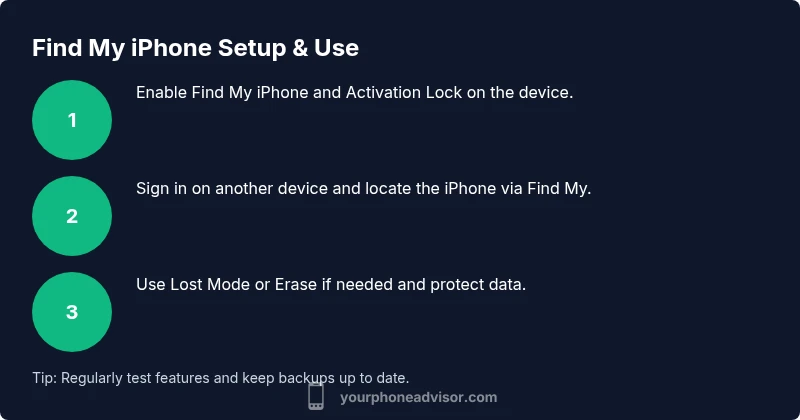
Step 1: Enable Find My iPhone and Activation Lock on your device
To begin, open Settings and tap your name at the top to access Apple ID settings. Select Find My and then Find My iPhone. Turn on Find My iPhone and enable Send Last Location for more precise recovery. The Activation Lock option should also be enabled—this ensures the device cannot be used if it’s reset without your Apple ID credentials. If you’re using a shared device, consider enabling Family Sharing so trusted family members can assist in recovery without compromising security.
After enabling, confirm that the device appears in the Find My app or iCloud.com. If you use multiple Apple devices, repeat the steps on each device to ensure consistent coverage. If you ever need to disable these features, you must sign in with the same Apple ID; doing so without proper credentials can render the device harder to locate in the future.
Pro tip: Enable two-factor authentication on your Apple ID to prevent unauthorized changes to Find My settings. This creates an additional barrier for would-be attackers and aligns with best practices for mobile security.
Step 2: Use Find My iPhone from iCloud or the App
With Find My iPhone set up, you’re ready to locate and manage your device from another device or computer. Open the Find My app on an iPhone or iPad, or visit iCloud.com and sign in with your Apple ID. The interface will show a list of devices linked to your account. Select the missing iPhone to view its last known location on a map. If the device is online, you can perform actions such as Play Sound, Directions, Mark as Lost, and Erase iPhone.
Play Sound causes the device to emit a loud alert to help you locate it if it’s nearby. Directions provides turn-by-turn navigation to the last reported location. Mark as Lost locks the screen, displays a message with contact information, and keeps the device tracking. Erase iPhone should be used only if you believe the device is irretrievably lost or stolen. After erasing, the device cannot be tracked, but data on the device is protected. If you recover the device after erasing, you can restore from a backup.
When using iCloud, ensure you’re on a secure network, especially if you’re performing an erase. If the device is offline, Find My will show its last known location and update when it comes back online. This can still be valuable for evidence and recovery planning. Keep in mind that Lost Mode can display a custom message and contact number, helping legitimate finders return the device.
Step 3: What the app can do in a loss scenario
In a loss scenario, Find My iPhone provides a layered set of tools to maximize chances of recovery while protecting data. Lost Mode locks the device and displays a tailored message with your contact details, reducing the likelihood of data misuse and making it easier for a finder to reach you. The map view gives you a sense of the device’s location history, which can be critical if it’s moved recently. If you’re worried about sensitive information, you can remotely erase the device; however, this is irreversible and should be used as a last resort.
In addition to location-based actions, you can also enable a recovery-friendly notification on a trusted device so you’re alerted to any status changes. If the device is offline, the system will continue attempting to locate it. When it connects to the internet again, you’ll receive updated location data and status changes in the Find My app. Finally, make sure to report the loss to local authorities and your carrier if the device is stolen, to prevent misuse and potential charges that could arise from fraudulent activity conducted on the device.
Pro tip: Use Lost Mode with a descriptive message and a callback number. This often yields faster returns as good Samaritans or authorities can contact you directly. Always consider whether a remote erase is necessary given the device’s contents and potential backups on iCloud.
Best practices for security and privacy
While Find My iPhone provides powerful recovery capabilities, it’s important to maintain a balanced approach to security and privacy. First, keep your Apple ID protected with two-factor authentication and avoid sharing your credentials. Regularly review the devices connected to your account and remove any that you no longer own or trust. Second, ensure that Location Services are enabled for Find My in your iPhone’s privacy settings, and calibrate Location Services settings for accuracy and battery life. Third, create strong conditions for your passcode and Face ID/Touch ID usage—these are the first limits against unauthorized access. Finally, routinely test the Find My iPhone features to confirm that location, Lost Mode, and remote erase work as expected and that your recovery steps are still accurate.
From a privacy perspective, consider whether you want your location history stored in iCloud. If you prefer, disable Location History within iCloud settings or limit the data retained by Apple, while still keeping Find My essential capabilities. As you rely on this tool, remember that it is a security measure designed to protect you, your data, and your devices during unpredictable events.
Troubleshooting common issues with Find My iPhone
If Find My iPhone isn’t showing your device, start with a quick check of your Apple ID and iCloud settings. Confirm that Find My iPhone and Activation Lock are enabled on the target device, and verify that you’re signed in with the correct Apple ID on the Find My app or iCloud. If the device is offline, wait a few minutes and refresh the map. Ensure the device is connected to the internet, and check any firewall or network restrictions that could block iCloud services. If location appears laggy or inaccurate, consider enabling Location Services, updating the device to the latest iOS, and ensuring the device’s clock is synchronized with network time.
If you cannot locate the device and you suspect it was stolen, contact local authorities and your carrier immediately. Provide the device’s last known location and any identifying information you have. If you have lost personal data or sensitive content on the device, you may choose to erase remotely, but only after careful consideration and securing any backups. Remember to update your Apple ID security settings and consider changing passwords for other connected services if you believe a credential compromise occurred.
In some cases, you might need to remove and re-add the device in Find My or sign out and back into iCloud on the device. If problems persist, consult Apple Support or your carrier for assistance and verify that your account has all necessary permissions. Regular maintenance of your device settings minimizes disruption during an actual loss event.
Authority sources
- Apple’s official Find My iPhone page: https://www.apple.com/icloud/find-my/
- Apple Support on locating and securing devices: https://support.apple.com/
- U.S. Federal Trade Commission privacy and security tips: https://www.ftc.gov/tips-advice/business-center/privacy-and-security
Tools & Materials
- iPhone (any model)(Must be signed in with your Apple ID and have Find My iPhone enabled)
- Apple ID credentials(Used to sign in to iCloud/Find My app)
- Stable internet connection(Wi‑Fi or cellular data; required for syncing location data)
- Another trusted device(An iPad/Mac or another iPhone to access Find My from a different device)
- Backup access method(Have a backup contact or trusted phone number for recovery)
Steps
Estimated time: 10-15 minutes
- 1
Open Settings and sign in with Apple ID
On the iPhone, go to Settings and tap your name to access Apple ID settings. This establishes the account that Find My will use for location and remote actions.
Tip: If you’re on a shared device, switch to the owner’s Apple ID when configuring Find My. - 2
Enable Find My iPhone and Activation Lock
In Settings > Find My, turn on Find My iPhone and enable Activation Lock. This locks the device and prevents reactivation by others if it’s lost or stolen.
Tip: Enable Send Last Location to improve post-loss accuracy. - 3
Test Find My on another device
Open the Find My app or visit iCloud.com and sign in with the same Apple ID. Verify you can see the device you just configured and that location data is updating.
Tip: If you don’t see the device, sign out and back into Find My on the other device. - 4
Create a recovery plan with Lost Mode
Practice placing the device in Lost Mode, customize the message with your contact information, and simulate receiving updates from the device.
Tip: Include a concise message and a trusted contact number for quickest contact. - 5
Perform a simulated recovery drill
Run a dry-run by marking the device as Lost, then remotely locking and, if necessary, erasing after confirming backups exist.
Tip: Remember: Erase is irreversible; only use if data recovery isn’t possible.
Got Questions?
Is Find My iPhone free to use?
Yes. Find My iPhone is a built-in feature of iOS and iCloud that you can use at no extra charge, as long as you have an Apple ID.
Find My iPhone is free to use as part of your iPhone and iCloud features.
What if I can’t access my Apple ID?
If you can’t access your Apple ID, use trusted devices or contact Apple Support to regain access. Recovery options may require identity verification.
If you can’t access your Apple ID, contact support and follow identity verification steps.
Can Find My iPhone locate a device when it’s offline?
Yes, Find My can show the last known location and update when the device comes back online.
It can show the last known location and update once the device is online.
What should I do if my iPhone is stolen?
Mark the device as Lost, enable Lost Mode, and contact authorities and your carrier. If you believe data is at risk, consider remote erasure after backups.
If stolen, mark Lost, notify authorities, and erase only if needed after backups.
Does Find My work across all Apple devices?
Yes. You can locate, lock, or wipe any linked Apple device from Find My on iPhone, iPad, Mac, or iCloud.com.
You can manage any linked Apple device from Find My on your iPhone, iPad, Mac, or via iCloud.com.
Can I track multiple devices with one account?
Yes. Your Find My list can include multiple devices, each with its own location and remote options.
You can track and manage several devices from one Apple ID.
Watch Video
What to Remember
- Enable Find My iPhone and Activation Lock
- Secure your Apple ID with 2FA
- Test Find My regularly on trusted devices
- Use Lost Mode with a clear contact message
- Erase only after confirming backups and recovery options