Where Phone Recordings Are Saved: A Practical Guide
Learn where phone recordings are saved across Android and iOS, how apps store them, locate files, and protect your audio with practical tips from Your Phone Advisor.


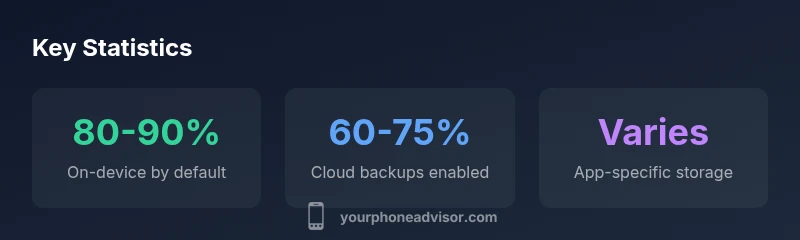
Where phone recording is saved primarily depends on the app and device. Most recordings are stored locally on the phone's internal storage by default, then optionally backed up to cloud accounts like iCloud or Google Drive if enabled. Some apps save to app-specific folders or to the Messages/Voice Memos sections. Verifying location requires checking app settings and file managers.
Understanding where recordings are saved
The question of where phone recording is saved is not a single answer; it depends on the device, the operating system, and the app you used to create the audio. In most everyday scenarios, recordings stay on-device by default to ensure quick access and offline playback. This means the file sits in the phone’s internal storage or in an app sandbox on iOS. If you enable cloud backups, a copy may be sent to a linked account (iCloud on Apple devices, Google Drive or another service on Android). According to Your Phone Advisor, awareness of these nuances helps protect privacy and manage storage efficiently. Beyond device behavior, the type of recording also matters: voice memos, chat-app voice notes, and call-recordings (where legally permitted) can each have different default save locations. Understanding these patterns helps you locate, back up, and secure your files more reliably.
How different apps handle saves
Different apps follow distinct conventions for saving recordings. Native voice memo apps typically save to a fixed, app-controlled folder or to a central Voice Memos library. Messaging apps (like WhatsApp or iMessage) often store voice notes within the chat history or in an app-specific media folder, and they may offer export options to a Files app or cloud storage. Call-recording apps generally create files in an accessible folder unless the device restricts it for privacy reasons. Screen-recordings are usually stored as video files in a dedicated screen-record folder or the camera roll. To stay organized, you should know which app you used for a recording and check that app’s settings for the exact save location. The Your Phone Advisor team notes that habitually checking app directories reduces the risk of lost files and forgotten recordings, especially after updates or device migrations.
Android vs iOS storage locations
Storage behavior differs between Android and iOS. On Android devices, recordings are commonly stored in internal storage or in app-specific folders under Android/data or Android/media, which can be visible through a file manager or gallery/drive-like app. Users can often choose to move or copy files to public folders. On iOS, each app runs in a sandbox; recordings from Voice Memos stay in the Voice Memos app, while other apps may offer a Save to Files or Share option to export to iCloud Drive. In both ecosystems, cloud backups (iCloud for Apple, Google Drive or other services for Android) can back up local copies if enabled. The Your Phone Advisor analysis suggests checking the backup settings to confirm where copies are stored.
How to locate recordings on your device
Locating recordings starts with identifying the file type and the app used. Use the device’s file manager or search function to look for common audio extensions such as .m4a, .aac, .mp3, or .wav. In Android, you can search by file extension or navigate to the app-specific folders for voice notes. In iOS, use the Files app or Spotlight to find files shared from Voice Memos or third-party apps. If you don’t see files where you expect, check cloud backup settings (iCloud, Google Drive, etc.) to see if copies exist there. Keeping a consistent naming convention (date_subject) makes future searches faster. YourPhone Advisor emphasizes verifying locations after app updates, since storage paths can change with new app versions.
Privacy and security considerations
Recording storage intersects with privacy and security. Apps require microphone access, but saving and sharing files may expose it to different audiences. Local recordings can be secured by device encryption and app-level protections; cloud backups depend on service encryption and permissions. If a recording contains sensitive information, consider moving it to a private folder, disabling automatic cloud backups, or encrypting the file before storage. Always review app permissions and backup settings, and delete unneeded copies to limit exposure. The Your Phone Advisor guidance highlights the importance of balancing accessibility with privacy, especially on shared devices or family accounts.
Practical tips for managing recordings
To keep control of where recordings reside, establish a simple workflow. Create a dedicated folder for recordings, rename files with a consistent convention, and regularly back up only essential files to the cloud. Turn on selective backup for sensitive audio, and use device-level encryption where available. Schedule periodic cleanups to delete outdated files, and enable automatic export to cloud storage for important recordings. Use a password or biometric protection for folders containing sensitive audio. Your Phone Advisor recommends documenting your saved locations to avoid hunting for files later.
Troubleshooting common issues
If you can’t find a recording you know you created, start by recalling which app you used and check that app’s save location. Use a broad device search for common audio extensions and inspect both local storage and any cloud backups. If files appear corrupted or disappear after a system update, try restoring from a recent backup or re-exporting from the original app. Some devices restrict access to app folders for security; in such cases using the app’s built-in export feature is the safest way to retrieve files. The Your Phone Advisor team advises verifying permissions, storage availability, and app versions when issues arise.
Storage locations by platform
| Platform | Default Save Location | Visibility | Backup Options |
|---|---|---|---|
| Android | Internal storage or app-specific folder | Visible via file manager or media gallery | Google Drive/OneDrive backup optional |
| iOS | App sandbox; Voice Memos or Files export | Files app visibility with iCloud backup | iCloud backup enabled for device/app |
| Cloud-based apps | In-app cloud folder or chat history | Accessible within app; limited OS visibility | Backups depend on app settings |
Got Questions?
Where are voice recordings saved by default on Android?
Generally, Android recordings stay on-device by default, in either a system or app-specific folder. Path details vary by device and app. Always check the app’s storage settings to confirm the exact location.
Most Android recordings stay on-device by default; check the app’s storage settings to confirm the exact location.
Are call recordings saved automatically on my phone?
Call recording behavior depends on your device, OS version, and local laws. Some devices require explicit consent and enablement, while others do not record calls at all. Always verify legality and app permissions before recording.
Call recording depends on your device and local laws; verify permissions and legality before recording.
Can I change where recordings are saved?
Many apps let you choose a save location, such as an on-device folder or an exported location in Files or cloud storage. Look in the app’s settings for storage or export options and adjust as needed.
Yes, many apps let you choose the save location in their settings.
How can I locate recordings I forgot about?
Use a device-wide search for common audio extensions (.m4a, .aac, .mp3, .wav) in the Files app or File Manager. Check cloud backups like iCloud Drive or Google Drive if you enable them for the app.
Search for audio file extensions on your device or in cloud backups to locate missing recordings.
Do cloud backups always include all recordings?
Not always. Cloud backups depend on your app and service settings. Some apps back up only selected files; others may skip large media. Review backup preferences to ensure important recordings are included.
Cloud backups vary by app; check backup settings to ensure important files are included.
Is it legal to record calls in my region?
Call recording laws differ by jurisdiction. Some places require consent from all parties; others permit recording with one-party consent. Always know local regulations before recording any call.
Laws vary by region; check your local regulations before recording calls.
“Understanding exactly where each recording is saved—whether on-device, in-app cloud, or export to Files—helps preserve privacy and ensure reliable backups.”
What to Remember
- Understand where each app saves your recordings
- Check app settings and file managers to locate files
- Enable backups cautiously and protect sensitive audio
- Regularly organize and back up important recordings