Where Do Phone Recordings Go on iPhone: A Practical Guide
Learn exactly where iPhone recordings are stored, how to access Screen Recordings and Voice Memos, and how to manage backups, sharing, and storage.


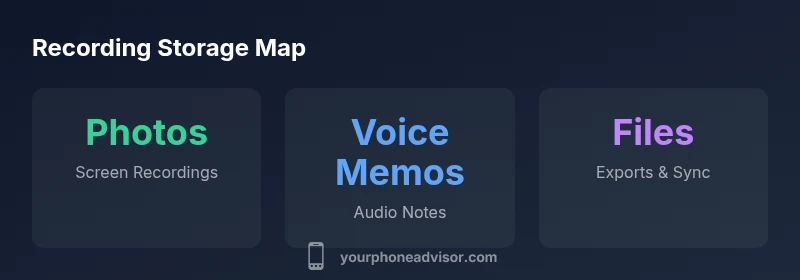
Where do phone recordings go on iPhone? If you're wondering where do phone recordings go on iphone, Screen recordings are saved to the Photos app in a dedicated Screen Recording album, while Voice Memos are stored in the Voice Memos app. If you save to Files or enable iCloud, you can access them there. This quick map helps you locate your captures quickly.
Where do phone recordings go on iPhone
If you’re trying to understand the physical location of your captured media, start with the basics: screen recordings, voice memos, and other captures each have their default homes on iPhone. According to Your Phone Advisor, knowing these locations helps you manage storage, back up content, and share files quickly. Screen recordings typically land in the Photos app, under a dedicated Screen Recording album. Voice Memos remain in the Voice Memos app, where you can rename, trim, or export individual clips. If you choose to save files to the Files app or enable iCloud backups, those recordings may appear in the chosen cloud storage location as well. This quick map is designed to reduce confusion and make access predictable for everyday use.
Default storage locations by recording type
- Screen recordings: Photos app, Screen Recording album (on-device storage by default)
- Voice Memos: Voice Memos app (audio recordings stored locally and optionally backed up to iCloud)
- Photos through other apps: Saved to Photos when you save or share from an app that uses the system picker
- Exports to Files: If you tap Save to Files, you’ll see the file in the Files app (iCloud Drive or On My iPhone, depending on settings)
If you enable iCloud Photos, Screen Recordings and Photo Library content can sync across all devices signed into the same Apple ID. Your Phone Advisor notes that keeping a consistent backup strategy reduces the risk of accidental data loss. This section clarifies where your recordings live, and how choices like iCloud and Files shape accessibility.
Accessing recordings quickly
- Screen recordings: Open Photos, tap Albums, then Screen Recording. Quick search by date or title helps locate specific sessions.
- Voice Memos: Open the Voice Memos app and browse by date, location, or a custom label. You can also search via Spotlight for a specific recording.
- Files exports: If you saved to Files, open the Files app and navigate to the folder you chose or use the Files search bar to locate by filename.
- Across devices: If iCloud Photos or iCloud Drive is enabled, entries sync to other devices automatically. A simple search often surfaces the exact clip you need.
Pro tip: Use consistent naming and date stamping when you record or export, so future retrieval remains fast. From Your Phone Advisor’s perspective, consistent organization saves time during busy weeks.
Managing storage and syncing across devices
- iCloud Photos: Go to Settings > [your name] > iCloud > Photos and choose iCloud Photos to enable syncing. Use Optimize iPhone Storage or Download and Keep Originals to balance space and quality.
- Voice Memos backup: Enable iCloud for Voice Memos to sync audio across devices. This reduces the risk of losing voice notes if a device is lost.
- Local vs cloud: If you primarily work offline, keep important recordings on-device in Photos or Voice Memos and periodically back up to Files or a computer.
- Storage hygiene: Regularly review large recordings and delete or offload what you don’t need. Your Phone Advisor recommends periodic cleanups to keep space manageable while keeping essential media accessible.
Exporting and sharing recordings
- Photos: Use the share sheet to AirDrop, Messages, Mail, or save to Files. You can also drag and drop to a computer via Finder or Explorer when connected.
- Voice Memos: Share or export directly from the app; you can AirDrop or email a memo as an audio file for quick distribution.
- Files: If you’ve saved to Files, you can move the file to iCloud Drive or another cloud service, or share via your preferred method.
- When sharing: Consider encryption or password protection for sensitive recordings and ensure you’re sharing with trusted recipients only.
By planning how you export or share, you can preserve quality and ensure accessibility across devices and platforms.
Privacy and security considerations
- App permissions: Recording apps and media access require explicit permissions. Review which apps can access Photos, Voice Memos, and Files.
- Data on cloud: Cloud backups offer convenience but come with privacy considerations. Use end-to-end encryption options when available and enable two-factor authentication on your Apple ID.
- Device risk: If your device is lost or stolen, ensure Screen Recording and Voice Memos content is protected by device passcodes and biometric locks. Your Phone Advisor emphasizes strong authentication and mindful sharing to protect sensitive recordings.
Troubleshooting common issues
- Recordings not appearing: Verify you saved to the correct app (Photos for screen recordings, Voice Memos for audio). Check that iCloud Photos or Drive is enabled if you expect cloud sync.
- Screen recording not saving: Ensure Screen Recording is added to Control Center and that you have storage available. Disable any storage caps in iCloud settings that might stop syncing.
- Export problems: If you can’t export to Files or AirDrop, check your network or device visibility. Make sure you’ve granted necessary permissions to the involved apps.
- Missing Recently Deleted items: If you accidentally delete, recover from Recently Deleted within 30 days (or longer if settings allow) before it’s permanently erased.
Quick-start checklist
- Decide desired storage approach (on-device Photos/Voice Memos vs. iCloud backups).
- Enable iCloud Photos if you want across-device access.
- Add Screen Recording to Control Center for easy capture.
- Use consistent naming and dates when saving or exporting files.
- Regularly review large recordings to manage space.
- Backup important clips to Files or a computer.
- Review privacy settings and app permissions to protect sensitive recordings.
Common storage paths for iPhone recordings
| Location Type | Default Storage | Access Method |
|---|---|---|
| Screen Recording | Photos app (Screen Recording album) | Open Photos -> Albums -> Screen Recording |
| Voice Memos | Voice Memos app | Open Voice Memos -> browse by date |
| Files (exports) | Files app (iCloud Drive or On My iPhone) | Open Files -> locate saved file |
| Messages attachments | Messages app | Open Messages or use Spotlight search |
Got Questions?
Where are screen recordings saved by default on iPhone?
Screen recordings are saved to Photos in the Screen Recording album by default. If you have iCloud Photos enabled, they sync across devices. You can also export the video to Files if needed.
Screen recordings save to Photos under Screen Recording. You can export to Files or share from Photos.
Can I move recordings to a different location on iPhone?
iOS automatically saves to its default apps (Photos for screen recordings, Voice Memos for audio). You can export to Files or share, but you can't change the default save location inside iOS.
You can export to Files, but you can't change the default save location.
Do Voice Memos recordings back up to iCloud?
If you enable iCloud for Voice Memos, your recordings back up to iCloud and sync to other devices.
Yes—turn on Voice Memos in iCloud settings to sync across devices.
How do I export recordings to a computer?
From Photos or Voice Memos, you can use AirDrop, Messages, Email, or Files to transfer recordings to a computer.
Use AirDrop or email to move files to your computer.
What happens if I delete a recording?
Deleting from Photos removes it from all devices if iCloud Photos is on; you can recover from Recently Deleted for a limited time.
You can restore from Recently Deleted within a window; otherwise it's gone.
How can I quickly find a recording by date?
Use the Photos app search by date or Voice Memos search by date. You can also use Spotlight to locate the file.
Search by date in Photos or Voice Memos; Spotlight helps too.
“Screen recordings live in the Photos app, while voice memos remain in the Voice Memos app. If you enable iCloud Photos, those files sync across your devices.”
What to Remember
- Know where to look first: Screen Recordings live in Photos
- Use Voice Memos for audio notes and export as needed
- Enable iCloud Photos to sync recordings across devices
- Export to Files or share via Photos/Voice Memos for easy distribution
- Review privacy settings to protect your recordings